
Steps to bind and install your own SSL Certificate to the MyWorkDrive client site in IIS
This article demonstrates how to import a certificate to IIS on your Windows Server and how to bind that certificate to your MyWorkDrive site in IIS. The instructions are fundamentally the same for all servers 2012 and later. Assuming you have allowed your server to communicate through port 443 on your firewall, and you have set up an A or CNAME record pointing to your server in your DNS hosting records, you will successfully be able to reach your MyWorkDrive site on the Internet at the conclusion of this article.
-
This article assumes several prerequisite tasks:
- MyWorkDrive has been installed on your server.
- IIS has been installed (this is done automatically within the MyWorkDrive installation).
-
You’ve purchased your own SSL certificate and public domain name to which the certificate corresponds from the vendor of your choice. See e.g. https://www.digicert.com/ssl-certificate/ for steps on purchasing your own certificate (a possible SSL certificate vendor) or GoDaddy for instructions on creating a certificate request for your server.
- Self-signed certificates are not supported by the Map Drive or Mobile clients and are not advised.
- You've set up your host record in DNS - e.g., share.yourcompanydomain.com to your WAN IP or cname to your host name and created firewall rules forwarding port 443 to the MWD Server LAN ip address. You may also wish to enable HTTP access over port 80 and redirect HTTP to HTTPS to make it easier for users. See our http redirect article for details.
Automating Certificate Renewal (Recommended)
Public SSL/TLS certificate lifetimes are getting shorter. Under CA/Browser Forum Ballot SC-081v3, the maximum validity of a publicly trusted certificate dropped from 398 days to 200 days on March 15, 2026. It drops to 100 days on March 15, 2027, and to 47 days on March 15, 2029. At those intervals, manually importing and binding a certificate (as described in the steps below) becomes a frequent, error-prone task. An expired certificate will prevent the web client, Map Drive client and mobile clients from connecting.
We strongly recommend automating certificate issuance and renewal with an ACME client. ACME (Automated Certificate Management Environment) is the industry-standard protocol that certificate authorities use to validate domain ownership and to issue and renew certificates automatically. MyWorkDrive does not require or endorse a specific ACME client or certificate provider. Any client that can install the certificate into the Windows certificate store and update the IIS binding will work. Examples of Windows/IIS-capable clients include simple-acme, win-acme, Certify The Web and Posh-ACME.
Things to consider when setting up automation:
- Certificate provider: Both free and commercial certificate authorities support ACME. Many commercial providers issue External Account Binding (EAB) credentials that link your ACME client to a purchased certificate. For one example, see GoDaddy's ACME setup instructions. Check with your provider for their ACME details.
- Validation method: HTTP validation requires inbound port 80 to reach the MyWorkDrive server. If port 80 is not open, or the server is not directly reachable from the internet, use DNS validation instead. DNS validation creates a TXT record through your DNS provider's API.
- IIS binding: Configure the client to update the existing HTTPS (port 443) binding on the Wanpath.WebClient site, using the hostname that matches your certificate (e.g., share.yourcompanydomain.com). Do NOT remove the binding to port 8357.
- Load balancers and multi-node deployments: The renewed certificate must reach every MyWorkDrive node. If your load balancer or multi-node proxy terminates SSL/TLS, it must also reach that device. DNS validation avoids validation requests being routed to the wrong node.
- Reverse proxies: If SSL/TLS terminates at a reverse proxy (for example, Nginx), automate renewal on the proxy rather than on the MyWorkDrive server.
- Verify and monitor: After setup, run a test renewal and confirm the scheduled renewal task exists. Enable failure notifications or certificate expiry monitoring so a failed renewal is caught before the certificate expires.
If you choose to manage certificates manually, the steps below still apply. Plan to repeat them at each renewal.
Steps
- Open Server Manager.
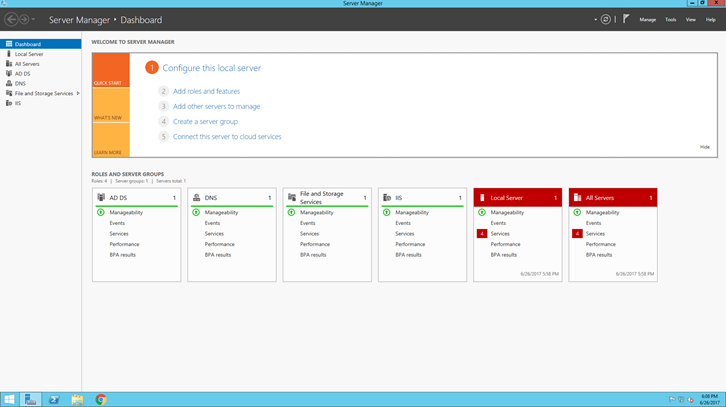
- In the top-right, click Tools.
- Click Internet Information Services (IIS) Manager.

- Click on your server in the left pane.

- Double-click on Server Certificates.
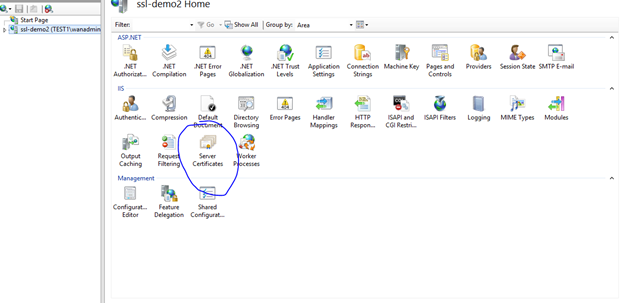
- Click Import in the Actions pane on the right.

- Browse to your certificate file.
- Provide the password if necessary.
- Use the Personal certificate store.
- Click OK.

- You should now see your imported certificate under Server Certificates.

- Expand the left pane so that you have the view below.
- Click on Wanpath.WebClient in the left pane.

- In the Actions pane on the right, click Bindings.

- Click Add.
- Do NOT delete the binding to port 8357.

- Complete the fields. Select HTTPS as the type.
- Select All Unassigned for the IP address. Port 443 will be entered automatically.
- Input the hostname corresponding to the SSL Certificate’s fully-qualified domain name.
- Select your recently-imported SSL certificate for SSL certificate.
- Click OK.

- Your certificate is now bound to port 443. To browse to your site, in this case https://fs.mwdqa.com, a correct CNAME or A record must be set in your hosting provider’s DNS records, and incoming firewall/port forwarding rules must exist to allow access from the internet (including Windows Server firewall rules on the MWD Server).

We advise reviewing the Securing IIS article when using a direct connection.