
Desktop Web File Manager Browser Client
MyWorkDrive offers secure, fast, and easy web access to your company’s files stored on Windows file servers. Our browser-based web file access interface allows you to remotely view, edit, and share work files from any web browser.
Browser Requirements
To ensure the best experience, we recommend using the following browsers:
-
Chrome 85+ (Best)
-
Edge 87+
-
Firefox 83+
-
Safari 12+
Web File Access Usage
Login
To connect to your MyWorkDrive server, open your browser and enter the server address provided by your administrator (typically something like https://share.yourcompany.com). Log in using the same username and password you use to access your work PC. Please note that logins are limited to two browser sessions per user for security purposes.
Folders
After logging in, you'll see a list of shared folders on the left. If your administrator has enabled home drive support, a "Home" folder will also appear alongside the file shares.
To view files, click on a folder share. By default, the files will be displayed in a file explorer view showing the date and time. You can switch to different views (small, medium, or large Icons) to preview images.
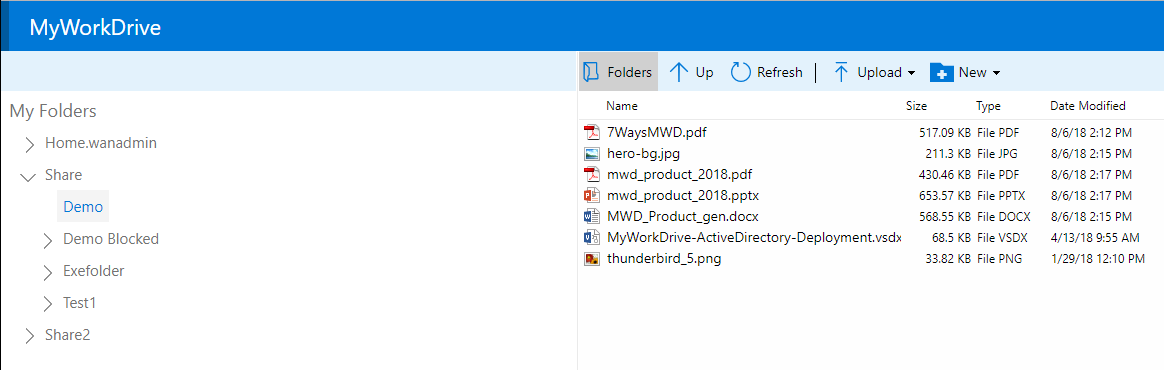
The menu bar and right-click provide access to numerous options as you navigate folders and files, including upload, download, cut, paste, rename, share, favorites, and item properties, depending on your company setup and permissions.
Working with Files
Click an item to bring up the menu of available options. You may also right-click on an item.

Upload Files
After selecting the folder location, click the upload button or right-click to upload files from any browser. If you have the Chrome browser, it also supports uploading folders. You may also use the drag & drop functionality to upload files and folders directly into web file manager folders.
New Files and Folders
Select the folder where you would like a new file to be created and choose from Word, Excel, or PowerPoint. You may also create new folders.
Download to PC
Highlight the item you wish to download and choose Download to PC. Note: This item may be restricted by your network administrator for some folders. When you select multiple files, download will download them as a zip file. Use care to ensure you have sufficient internet speed to download files within the timeout set by your system administrator.
Download to OneDrive
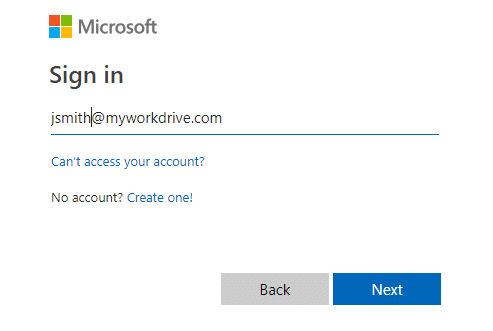
You can download files directly to your OneDrive account, in addition to downloading them to your PC, if the administrator has enabled this option. Once downloaded to OneDrive, the files can be shared or accessed offline through OneDrive Sync. To do this, select the item and choose Download to OneDrive. You will be prompted to sign in with your Microsoft OneDrive account, which is usually the same account you use to log in to your company email if you're on Office 365.
Edit and View Online
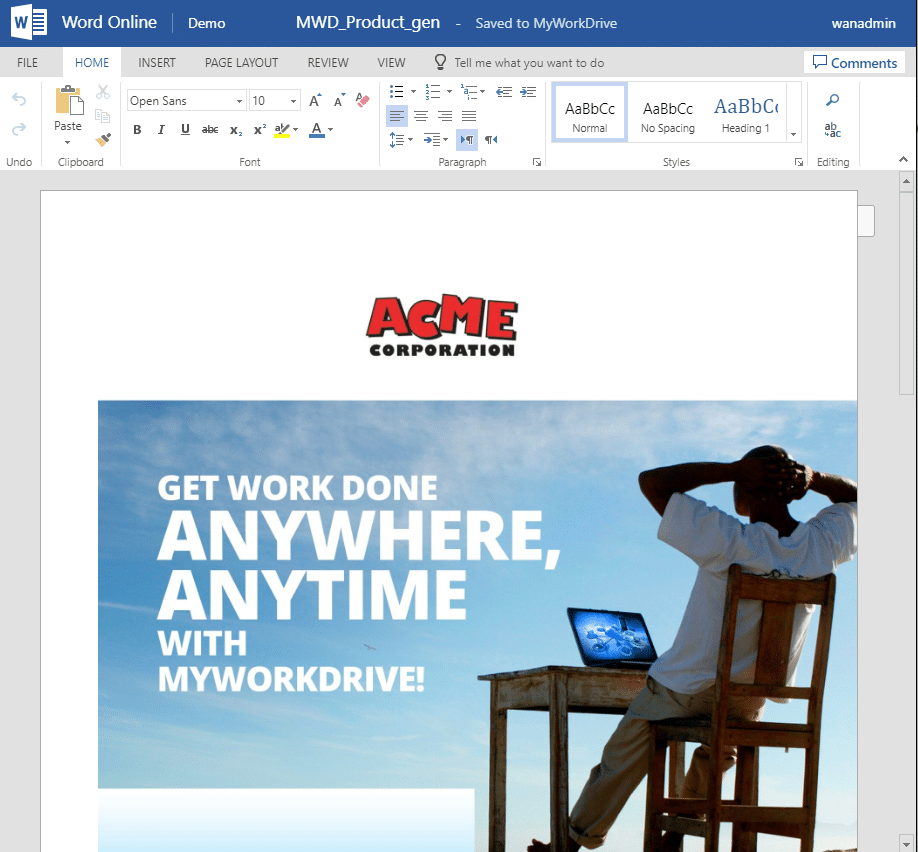
MyWorkDrive allows you to edit Office files directly in your browser, provided this feature is enabled by your system administrator. To edit a document, simply double-click on it or select Edit Online. You may be asked to sign in to your Office 365 account to confirm you have a valid editing license. If you don't have an Office 365 license, you can still view the file, but editing will not be available. There is no need to click a Save button — all changes are automatically saved to your company’s servers as you work on the document.
View Online
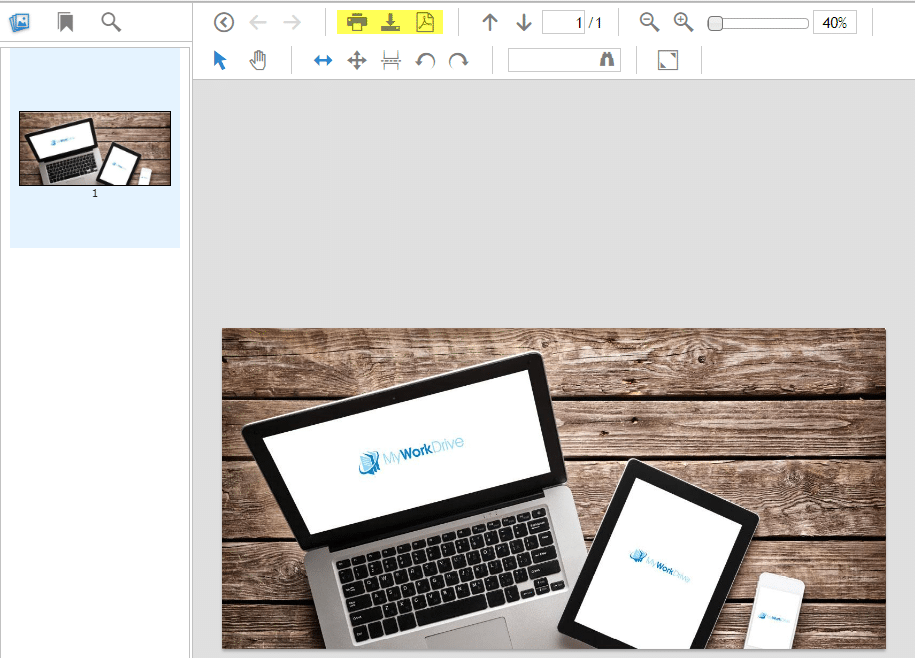
In version 5 and greater, MyWorkDrive supports viewing over 60 file types directly in the browser, including PDF, AutoCAD, images, and more. Simply select a file and click View Online to open it in our specialized viewer. Depending on your permissions, you can download, print, or save the file as a PDF once it's open.
Supported File Types for View Online
Portable Formats
| Format | Extensions |
|---|---|
| Adobe Portable Document Format (PDF) | |
| Microsoft XML Paper Specification (XPS) | .xps |
| Microsoft Open XML Paper Specification (OpenXPS) | .oxps |
Word Processing Formats
| Format | Extensions |
|---|---|
| Microsoft Word Document | .docx |
| Microsoft Word Macro-Enabled Document | .docm |
| Microsoft Word Template | .dotx |
| Microsoft Word Macro-Enabled Template | .dotm |
| Microsoft Word 97-2003 Document | .doc |
| Microsoft Word 97-2003 Template | .dot |
| Rich Text Document | .rtf |
| OpenDocument Text | .odt |
| OpenDocument Text Template | .ott |
Spreadsheet Formats
| Format | Extensions |
|---|---|
| Microsoft Excel Worksheet | .xlsx |
| Microsoft Excel Macro-Enabled Worksheet | .xlsm |
| Microsoft Excel Template | .xltx |
| Microsoft Excel Macro-Enabled Template | .xltm |
| Microsoft Excel Macro-Enabled Add-In | .xlam |
| Microsoft Excel Binary Worksheet | .xlsb |
| Microsoft Excel 97-2003 Worksheet | .xls |
| Microsoft Excel 97-2003 Template | .xlt |
| Comma Separated Values File | .csv |
| Tab Separated Values File | .tsv |
| Data Interchange Format | .dif |
| OpenDocument Spreadsheet | .ods |
| OpenDocument Spreadsheet Template | .ots |
Presentation Formats
| Format | Extensions |
|---|---|
| Microsoft PowerPoint Presentation | .pptx |
| Microsoft PowerPoint Macro-Enabled Presentation | .pptm |
| Microsoft PowerPoint Template | .potx |
| Microsoft PowerPoint Macro-Enabled Template | .potm |
| Microsoft PowerPoint Slide Show | .ppsx |
| Microsoft PowerPoint Macro-Enabled Slide Show | .ppsm |
| Microsoft PowerPoint 97-2003 Presentation | .ppt |
| Microsoft PowerPoint 97-2003 Slide Show | .pps |
| OpenDocument Presentation | .odp |
| OpenDocument Presentation Template | .otp |
Diagram Formats
| Format | Extensions |
|---|---|
| Microsoft Visio Drawing | .vsdx |
| Microsoft Visio Macro-Enabled Drawing | .vsdm |
| Microsoft Visio Template | .vstx |
| Microsoft Visio Macro-Enabled Template | .vstm |
| Microsoft Visio Stencil | .vssx |
| Microsoft Visio Macro-Enabled Stencil | .vssm |
| Microsoft Visio 2003-2010 XML Drawing | .vdx |
| Microsoft Visio 2003-2010 XML Stencil | .vsx |
| Microsoft Visio 2003-2010 XML Template | .vtx |
| Microsoft Visio 2003-2010 Drawing | .vsd |
| Microsoft Visio 2003-2010 Stencil | .vss |
| Microsoft Visio 2003-2010 Template | .vst |
| Microsoft Visio 2010 Web Drawing | .vdw |
Project Management Formats
| Format | Extensions |
|---|---|
| Microsoft Project Document | .mpp |
| Microsoft Project Template | .mpt |
| Microsoft Project Exchange File | .mpx |
Email Formats
| Format | Extensions |
|---|---|
| Microsoft Outlook E-mail Message | .msg |
| E-mail Message | .eml |
| Apple Mail E-mail File | .emlx |
Ebook Formats
| Format | Extensions |
|---|---|
| Electronic Publication (EPUB) | .epub |
Markup Formats
| Format | Extensions |
|---|---|
| HyperText Markup Language (HTML) | .html, .htm |
| Mime HTML (MHTML) | .mht, .mhtml |
Text Formats
| Format | Extensions |
|---|---|
| Plain Text Document | .txt, .xml |
CAD Formats
| Format | Extensions |
|---|---|
| AutoCAD Drawing (R13 to 2018) | .dwg |
| AutoCAD Drawing Interchange (R12 to 2018) | .dxf |
| STL File Format (3D Printing) | .stl |
Scanner Image Formats
| Format | Extensions |
|---|---|
| Tagged Image File Format (TIFF) | .tif, .tiff |
| Digital Imaging and Communications in Medicine (DICOM) | .dcm |
Vector Image Formats
| Format | Extensions |
|---|---|
| PostScript (PS) | .ps |
| Scalable Vector Graphics (SVG) | .svg |
| Windows Enhanced Metafile (EMF) | .emf |
Raster Image Formats
| Format | Extensions |
|---|---|
| Adobe Photoshop Document (PSD) | .psd |
| Joint Photographic Experts Group (JPEG) | .jpg, .jpeg, .jpe, .jfif |
| Portable Network Graphics (PNG) | .png |
| Graphics Interchange Format (GIF) | .gif |
| Web Image Format by Google (WebP) | .webp |
| Truevision Graphics Adapter (TARGA) | .tga, .vda, .icb |
| Bitmap Picture (BMP) | .bmp |
| Portable Bitmap Format (PBM) | .pbm, .ppm, .pgm |
| Windows Metafile (WMF) | .wmf |
Share Internally
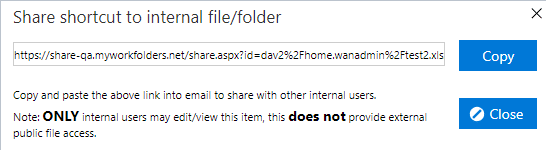
If you wish to share a file for easy viewing or co-editing online in Office 365 with a user who already has access to the same files on your company server, choose Share > Internally. A link will be generated that you can then copy and paste to send to the user.
Share with OneDrive
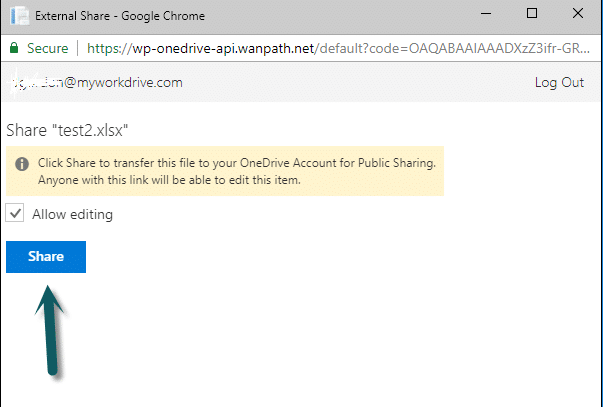
To share a file (up to 50 MB) externally, select the file and click Share > OneDrive. This will upload a copy of the file to your OneDrive account and generate a shareable link. You can then send this link to the external person.
For advanced sharing options, go to the file in your OneDrive account. By default, the recipient will have editing access. To change this to a view-only link, uncheck the Allow Editing box. Once you've adjusted the settings, click Share to upload the file to OneDrive and create the public link.
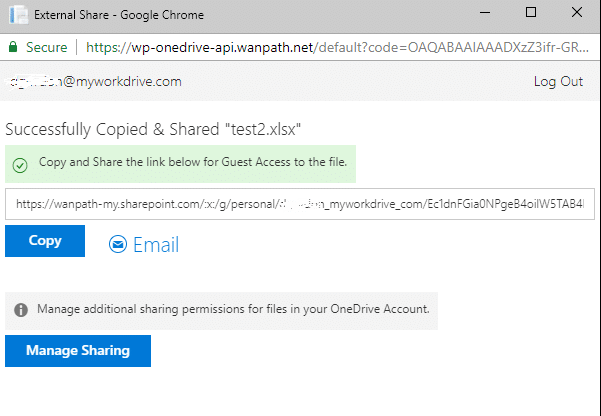
When the OneDrive upload is complete, you'll see a sharing link that you can copy and paste into an email. Alternatively, you can directly email the link from the window. You can also click 'Manage Sharing' to review your files in OneDrive and adjust sharing permissions.
Share with Outlook
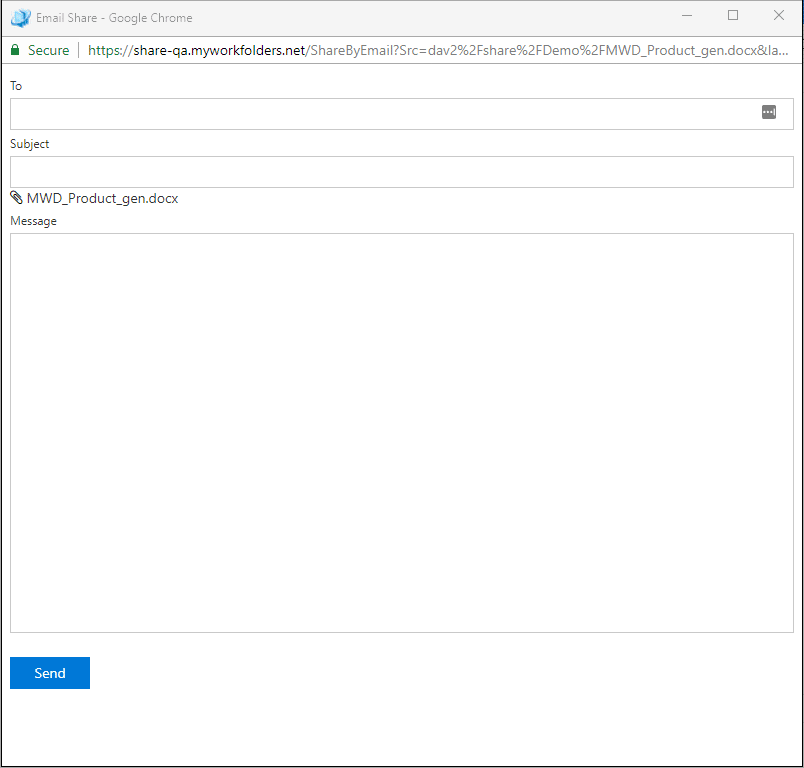
If you have an Office 365 Account, you may also share using Outlook Online. Select a file to share and choose Share > Outlook. The file will be attached automatically. Enter the recipient's email address, subject, and message. Click Send. You will then be prompted to log in to your Office 365 Account (typically your company email address and password).
Copy/Cut/Paste/Delete
After selecting the files, you can copy them to the clipboard. Then open the new folder, right-click, and choose Paste to place a copy in that location. Be cautious when using Cut or Delete, as those options remove the original files.
Views
You may wish to change the view from the detailed view to the icon view. This is particularly helpful when viewing folders with images. The Views option is on the right.

Logoff
Choose Logoff to sign out of the web file manager, especially when using a public computer. Your system administrator controls how long your session can stay active. Once it times out, you will need to log in again. For security, only one web file manager session is allowed per user. If you log in on another device, your previous session will automatically be logged out.