

By Ron Bhojwani
Last Updated: November 3, 2026
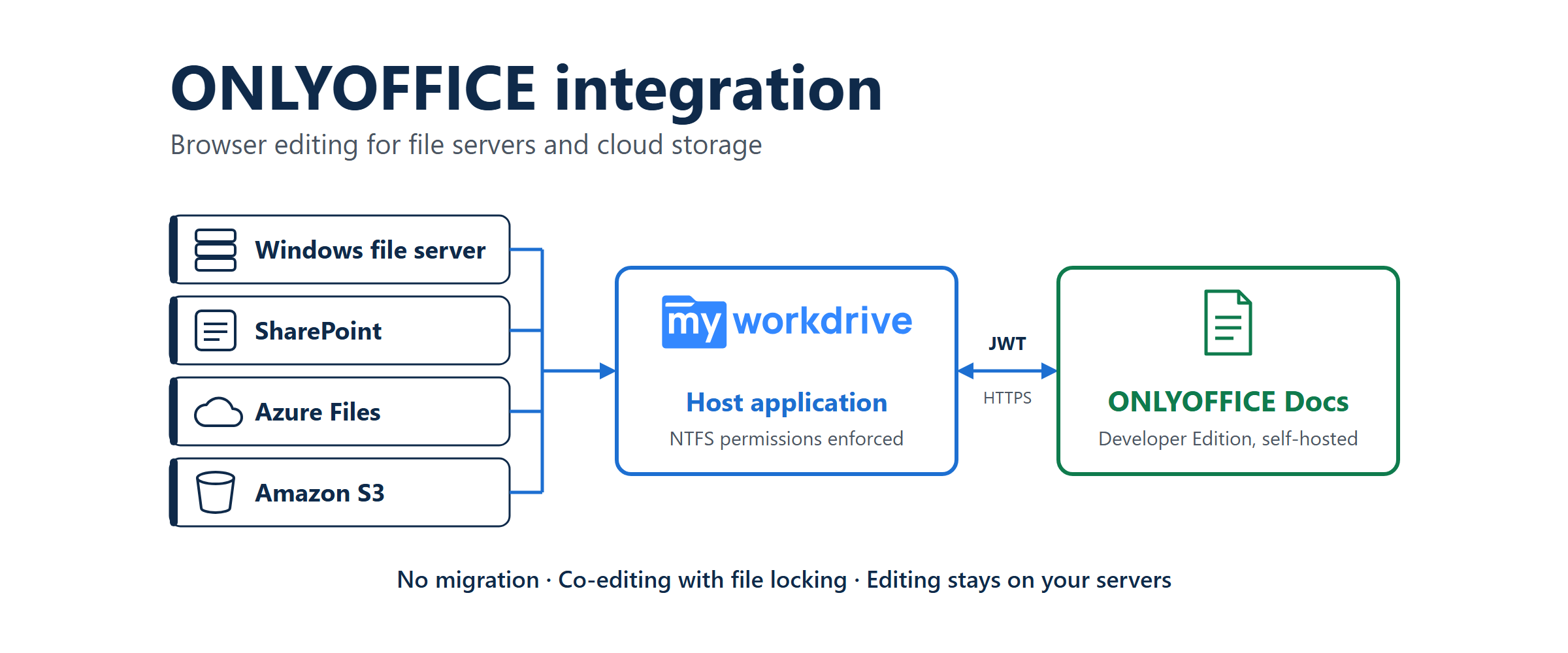
ONLYOFFICE Docs is a browser-based editor with no storage of its own. To edit files that live on a Windows file server, SharePoint, Azure Files or S3, it needs a host application that authenticates the user, hands the editor the file, and writes the saved result back to storage. ONLYOFFICE sells the Developer Edition for this kind of integration, and that is the edition MyWorkDrive's integration is built on. With MyWorkDrive as the host, existing shares and cloud storage get in-browser editing and co-editing. NTFS permissions stay in place, no files are migrated, and no Microsoft 365 licenses are required.
This guide covers what an ONLYOFFICE integration needs: the license, how it reaches each storage type, how authentication and file locking work, and what to deploy.
What ONLYOFFICE Integration Requires: Developer Edition and Licensing Limits
An ONLYOFFICE integration has two parts. ONLYOFFICE Docs, also called the Document Server, renders the editors and runs co-editing. A host application owns the files and the users. When someone opens a document, the host gives the editor a link to fetch the file, a document key that identifies the editing session, and a callback address where the editor sends the saved result. Any storage the host can read becomes editable. Storage without a host can't be edited.
The license you need depends on what kind of host you are running.
MyWorkDrive's ONLYOFFICE integration guide states that the integration "utilizes the ONLYOFFICE Developer Edition, which supports 3rd party API integration," and names a Developer Edition license (free trials available) as the requirement for production use with full support. The guide also allows ONLYOFFICE Community Edition. It still describes a 20-user limit there, but that cap no longer applies from Community Edition 9.4, which removed the 20-connection limit in May 2026.
Community Edition is now a realistic option for a pilot. It is less suited to production because it comes with no vendor support, and it carries the attribution and labeling terms that 9.4 added to its AGPLv3 license. Our guide to self-hosted document editing and data sovereignty compares ONLYOFFICE and Collabora licensing side by side.
“With this option, customers can run their own ONLYOFFICE Docs Server that provides the same functionality as Office Online at a reduced cost without the need for Office 365 licenses.”
Size the license on concurrent open documents, not named users. ONLYOFFICE counts a connection as one browser tab with a document open. One person with three documents open uses three connections. Find the peak number of documents open at the same time across the organization, then add headroom for month-end and other busy periods.
Connecting ONLYOFFICE to Windows File Servers
ONLYOFFICE Docs cannot open a path like \\fileserver\finance\budget.xlsx. It has no SMB client and no Active Directory awareness. Teams usually choose one of three routes to a file server:
- Migrate the files into an ONLYOFFICE workspace or another document platform. This works, but it means re-creating permissions, retraining users, and running two systems during cutover.
- Add a sync-and-share platform that mounts SMB shares as external storage and ships an ONLYOFFICE connector. That adds a second platform to patch and secure, with its own user directory and sharing model.
- Put a host application in front of the existing shares. The files stay where they are, users keep their NTFS permissions, and the editor sees only the document being edited. MyWorkDrive works this way.
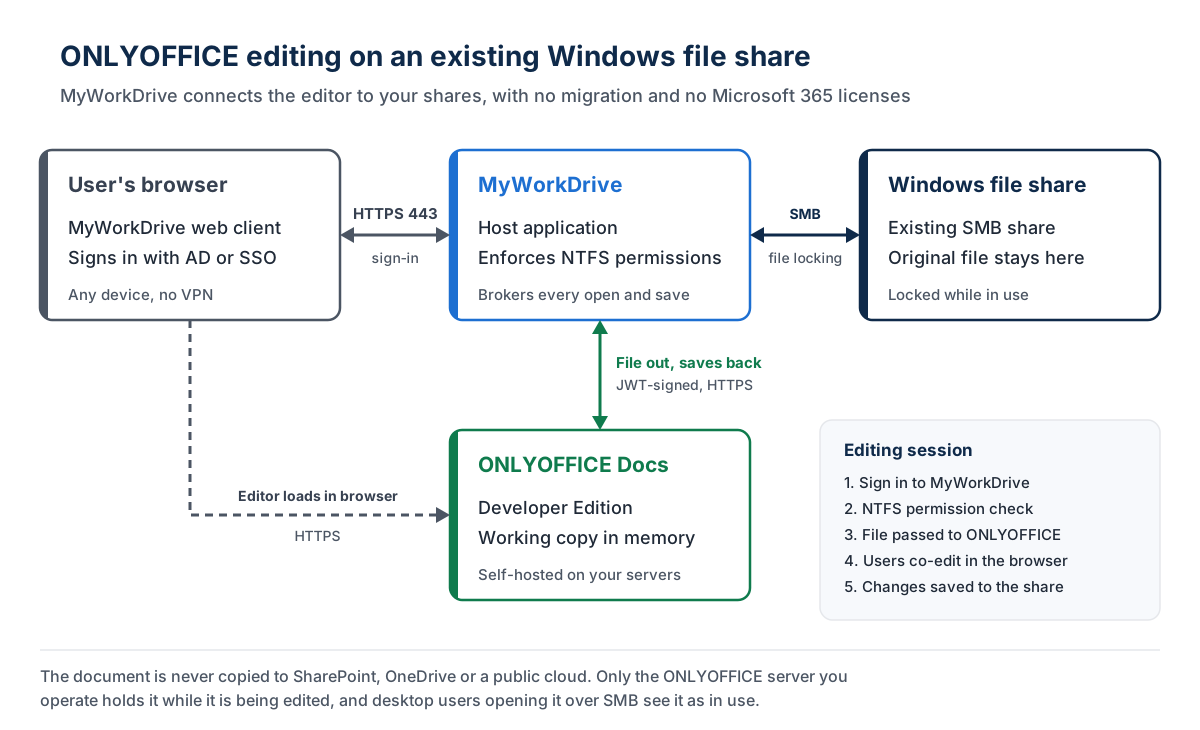
Here is what happens in an editing session through MyWorkDrive:
- The user signs in to the MyWorkDrive web client and selects a Word, Excel, PowerPoint or OpenDocument file on a share.
- MyWorkDrive checks the user's NTFS permissions on that file, which decide whether the user can edit it.
- MyWorkDrive passes the file to your ONLYOFFICE Docs server. MyWorkDrive's editing comparison states that the document is "stored in memory while being edited."
- Other users who open the same file join the session as co-editors.
- ONLYOFFICE sends the saved document back, and MyWorkDrive writes it to the original location on the share.
The integration requires MyWorkDrive Server 6.1.1 or later. Configuration is done in the MyWorkDrive admin panel: as the guide puts it, you "simply point to your ONLYOFFICE Server secure web URL." The guide lists support for docx, xlsx, pptx, odt, ods, odp, doc, xls, ppt, pdf, txt, rtf, html, epub and csv. Legacy .doc, .xls and .ppt files can be edited without converting them first.
A MyWorkDrive server runs one online editing provider at a time. To use Office for the web on general shares and ONLYOFFICE on controlled shares, publish the controlled shares from a second MyWorkDrive server that is configured for ONLYOFFICE.
Connecting ONLYOFFICE to SharePoint, Azure Files, and S3 Storage
Cloud storage raises the same question as a file server: which application connects the editor to the files? Each storage type has a different answer.
SharePoint
On-premises SharePoint Server has an official ONLYOFFICE connector for SharePoint, currently version 3.1.0. Its documented requirements are SharePoint 2019 and ONLYOFFICE Docs 7.1 or later. The Document Server must be reachable from SharePoint and from users' browsers, and it must be able to post directly back to SharePoint.
The connector supports co-editing, track changes, comments, chat, mail merge and document comparison. It does not support version history or inserting images from storage. SharePoint's security policy blocks the standard Authorization header, so a custom header name has to be set in both the connector and the Document Server. On SharePoint Server Subscription Edition, editors usually bind through WOPI, which our SharePoint Server SE guide covers.
The connector's documentation does not cover SharePoint Online or OneDrive. MyWorkDrive can publish SharePoint and OneDrive document libraries alongside file shares, so users reach them from the same client and drive letter.
Azure Files
ONLYOFFICE has no Azure Files connector. MyWorkDrive connects to Azure File Shares and presents them to users like any other share, with web, mapped drive and mobile access and no VPN. Run the ONLYOFFICE server in the same Azure region as the file share so that documents stay within one region while they are edited. Our Azure Files guide to Office Online Server end of life compares ONLYOFFICE, Collabora and Office for the web on that storage.
Amazon S3 and S3-compatible object storage
ONLYOFFICE can keep its own conversion cache in an S3 bucket, but that is not the same as editing user files stored in S3. To edit documents kept in buckets, MyWorkDrive Server 7.3 and later integrates natively with S3 using an API key. The KB names Amazon S3, Backblaze B2, Cloudflare R2 and Wasabi among the supported providers.
A bucket appears to users as an ordinary share. Files move in memory as they are accessed and aren't cached or synced to devices. Access to the bucket itself is controlled by the storage key and secret, while MyWorkDrive controls which users see the share.
The ONLYOFFICE integration guide describes editing on Windows file shares. Before you roll ONLYOFFICE out on SharePoint, Azure or S3 storage, test opening, co-editing and saving on each storage type in your pilot.
Authentication, Permissions, and File Locking in ONLYOFFICE Integrations
Authentication: users sign in to the host, not to ONLYOFFICE
ONLYOFFICE Docs has no user directory of its own. In an integration, the user signs in to the host application, and the host vouches for that user to the editor. With MyWorkDrive, that sign-in uses Active Directory or SSO and multi-factor authentication, with the same policies as the rest of file access.
The host and the editor trust each other through signed JSON Web Tokens. ONLYOFFICE has enabled JWT by default since version 7.2 and generates a random secret at installation. The secret is stored in local.json, at /etc/onlyoffice/documentserver/local.json on Linux and %ProgramFiles%\ONLYOFFICE\DocumentServer\config\local.json on Windows. Never edit default.json, because updates overwrite it.
Any host that signs its requests must use the same secret as the Document Server. If the secrets differ, documents fail to open. Confirm the expected JWT settings for your MyWorkDrive version with MyWorkDrive support before go-live.
Permissions: NTFS stays the source of truth
MyWorkDrive enforces existing NTFS and share permissions on every request, so ONLYOFFICE never grants rights a user doesn't already have. A user without write permission can't save changes to the share. On top of NTFS, MyWorkDrive's data leak prevention can do the following:
- Disable online editing for specific shares, users or groups.
- Block printing, Save As and download in the ONLYOFFICE editor. The editing comparison notes that the clipboard is not blocked, so use the DLP module where copy and paste has to be controlled.
- Record every open and save in file access audit logs, which you can forward to a SIEM.
File locking: co-editing inside ONLYOFFICE, locks for everyone else
MyWorkDrive's editing comparison lists file locking as supported with ONLYOFFICE for both online and local users. Several people can co-edit the same document in ONLYOFFICE at once. Anyone outside that session gets standard lock behavior from the MyWorkDrive file locking model:
- MyWorkDrive places and reads SMB locks on Office files. A desktop Office user on a mapped drive sees the standard "in use" prompt, with the choice to open read-only, open a copy, or wait.
- Before opening a file, MyWorkDrive checks for a lock held by another MyWorkDrive user, then for an SMB owner or
~$lock file, then whether it can obtain a write lock. If it can't, the file opens read-only. - Administrators can view locks held by MyWorkDrive clients on the Shares tab, from version 5.4.3. Server 6.2.1.7 and later remove orphaned
~$owner files automatically. - MyWorkDrive places no SMB locks on SharePoint, OneDrive, Azure Files or Azure Blob storage. The KB advises providing access to non-SMB storage exclusively through MyWorkDrive, so that its internal locking covers every user.
Deployment and Configuration Requirements
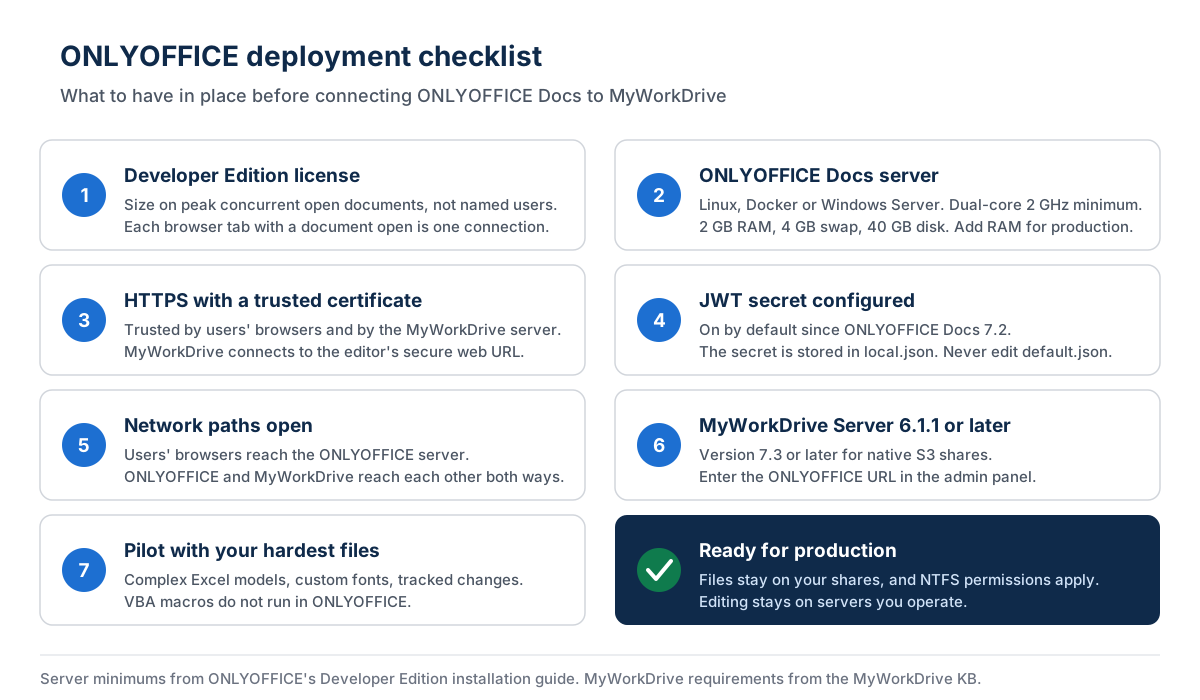
Server specifications come from ONLYOFFICE's Developer Edition installation guide for Ubuntu. Check the guide for your exact version, because 9.4 changed the architecture.
Configuration steps
- Install ONLYOFFICE Docs Developer Edition on a dedicated server or VM inside your network or cloud tenant. Put it on the same side of the boundary as your storage.
- Publish it over HTTPS with a certificate that users' browsers and the MyWorkDrive server both trust.
- Record the JWT secret from
local.json, and keep the inbox, outbox and session secrets consistent. - Apply the Developer Edition license file before production. A trial is fine for the pilot.
- In the MyWorkDrive admin panel, enter the ONLYOFFICE server URL as the online editing provider. Shares and permissions are unaffected.
- Set DLP and online editing rules for each share, user or group.
- Pilot with your hardest files: complex Excel models, presentations with custom fonts, and documents with tracked changes.
Plan for these limits during the pilot
- Macros. ONLYOFFICE uses JavaScript macros and does not run VBA. Workbooks that depend on VBA still need desktop Office, which MyWorkDrive can open from the web client.
- Cache retention. ONLYOFFICE keeps converted files in its cache after editing. Our data sovereignty guide explains the default 24-hour expiry and the separate "forgotten" folder for failed saves. Include both in your retention review.
- Office Online Server migration. Microsoft ends Office Online Server support on December 31, 2026, and many teams are moving to ONLYOFFICE because of it. The change is a provider switch in the MyWorkDrive admin panel. Our Office Online Server alternatives guide compares the replacement options.
For regulated data, a self-hosted ONLYOFFICE deployment keeps the editing session on infrastructure you operate. That fits data sovereignty and CMMC and CUI requirements, which editing modes that stage copies in Microsoft 365 may not meet. Our post on editing on-premises files in Microsoft 365 covers that trade-off.
Frequently Asked Questions
Can ONLYOFFICE open files directly from a Windows file share?
No. ONLYOFFICE Docs has no SMB client and no Active Directory integration. A host application such as MyWorkDrive sits in front of the share, enforces NTFS permissions, passes the file to the editor, and writes the saved result back to the original location.
Which ONLYOFFICE edition do I need for a file server integration?
MyWorkDrive's integration is built on ONLYOFFICE Docs Developer Edition, the commercial license for embedding the editors in another application, and it is required for production use with full support. Community Edition also works with the integration and is useful for pilots, but it has no vendor support.
Does ONLYOFFICE Community Edition still have a 20-user limit?
No. ONLYOFFICE Docs 9.4, released in May 2026, removed the 20 simultaneous connection limit from Community Edition. The same release added attribution and labeling terms to its AGPLv3 license. Earlier versions are still capped at 20 connections.
Can ONLYOFFICE edit files in SharePoint Online, Azure Files, or S3?
Not directly. ONLYOFFICE's official SharePoint connector targets on-premises SharePoint Server, and there is no ONLYOFFICE connector for Azure Files or S3. MyWorkDrive publishes SharePoint and OneDrive libraries, Azure file shares and S3-compatible buckets as shares, giving users one place to open files from any of these sources.
How does ONLYOFFICE authenticate users?
It doesn't authenticate users itself. Users sign in to the host application, such as MyWorkDrive with Active Directory or SSO. The host and ONLYOFFICE Docs trust each other through JSON Web Tokens signed with a shared secret. JWT has been enabled by default since ONLYOFFICE Docs 7.2.
Does file locking work between ONLYOFFICE and desktop Office users?
Yes, on Windows file shares. MyWorkDrive places and reads SMB locks, so a file being edited in ONLYOFFICE shows as in use to desktop Office users on mapped drives, and the reverse also holds. SharePoint, OneDrive, Azure Files and Azure Blob storage get no SMB locks, so give users access to those sources only through MyWorkDrive.
Where is the document stored while it is edited in ONLYOFFICE?
The original stays on your file server or cloud storage. During the session, the working copy is held in memory on the ONLYOFFICE server you operate, with converted files kept temporarily in its cache. No copy is placed in SharePoint, OneDrive or any other Microsoft cloud service.
What MyWorkDrive version supports ONLYOFFICE?
ONLYOFFICE integration requires MyWorkDrive Server 6.1.1 or later. Native S3 storage requires MyWorkDrive Server 7.3 or later.
Start a free trialBook a demoView pricing

Ron is CEO of MyWorkDrive and a product engineer by background: he spent six years in engineering and product leadership at CData Software, then served as MyWorkDrive's Chief Product Officer before stepping into the CEO role. A Dartmouth College alum, he writes for IT leaders navigating file access, data sovereignty, and enterprise IT strategy.