

By Dan Gordon
Last Updated: October 21, 2026
Microsoft retires Office Online Server on December 31, 2026. SharePoint Server Subscription Edition is not retiring with it. Microsoft has committed to supporting SharePoint Server SE until at least December 31, 2035, so on-premises farms need a plan for browser editing that does not depend on Office Online Server.
Office Online Server is what opens Word, Excel, PowerPoint and OneNote files in the browser from a SharePoint Server document library. It also generates the document previews users see in libraries and search results. This guide covers what a SharePoint Server SE farm loses at the retirement date and how to handle the WOPI bindings created by New-SPWOPIBinding. It then looks at the third-party editors that can take over, and at how SharePoint browser editing fits with file shares and cloud storage outside the farm.
| Date | Event |
|---|---|
| October 21, 2025 | Microsoft announces the retirement of Office Online Server. |
| November 2025 | The SharePoint team publishes guidance for SharePoint Server customers on what the retirement means for their farms. |
| July 14, 2026 | SharePoint Server 2016 and SharePoint Server 2019 reach end of support, leaving Subscription Edition as the only supported on-premises version. |
| December 31, 2026 | Office Online Server retires. Security updates, bug fixes and technical support end. |
| December 31, 2035 | Earliest end of support for SharePoint Server Subscription Edition under Microsoft's public commitment. |
What SharePoint Server Subscription Edition Loses on 31 December 2026
The retirement ends Microsoft support for Office Online Server. After December 31, 2026, Microsoft stops shipping security updates and bug fixes for it and no longer provides technical support. Existing installations keep running. Microsoft's SharePoint team has said it will not actively block Office Online Server in SharePoint Server after the date, and it has also said the product will be unsupported in every configuration, including farms running Subscription Edition.
“Office Online Server will not be supported in any configuration after retirement”
Microsoft SharePoint team, Retirement Date for Office Online Server (OOS) Announced, November 2025
In practice, a farm that leaves Office Online Server bound on January 1, 2027 behaves exactly as it did the day before. The change is in the support position, and it affects every feature that runs through the Office Online Server farm.
| Capability | What provides it today | Status after December 31, 2026 |
|---|---|---|
| Viewing and editing Word, Excel, PowerPoint and OneNote files in the browser | Office Online Server, reached through the farm's WOPI bindings | Keeps running if left in place. Unsupported and unpatched. |
| Browser co-authoring on library documents | Office Online Server | Unsupported along with the server. |
| Document previews and thumbnails in libraries and search results | Office Online Server generates them for Word, Excel, PowerPoint and PDF files | Microsoft says they will no longer be actively supported. |
| Excel Web Part rendering and scheduled data refresh in Excel Online | Office Online Server through the Excel SOAP API (the WopiLegacySoapSupport farm property) | Unsupported. |
| Excel workbooks in Power BI Report Server, where it uses the same Office Online Server farm | Office Online Server | Microsoft says this will no longer be supported. |
| Desktop editing of library documents | Microsoft 365 Apps for enterprise or Office LTSC 2024 | Remains supported. |
| Document libraries, permissions, versioning and search | SharePoint Server Subscription Edition | Remains supported. |
Previews are easy to overlook. According to the SharePoint team's guidance, SharePoint Server relies on Office Online Server to generate previews for Word, Excel, PowerPoint and PDF documents, and those thumbnails lose active support in libraries and in search results. Users who never edit in the browser still rely on those previews when they browse a library or scan search results.
Security is the other consideration. Microsoft's own configuration guide for Office Online Server with SharePoint Server warns that the OAuth tokens passed between SharePoint and Office Online Server can be intercepted and replayed, and strongly recommends running the connection over HTTPS only. After retirement, any newly discovered weakness in that server stays unpatched while it continues to hold user tokens. For organizations whose audit frameworks require vendor-supported software, an Office Online Server farm still in production on January 1, 2027 is likely to be raised as a finding whether or not anything has failed.
Exchange Server Subscription Edition is in the same position. Microsoft's announcement lists it alongside SharePoint Server SE as a product that stays supported after Office Online Server retires, so an Office Online Server farm shared by both needs a single exit plan.
Why SharePoint Server SE Remains Supported While Browser Editing Ends
Office Online Server and SharePoint Server are separate products with separate lifecycles. Office Online Server, formerly Office Web Apps Server, was always an optional add-on that a SharePoint farm reached through WOPI, and its retirement leaves the SharePoint product's own lifecycle unchanged.
SharePoint Server Subscription Edition follows the Modern Lifecycle Policy. Microsoft's lifecycle page for Subscription Edition lists it as in support with no retirement date, and the SharePoint team's retirement notice states there are no plans to retire it and repeats the commitment to support it until at least December 31, 2035. Two conditions come with that support. Each Subscription Edition build is supported for one year after its release, so farms have to keep patching to stay supported. And Subscription Edition requires active Software Assurance or subscription licenses for the users and devices that access it.
The split follows Microsoft's product direction. Microsoft has said it is focusing browser-based Office development on Office for the web in Microsoft 365, and its retirement announcement names Microsoft 365 as the recommended path for browser editing. For content that stays in SharePoint Server SE, Microsoft lists Microsoft 365 Apps for enterprise and Office LTSC 2024 as the supported desktop clients. Microsoft has not announced an on-premises successor to Office Online Server.
That leaves four paths for content currently held in SharePoint Server SE.
| Path | Browser editing | Where documents live | Support position |
|---|---|---|---|
| Keep Office Online Server bound to the farm | Yes, for now | On-premises | Unsupported in any configuration. No security updates. |
| Remove the bindings and use desktop Office only | No | On-premises | Supported by Microsoft with Microsoft 365 Apps for enterprise or Office LTSC 2024. |
| Bind a third-party WOPI editor | Yes | On-premises | SharePoint supported by Microsoft. The editor is supported by its vendor. |
| Migrate content to SharePoint in Microsoft 365 | Yes, Office for the web | Microsoft cloud | Microsoft's recommended path. |
WOPI Bindings and What Happens to Existing New-SPWOPIBinding Configurations
A WOPI binding tells SharePoint which external application handles which file types and actions. New-SPWOPIBinding reads the discovery data published by a WOPI application, such as an Office Online Server farm, and associates applications or file extensions with the actions that application supports, for example view, edit and embedview. Those associations are what give users the option to open a Word document from a library in the browser. The bindings live in the farm configuration and point at the server name or load-balanced FQDN passed to -ServerName.
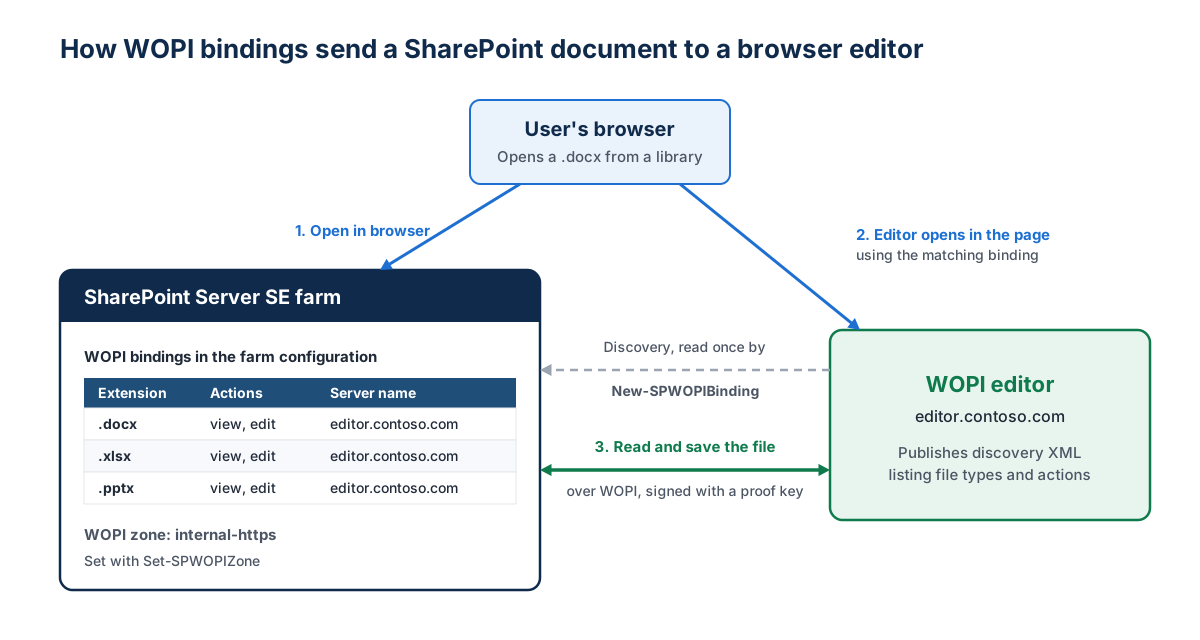
Microsoft's Office Online Server setup guide also has administrators configure two other settings. Set-SPWOPIZone sets which zone the farm uses for WOPI traffic, and a WopiLegacySoapSupport farm property that points SharePoint at the Office Online Server Excel SOAP endpoint, which Microsoft's guide describes as necessary for Excel Web Part rendering and scheduled data refresh.
None of this changes on its own when Office Online Server retires. The bindings keep pointing at the Office Online Server farm, and SharePoint keeps sending users there. Unless an administrator changes them, the farm goes on depending on an unsupported server after December 31, 2026.
| Cmdlet or setting | What it does | When you need it |
|---|---|---|
Get-SPWOPIBinding | Lists the bindings on the farm, including applications, file types, actions and zones | First, to inventory what points at Office Online Server |
Get-SPWOPIZone / Set-SPWOPIZone | Reads or sets the zone (internal-http, internal-https, external-http, external-https) the farm uses for WOPI traffic | When the replacement editor expects a different zone |
Remove-SPWOPIBinding | Removes bindings for one WOPI application with -Server, one application or extension, or all of them with -All:$true | Before binding a new editor, or to go desktop-only |
New-SPWOPIBinding | Associates applications or file extensions with the actions a WOPI application advertises in its discovery data | To bind the replacement editor |
Set-SPWOPIBinding | Changes the default action for a binding | When a file type should open for view rather than edit, or the reverse |
WopiLegacySoapSupport farm property | Points SharePoint at the Office Online Server Excel SOAP endpoint for Excel Web Part rendering and data refresh | Remove it when Office Online Server leaves the farm |
Inventory the existing bindings
Start by recording what the farm has today. Run these from an elevated SharePoint Management Shell:
# List every WOPI binding and the zone the farm uses
Get-SPWOPIBinding
Get-SPWOPIZone

# Keep a copy of the current bindings before changing anything
Get-SPWOPIBinding | Export-Csv -Path "C:\Temp\wopi-bindings-before.csv" -NoTypeInformation

# Check whether the Excel SOAP property was added for Office Online Server
(Get-SPFarm).Properties["WopiLegacySoapSupport"]
The CSV records every binding the farm had before the change, which is what you need to rebind the farm if a pilot has to be rolled back.
Remove the Office Online Server bindings
Microsoft's documented method for disconnecting a farm from Office Online Server is Remove-SPWOPIBinding -All:$true. If other WOPI applications are bound to the farm, the -Server parameter removes only the bindings for one application:
# Remove only the bindings that point at the Office Online Server farm
Remove-SPWOPIBinding -Server "oos.contoso.com"

# Or remove every WOPI binding on the farm
Remove-SPWOPIBinding -All:$true

# Remove the Excel SOAP property if it was added for Office Online Server
$farm = Get-SPFarm
$farm.Properties.Remove("WopiLegacySoapSupport")
$farm.Update()
With no bindings, SharePoint has no browser action to offer for those file types, so users open Office documents in the desktop apps and the Office Online Server previews stop. For a farm that is going desktop-only, that is the end state.
Bind a replacement editor
New-SPWOPIBinding fails if a binding already exists for the application or file extension you specify. A replacement editor can only be bound after the Office Online Server bindings for those types are removed, which leaves a window with no browser editing for those file types, so plan the change for a maintenance window.
# Bind every application and extension the new editor advertises
New-SPWOPIBinding -ServerName "editor.contoso.com"

# Or bind specific file extensions only
New-SPWOPIBinding -ServerName "editor.contoso.com" -Extension "docx"

# Set the zone the editor expects
Set-SPWOPIZone -Zone "internal-https"
Binding by extension lets a farm move file types in stages, for example Word documents first and Excel workbooks after a longer test. Microsoft notes that binding some actions and not others can stop some SharePoint features from working, so bind the full set of actions an editor advertises for a file type unless the vendor says otherwise. The -AllowHTTP switch exists for test environments. If the farm cannot reach the editor's discovery URL directly, -FileName loads the discovery XML from a file instead.
Third-Party WOPI Hosts for SharePoint Server Subscription Edition
A note on terms first. In Microsoft's WOPI model, SharePoint is the WOPI host because it holds the file and serves it to an editor. The editor, which Office Online Server used to be, is the WOPI application or client. Vendors and administrators often call the replacement editor a "WOPI host" anyway, and this section follows the vendor names for each product.
Two non-Microsoft editors publish SharePoint integration instructions.
Collabora Online is a LibreOffice-based editor that Collabora positions as a drop-in replacement for Office Online Server in SharePoint. Its SharePoint how-to has administrators add the SharePoint host to Collabora's allowed WOPI hosts, then run New-SPWOPIBinding for each file extension Collabora should handle, after removing any existing binding for that extension. The guide notes that SharePoint requires a WOPI proof key and that Collabora uses the external WOPI zone. The published guide was written for SharePoint Server 2016, and at least one administrator on Collabora's community forum has asked for confirmation of Subscription Edition compatibility, so ask Collabora to confirm support for your build in writing.
ONLYOFFICE Docs connects to SharePoint in two ways, documented in the ONLYOFFICE SharePoint integration guide. The official connector is a farm solution package that adds an "Edit in ONLYOFFICE" option and supports both the Fast and Strict co-editing modes. The help center lists SharePoint 2019 as its requirement. ONLYOFFICE released connector version 3.1.0 in March 2026 with a PDF editor and a Visio diagram viewer, and positions it as an alternative for organizations leaving Office Online Server. The second method is WOPI, using the same Remove-SPWOPIBinding and New-SPWOPIBinding steps shown above. ONLYOFFICE lists several features that are unavailable over WOPI, including version history, mail merge and document comparison, and editing of legacy DOC, XLS and PPT files.
| Option | How it connects to the farm | SharePoint version in vendor documentation | Production licensing | Check before committing |
|---|---|---|---|---|
| Collabora Online | WOPI bindings created with New-SPWOPIBinding, per file extension; the SharePoint host is added to Collabora's allowed WOPI hosts | SharePoint Server 2016 how-to guide | Collabora Online subscription; the free CODE build is a development edition | Written confirmation for your Subscription Edition build; proof key validation; rendering of your most complex workbooks |
| ONLYOFFICE Docs, official connector | Farm solution package (onlyoffice.wsp) configured from a settings page in SharePoint | SharePoint 2019 in the help center; connector 3.1.0 released March 2026 | Sold as ONLYOFFICE Docs Enterprise Edition with SharePoint connector | The install steps enable anonymous access on the web application with the anonymous policy set to None; review with your security team |
| ONLYOFFICE Docs over WOPI | Existing bindings removed, then New-SPWOPIBinding pointed at the Document Server | WOPI steps in the help center | ONLYOFFICE Docs license | No version history, mail merge or document compare over WOPI; DOC, XLS and PPT are not editable this way |
| Desktop Office only | Native client integration, no WOPI binding | Supported by Microsoft for Subscription Edition | Microsoft 365 Apps for enterprise or Office LTSC 2024 | No browser editing and no Office Online Server previews |
| SharePoint in Microsoft 365 | Content migration out of the farm | Microsoft's recommended path | Microsoft 365 subscriptions | Documents leave on-premises infrastructure; re-permissioning and migration effort |
Before changing production bindings, work through these checks in a staging farm that runs the same Subscription Edition build:
- Get the vendor's support statement for your exact SharePoint Server SE build. Subscription Edition builds are serviced for one year, so ask how the vendor tracks new feature updates.
- Proof key validation and the WOPI zone need to work on the first attempt. Microsoft's guide notes that the farm's WOPI zone has to match the zone the editor uses.
- Test with the largest and most complex files the farm holds, such as workbooks with pivot tables and heavy conditional formatting or presentations that use custom fonts, since rendering differences appear there first.
- Ask the vendor whether its editor generates library and search previews, because the Office Online Server thumbnails lose support.
- Licensing models differ. Some editors count simultaneous connections instead of named users, and a single user with a document open in two tabs can count twice.
- The CSV of the original bindings is the rollback plan if a pilot fails while Office Online Server is still installed.
Editing SharePoint Server Content Alongside File Shares and Cloud Storage
Most SharePoint Server farms are not the only place Office files live. The same organization often has departmental Windows file shares, NAS volumes, Azure Files, S3 buckets and SharePoint Online libraries. Where one Office Online Server farm served SharePoint and other WOPI hosts, such as Exchange or a file access gateway like MyWorkDrive, the retirement removes supported browser editing from all of them on the same date.
MyWorkDrive does not replace the farm's editor. MyWorkDrive's SharePoint storage connection uses the Microsoft Graph API and connects to SharePoint sites in Microsoft 365. Its supported storage list does not include on-premises SharePoint Server farms. Documents in a SharePoint Server SE library are edited through that farm's own WOPI bindings, using whichever editor the farm administrator chooses.
For content outside the farm, MyWorkDrive does the job SharePoint does for its own libraries. It publishes Windows file servers, NAS, Azure Files, S3-compatible storage, SharePoint Online and OneDrive over HTTPS with the existing NTFS and SharePoint permissions still in force. When a user opens a document for editing, MyWorkDrive passes it to the browser editor configured under Integrations in the admin panel. The supported editors are Office for the web, with the document staged temporarily in the user's OneDrive or a dedicated SharePoint Online site, ONLYOFFICE Docs, Collabora Online from MyWorkDrive 7.3.1, and a local Office Online Server. Only one editing provider is active on a MyWorkDrive server at a time, and DLP settings can turn online editing off for specific shares, users or groups.
MyWorkDrive customers who point at a local Office Online Server face the same December 31, 2026 deadline as SharePoint farms, because Microsoft's statement covers every configuration. In MyWorkDrive, moving to another editor is a provider change in the admin panel and does not touch the storage or the share permissions. The Office Online Editing Comparison shows how each editor handles document location and download controls.
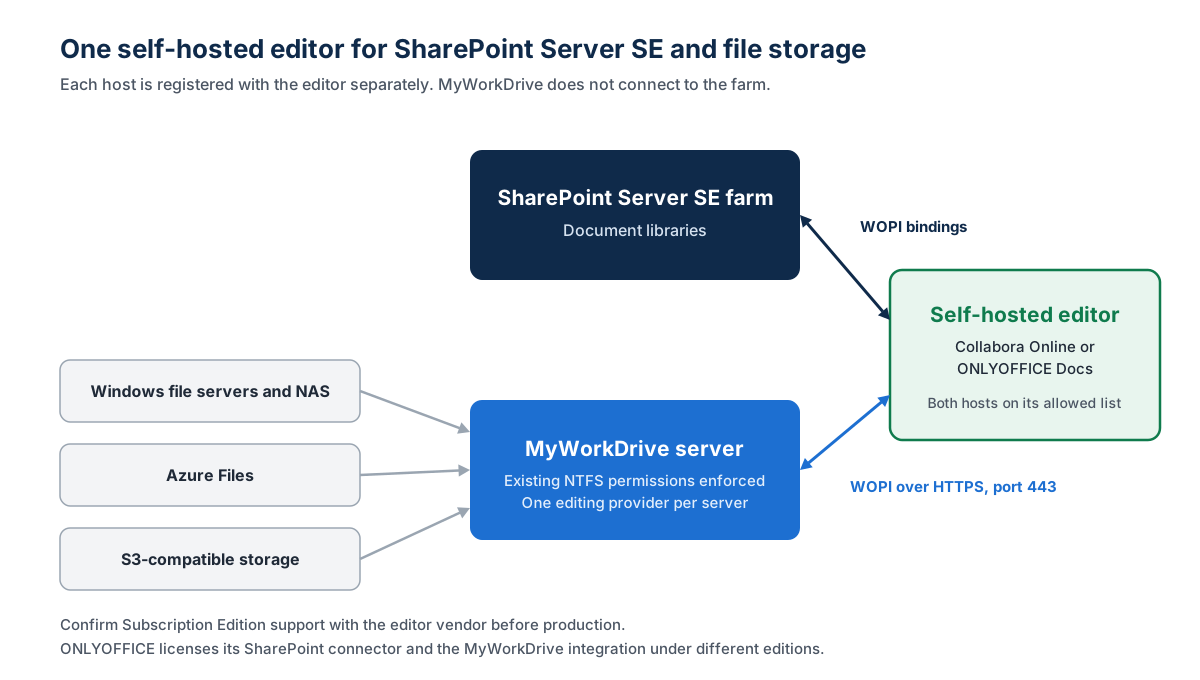
Organizations that want one editor across the estate can plan for it, with two caveats.
- Collabora Online. One Collabora deployment can be registered with the SharePoint farm through WOPI bindings and with MyWorkDrive through its WOPI discovery URL. Both hosts have to be on Collabora's allowed host list, and the MyWorkDrive domain also has to be allowed in Collabora's content security policy so the editor can be framed. The Subscription Edition compatibility check above still applies.
- ONLYOFFICE Docs. The SharePoint connector is sold with ONLYOFFICE Docs Enterprise Edition, while the MyWorkDrive integration uses the ONLYOFFICE Developer Edition. Ask ONLYOFFICE how a single Document Server would be licensed for both before assuming one deployment covers the farm and the file shares.
| Where the file lives | Browser editing path after retirement | Notes |
|---|---|---|
| SharePoint Server SE document library | The farm's own WOPI bindings to a third-party editor, or desktop Office | MyWorkDrive does not list on-premises SharePoint Server farms as a storage type |
| Windows file server or NAS (SMB) | MyWorkDrive with Office for the web, ONLYOFFICE Docs or Collabora Online | NTFS permissions stay authoritative; files are locked on the share during editing |
| Azure Files | MyWorkDrive with the same editor choices | Covered in detail in our Azure Files guide |
| S3-compatible object storage | MyWorkDrive with the same editor choices | Published alongside file shares from one admin console |
| SharePoint in Microsoft 365 and OneDrive | Office for the web natively; MyWorkDrive can also publish these libraries next to file shares | Connected through the Microsoft Graph API |
For the file share side of the decision, including how Office for the web, Collabora Online and ONLYOFFICE compare on data path and macro support, see How to Use Office Online with Azure Files After Office Online Server End of Life. The same editor trade-offs apply to on-premises Windows file servers. Where documents fall under data residency obligations, the self-hosted editors keep the file inside infrastructure you operate during editing, while the Office for the web route places a temporary copy in Microsoft 365 for the length of the session.
With about ten weeks left before the retirement date, the practical order is to inventory the farm's bindings now, choose an editor per storage location, test it against a staging farm and a test share, and schedule the binding change before December 31, 2026. Content that has to stay on-premises can keep browser editing through a third-party editor.
Frequently Asked Questions
Does SharePoint Server Subscription Edition stop working when Office Online Server retires?
No. SharePoint Server Subscription Edition remains a supported product, and Microsoft has committed to supporting it until at least December 31, 2035. The retirement on December 31, 2026 applies to Office Online Server, the separate product that provides browser viewing and editing of Office files in the farm.
Can Office Online Server still be used with SharePoint Server SE after December 31, 2026?
It will keep running, and Microsoft has said it will not actively block it. It will not be supported in any configuration, including with SharePoint Server Subscription Edition, and it will receive no further security updates or bug fixes.
What happens to WOPI bindings created with New-SPWOPIBinding?
Nothing changes automatically. The bindings stay in the farm configuration and keep pointing at the Office Online Server farm until an administrator removes or replaces them. Because New-SPWOPIBinding fails when a binding already exists for an application or extension, the old bindings have to be removed with Remove-SPWOPIBinding before a replacement editor can be bound.
How do users edit SharePoint Server SE documents after Office Online Server retires?
Microsoft's supported option is desktop Office, using Microsoft 365 Apps for enterprise or Office LTSC 2024. Browser editing on the farm requires a third-party editor bound through WOPI, such as Collabora Online or ONLYOFFICE Docs, or a migration of the content to SharePoint in Microsoft 365.
Do Collabora Online and ONLYOFFICE support SharePoint Server Subscription Edition?
Both vendors market their editors as Office Online Server replacements for SharePoint. Collabora's published SharePoint guide was written for SharePoint Server 2016, and the ONLYOFFICE help center lists SharePoint 2019 for its connector. Ask each vendor to confirm support for your Subscription Edition build in writing, and test in a staging farm before changing production bindings.
Will SharePoint document previews still work after the retirement?
SharePoint Server relies on Office Online Server to generate previews for Word, Excel, PowerPoint and PDF files. Microsoft says these thumbnails will no longer be actively supported in libraries and search results once Office Online Server support ends.
Can MyWorkDrive provide browser editing for files in SharePoint Server SE?
Not through a documented storage connector. MyWorkDrive's SharePoint connection uses the Microsoft Graph API and works with SharePoint in Microsoft 365, and on-premises SharePoint Server farms are not listed as a supported storage type. MyWorkDrive provides browser editing for files on Windows file servers, NAS, Azure Files, S3-compatible storage, OneDrive and SharePoint Online.