Overview
MyWorkDrive supports sharing S3-compatible storage buckets alongside other on prem and cloud storage.
When accessed through MyWorkDrive, S3 buckets offer the full range of enterprise features and security, just like any other file share. These features include: - Access via web, mapped drives (including drive letters on Windows), and mobile clients - Real-time access (no sync or share required) - SAML/SSO/MFA support with user access protections - Data leak prevention (DLP) - Complete user access logging, including Syslog integration - File type and size blocking - Office Online document editing - Public share links
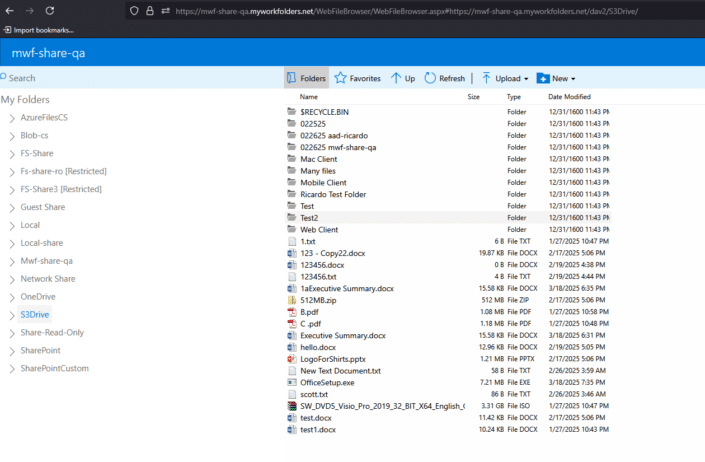
To end users, S3 shares look and behave like any other network share. No special software, configuration, or training is required.
As of version 7.3 of MyWorkDrive server uses native integration of S3 via API Key.
How It Works
MyWorkDrive accesses your S3 bucket in real time using a Key/Secret configuration from your S3 or S3 compatible storage. Like other storage, MyWorkDrive accesses files and folders as-needed. No data is ever cached or stored on the MyWorkDrive server, or sync'd out to clients. Files move in memory to user devices as accessed, and are always written back to the S3 bucket as changed.
This approach keeps your data centralized and secure, without introducing unnecessary complexity.
Supported S3-Compatible Services
In addition to Amazon S3, MyWorkDrive supports many S3-compatible object storage providers, including:
-
Backblaze B2
-
Cloudflare R2
-
Wasabi
and more. If you don't see your preferred provider on the list, just ask! It is probably supported.
Installation & Setup
S3 storage is configured in MyWorkDrive server similarly to other cloud storage providers. All you need to get started with an Amazon S3 share is your S3 Access key, Secret key, and Region.
Please note, some other providers may require other information. Check integrations for your provider to see what exactly is required before getting started
In MyWorkDrive Admin, start by adding an S3 provider in Integrations
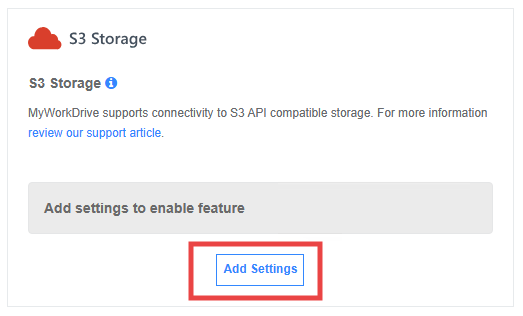
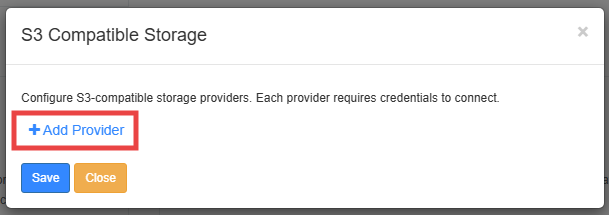
Name is a label used in administration, to make it easy to identify in a list of providers. You'll use this when adding shares, so if you add more than one, make sure it is clear what it is by the name. Choose the appropriate provider from the list. Enter your Access Key, Secret Key, and choose your Region. Click Save.
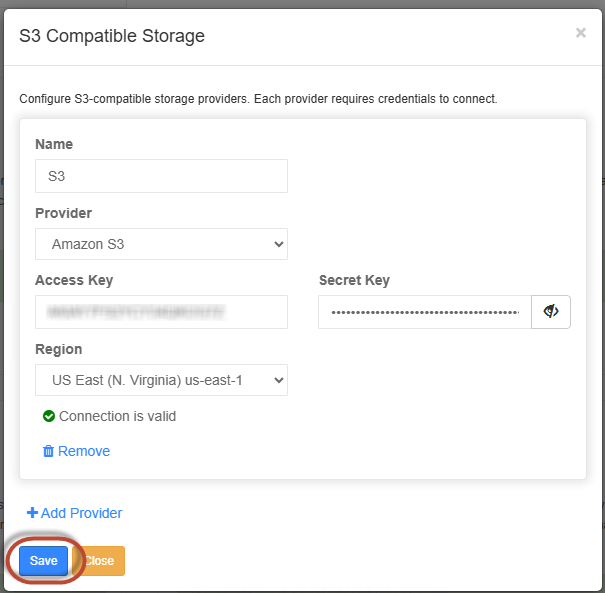
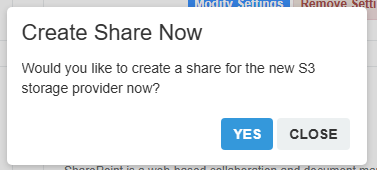
You'll be prompted to Create Share Now. If you're ready to do so, click Yes to proceed to be taken to Shares to finish setting up your new connection to S3. If you have other work to do in Integrations, or simply want to add a share later, no problem. Just browse to shares and click on Add a share when you're ready.
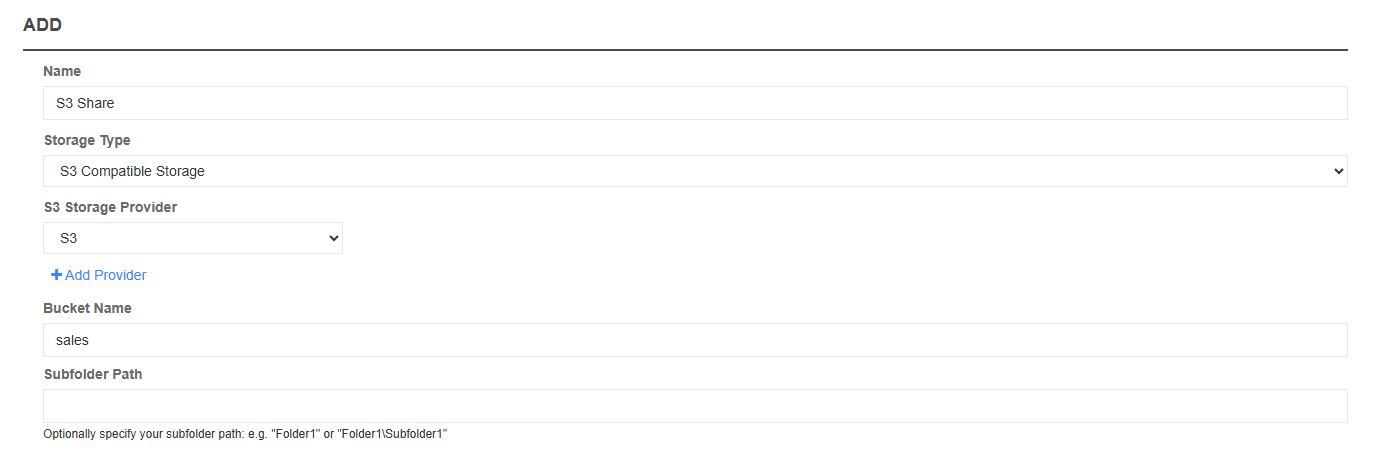
When you're ready to add a share, it is the same as other shares in MyWorkDrive
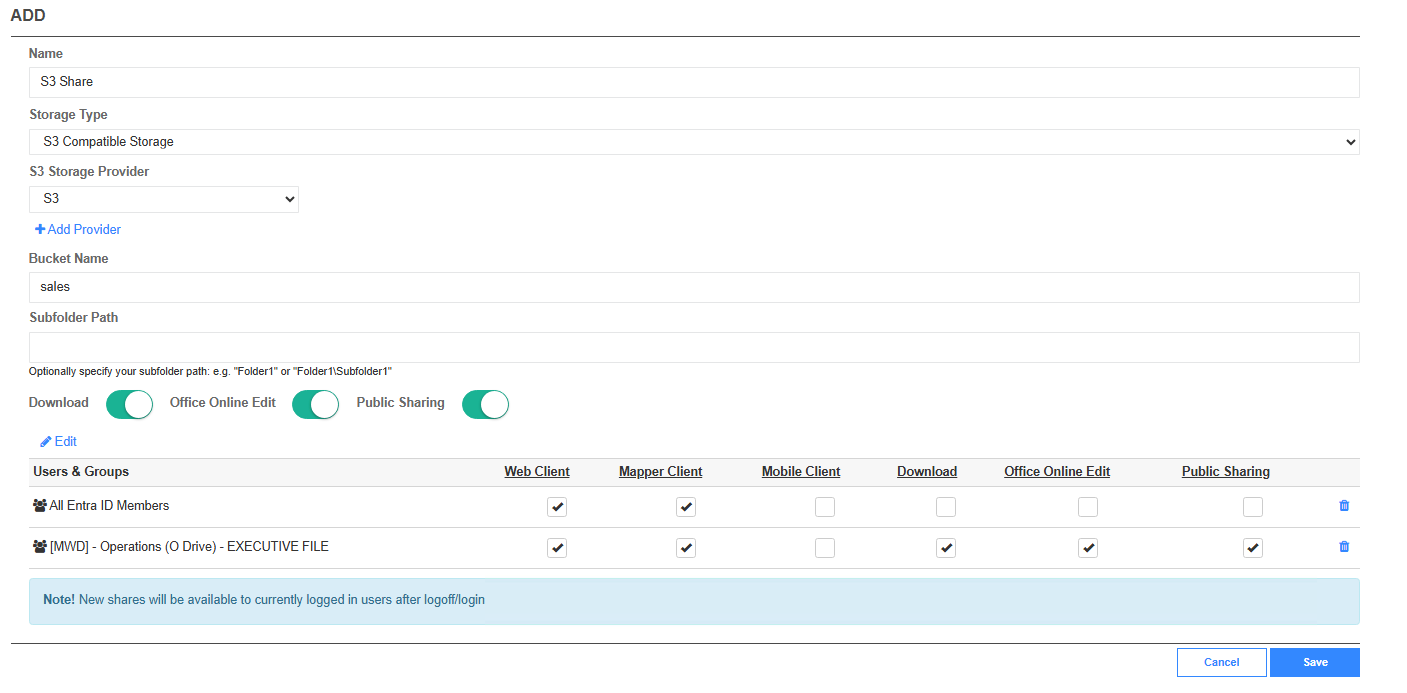
Name is the label your users will see for the mounted share - so make sure it is what you want them to see! Names cannot be changed after creation (but you can always re-create the share if you need to change it)
For Storage Type, choose S3 Compatible Storage from the dropdown.
In the S3 Storage Provider dropdown, choose the appropriate connection - you may have more than one. This is where you'll see the names you created in Integrations for the providers. You'll need to retrieve the bucket name from your S3 settings. Subfolder path is optional, if you wish to publish a specific folder from your storage account.
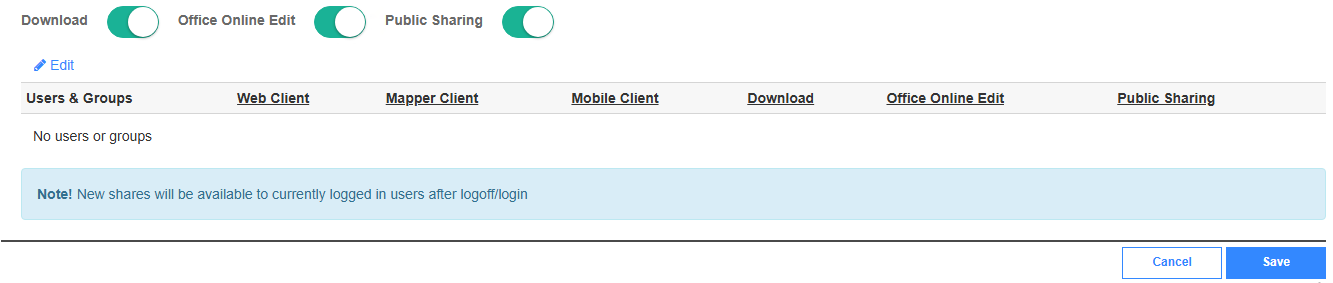
You'll see various radio buttons based on your settings. Here we see Download and Online Edit, as we have DLP enabled, and we see Public Sharing, as we have Public sharing enabled.
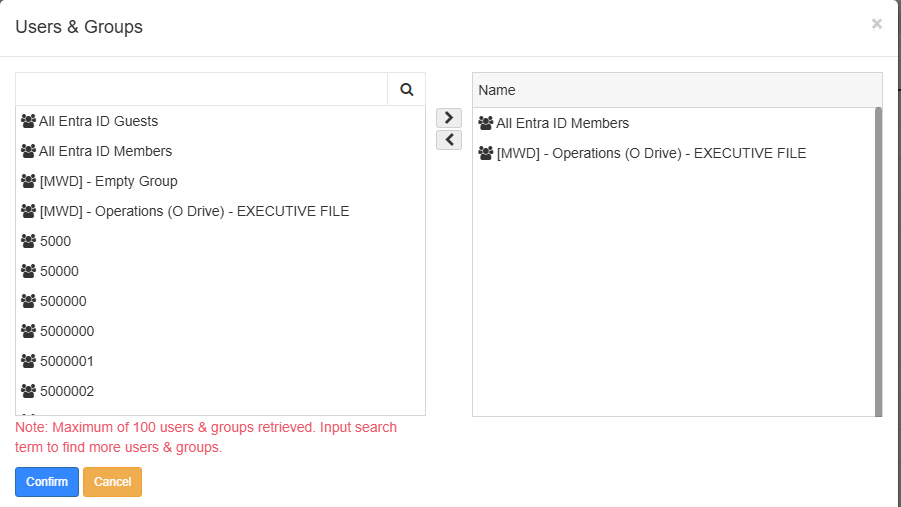
Click on Edit to choose from your identity provider the appropriate users and groups who should have access to the share. This doesn't actually control access to the share - that's handled by the storage using the Key and Secret you entered. This simply chooses who from MyWorkDrive should see the share as available to them.
Here we've chosen a couple of security groups. Use the search to search for specific users or groups as appropriate
After you've chosen the appropriate users/groups, you'll have the customary options to adjust granular permissions around the features you have enabled for the various groups.
In our example, the broad "all members" group is in DLP without download, edit or sharing, while the Operations group has full access. We're not using the Mobile client for this share.
When you're all set, click save.
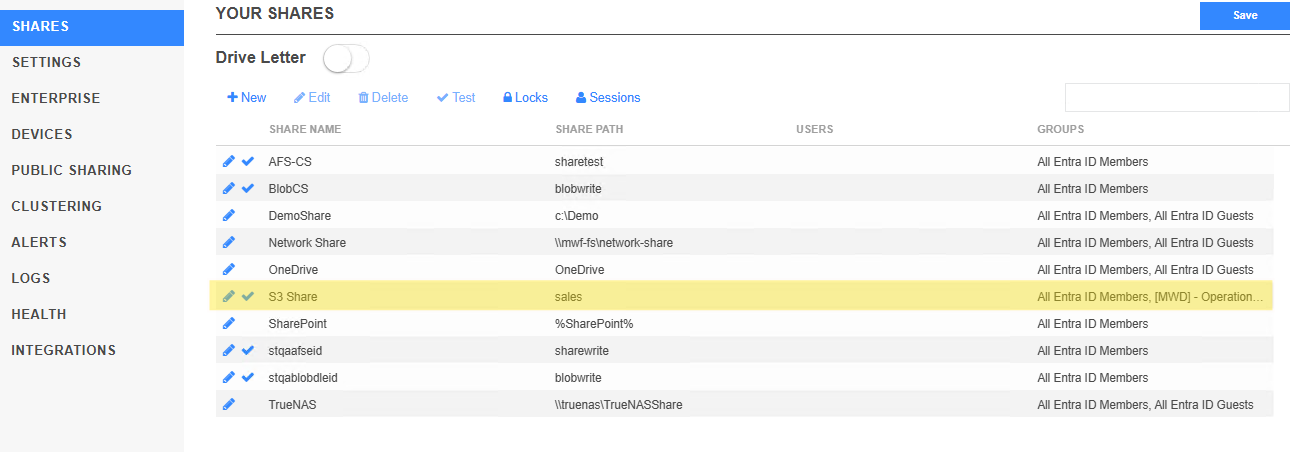
And that's all there is to it. Your new S3 share appears in the list alongside your existing shares in the admin panel, and is ready for use by the configured users on their next client login.