MyWorkDrive Server Version 6.4 or Higher Required
Access SharePoint via MyWorkDrive
SharePoint is a web-based collaboration and document management platform by Microsoft, which can be integrated with MyWorkDrive for file access and storage services. MyWorkDrive connects to the specific SharePoint document libraries an administrator configures as shares, and makes them available to users via the MyWorkDrive web browser, desktop, and mobile clients.
MyWorkDrive does not crawl or discover your SharePoint environment. It is not pointed at the top level of your tenant to enumerate sites and libraries. Only libraries an administrator explicitly configures as shares are published to users. This is a deliberate security design that keeps administrators in complete control of which SharePoint content is exposed through MyWorkDrive, and to whom.
Enable MyWorkDrive Shared App Registration
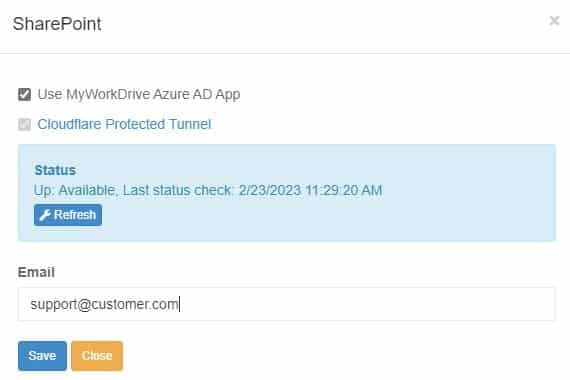
The default option utilizes our MyWorkDrive Cloudflare Integration and our shared MyWorkDrive Azure AD App Registration. With this default option, the user does not need to create their own Azure AD App Registration or set up a public web address for the internal MyWorkDrive server. To enable SharePoint access, simply enable our default option in Integrations > Storage Providers > SharePoint.
Enable SharePoint Access
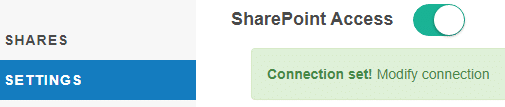
Enable SharePoint access in Settings > SharePoint Access.
Create SharePoint Share
With SharePoint Access configured in Integrations and enabled in Settings, create a share using SharePoint as the Storage Type and select the users or groups who are assigned access in MyWorkDrive.
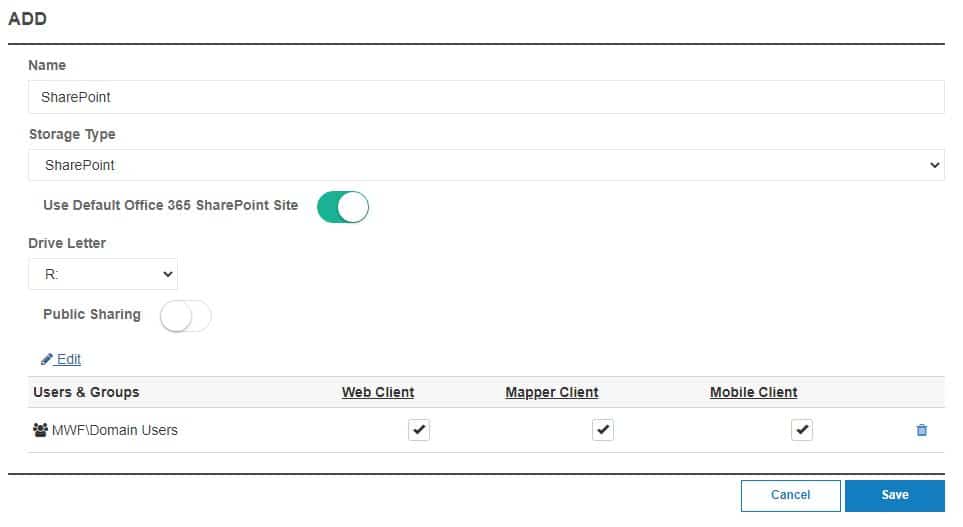
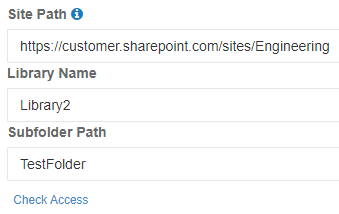
Each MyWorkDrive share maps to one SharePoint document library. When creating the share, choose one of the following targets:
- Default site, default library (default option): The share uses the default document library of your organization's default SharePoint site in Microsoft 365.
- Alternate site, default library: Enter the URL of another SharePoint site. The share uses that site's default document library.
- Specific library on any site: Enter the site URL (default or alternate) and specify the library. The share uses that library only.
Optionally, specify a subfolder within the library to restrict the share to that folder.
To publish more than one library, whether additional libraries on the same site or libraries on other sites, create a separate share for each one. A share only exposes the library (or subfolder) it is configured for. Other libraries and sites in your tenant are not visible to users through it.
Click Check Access to validate the site and library.
Allowed Tenant ID
We recommend all customers approve and restrict which allowed Azure AD Tenant ID’s are enabled for SharePoint access. The allowed tenant ID option provides 2 capabilities.
- Approval of the Azure AD Application for use by all users in the organization.
- Restricting login to the application to only users with accounts in the internal organization (custom app registrations only).
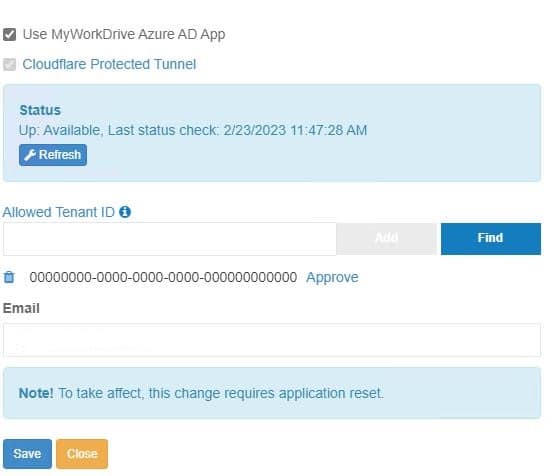
After entering the Tenant ID, click Approve.
Log in as a Global Administrator with rights on your Azure AD to approve applications for your organization.
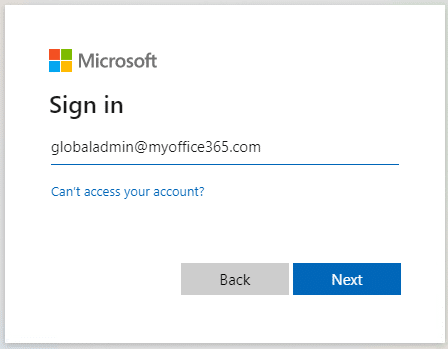
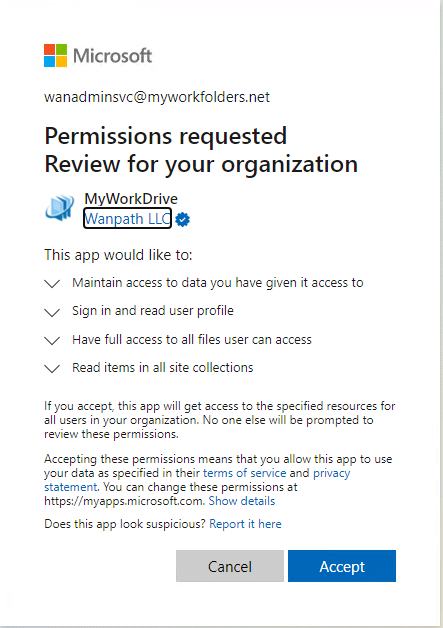
Accept and grant permissions for your organization.
The link in the first paragraph shows you how to find your tenant. You may also be able to use a site like https://www.whatismytenantid.com/ to obtain your tenant ID.
Setup Custom Azure AD App Registration
As an alternative to our shared MyWorkDrive Azure AD App Registration, MyWorkDrive supports creating a customer Azure AD app.
Each organization will need its Azure AD Global Admin to create an Azure AD App Registration.
Register a new Azure AD app in the same Azure AD instance as your user’s Office 365 subscription, where your SharePoint site(s) are hosted. This app will enable the MyWorkDrive server to connect to the SharePoint sites.
On portal.azure.com, log in using the Global Admin Account. Bring up Azure Active Directory: https://portal.azure.com/#blade/Microsoft_AAD_IAM/ActiveDirectoryMenuBlade
Click App Registrations: Create New Registration
Provide a _Name_, _Supported Account Type_, and include your public MyWorkDrive URL with the subsite "/GraphApiTokenPage.aspx".
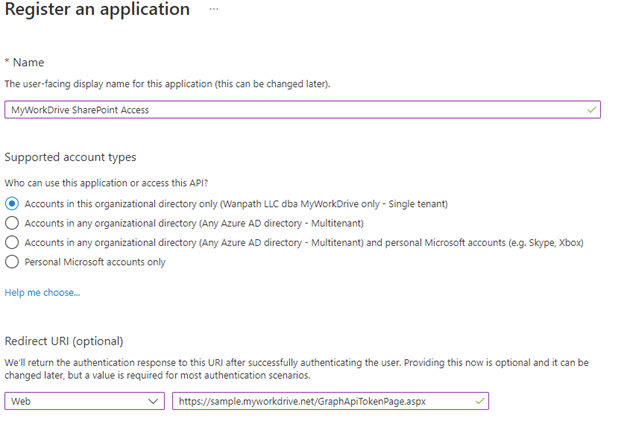
Click Register.
API Permissions
Click API permissions > Add Graph API Delegated Permissions > Microsoft Graph > Files.ReadWrite.All > offline_access > openid > Sites.ReadWrite.All > User.Read
Click to grant admin consent for your company.
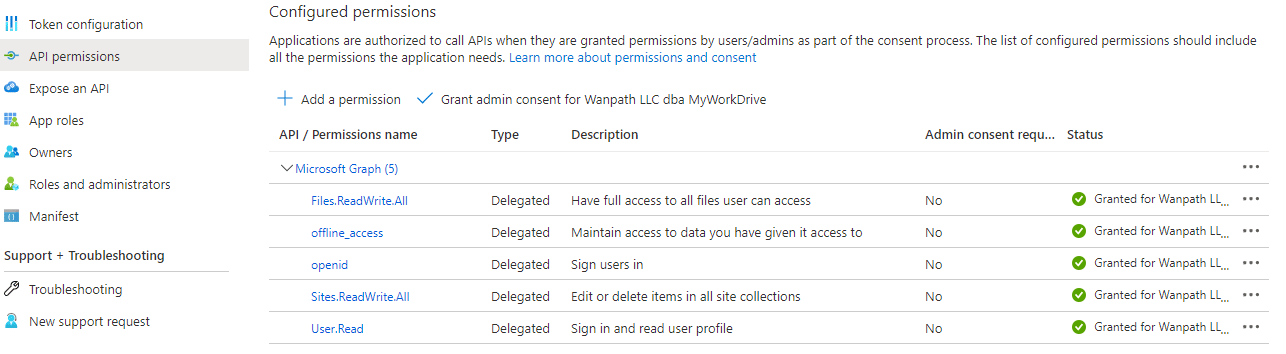
Create Client Secret
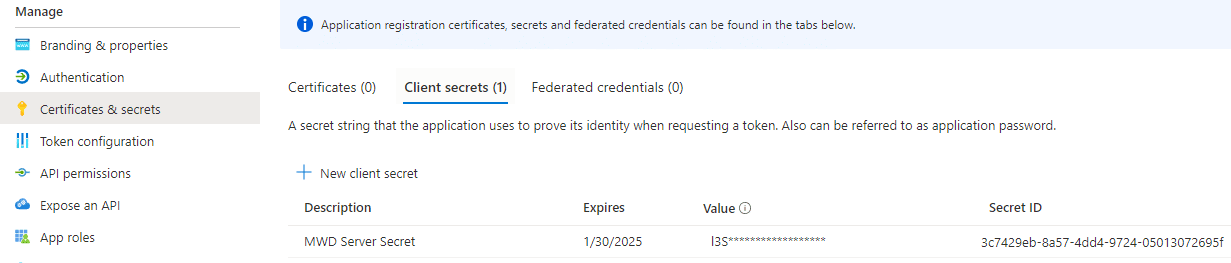
Click Certificates & Secrets.
Click New Client Secret.
Note the calendar secret expiration date, as it will need to be regenerated at that time and updated on all MyWorkDrive servers.
Copy the Client Secret Value (not the secret ID). Keep this backed up and secured, as it will only display briefly.
Click Overview.
Copy the Application (client) ID. Retain this value for use in the MyWorkDrive admin panel.
Copy the Directory (tenant) ID. Retain this value for use in the MyWorkDrive admin panel.
Note the client secret expiration. This will need to be renewed before it expires and updated on each MyWorkDrive Server in the future.
Authentication
Click Authentication.
Click Add Platform.
Choose Configure Desktop + Devices.
Check the native client option.
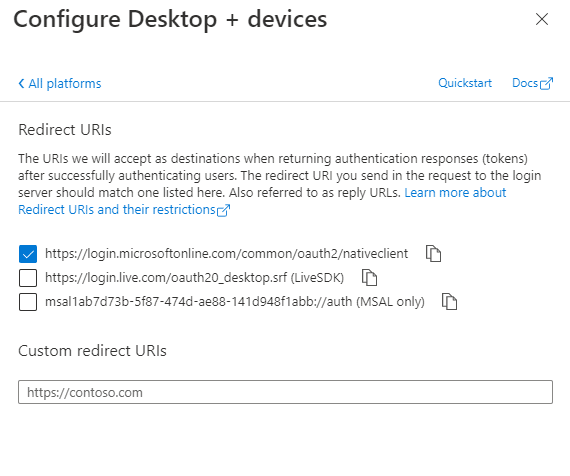
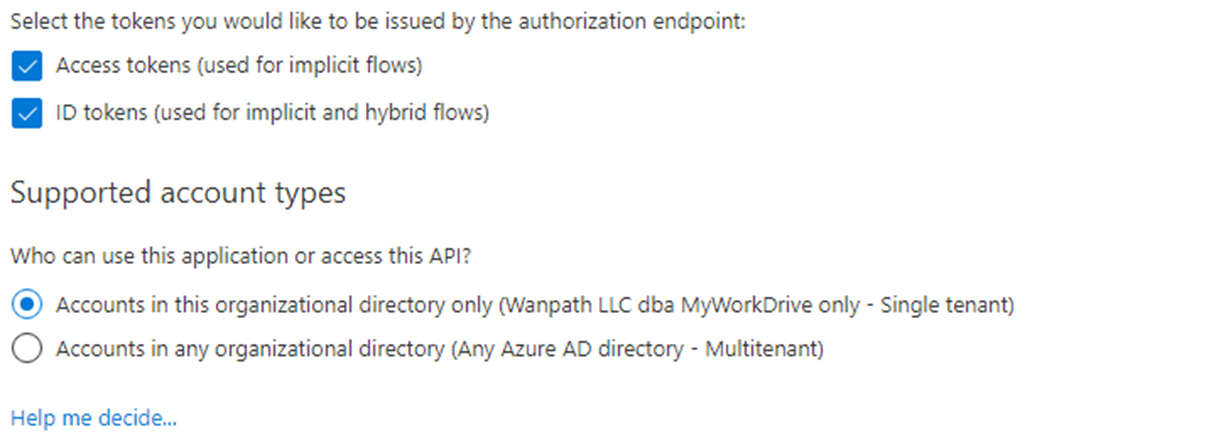
Enable access tokens and ID tokens.
MyWorkDrive Server Configuration
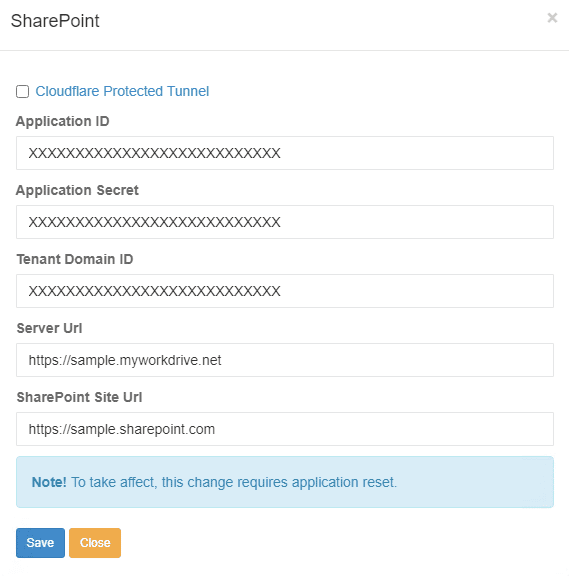
To configure your server, paste the Azure AD Application ID, Secret, Single Tenant Domain ID, your Server URL, and your SharePoint Site URL into the appropriate boxes.