
Overview
This article explains how to configure MyWorkDrive as a SAML Service Provider (SP) with Fortinet FortiAuthenticator acting as the SAML Identity Provider (IdP). When complete, users will authenticate through FortiAuthenticator - including optional MFA via FortiToken - before being granted access to MyWorkDrive.
For information about configuring other SAML providers in MyWorkDrive, see our SSO setup overview
MyWorkDrive does not maintain its own user database for SAML logins. Instead, it takes the username supplied in the SAML assertion and matches it against a User Principal Name (UPN) in Active Directory to validate the user.
What you will need: - Administrative access to your FortiAuthenticator appliance - Administrative access to the MyWorkDrive server - A valid SSL certificate on FortiAuthenticator (used to sign SAML assertions) - Your MyWorkDrive public hostname (e.g., drive.example.com)
Part 1: Configure FortiAuthenticator as the SAML IdP
Step 1: Enable the SAML IdP Portal
- In the FortiAuthenticator web GUI, go to Authentication > SAML IdP > General.
- Enable "Enable SAML Identity Provider portal".
- Set the Server address to the FQDN of your FortiAuthenticator (e.g., fac.example.com).
- Under Default IdP certificate, select the certificate you want FortiAuthenticator to use to sign SAML assertions. You will export this certificate later for use on the MyWorkDrive side.
- Configure Realms as appropriate for your user directory (local users, LDAP, etc.).
- Click OK to save.
Step 2: Create a Service Provider Entry for MyWorkDrive
-
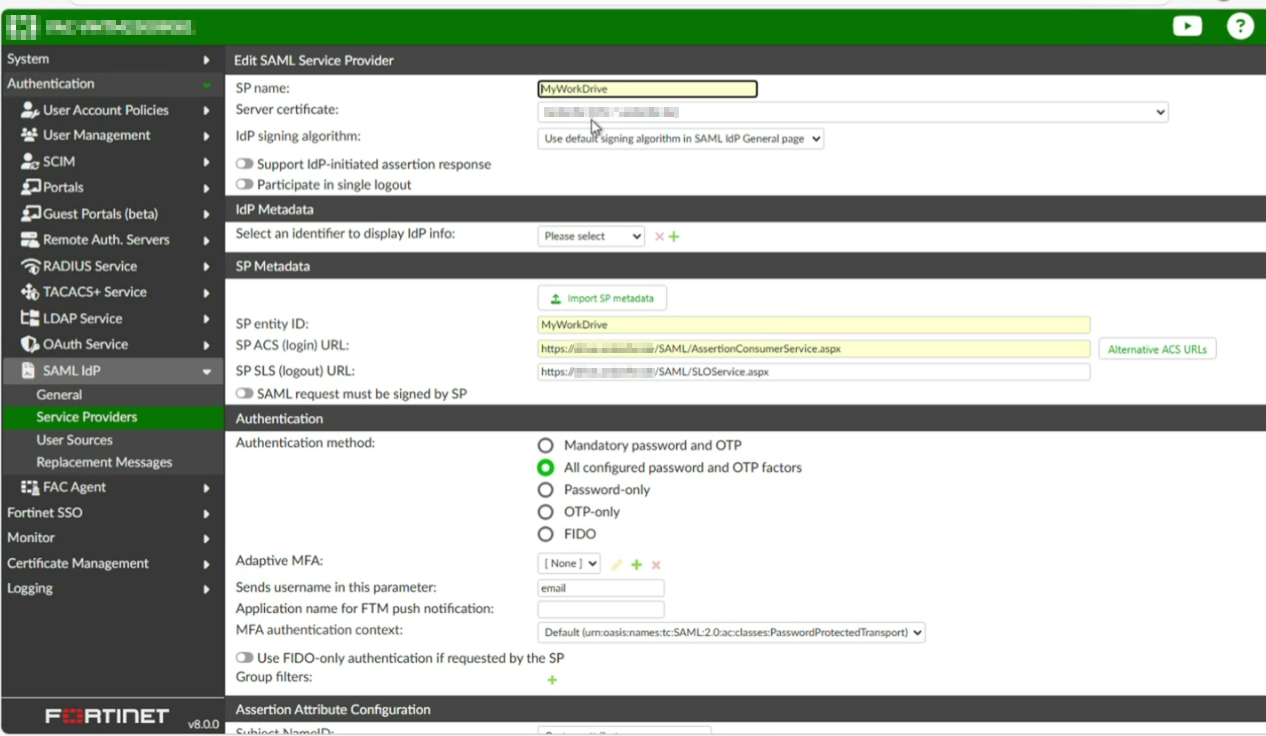
Go to Authentication > SAML IdP > Service Providers and click Create New.
-
Configure the top section:
| Field | Value |
|---|---|
| SP name | MyWorkDrive |
| Server certificate | Select the same certificate chosen in Step 1, or leave as "Use default setting in SAML IdP General page" |
| IdP signing algorithm | Use default (or match your requirements) |
| Support IdP-initiated assertion response | Optional - enable if you want users to log in from the FortiAuthenticator portal |
| Participate in single logout | Enable if you want logout from MyWorkDrive to also log the user out of FortiAuthenticator |
- Click Save (without filling in SP Metadata yet). FortiAuthenticator will generate the IdP Metadata URLs - note these down:
- IdP Entity ID / Metadata URL: https://fac.example.com/saml-idp/{prefix}/metadata/
- IdP Single Sign-On URL: https://fac.example.com/saml-idp/{prefix}/login/
- IdP Single Logout URL: https://fac.example.com/saml-idp/{prefix}/logout/
The {prefix} is a unique string generated by FortiAuthenticator for this SP. You can also click "Generate prefix" to create one explicitly.
- Now fill in the SP Metadata section:
| Field | Value |
|---|---|
| SP entity ID | MyWorkDrive |
| SP ACS (login) URL | https://drive.example.com/SAML/AssertionConsumerService.aspx |
| SP SLS (logout) URL | https://drive.example.com/SAML/SLOService.aspx |
| SAML request must be signed by SP | Leave unchecked (MyWorkDrive does not sign AuthnRequests by default) |
Replace drive.example.com with your actual MyWorkDrive hostname throughout.
Step 3: Configure Authentication Method
Under the Authentication section of the Service Provider:
-
Authentication method: Choose the method appropriate for your deployment:
- All configured password and OTP factors - recommended; allows both password-only users and those with FortiToken/OTP enrolled
- Mandatory password and OTP - enforces MFA for all users
- Password-only - no MFA
- Sends username in this parameter: Set to email
This is important. MyWorkDrive matches users against their AD UPN, which is typically their email address, so FortiAuthenticator must return the user's email as the username attribute.
Step 4: Configure Assertion Attributes
Scroll down to the Assertion Attribute Configuration section:
- Subject NameID: Select the attribute that holds the user's email address. For local FortiAuthenticator users, select "Email". For LDAP users, select the appropriate LDAP attribute (most typically userPrincipalName).
- Format: Select urn:oasis:names:tc:SAML:1.1:nameid-format:emailAddress
Then under Assertion Attributes, click Add Assertion Attribute and add:
| SAML Attribute | User Attribute |
|---|---|
| Email (or your LDAP email attribute) |
MyWorkDrive uses the email attribute from the SAML assertion to match the user against their UPN in Active Directory. Ensure every user in FortiAuthenticator has a valid email address populated and that it matches their UPN in AD.
Click Save to finish the Service Provider configuration.
Step 5: Export the IdP Certificate
MyWorkDrive needs the FortiAuthenticator signing certificate to validate SAML assertions.
- Go to Certificate Management > End Entities > Local Services.
- Find the certificate you selected as the IdP certificate.
- Select it and click Export Certificate (export as .cer / DER-encoded, not the private key).
- Save the file - you will reference it in the MyWorkDrive SAML configuration as the PartnerCertificateFile. It will be placed on the MyWorkDrive server at C:\Wanpath\WanPath.Data\Settings\SAML\Certificates\.
Part 2: Configure MyWorkDrive as the SAML Service Provider
Step 1: Enable SAML SSO in MyWorkDrive
Before editing any configuration files, SAML SSO must be enabled in the MyWorkDrive admin interface.
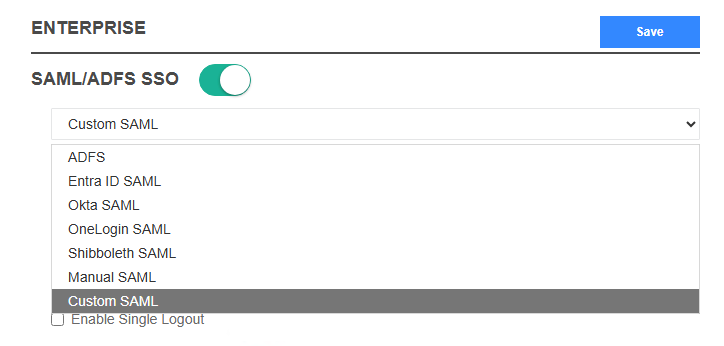
- Log in to the MyWorkDrive admin panel and go to the Enterprise tab.
- Toggle SAML/ADFS SSO to enabled.
- In the provider dropdown, select Custom SAML.
- Optionally check Enable Single Logout if you want logout from MyWorkDrive to trigger a logout at FortiAuthenticator as well (requires the SP SLS URL to be configured in both places).
- Click Save.
Step 2: Edit the SAML Configuration File
MyWorkDrive uses a ComponentSpace-format XML file for its SAML configuration. The file is located at:
C:\Wanpath\WanPath.Data\Settings\SAML\saml.config
Note: MyWorkDrive uses a different underlying SAML library but shares the ComponentSpace XML configuration format. Edit this file directly.
SAML Configuration File (saml.config)
Create or edit saml.config with the following structure, substituting your own values:
```xml
<?xml version="1.0"?>
```
Key Values to Substitute
| Placeholder | Replace with |
|---|---|
| drive.example.com | Your MyWorkDrive server's public hostname |
| fac.example.com | Your FortiAuthenticator's FQDN |
| {prefix} | The IdP prefix generated by FortiAuthenticator for this SP (from Part 1, Step 2) |
| mwd.pfx | Your MyWorkDrive SP certificate (PFX/PKCS12 format) |
| your-certificate-password | The password for the PFX file - this will be provided for you |
| fortiauth.cer | The FortiAuthenticator IdP signing certificate exported in Part 1, Step 5 |
Certificate Notes
- mwd.pfx - This is the MyWorkDrive SP certificate. It is automatically generated during MyWorkDrive server installation, and the password is added to the default saml.config file. It is used to identify MyWorkDrive to the IdP and is located in C:\Wanpath\WanPath.Data\Settings\SAML\Certificates\.
- fortiauth.cer - This is the FortiAuthenticator IdP certificate (public certificate only, no private key), exported in Part 1, Step 5. Place it in the same Certificates folder.
- SignAuthnRequest="false" and WantAssertionsSigned="false" match the FortiAuthenticator SP configuration where "SAML request must be signed by SP" is left unchecked.
Part 3: Verify User Attributes
For SAML login to work, MyWorkDrive takes the username from the SAML assertion's NameID attribute and matches it against a UPN in Active Directory. There are no separate user accounts in MyWorkDrive - AD is the authoritative source. Make sure:
- Each user in FortiAuthenticator has an email address set on their account (go to Authentication > User Management > Local Users, edit the user, and verify the Email field under User Information).
- For LDAP-sourced users, the LDAP attribute mapped to email in the assertion attributes must be populated.
- The email address returned in the assertion must match the user's UPN in Active Directory.
Part 4: Testing
- Open a browser and navigate to your MyWorkDrive URL (e.g., https://drive.example.com).
- Click Sign in with SSO.
- You will be redirected to the FortiAuthenticator login portal.
- Enter credentials (and OTP if MFA is configured).
- On success, you should be redirected back to MyWorkDrive and logged in.
If login fails, check: - The IdP URLs in saml.config exactly match the URLs shown in FortiAuthenticator under the SP's IdP Metadata section. - The fortiauth.cer certificate file matches the certificate currently selected as the IdP signing certificate in FortiAuthenticator. - The email address returned in the SAML assertion matches the user's UPN in Active Directory. - The MyWorkDrive application pool / service has been restarted after editing saml.config.
Reference: FortiAuthenticator SP Configuration Summary
| FortiAuthenticator Field | Value |
|---|---|
| SP name | MyWorkDrive |
| SP entity ID | MyWorkDrive |
| SP ACS (login) URL | https://drive.example.com/SAML/AssertionConsumerService.aspx |
| SP SLS (logout) URL | https://drive.example.com/SAML/SLOService.aspx |
| SAML request must be signed | Unchecked |
| Authentication method | All configured password and OTP factors |
| Sends username in parameter | |
| Subject NameID format | urn:oasis:names:tc:SAML:1.1:nameid-format:emailAddress |
| Assertion attribute: email | User's email / UPN attribute |
Troubleshooting
See our Troubleshooting with SAML Tracer article for information about using SAML-tracer to profile the SAML login flow and authentication errors.
Additional Resources
- FortiAuthenticator Administration Guide - SAML IdP - Fortinet's reference documentation for configuring FortiAuthenticator as a SAML Identity Provider, including realm configuration, certificate management, and SP settings.
- FortiAuthenticator SAML Interoperability Guide for 2FA - Fortinet's step-by-step guide for setting up SAML with two-factor authentication using FortiToken.
- Configuring SAML Settings on FortiAuthenticator (Cookbook) - A practical cookbook example covering IdP general settings, SP registration, and assertion attribute configuration.