
For information about configuring SAML SSO in MyWorkDrive, see our SSO Setup overview
Overview
SAML Tracer is a free browser extension that intercepts and decodes SAML (Security Assertion Markup Language) messages exchanged between your browser, Identity Providers (IdPs), and Service Providers (SPs) during Single Sign-On (SSO) authentication flows. Unlike raw browser developer tools, SAML Tracer automatically identifies and decodes Base64-encoded SAML payloads, presenting them as human-readable XML.
When to use it: Use SAML Tracer any time you need to debug an SSO login failure, verify that an IdP is sending the correct attributes, confirm URLs and certificates, or provide a trace to a support team for analysis.
Section 1: Installing the Browser Extension
Firefox
- Open Firefox and navigate to the Firefox Add-ons store at addons.mozilla.org, or search "SAML-tracer" from the Firefox menu under Tools | Add-ons and Themes.
- Locate the SAML-tracer extension and click Add to Firefox.
- When prompted, click Add to confirm the permission request.
- After installation, the SAML Tracer icon will appear in your toolbar. If it is not immediately visible, click the puzzle-piece Extensions menu at the top right of the browser window. You can pin it to the toolbar from there.
Chrome (and Chromium-based browsers: Edge, Brave, etc.)
- Open Chrome and navigate to the Chrome Web Store and search "SAML-tracer". The extension ID is mpdajninpobndbfcldcmbpnnbhibjmch. Be attentive that you add this specific extension and not others/copy cats. You can look for "SimpleSAMLphp" in the Offered by on the details page, and also the Extension ID in the URL. SimpleSAMLphp is an established open-source identity project. The source code is publicly available on GitHub under a BSD license. This is the de facto standard tool for this purpose, with around 300,000 users and recommendation from Okta, Duo, Adobe, Atlassian, IBM, amongst many others.
- Click Add to Chrome, then confirm by clicking Add extension in the popup.
- After installation, click the puzzle-piece Extensions icon in the Chrome toolbar. Find SAML-tracer and click the pin icon to make it permanently visible in the toolbar.
Note: The Chrome version of SAML Tracer also works in Microsoft Edge, Brave, and other Chromium-based browsers via the Chrome Web Store.
Verifying Installation
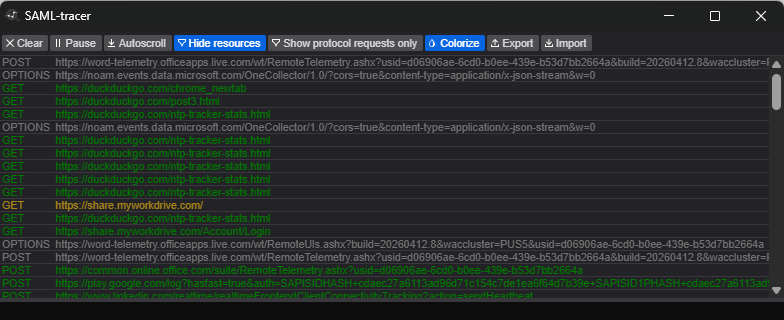
To confirm the extension is installed and ready, click the SAML Tracer icon in your browser toolbar (or from the extension manager if you did not pin it to the menu). A separate SAML Tracer window will open. You may see some HTTP traffic appear immediately - this is expected. The extension is now active and listening.
Tip: Before capturing a trace for troubleshooting, clear your browser cache and cookies to ensure a fresh authentication session. Use Ctrl+Shift+Delete (Windows/Linux) or Cmd+Shift+Delete (Mac) to open the clear cache dialog quickly.
Section 2: Conducting a Capture
Overview of the SAML Tracer Window
When opened, the SAML Tracer window has two main areas:
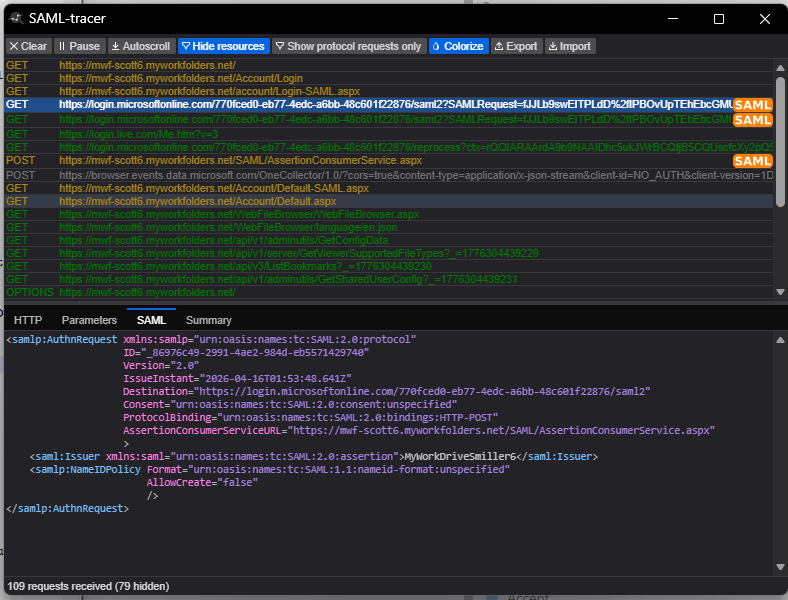
- Upper panel: A scrolling list of all HTTP/HTTPS requests made by the browser. Requests that contain SAML data are highlighted with a colored "SAML" tag on the right side.
- Lower panel: Shows the details of whichever request is selected in the upper panel. It has multiple tabs: HTTP (headers), Parameters (POST body or query string), SAML (decoded XML), and Summary.
Step-by-Step: Capturing a SAML Flow
- Open the SAML Tracer window by clicking its icon in your browser toolbar. Leave it open alongside your browser window.
- Navigate to the login page for MyWorkDrive. Do not log in yet.
- Optional but recommended: Click the Trash/Clear button in SAML Tracer to wipe any background requests that loaded before you started, so the trace is clean.
- Perform the login action - enter your credentials and submit, reproducing the exact conditions that trigger the issue.
- Allow the full authentication flow to complete or fail. Do not close the SAML Tracer window until the final result (success or error) appears in the browser.
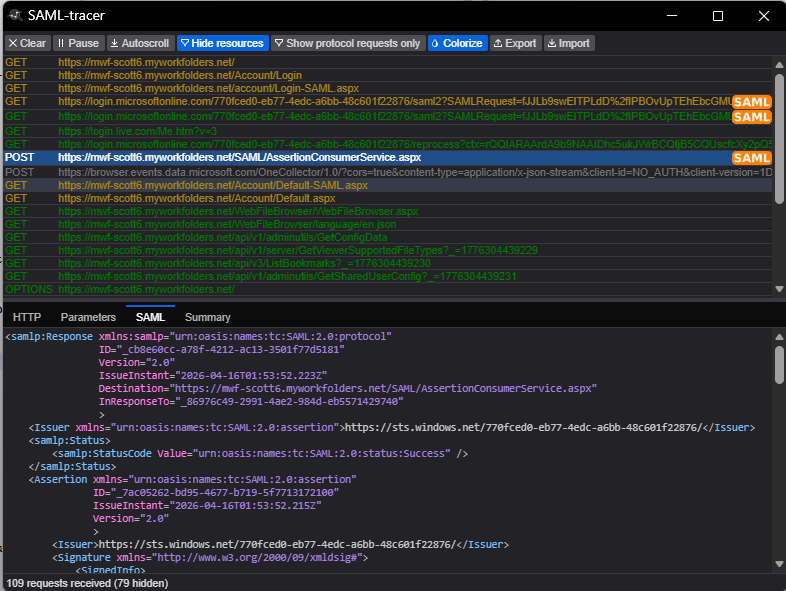
- Return to the SAML Tracer window. Look for rows highlighted with a SAML badge - there should be at least two: the AuthnRequest (SP > IdP) and the SAMLResponse (IdP > SP). There may be others - that is ok, but you must have an AuthnRequest and a SAMLResponse with an assertion. Those being missing is a sign of communication failure.
What You Should See
A typical SP-initiated SSO flow will produce the following sequence of requests:
| Request Type | Method | Description |
|---|---|---|
| AuthnRequest | GET or POST | Sent from the SP to the IdP to initiate authentication. Contains the ACS URL and requested NameID format. |
| Login interaction | GET/POST | The IdP login page and credential submission (may be multiple requests). These will not have a SAML badge. |
| SAMLResponse | POST | Sent from the IdP to the SP's Assertion Consumer Service (ACS) URL. This is the most important request to inspect. |
| SP redirect | GET | The final redirect to the application after the SP validates the assertion. Only appears on successful logins. |
Note: In an IdP-initiated flow (when you click an app tile in your identity provider portal), there will be no AuthnRequest. The flow begins directly with the SAMLResponse POST to the SP.
Section 3: Exporting and Saving a Capture
Exporting from SAML Tracer
Once your capture is complete, export the entire session as a JSON file for storage, sharing, or later analysis.
- In the SAML Tracer window, click the Export button in the upper toolbar (next to the Colorize button).
- A dialog will appear with three masking options:
| Option | What It Does |
|---|---|
| Mask Values (recommended) | Replaces sensitive parameter values with asterisks (***). Parameter names are preserved so the structure remains analyzable. |
| Remove Values | Strips all parameter values entirely. It is not advised to use this option when sharing with MyWorkDrive. |
| None | Exports the full capture with all values in plain text. Only use this for your own private analysis. |
** Important:** Always use Mask Values when sharing a trace with a vendor, support team, or colleague. Selecting None may include plaintext passwords, session tokens, or other credentials in the exported file.
- After selecting a masking option, click Export. A JSON file will be saved to your downloads folder.
- Share the .json file with MyWorkDrive support as advised (reply via email, upload to secure link)
Section 4: Analyzing the Capture
This section explains how to interpret what you see in SAML Tracer. Most SAML SSO issues fall into a small number of categories, and knowing what to look for makes diagnosis much faster.
4.1 The SAML Tracer Tabs
When you click on any request in the upper panel, the lower panel shows four tabs:
- HTTP - Headers and status codes for the selected request/response.
- Parameters - Query string parameters (GET) or POST body parameters. SAML content appears here as Base64 before SAML Tracer decodes it.
- SAML - The decoded, human-readable XML. This is the primary tab for analysis.
- Summary - A structured overview extracted from the SAML XML, presented in a more scannable format.
4.2 Identifying the Right Requests
Focus on the SAML-tagged rows. For most debugging you want to examine:
- The AuthnRequest (GET or POST, SAML badge): The request your SP sends to the IdP to initiate authentication.
- The SAMLResponse (POST, SAML badge): The assertion returned by the IdP. This is almost always the most important request to analyze.
4.3 Key Elements to Inspect in the AuthnRequest
The AuthnRequest is sent by the SP when it redirects the user to the IdP. Key attributes to verify:
| Element / Attribute | What to Check |
|---|---|
| Destination | Should match the IdP's Single Sign-On URL exactly (case-sensitive). A mismatch causes the IdP to reject the request. |
| AssertionConsumerServiceURL | The SP's ACS URL - where the IdP will POST the response. Must match what is configured in the IdP's SP settings. |
| Issuer | The SP's Entity ID. Must match the Entity ID registered in the IdP. |
| NameIDPolicy Format | The NameID format the SP is requesting. Must be a format the IdP is configured to provide. |
| IssueInstant | The timestamp of the request. Significant clock skew between SP and IdP can cause requests to be rejected as expired. |
4.4 Key Elements to Inspect in the SAMLResponse
The SAMLResponse contains the authentication assertion and is where most misconfiguration problems surface.
Status Code
Look for the <samlp:StatusCode> element. A successful response shows:
xml
<samlp:StatusCode Value="urn:oasis:names:tc:SAML:2.0:status:Success"/>
Common non-success status codes:
| Status Code (suffix) | Meaning |
|---|---|
AuthnFailed |
The IdP could not authenticate the user. Check user account status and credentials. |
InvalidNameIDPolicy |
The SP requested a NameID format the IdP cannot satisfy. |
RequestDenied |
The IdP refused the request - often due to missing user permissions or an SP not authorized in the IdP. |
Responder |
A general IdP-side error. Check the StatusMessage element below the StatusCode for more detail. |
VersionMismatch |
The SAML version in the request does not match what the IdP supports. |
Destination and InResponseTo
The Destination attribute on the <samlp:Response> element must match the SP's ACS URL exactly. If this is an SP-initiated flow, InResponseTo must match the ID from the AuthnRequest. A mismatch means the SP received a response it does not recognize as belonging to an active request.
Note: If you are testing an IdP-initiated flow, the
InResponseToattribute should be absent from the Response. Its presence in that scenario can cause the SP to reject the assertion.
Issuer
The <saml:Issuer> element contains the IdP's Entity ID. Compare this value against what the SP has configured as the trusted IdP Entity ID. A mismatch will cause signature validation to fail or the SP to reject the response entirely.
Conditions - Audience and Timestamps
Inside the <saml:Conditions> block, verify two things:
- AudienceRestriction: The <saml:Audience> value must match the SP's Entity ID exactly. If the SP receives an assertion with a non-matching Audience, it will reject it.
- NotBefore / NotOnOrAfter: These define the validity window for the assertion. If the SP's clock is more than a few minutes ahead of or behind the IdP's clock, the SP may consider the assertion expired or not yet valid. Both systems should use NTP time synchronization.
NameID
The <saml:NameID> element is the primary user identifier in the assertion. Verify:
- The value is the identifier your SP expects (e.g., the user's email address, username, or a persistent opaque ID).
- The Format attribute matches what the SP is configured to accept (e.g., urn:oasis:names:tc:SAML:1.1:nameid-format:emailAddress).
- The value is present and non-empty. A missing NameID is a common cause of login failures.
** Common issue:** NameID format mismatches are one of the most frequent sources of SSO failures. The SP may expect an email address but the IdP sends an opaque persistent ID, or vice versa. If you need to adjust claim rules, see our article on changing claim rules to re-write UPN
SubjectConfirmation
Inside <saml:Subject>, the <saml:SubjectConfirmationData> element should contain:
- Recipient: Must match the SP's ACS URL.
- NotOnOrAfter: The assertion expiry timestamp. If this is in the past, the SP will reject it.
- InResponseTo: If present in an SP-initiated flow, must match the AuthnRequest ID.
X.509 Certificate and Signature
The <ds:Signature> block contains the digital signature proving the assertion was issued by the trusted IdP. The <ds:X509Certificate> value is the IdP's signing certificate.
- Compare the certificate value in the trace against the certificate you have configured on the SP side. Even a single character difference (including whitespace or line breaks) will cause signature validation to fail.
- If the IdP has recently rotated its signing certificate and the SP has not been updated, you will see signature validation errors.
AttributeStatement
The <saml:AttributeStatement> block contains additional user attributes the IdP is sending (e.g., email address, first name, last name, group memberships, roles). Verify:
- All attributes the SP requires are present in the assertion.
- Attribute names are spelled exactly as the SP expects them - attribute names are case-sensitive.
- Attribute values are correct and in the expected format (e.g., a plain email string, not an XML schema type).
- No XML schema types are being used as the attribute value itself (some IdPs mistakenly send schema URIs instead of actual values).
4.5 Analysis Checklist Summary
Use this quick-reference checklist when stepping through a failed or unexpected SAML trace:
| Check | What to Verify | |
|---|---|---|
| StatusCode | Value = Success. If not, read the StatusMessage for details. | |
| Destination (Response) | Matches the SP's ACS URL exactly. | |
| InResponseTo | Matches the AuthnRequest ID (SP-initiated only). Absent for IdP-initiated. | |
| Issuer (Response) | Matches the IdP Entity ID configured on the SP. | |
| Audience | Matches the SP's Entity ID exactly. | |
| Timestamps (NotBefore / NotOnOrAfter) | Assertion is currently valid. Check for clock skew. | |
| NameID | Present, correct value, correct Format attribute. | |
| SubjectConfirmationData Recipient | Matches the ACS URL. | |
| X.509 Certificate | Matches the certificate registered on the SP. No rotation mismatch. | |
| AttributeStatement | All required attributes present, correctly named, valid values. | |
| AuthnRequest Destination | Matches the IdP's SSO URL. | |
| AuthnRequest ACS URL | Matches the ACS URL registered with the IdP. | |
| AuthnRequest Issuer | Matches the SP Entity ID registered with the IdP. |
Appendix: Common Error Patterns
| Symptom | Likely SAML Cause | Where to Look in Trace |
|---|---|---|
| Login fails with no error message | ACS URL mismatch; assertion delivered to wrong endpoint | Response Destination vs. SP ACS URL |
| "Invalid audience" error | Audience does not match SP Entity ID | saml:Audience in Conditions block |
| "Assertion expired" or time error | Clock skew between IdP and SP servers | NotBefore / NotOnOrAfter timestamps |
| User not recognized or new account created on every login | NameID value is inconsistent across sessions | saml:NameID value and Format |
| Signature validation failure | Certificate mismatch or IdP cert rotation | ds:X509Certificate value |
| Missing user attributes / wrong profile | AttributeStatement missing or misnamed | saml:AttributeStatement block |
| IdP returns error instead of assertion | User not provisioned in IdP app, or RequestDenied | samlp:StatusCode and StatusMessage |
| SP rejects response citing unknown request | InResponseTo mismatch or stale request | InResponseTo in Response vs. ID in AuthnRequest |