
MyWorkDrive Server depends on three separate .NET components in order to run correctly. If any one of them is missing, out of date, or removed by security software, the server can fail to start, fail to update, or behave unpredictably.
Required Components
Note: The .NET (Core) version below reflects the current MyWorkDrive Server release. Prior releases have required .NET 6, 7, or 8 depending on when they shipped, and future releases will move to .NET 10 and beyond as Microsoft's releases progress. Always confirm the version required by your specific release rather than assuming it will always be 9 — see .NET (Core) Major Versions Are Not Cumulative below.
MyWorkDrive Server requires all three of the following to be installed and up to date:
- .NET Framework 4.8 — the legacy Windows .NET runtime
- .NET (formerly .NET Core) 9 — the modern, cross-platform .NET runtime that MyWorkDrive's server components run on
- ASP.NET Core Module (ANCM) for IIS — the IIS module that allows requests to be handed off to the .NET Core application
All three are required for proper operation. MyWorkDrive Server will not run correctly, and IIS may return errors such as HTTP 500.30, 502.5, or 500.19, if any of these components is missing, mismatched, or removed.
Why the .NET Version Changes Over Time
Microsoft's .NET (formerly .NET Core) releases are updated on a regular cadence, and MyWorkDrive Server is updated to track newer .NET versions as they become available. This means that installing or updating MyWorkDrive Server may require installing a newer version of .NET than what is currently on the server. The MyWorkDrive installer is designed to install the required .NET version automatically as part of setup or upgrade — but see the note on security software below, as this automatic install is increasingly being blocked in hardened environments.
.NET (Core) Major Versions Are Not Cumulative
.NET Framework versions were cumulative and backward compatible — installing 4.8, for example, satisfied anything that required an earlier 4.x version such as .NET Framework 2. .NET (Core) does not work this way.
Each major version of .NET (Core) — 8, 9, 10, 11, and so on — is a separate, side-by-side runtime. Installing a newer major version does not include, satisfy, or replace the requirement for an older one. If MyWorkDrive Server requires .NET 9, having .NET 10 or .NET 11 installed instead of (rather than in addition to) .NET 9 will not work, even though it may seem like the "newer" or "more up to date" choice.
We have seen customers install .NET 10 or .NET 11 assuming it includes 9, 8, or 7 the way a newer .NET Framework release used to — and then run into the same failures this article covers, because the specific major version MyWorkDrive requires is still missing. Multiple major versions can safely coexist on the same server, so installing a newer major version alongside .NET 9 is not a problem — but it does not remove the need for .NET 9 itself.
If you're troubleshooting a .NET-related failure, always confirm the exact major version installed (see .NET (Core) Runtimes below) rather than assuming a newer major version installed for another purpose is sufficient.
Minor and patch versions are a different story. Within a single major version line, minor/patch updates are generally safe and expected — for example, if the MyWorkDrive installer bundles .NET 9.0.12 but 9.0.20 is current, updating to the latest 9.x patch is fine and will not break compatibility. The rule against assuming coverage applies specifically to jumping major versions, not to staying current within the required major version.
Security Software Interference
We have increasingly seen security products — antivirus, EDR, and other endpoint protection agents — interfere with .NET installation and updates on the MyWorkDrive server. This typically shows up in one of two ways:
- The security product blocks or quarantines the installer for a newer version of .NET (formerly .NET Core) when MyWorkDrive Server is updated
- The security product blocks, removes, or otherwise interferes with the ASP.NET Core Module (ANCM) in IIS, either during initial install or during a later scan/cleanup pass
A particularly common variant: the security product allows the .NET Hosting Bundle files to be copied to disk, but blocks the write to IIS's applicationHost.config that actually registers ANCM as a module. In this case the runtime and ANCM binary appear to install successfully, but ANCM never becomes active in IIS. See the ANCM troubleshooting steps below for how to distinguish this from a failed install.
Note that applying the recommended AV/EDR whitelist (or disabling AV/EDR during install) generally does avoid this. See Antivirus settings for recommendations.
If MyWorkDrive Server stops responding, fails to start after an update, or IIS returns a 500.30 or 502.5 error immediately after an update, check with your security/endpoint team first to confirm nothing was quarantined or blocked before assuming a MyWorkDrive-side issue.
Manually Reinstalling Blocked Components
If your security software has blocked or removed a .NET component, you can manually download and install it directly from Microsoft. Manual install is also the recommended workaround while you work with your security team to allowlist the installer going forward.
.NET (formerly .NET Core) Hosting Bundle
The hosting bundle installs both the .NET Core runtime and the ASP.NET Core Module (ANCM) for IIS in a single installer, so this is the recommended download if either component was blocked or removed.
- On the MyWorkDrive server, go to https://dotnet.microsoft.com/en-us/download/dotnet
- Select the .NET version required by your current MyWorkDrive Server release (confirm the exact version with MyWorkDrive support or your release notes if unsure)
- Download the Hosting Bundle for Windows (not the runtime-only or SDK installer)
- Run the installer as an administrator, and without the /quiet flag — an attended install will show a UAC prompt and any on-screen warnings, which are useful clues if AV/EDR is interfering. A silent/automated install can fail invisibly.
- Confirm the installer completes without error before continuing
- Restart IIS (or reboot the server) once installation completes: iisreset
Reinstalling the hosting bundle is also the correct fix if ANCM specifically has been removed from IIS by a security product, since the hosting bundle reinstalls ANCM as part of the same package.
If you are running AV/EDR, we recommend disabling it temporarily while installing applications, specifically to avoid this kind of silent failure. If that isn't practical, check the AV/EDR console or logs for a blocked or quarantined event related to the installer or to aspnetcorev2.dll, and add an exception if found.
.NET Framework 4.8
.NET Framework 4.8 is available directly from Microsoft if it needs to be reinstalled:
https://dotnet.microsoft.com/en-us/download/dotnet-framework/net48
After Reinstalling
Once components are reinstalled, verify the installed versions using the steps in the Troubleshooting section below, then confirm the MyWorkDrive Server service starts cleanly.
Troubleshooting: Verifying Installed .NET Versions
If you get an error about .NET while using MyWorkDrive, or want to confirm what's currently installed before or after a reinstall, use the methods below. .NET Framework and .NET (Core) are checked differently, and ANCM's registration in IIS is a separate check from either of them — a server can have both runtimes correctly installed while ANCM itself is not registered.
.NET Framework
From an elevated PowerShell session, run:
Get-ChildItem 'HKLM:\SOFTWARE\Microsoft\NET Framework Setup\NDP' -Recurse | Get-ItemProperty -Name version -EA 0 | Where { $_.PSChildName -Match '^(?!S)\p{L}'} | Select PSChildName, version
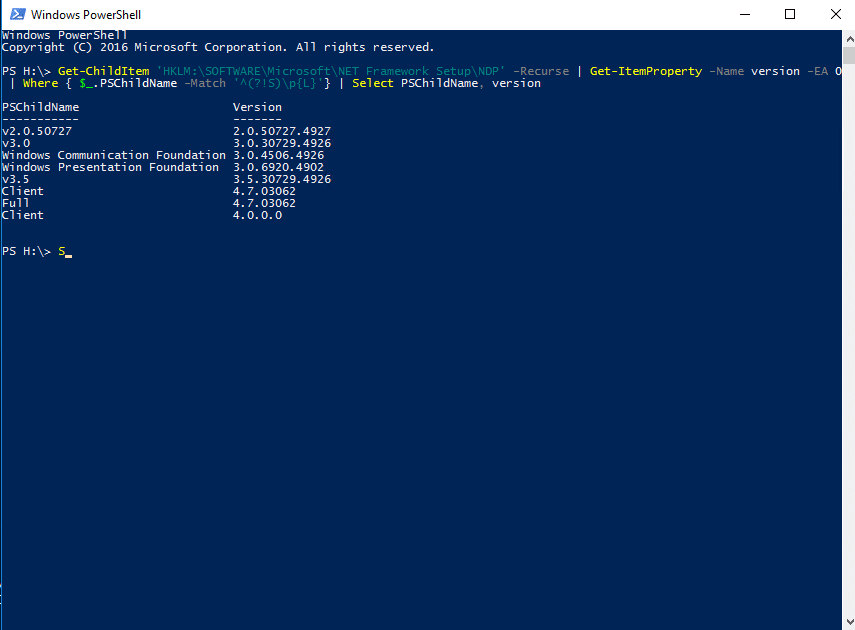
Alternatively, from an elevated Command window, run:
reg query "HKLM\SOFTWARE\Microsoft\Net Framework Setup\NDP" /s
This produces a less easy to read list, but if you scan through it will show all versions installed.
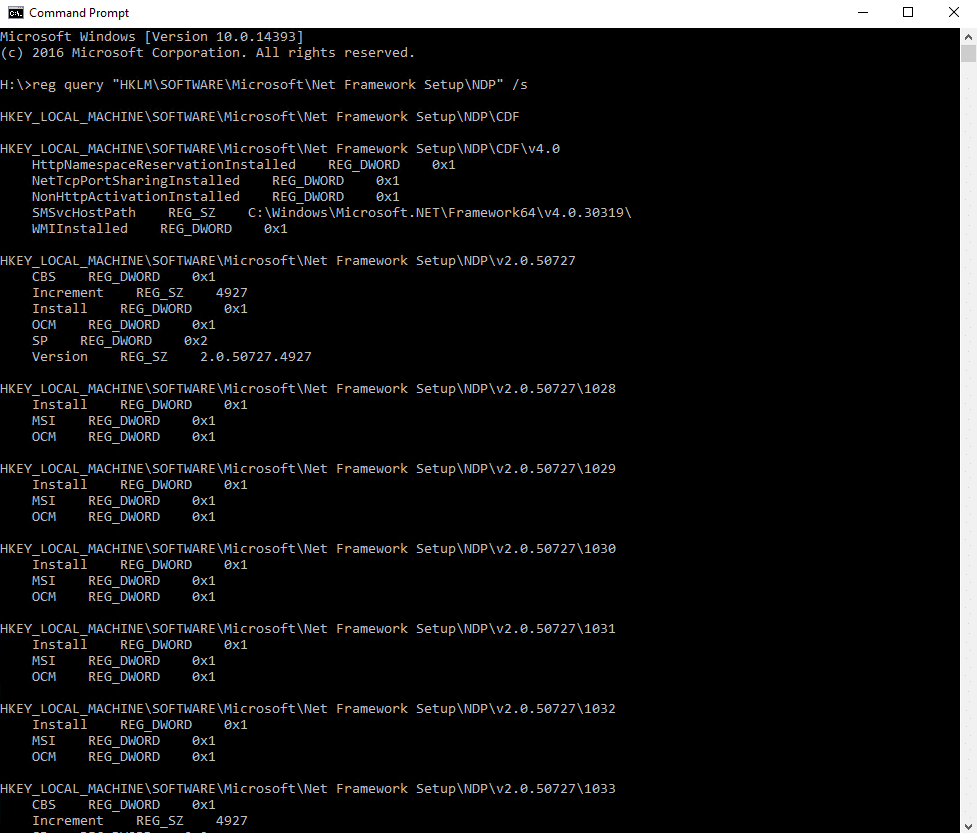
There are other methods, including browsing DLLs and editing the registry; additional methods are listed in this article: https://www.windowscentral.com/how-quickly-check-net-framework-version-windows-10
.NET (Core) Runtimes
From an elevated Command window or PowerShell session, run:
dotnet --info
Look for a .NET runtimes installed section containing entries for both of the following (version 9.x, or later depending on your current release):
Microsoft.AspNetCore.App 9.0.2 [C:\Program Files\dotnet\shared\Microsoft.AspNetCore.App]
Microsoft.NETCore.App 9.0.2 [C:\Program Files\dotnet\shared\Microsoft.NETCore.App]
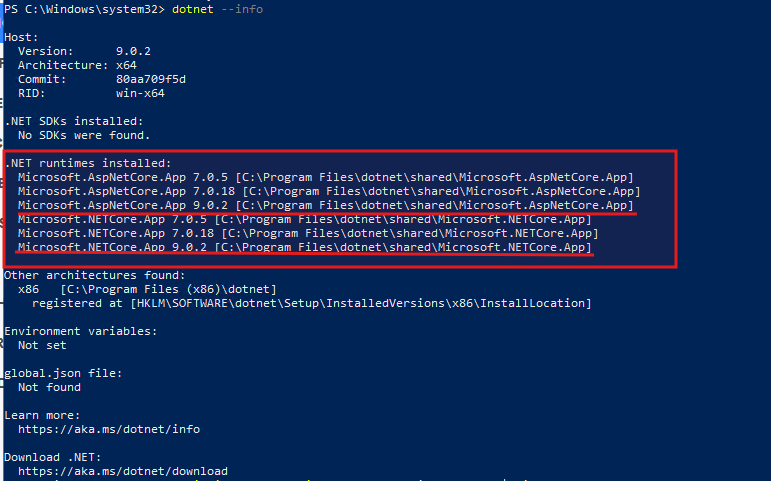
dotnet --list-runtimes returns the same information in a shorter format if you just need the version list.
If both entries are present, the .NET (Core) runtime itself is installed correctly — this does not confirm ANCM is registered in IIS, which is a separate check below.
ANCM Registration in IIS
Even when both .NET runtimes above are confirmed installed, ANCM can still be missing from IIS — this is one of the most common causes of a MyWorkDrive server component (such as the local Storage API) returning an error page in the browser with no corresponding log entries, because IIS never hands the request off to the .NET Core application at all.
From an elevated Command window, run:
%windir%\system32\inetsrv\appcmd list modules | findstr AspNetCore
You should see a result similar to:
MODULE "AspNetCoreModuleV2" ( native, preCondition: )

No result means ANCM is not registered in IIS, even if the runtime check above passed.
You can also confirm this in a full IIS config export. From an elevated PowerShell session, run:
& "$env:SystemRoot\system32\inetsrv\appcmd.exe" list config /config:* /xml > C:\iis-config-dump.xml
Then search the resulting file for AspNetCoreModuleV2 inside the
Before Reinstalling ANCM: Check Whether the Binary Is on Disk
Before attempting a fix, check whether this file is present:
C:\Program Files\IIS\Asp.Net Core Module\V2\aspnetcorev2.dll
This tells you which of two failure modes you're dealing with:
- File is present, but ANCM still isn't registered in IIS — this points to a config-write failure specifically: the hosting bundle installer copied its files successfully but was blocked (typically by AV/EDR, or by a permissions issue) from writing the module registration into applicationHost.config.
- File is not present — the .NET Hosting Bundle installer either failed before it reached this component, or something (again, most commonly AV/EDR) blocked the file itself from being written.
Either way, the recommended next step is the same: manually reinstall the hosting bundle as described above under .NET (formerly .NET Core) Hosting Bundle.
Verifying the Fix
After a manual hosting bundle reinstall, confirm the fix with the following checklist:
- Issue an iisreset from an elevated Command window or PowerShell session
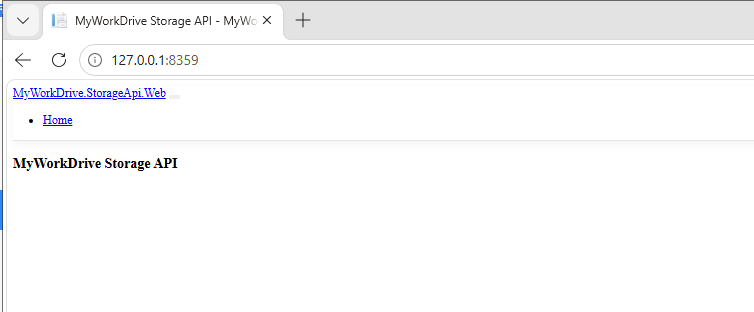
- Browse to the affected MyWorkDrive component's local URL on the server (for example, the Storage API at http://127.0.0.1:8359/) — you should get a plain response with no error page
- Re-run the ANCM check: %windir%\system32\inetsrv\appcmd list modules | findstr AspNetCore — you should now see MODULE "AspNetCoreModuleV2" ( native, preCondition: )
- Optionally, re-export the IIS config dump (see command above) to confirm AspNetCoreModuleV2 now appears under globalModules
If ANCM still fails to register after an attended manual reinstall, the next step is to determine what is specifically blocking the write to applicationHost.config (permissions or AV/EDR), or as a last resort, manually edit %windir%\system32\inetsrv\config\applicationHost.config to register the module. This is an advanced step and should be done with MyWorkDrive support.