
Granular File and Folder Permissions in Azure Blob Storage: A Guide to ADLS Gen2 POSIX ACLs
TL;DR: Azure Blob Storage doesn't support NTFS-style permissions out of the box — the default configuration is built around coarser, resource-level RBAC. To get per-file and per-folder access control, you need to enable Hierarchical Namespace (HNS) on a StorageV2 account (turning it into ADLS Gen2) and use POSIX-style ACLs. This article covers how that works, how Default ACLs handle inheritance, and the key behavioral differences from NTFS that trip people up.
Why Blob Storage Doesn't Work Like NTFS
Windows admins are used to NTFS: inherited permissions, explicit allow/deny entries, and ownership that propagates down a folder tree. Azure Blob Storage doesn't work that way natively. It's designed around Role-Based Access Control (RBAC), which governs access at the level of a whole storage account or container — not individual files and folders.
If your organization needs NTFS-like granularity, Microsoft's answer is POSIX-style Access Control Lists (ACLs) — but they're only available under a specific configuration.
Enabling ACLs: Requirements
To use ACLs, you need:
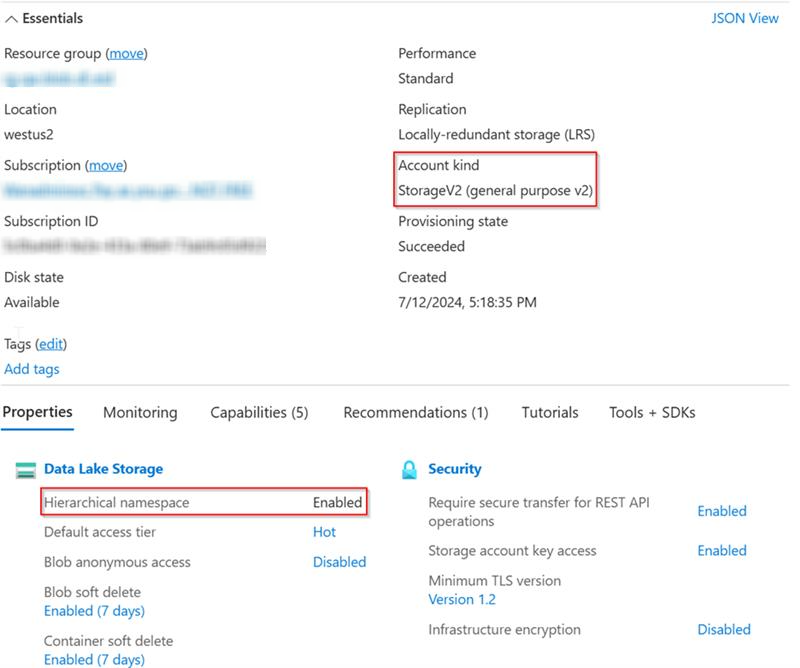
- A StorageV2 account
- Hierarchical Namespace (HNS) enabled on that account — this is what converts it into Azure Data Lake Storage Gen2 (ADLS Gen2)
Important: ACLs are only evaluated when a user has no RBAC role assigned. Azure checks roles first, and if a role match is found, ACLs are ignored entirely. If you're troubleshooting a permission that doesn't seem to be applying, check for a conflicting role assignment before anything else.
Here's what a correctly configured account looks like — note the Account kind and Hierarchical namespace fields under Properties:
Further reading from Microsoft: - How permissions are evaluated - Use the Azure portal to manage ACLs in Azure Data Lake Storage
How POSIX ACLs Work
If you've worked with Linux or Unix file systems, this will look familiar. Permissions are expressed as Read (R), Write (W), and Execute (X) for three identities:
- The owning user
- The owning group
- All other users
You can also add named user and group entries beyond these three base entries for more complex scenarios.
The behavior diverges from NTFS in a few important ways — most notably around inheritance, what happens at object creation, and the fact that there's no explicit Deny entry. The rest of this article walks through those differences.
Access ACLs vs. Default ACLs
There are two ACL types in ADLS Gen2, and mixing them up is the most common source of permission problems:
| Type | What it does |
|---|---|
| Access ACL | Controls permissions on a specific file or directory right now |
| Default ACL | Exists only on directories; acts as a template that gets stamped onto new files/subfolders created inside it |
The screenshot below shows the Manage ACL screen in the Azure portal, with the Default permissions tab selected for a root directory. Note the Read/Write/Execute grid per security principal, and the portal's own reminder at the bottom: read and write only take effect if the principal also has execute permission on every parent directory — the same traversal rule covered later in this article.
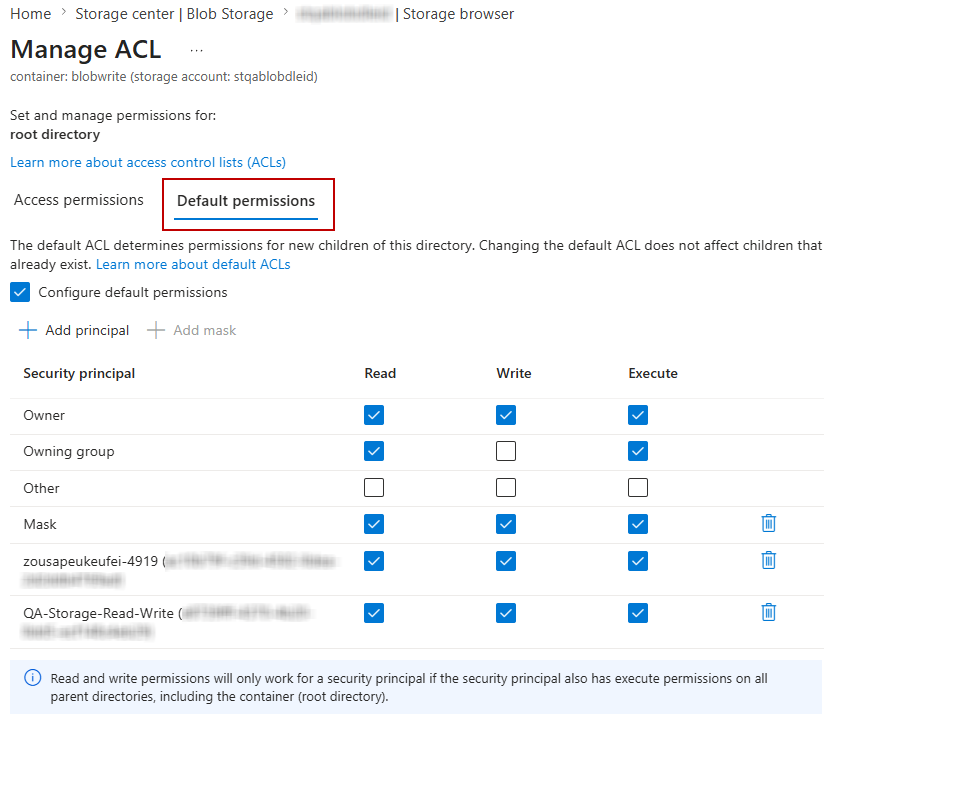
Default ACLs don't affect access to the directory itself — they only determine what permissions a new child object inherits when it's created.
Why Default ACLs Matter
Without a Default ACL, new files and folders created inside a directory start with no inherited permissions at all. Anyone who had access to the parent directory does not automatically get access to new content created inside it.
Example: A daily pipeline writes partitioned folders like /data/year=2024/month=07/day=12/. If /data/ only has an Access ACL (no Default ACL), none of those new day folders inherit any permissions. Analysts who could read data/ yesterday may find they silently can't read today's partition.
Setting Default ACLs on key parent directories ensures:
- New files/folders inherit correct permissions automatically, with no manual follow-up
- Pipelines keep running without interruption as the tree grows
- Least-privilege is maintained consistently, rather than accidentally over-permissioning new content
Key Behavioral Differences from NTFS
- No retroactive inheritance. Default ACLs must be set at every directory level where inheritance is needed. Changing a Default ACL never affects existing children — only objects created after the change inherit it.
- Creator gets full control by default. In NTFS, missing permissions block object creation. In ADLS Gen2, if no Default ACL exists on the parent, the user who creates a file or folder gets full RWX control over it — regardless of the parent's ACLs. Practically, this means files can end up accessible to only their creator, invisible to everyone else, until someone notices and fixes it.
- No automatic remediation. Because inheritance isn't retroactive, anything created while Default ACLs were missing or misconfigured has to be fixed manually, object by object. There's no bulk "reapply inheritance" tool like NTFS offers.
- Moved objects keep their original ACLs. If you move a file or folder to a new parent, it does not pick up the new parent's Default ACLs — it keeps whatever it had.
- Execute is required at every level for traversal. To reach a file, a user needs Execute (X) permission on every directory in the path — not just Read on the final destination. This is a frequent misconfiguration: make sure Default ACLs include Execute for anyone who needs to browse into subdirectories.
Best Practice
When designing your ACL structure, set both Access and Default ACLs together on any directory that will hold shared data. This keeps permissions predictable as your storage layer grows and avoids the "why can't I see yesterday's files" problem down the line.