


By Scott Miller
Last Updated: April 22, 2026
If you have moved files to SharePoint Online but your team still expects a drive letter in File Explorer, you are not alone. Mapping SharePoint as a network drive is one of the most common requests IT admins get after a Microsoft 365 migration, and it is also one of the most confusing, because the method most people reach for first (WebDAV) is the one Microsoft has effectively deprecated. (For the broader, version-agnostic overview, see our companion post on mapping SharePoint as a network drive; this guide is specifically focused on Windows 11.)
This guide walks through every realistic option on Windows 11: the approach Microsoft actually recommends (OneDrive sync with Files On-Demand), the legacy WebDAV drive-mapping method with its real-world caveats, the specific errors you will hit and what causes them, and how to deploy any of these at scale with Group Policy or Intune. At the end, we cover the scenarios where none of the built-in options fit, such as VDI, non-persistent desktops, Macs, and strict DLP requirements, and what to use instead.
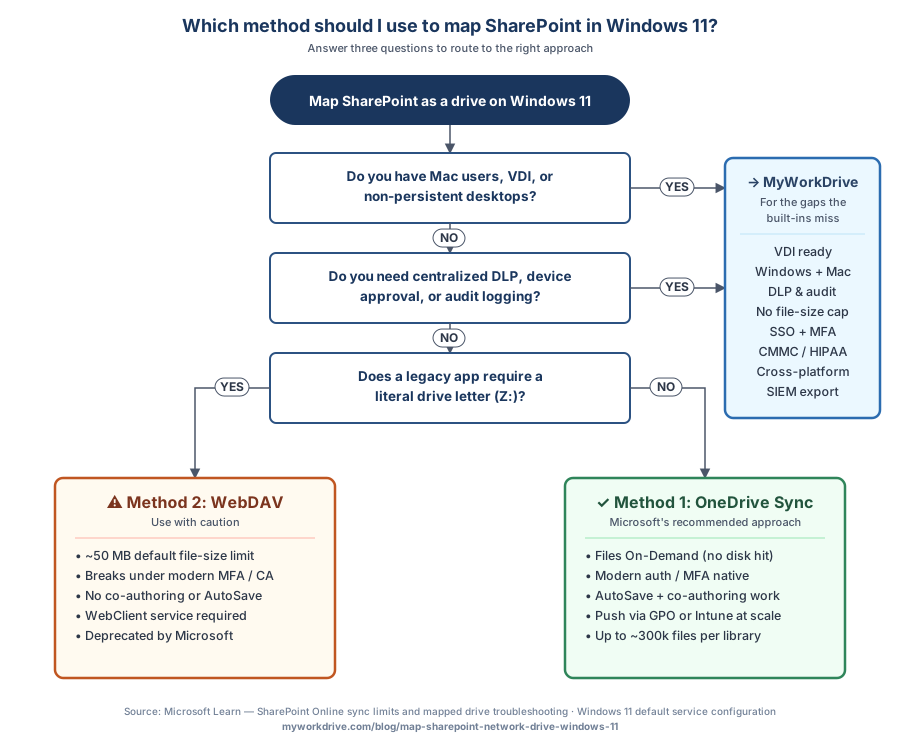 Three questions filter every real-world scenario to one of three answers.
What "Map a Network Drive" Actually Means in a Windows 11 Context
On a traditional file server, mapping a network drive meant pointing a drive letter (say, Z:) at an SMB share like \\fileserver\finance — the classic Windows file sharing model. SMB is fast, supports file locking, and is built for LAN-speed access. SharePoint Online has no SMB endpoint. It is an HTTPS-based service, so a drive letter pointed at SharePoint has to ride on a different transport entirely.
That distinction matters because it shapes every option below:
- OneDrive sync does not create a classic mapped drive at all. It syncs a SharePoint library into a local folder that behaves like one, using Files On-Demand to keep cloud-only placeholders on disk until a file is opened. This is Microsoft's recommended path.
- WebDAV is the only method that produces a literal
Z:drive letter pointed at SharePoint. It uses an HTTP-based protocol (Web Distributed Authoring and Versioning) handled by the Windows WebClient service. It works, but it is slow, brittle at scale, and Microsoft steers customers away from it. - Third-party drive clients present SharePoint (and other storage) as a true drive letter without WebDAV's limitations, which is where tools like MyWorkDrive come in for the cases the built-in options cannot cover.
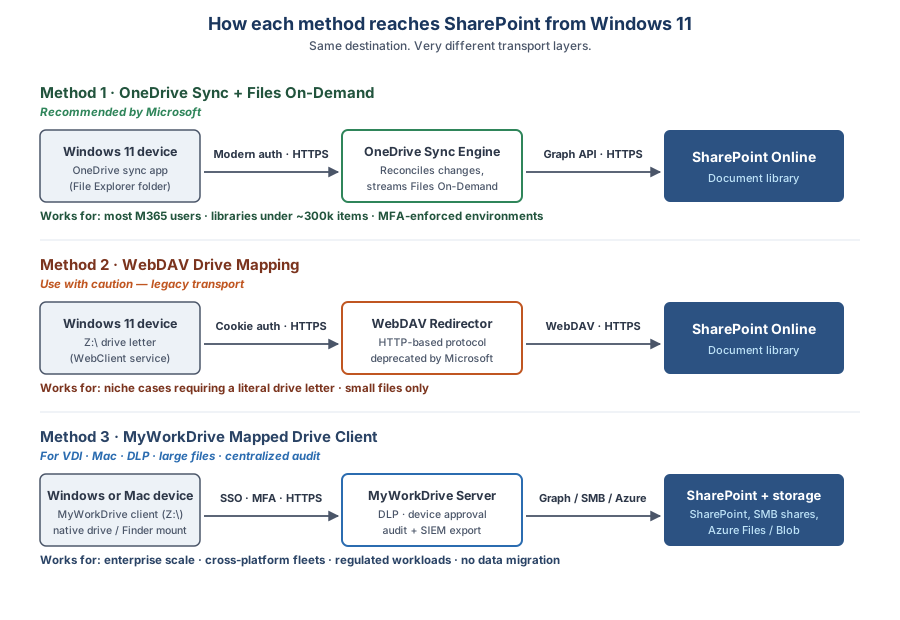 Same destination. Very different transport layers — which is why the methods behave so differently in practice.
Windows 10 and Windows 11 are the only client operating systems Microsoft supports for this; the WebDAV redirector ships built into both. (On Windows Server 2016/2019/2022 you have to add the WebDAV Redirector feature separately with Install-WindowsFeature WebDAV-Redirector -Restart.) Windows 11 also ships with the WebClient service set to Manual (Trigger Start) and, increasingly, treated as legacy, which is the root cause of most of the "it worked yesterday" complaints we will troubleshoot later.
At-a-Glance: OneDrive Sync vs WebDAV vs MyWorkDrive
| Capability | OneDrive Sync | WebDAV | MyWorkDrive |
|---|---|---|---|
| Produces a real drive letter (Z:) | NoFile Explorer folder |
Yes |
Yes |
| Default file-size limit | None — up to 250 GB/file |
~50 MBRegistry-adjustable |
No WebDAV limit |
| Modern auth (MFA, Conditional Access) | Native |
FragileOften breaks |
Native |
| Real-time co-authoring & AutoSave | Yes |
No |
YesVia Office Online |
| Recommended library size | Up to 300,000 items |
Small libraries only |
Enterprise scale |
| macOS support | YesSeparate experience |
Not reliable |
YesSame client UX |
| VDI & non-persistent desktops | Poor fitRe-syncs per session |
Limited |
Designed for itNo bulk sync |
| Built-in DLP, device approval, audit | Limited — M365 admin |
None |
YesDownload block, watermark, SIEM export |
| Enterprise deployment | GPO / Intune (recommended) |
GPO Drive Maps |
Server-side policy |
| Microsoft’s stance | Recommended |
DeprecatedFor SharePoint Online |
Third-partyNo Microsoft preference |
Method 1: OneDrive Sync + Files On-Demand (Microsoft's Recommended Approach)
For most organizations on Microsoft 365, this is the right answer. Instead of a WebDAV drive letter, the OneDrive sync app surfaces a SharePoint library as a folder in File Explorer under your organization's name, with Files On-Demand keeping everything online-only until needed so you do not burn local disk space. Microsoft explicitly recommends this over network-drive mapping because it is faster and more reliable than WebDAV, and because it preserves cloud-native features like AutoSave and real-time co-authoring that WebDAV breaks.
Step-by-step (per user)
- Make sure the OneDrive sync app is installed and signed in with the user's Microsoft 365 work account. It is built into Windows 11, so in most cases the user just needs to sign in.
- In a browser, go to the SharePoint site and open the document library you want (for example, the Documents library on a team site).
- Click Sync in the library command bar. When the "Open Microsoft OneDrive" prompt appears, allow it.
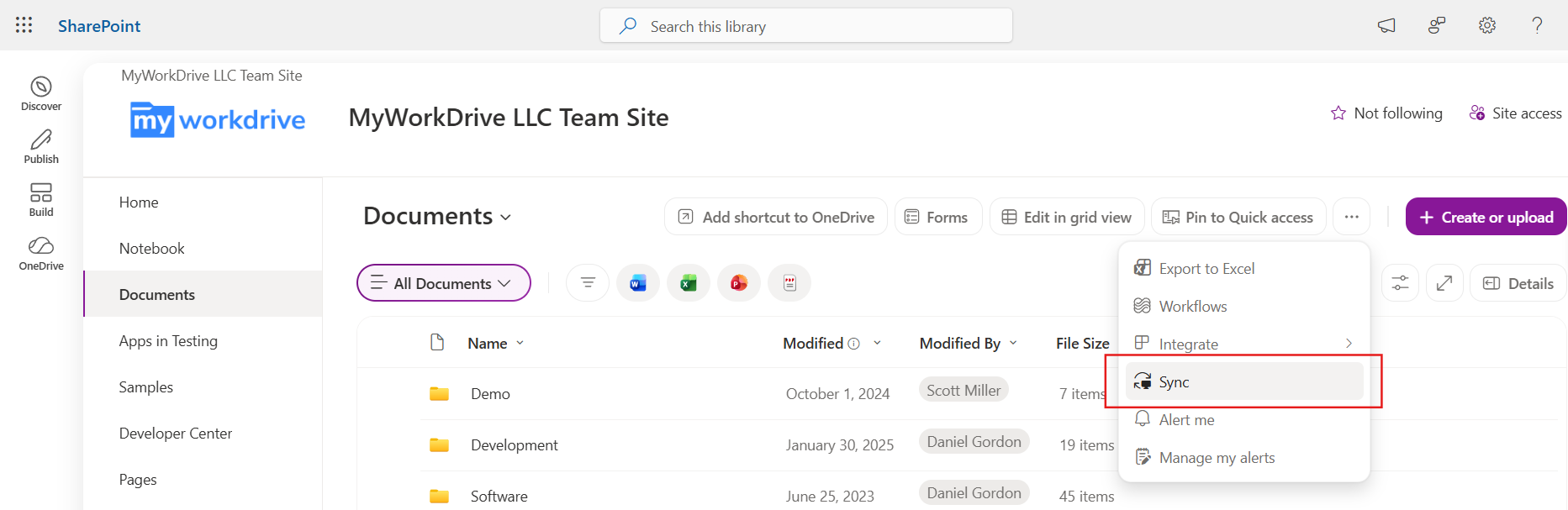 The Sync button is the entry point for OneDrive library sync — note it sits in the library command bar, not in site settings.
- The library now appears in File Explorer in the left navigation under your organization name, with the standard OneDrive status icons (cloud = online-only, green check = available locally).
- Optionally, right-click any folder and choose Always keep on this device to pin frequently used content for offline access.
Why Files On-Demand matters
Files On-Demand shows every file in the library as a placeholder without downloading it, so a 2 TB library does not consume 2 TB of laptop storage. Files download on first open and can be set back to online-only to reclaim space. This is what makes syncing an entire library practical rather than a disk-filling liability.
Limits to plan for
OneDrive sync is excellent, but it is not infinite. Microsoft recommends syncing no more than 300,000 files in a single library, and notes that the same performance problems appear if you have 300,000+ items across all the libraries you are syncing, even when you are not syncing every item. For automatic deployment, Microsoft also advises against auto-syncing libraries with more than 5,000 files or folders for performance reasons. Sync is also a copy-and-reconcile model, not live drive access, so very large engineering datasets, design files with external references, or databases that expect real file locking are poor fits. Those are the cases where you either fall back to a true drive-letter method or use a purpose-built client.
Method 2: WebDAV via File Explorer (Step-by-Step, With Honest Caveats)
If you genuinely need a drive letter mapped to SharePoint, for example to satisfy a legacy line-of-business application that only writes to Z:\, WebDAV is the built-in way to do it. Go in with eyes open: Microsoft no longer recommends this for SharePoint Online because of authentication failures, slow performance over high-latency links, and a default file-size limit.
Before you start
-
Confirm the WebClient service is running. Open
services.msc, find WebClient, and ensure it is started. To make it persistent, set Startup type to Automatic (or Automatic (Delayed Start)). You can also do this in PowerShell:powershell Get-Service WebClient Set-Service WebClient -StartupType Automatic -PassThru Start-Service WebClient
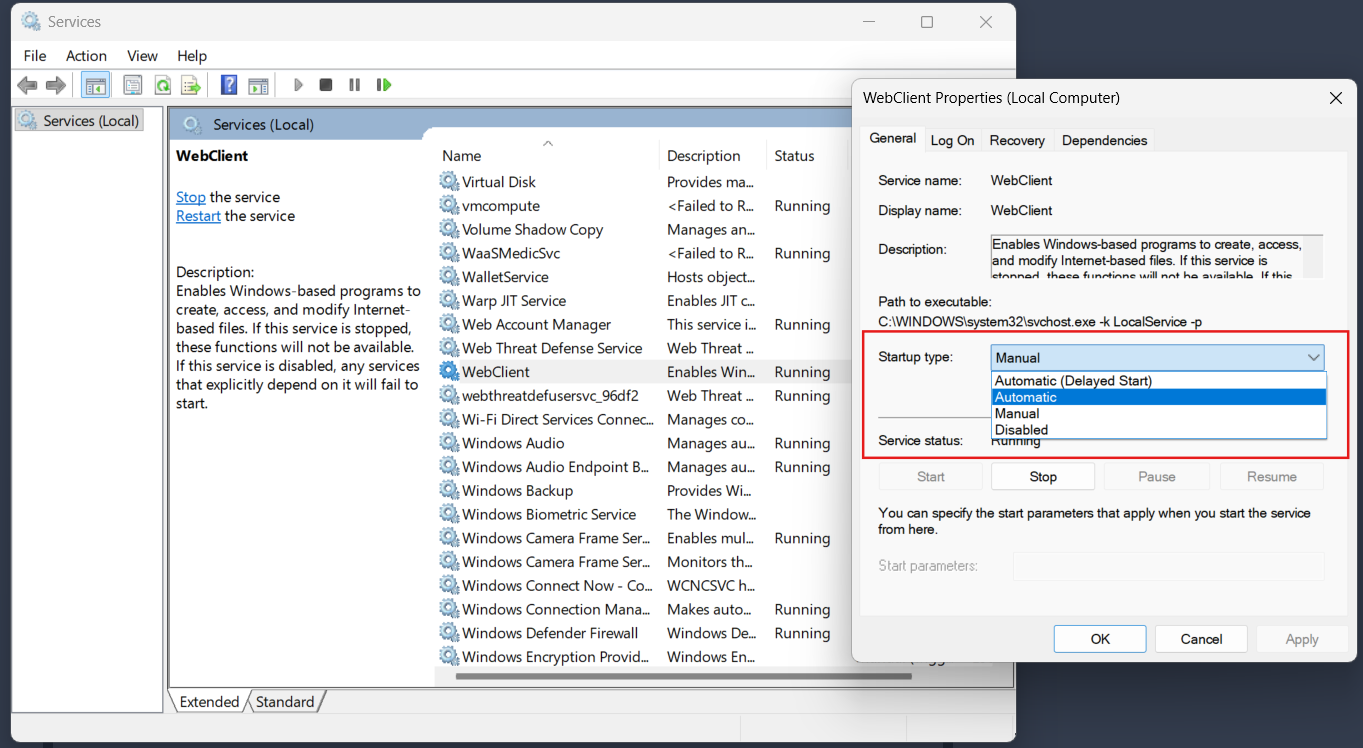 The WebClient service is the dependency every WebDAV mapping silently relies on — if it is Disabled, the mapping fails before authentication is even attempted.
- Add your SharePoint domain to Trusted Sites so Windows will pass credentials. In Internet Options → Security → Trusted sites → Sites, add
https://yourtenant.sharepoint.com(andhttps://yourtenant-my.sharepoint.comif you also need OneDrive). This is per the classic Internet Options control panel, which still governs the WebDAV redirector's zone behavior. - Sign in to the SharePoint site once in the browser with Keep me signed in checked, so an authentication cookie exists for the redirector to reuse.
Map the drive
- In SharePoint, navigate to the document library and copy its URL. You want the library path, not the page URL, for example:
https://yourtenant.sharepoint.com/sites/Finance/Shared Documents. - In File Explorer, right-click This PC and choose Map network drive.
- Pick a drive letter, paste the library URL into the Folder box, and tick Reconnect at sign-in if you want it to persist.
- Click Finish. If credentials are requested, use the Microsoft 365 account.
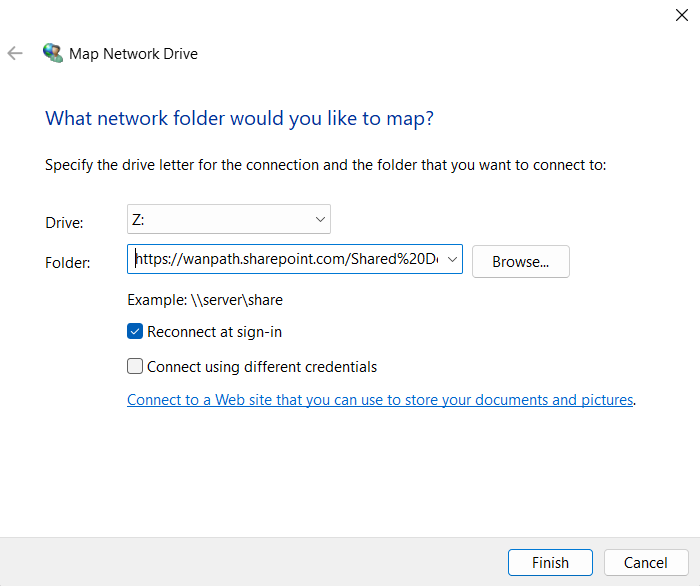 Paste the full library URL — not the SharePoint page URL — into the Folder field, including the document library path.
The library now appears as a drive letter. Test it by creating and saving a small file.
The caveats you should tell your users about (and yourself)
- File-size ceiling. WebDAV to SharePoint Online enforces a default size limit (historically 50 MB, with a registry-adjustable
FileSizeLimitInBytesceiling) and will throw errors on larger files. SMB never had this problem, so this surprises people migrating from a file server. - Token expiry and reconnects. The authentication cookie expires (commonly after several hours), at which point the drive silently drops or starts prompting again. Users who did not check "Keep me signed in" hit this constantly.
- No co-authoring or AutoSave. Real-time co-authoring and AutoSave do not work from WebDAV-mapped locations, so two people editing the same document risk version conflicts.
- WebClient is legacy. Microsoft has signaled WebDAV/WebClient as deprecated. It is not a foundation to build a long-term file-access strategy on.
Common Errors and What Actually Causes Them
These are the failures you will see in a ticket queue, and the real root cause behind each.
"Access Denied" / "you must first add the web site to your trusted sites list." The SharePoint domain is not in Trusted Sites, or the user has not authenticated in the browser, or the auth token has expired. Add the domain to Trusted Sites and re-authenticate with Keep me signed in.
Error 0x80070043, "The network name cannot be found." The WebDAV client is not available to the OS path you used, or the WebClient service is not running. Confirm WebClient is started and set to Automatic; on Windows Server, confirm the WebDAV Redirector feature is installed.
The drive maps, then disconnects after a few hours. This is token expiry, which is expected behavior. The fix is keeping a valid session (the "Keep me signed in" cookie) alive, not anything wrong with the mapping itself.
"WebClient service is not running" / the service will not start. If WebClient's Startup type is set to Disabled (common on hardened or Intune-baselined Windows 11 builds), map-drive functionality fails and you cannot start the service until you change Startup type back to Manual or Automatic. Security baselines that disable legacy services are a frequent culprit on managed fleets.
Files over the size limit fail to save (0x800700DF). This is the WebDAV file-size ceiling described above. You can raise FileSizeLimitInBytes, but the better answer for large files is to not use WebDAV.
MFA / Conditional Access prompts break the mapping. WebDAV's authentication handling does not gracefully accommodate modern multi-factor and Conditional Access flows. Environments enforcing MFA or device-compliance Conditional Access frequently find WebDAV mapping unreliable or unusable, which is a major reason Microsoft points customers to OneDrive sync (which speaks modern auth natively) — and why teams with strict identity requirements often move to a secure remote file access layer that handles modern auth as a first-class citizen.
Enterprise Deployment: Group Policy and Intune
Doing any of this by hand on one machine is fine. Rolling it out to hundreds is where you need policy.
Deploying OneDrive library sync (recommended at scale)
The cleanest enterprise pattern is to push automatic SharePoint library sync through OneDrive rather than scripting WebDAV mappings.
-
In the SharePoint library, click Sync, cancel the "Open Microsoft OneDrive" prompt, then choose Copy library ID. The copied string is URL-encoded and must be converted to ASCII. In PowerShell:
```powershell
-
Group Policy: load the OneDrive ADMX templates and enable Configure team site libraries to sync automatically, adding a friendly library name and the converted Library ID. Also enable Use OneDrive Files On-Demand and, optionally, Silently sign in users to the OneDrive sync app.
-
Intune: go to Devices → Configuration → Create → New Policy, platform Windows 10 and later, profile type Settings Catalog. Search the settings picker for Configure team site libraries to sync automatically (User), enable it, and add each library's name and converted ID. Enable Use OneDrive Files On-Demand in the same profile, then assign to your device or user groups.
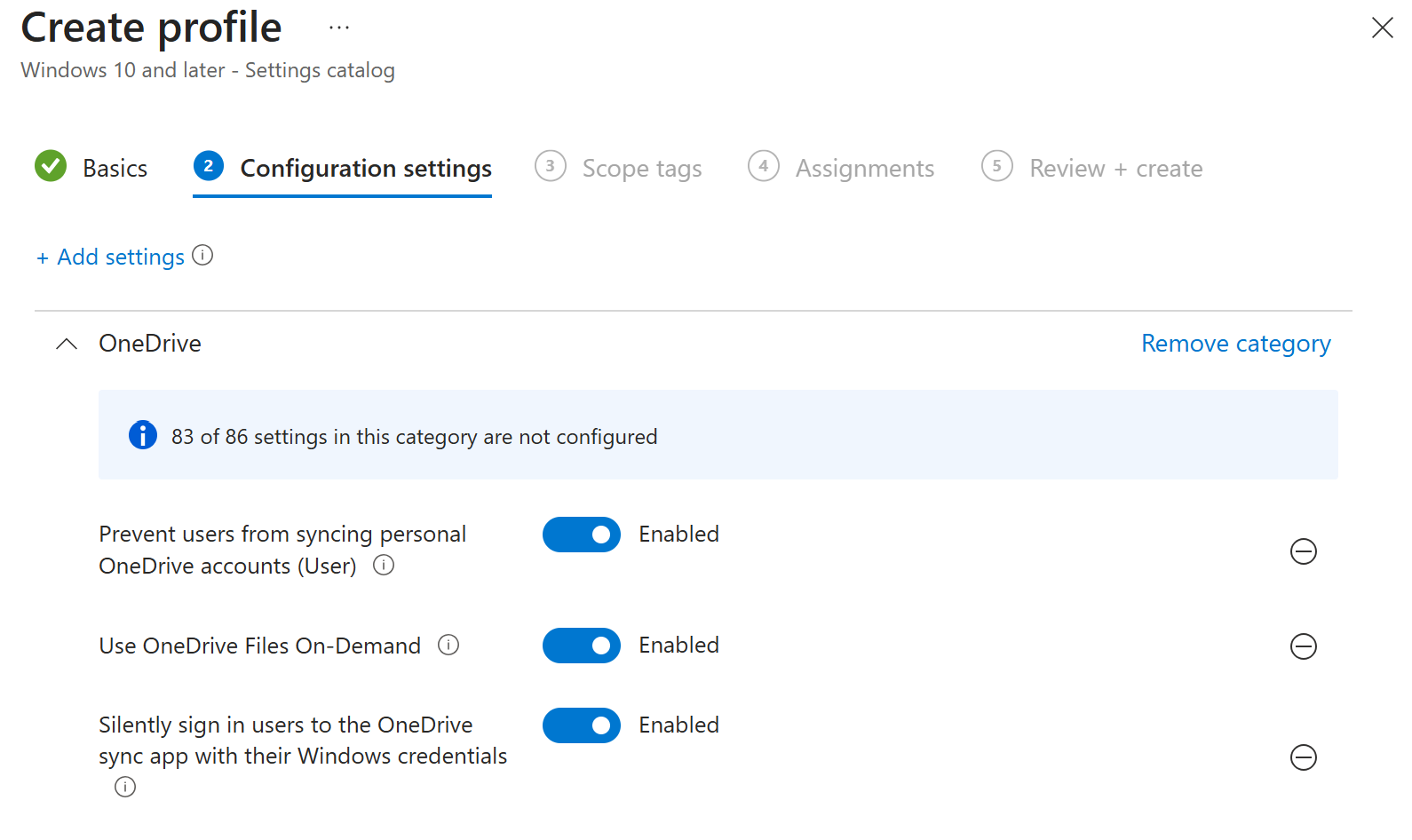 Pair "Configure team site libraries to sync automatically" with "Use OneDrive Files On-Demand" in the same Settings Catalog profile — the first will fail without the second.
A few field notes: the setting requires Files On-Demand and Windows 10 (1709) or later, so all Windows 11 devices qualify. Sync can take up to 8 hours to begin after a user next signs in (Microsoft staggers it to distribute network load). Do not auto-sync a single library to more than 1,000 devices, and avoid auto-syncing libraries with more than 5,000 items. Importantly, OneDrive only surfaces a library to users who already have permission to it, so SharePoint permissions, not the policy, control who actually sees what.
Deploying WebDAV mappings via Group Policy
If you must script the legacy method, use Group Policy Preferences → Drive Maps to create the WebDAV mapping, and pair it with a policy that sets the WebClient service to start automatically (otherwise the mapping fails on boot). Use item-level targeting to scope mappings to specific security groups, OUs, or OS versions. This works, but you are deploying the brittle option at scale, so weigh it against OneDrive sync first.
When to Use MyWorkDrive Instead
OneDrive sync covers the majority of Microsoft 365 file-access needs, and WebDAV fills the rare "I literally need a drive letter" gap. But several common enterprise scenarios fall through the cracks of both, because OneDrive's copy-and-sync model and WebDAV's legacy transport were never designed for them. These are the cases where a dedicated mapped-drive platform earns its place:
- VDI and non-persistent desktops. OneDrive sync is a poor fit for non-persistent VDI, where the local cache is wiped at logoff and re-syncing a library on every session is wasteful and slow. A true on-demand mapped drive that streams files without bulk syncing avoids re-hydrating gigabytes per login.
- Cross-platform teams (Windows and Mac). WebDAV mapping to SharePoint does not work cleanly on macOS, and OneDrive's experience differs across platforms. A single client that presents the same drive letter / Finder mount on both Windows and Mac keeps mixed fleets consistent.
- Large files, CAD, and external references. The WebDAV size ceiling and OneDrive's per-library item recommendations make both awkward for engineering, media, and design workloads. A streaming mapped drive with proper file handling sidesteps the size limits and the bulk-sync overhead.
- DLP, device approval, and audit requirements. When you need to block downloads, restrict copy/paste, watermark on view, approve devices before they connect, and export a full audit trail to your SIEM, neither WebDAV nor OneDrive sync gives you that control layer on top of SharePoint.
MyWorkDrive is built for exactly these gaps. It presents SharePoint libraries (and SMB/NTFS shares, Azure Files, Azure Blob, and more) as a familiar drive letter in File Explorer or a mount in macOS Finder through its mapped drive client for Windows and Mac — no WebDAV, no bulk sync, and no data migration. Admins centrally publish libraries, enforce data leak prevention controls (download blocking, clipboard restrictions, watermarking, device approval), authenticate through Entra ID and SAML SSO with MFA, and log every action for HIPAA-compliant file sharing and other regulated workloads (CMMC, GDPR, FINRA, FIPS). For VDI and non-persistent desktops, the on-demand mapped drive avoids the re-sync penalty entirely, which is also why teams choose it for secure remote file access without a VPN.
If your only requirement is light, single-user access to a small Microsoft 365 library, start with OneDrive sync. If you are an IT admin who needs scalable drive-letter access across Windows and Mac, on VDI, with real governance controls, that is the line where a purpose-built solution makes more sense than fighting WebDAV's limits.
Want to see it on your own SharePoint? Start a free MyWorkDrive trial (no credit card) and map a SharePoint library as a drive in minutes, or read the SharePoint File Share Access Setup Guide for the full configuration walkthrough.
Frequently Asked Questions
Can you map SharePoint as a network drive in Windows 11 without WebDAV? Yes. The recommended way is to sync the SharePoint library with the OneDrive app and Files On-Demand, which gives users a File Explorer folder that behaves like a drive without WebDAV. For an actual drive letter without WebDAV, use a third-party mapped-drive client such as MyWorkDrive, which presents SharePoint as a drive over HTTPS with no WebDAV dependency.
Why does my mapped SharePoint drive keep disconnecting? The most common cause is authentication-token expiry. WebDAV mappings rely on a browser session cookie that expires after a few hours, dropping the drive or prompting for credentials again. Signing in with "Keep me signed in" extends the session, but the underlying limitation is inherent to WebDAV, which is why Microsoft recommends OneDrive sync instead.
How do I fix "The WebClient service is not running" when mapping SharePoint? Open services.msc, locate the WebClient service, and start it; set Startup type to Automatic so it persists. If the service is set to Disabled (common under hardened security baselines), you must change the Startup type before it will start. In PowerShell: Set-Service WebClient -StartupType Automatic -PassThru; Start-Service WebClient.
What causes "Access Denied" when mapping a SharePoint document library? Usually the SharePoint domain is not in Internet Options → Trusted Sites, or you have not authenticated in the browser, or your token has expired. Add https://yourtenant.sharepoint.com to Trusted Sites, sign in to SharePoint with "Keep me signed in," then retry the mapping.
Is there a file-size limit when using WebDAV with SharePoint Online? Yes. WebDAV to SharePoint Online enforces a default size limit (historically around 50 MB, governed by the FileSizeLimitInBytes registry value), and large files fail to save. This limit does not exist with SMB or with a streaming mapped-drive client, so large-file workflows should avoid WebDAV.
Can I deploy SharePoint drive mapping to all users with Intune? Yes. The cleanest method is to push automatic library sync through OneDrive: copy the library ID, convert it from URL-encoded to ASCII with PowerShell, then enable Configure team site libraries to sync automatically plus Use OneDrive Files On-Demand in an Intune Settings Catalog profile and assign it to your groups. WebDAV mappings can be pushed via Group Policy Preferences Drive Maps, but OneDrive sync is the more reliable path at scale.
Does mapping SharePoint work on a Mac? WebDAV mapping to SharePoint Online does not work reliably on macOS, and the OneDrive experience differs from Windows. For mixed Windows and Mac fleets that need a consistent drive/mount experience, a cross-platform mapped-drive client is the practical solution.