


By Ron Bhojwani
Last Updated: May 22, 2026
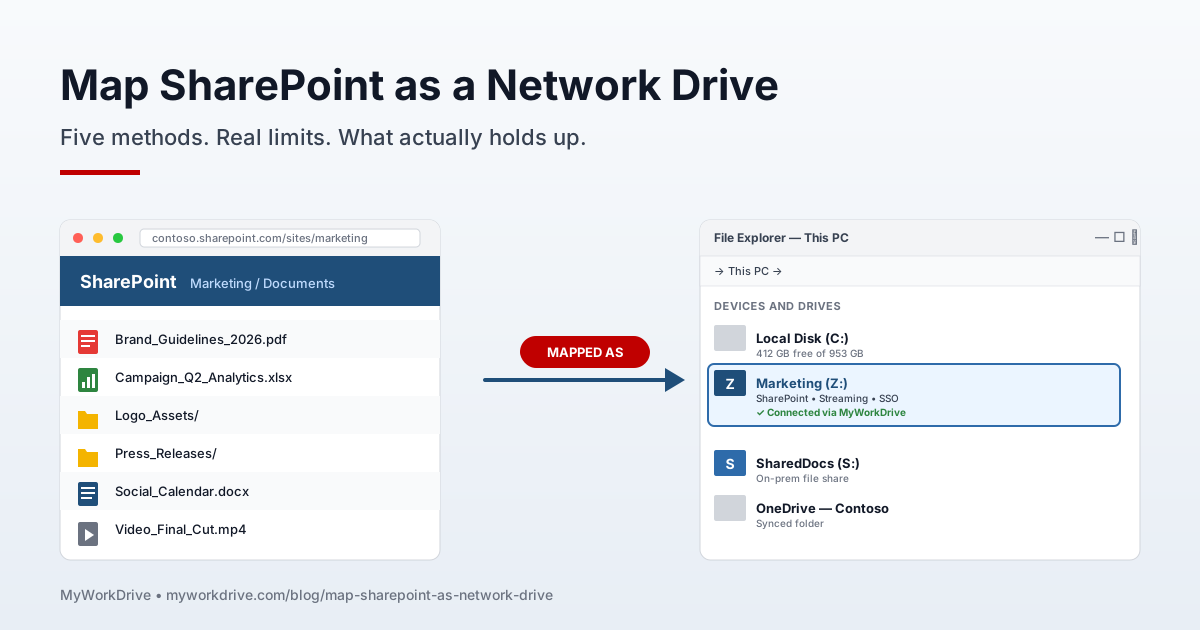
Figure 1. A SharePoint library mapped as a stable Z: drive in File Explorer, alongside on-prem and synced storage.
By Daniel Moore, Senior Solutions Engineer, MyWorkDrive. Published Sept 4, 2024. Last updated May 19, 2026.
Five methods will produce a SharePoint drive letter in Windows or macOS. OneDrive Sync is what Microsoft points you at. WebDAV mapping in File Explorer still works on paper. Group Policy can push WebDAV out at scale. PowerShell's New-PSDrive covers scripts and one-offs. The fifth method, a dedicated client like MyWorkDrive, is what most enterprises end up running once the first four break.
WebDAV drops every 30 to 60 minutes because the auth tokens expire. OneDrive Sync stops syncing at 100,000 files per library, quietly, with no error. PowerShell inherits all of WebDAV's headaches. Nobody enjoys troubleshooting GPO-deployed WebDAV at 2 a.m.
Quick Answer: Which Method Fits Your Situation
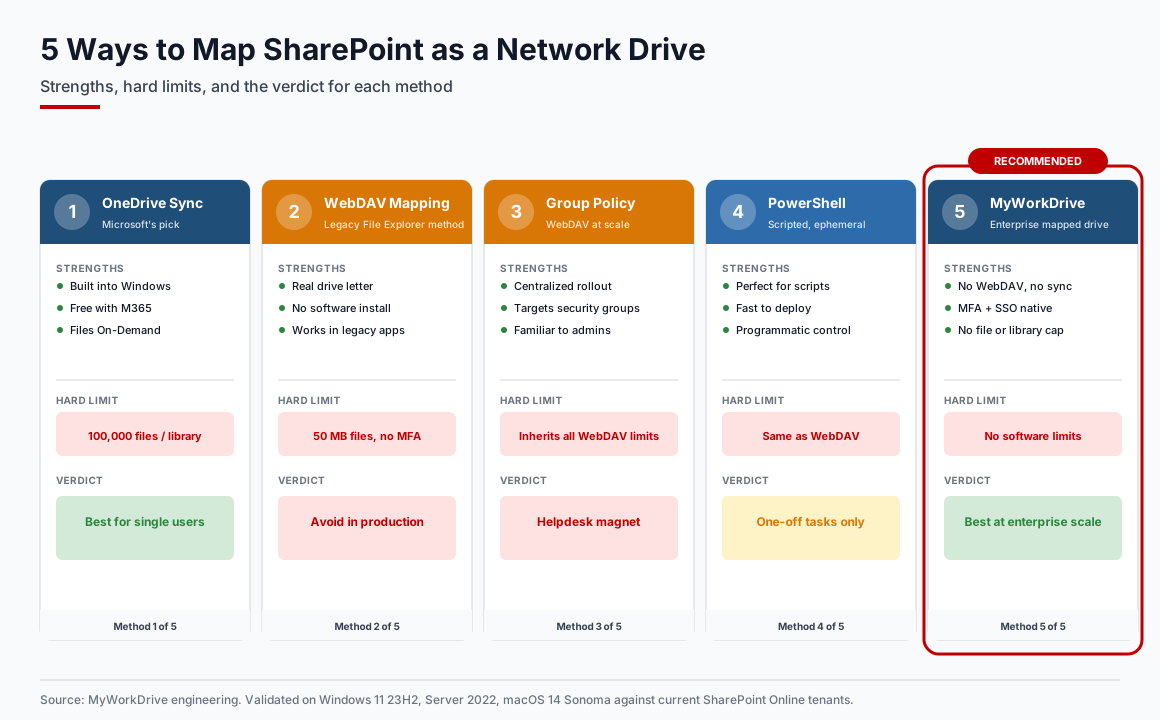
Figure 2. The five methods at a glance: strengths, the hard limit each one hits, and the verdict.
| Your situation | What to use | Why |
|---|---|---|
| One user, one library under 100K files, modern Windows | OneDrive Sync | Built in. Free. Supported. |
| Legacy app needs a real Z drive letter | MyWorkDrive | WebDAV mappings don't survive the workday. |
| VDI, AVD, Citrix, or Horizon | MyWorkDrive | No per-session cache. Login is instant. |
| Library past 100K files or 1 TB | MyWorkDrive | OneDrive Sync gives up and won't tell you. |
| Mac users on the team | MyWorkDrive | macOS WebDAV against SharePoint is a known sore spot. |
| On-prem SMB and SharePoint side by side | MyWorkDrive | Native tools force you to pick one. |
| One legacy script needs WebDAV | WebDAV mapping | Fine. Scope it to that one machine. |
What "Map SharePoint as a Network Drive" Actually Means
Mapping SharePoint as a network drive means a SharePoint library shows up as Z drive (or whatever letter you pick) inside File Explorer. Users see a folder. They copy and paste. They open files. They save them. Same workflow they had on the old Windows file server, only the bytes live in SharePoint now.
Five methods will get you there. Each one solves the problem differently and breaks in its own way.
Why Microsoft Stopped Recommending WebDAV
Microsoft's recommended desktop access path for SharePoint Online has been OneDrive Sync since 2018. Their troubleshooting article on dropped WebDAV mappings reads like a long, patient goodbye letter. The reasons are technical, and they're the same reasons every WebDAV deployment we inherit from a previous IT team starts failing within a few months.
Tokens expire. WebDAV authentication runs through cookies cached by the legacy Internet Explorer stack, and those cookies live 30 to 60 minutes. The drive disappears mid-edit. Excel throws a save error. Helpdesk picks up the phone.
MFA is the other dealbreaker. The Windows WebDAV redirector can't negotiate modern OAuth or SAML flows. Any Entra ID tenant with Conditional Access turned on, which is to say most of them, locks WebDAV out by default.
The 50 MB file ceiling catches people. Anything over 50 MB fails with error 0x800700DF. You can raise the cap to 4 GB by editing FileSizeLimitInBytes in the registry, but every endpoint management baseline I've seen forbids per-machine registry edits, so good luck deploying that at scale.
WebClient service has to be running. On Windows Server 2016 and 2019 it isn't installed by default and needs the Desktop Experience feature. We watched a Citrix farm fall over once because someone hardened the gold image and stripped WebClient on the way through. Took two days to diagnose.
And coauthoring just doesn't work. WebDAV opens files with an exclusive lock, so the second person to open a document gets a read-only copy. Autosave dies. Real-time presence dies. The whole reason your team is in SharePoint dies.
That's five reasons. Any one of them is enough.
Method 1: OneDrive Sync
OneDrive Sync is the Microsoft answer. For one user with one library and a normal laptop, it's also the correct one. Built into Windows 11 and macOS. Free with any Microsoft 365 license. Files On-Demand keeps the whole library off your local disk until you open something. Conflict resolution handles two people editing the same file.
It isn't technically a mapped drive. The library shows up as a synced folder in your user profile. For most users that distinction doesn't matter.
Setup
- Open the SharePoint document library in your browser.
- Click Sync in the toolbar.
- Approve the OneDrive prompt. The library appears in File Explorer under your tenant name.
- Right-click any folder you want offline and pick "Always keep on this device."
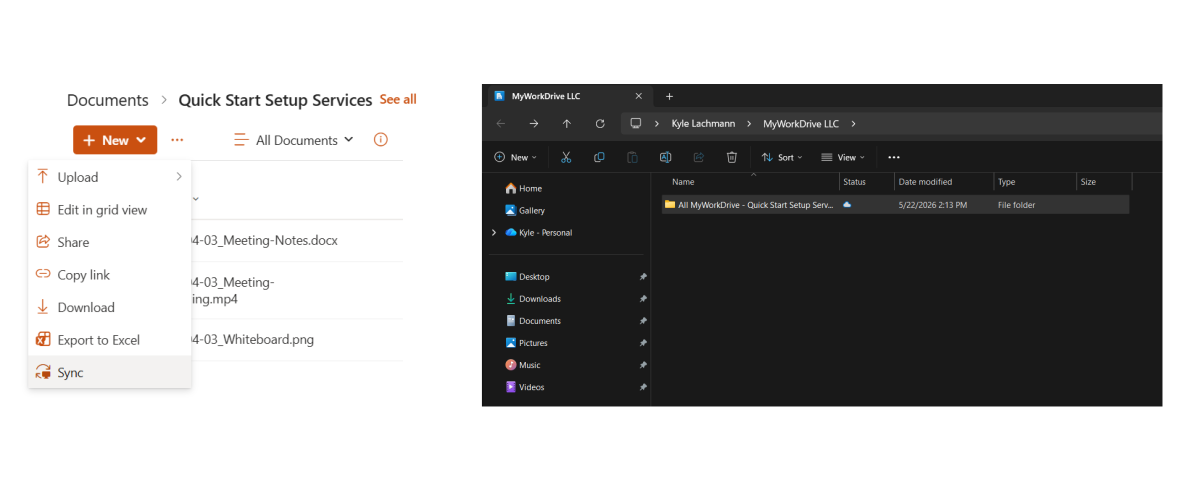
Figure 3. The Sync button in a SharePoint library, and the resulting synced folder in File Explorer.
Four clicks. That's why Microsoft pushes it.
Where OneDrive Sync Hits a Wall
OneDrive Sync is fine until you hit a Microsoft limit. The limits are hard, not soft, and Microsoft doesn't always surface them when you cross.
| Limit | Value | What happens |
|---|---|---|
| Files synced per library | 100,000 | Sync quietly stops. No error. |
| Maximum file size | 250 GB | Upload fails above the cap. |
| Maximum library size | 25 TB | Library has to be split past this. |
| Items in a list view | 5,000 | List truncates without warning. |
| Path length | 400 characters | File becomes inaccessible. Logged as sync error. |
| Special characters | # % & blocked in older paths | Rename before sync. |
| Concurrent open Office files | 300 per session | Office stops opening more. |
The 100,000-file cap is the one that gets people. Most legal, engineering, and accounting departments cross 100K in the first migration wave. Microsoft documents the cap at exactly 100,000. In the tenants we manage we've watched sync start choking around 75 to 85K depending on file size distribution. When it stops, users don't see a warning. They see a partial library and assume someone deleted things. By the time you've traced the cause, six people have already re-uploaded their own copies of the missing files.
Method 2: WebDAV Mapping in File Explorer
This is the method most people find when they search "map SharePoint as network drive," and it's the method we tell customers to avoid in production. We're including it because the question still gets asked. A small number of legacy apps genuinely require a real drive letter and can't be modernized. For those, fine. For everything else, keep reading.
Step-by-step
- Open Internet Options (Control Panel, Network and Internet, Internet Options). Add
https://yourtenant.sharepoint.comto Trusted Sites. Uncheck "Require server verification." - Sign in to SharePoint in Edge with "Reload in Internet Explorer mode" enabled. Click Yes on "Stay signed in." The cookie has to be cached for the WebDAV redirector to use it.
- In File Explorer, right-click This PC and pick Map network drive.
- Pick a letter. Enter the WebDAV path:
\\yourtenant.sharepoint.com@SSL\DavWwwRoot\sites\sitename\Shared Documents - Check "Reconnect at sign-in." Click Finish.
- If you need files over 50 MB, edit
HKLM\SYSTEM\CurrentControlSet\Services\WebClient\Parameters\FileSizeLimitInBytes. Max value is 4 GB. Restart the WebClient service after.

Figure 4. Error 0x800700DF, the 50 MB WebDAV file size wall, is the single most-searched error in this topic.
- 0x800700DF: file is over 50 MB. Raise FileSizeLimitInBytes, or stop using WebDAV.
- 0x80070043: WebClient service is missing or stopped. Install the Desktop Experience feature on Server, or start the service in services.msc.
- Drive disappears every 30 to 60 minutes: token expiration. There is no permanent OS-level fix. Move to OneDrive Sync or a dedicated client.
- "The network name cannot be found": Trusted Sites zone isn't set up right, or MFA is on. Re-add the URL, or use a method that supports MFA.
Method 3: Group Policy Preferences
If a WebDAV mapping has to go out to thousands of endpoints, Group Policy Preferences is the supported deployment vehicle. It inherits every WebDAV limit at scale.
We did a GPO-deployed WebDAV rollout for a 1,200-seat client in 2022. The helpdesk queue for "my S drive is gone again" hit 47 tickets by the end of week two and never came down. We pulled it at week six and switched the deployment to a real client. The helpdesk queue went to zero.
If you're going to do it anyway:
- In Group Policy Management Console, go to User Configuration, Preferences, Windows Settings, Drive Maps.
- Right-click, New, Mapped Drive.
- Set Action to Update. It's more reliable than Create when the policy reruns.
- Location:
\\yourtenant.sharepoint.com@SSL\DavWwwRoot\sites\sitename\Shared Documents - Drive Letter: assign it explicitly. S is fine.
- On the Common tab, check "Run in logged-on user's security context" so the user's SharePoint auth carries through.
- Target the policy to a security group, not a broad OU. Trust me on this.
Method 4: PowerShell New-PSDrive
Sometimes you need a SharePoint library mounted inside a PowerShell session for a one-off task. A migration. A backup script. A discovery sweep before a tenant cleanup. New-PSDrive against the WebDAV path covers that, with the caveat that you're back on WebDAV and back to its limits.
```powershell
$cred = Get-Credential
New-PSDrive -Name "SP" -PSProvider FileSystem -Root "\\yourtenant.sharepoint.com@SSL\DavWwwRoot\sites\sitename\Shared Documents"
-Credential $cred -Persist
To remove later:
Remove-PSDrive -Name "SP" -Force
```
This works for scripted, ephemeral tasks. It doesn't replace a real mapped drive client. We wouldn't deploy it to users.
Method 5: MyWorkDrive Mapped Drive Client
Everything above is what shipped with Windows. MyWorkDrive is a different approach.
The Mapped Drive Client presents a SharePoint library as a native drive letter in File Explorer or Finder using a virtual file system driver. No WebDAV. Authentication runs through Entra ID or your existing IdP over modern OAuth, so MFA and Conditional Access work normally. Files stream on demand from SharePoint through the Microsoft Graph API. Nothing caches locally. There's no 100,000-file ceiling because nothing is syncing.
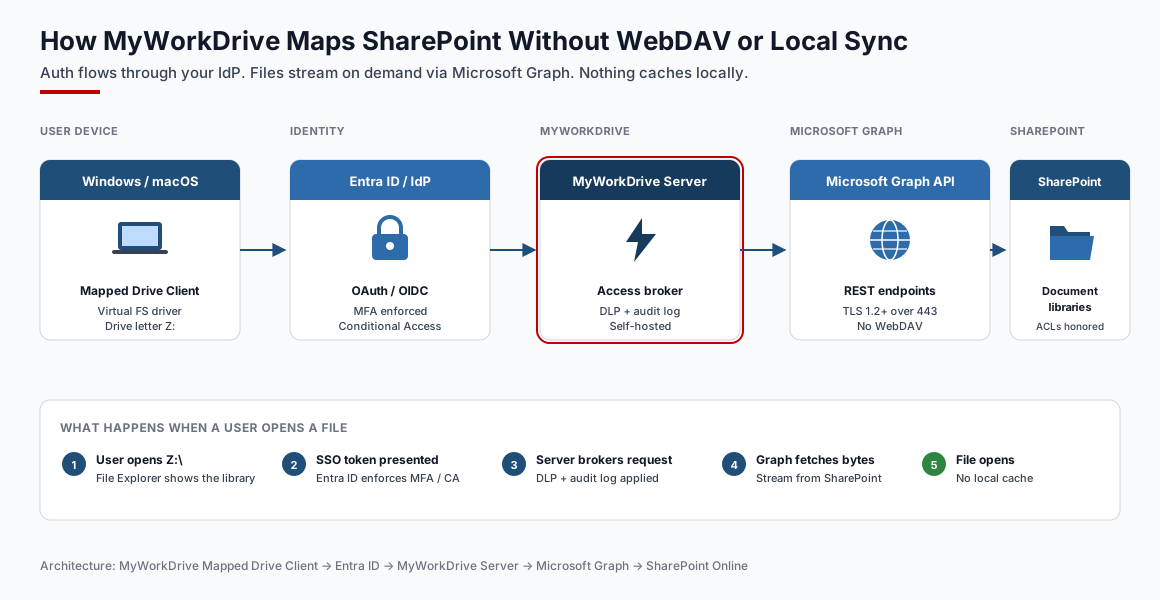
Figure 5. How a file open travels: device to Entra ID to MyWorkDrive server to Microsoft Graph to SharePoint. No WebDAV, no local cache.
We built it because, somewhere around 2017, the number of customers asking us how to keep their drive letters while their files moved to SharePoint stopped being a trickle. We rebuilt the SharePoint integration again in 2024 against the new Graph API throughput, which is why current deployments handle libraries with tens of millions of files without choking.
Where each method lands
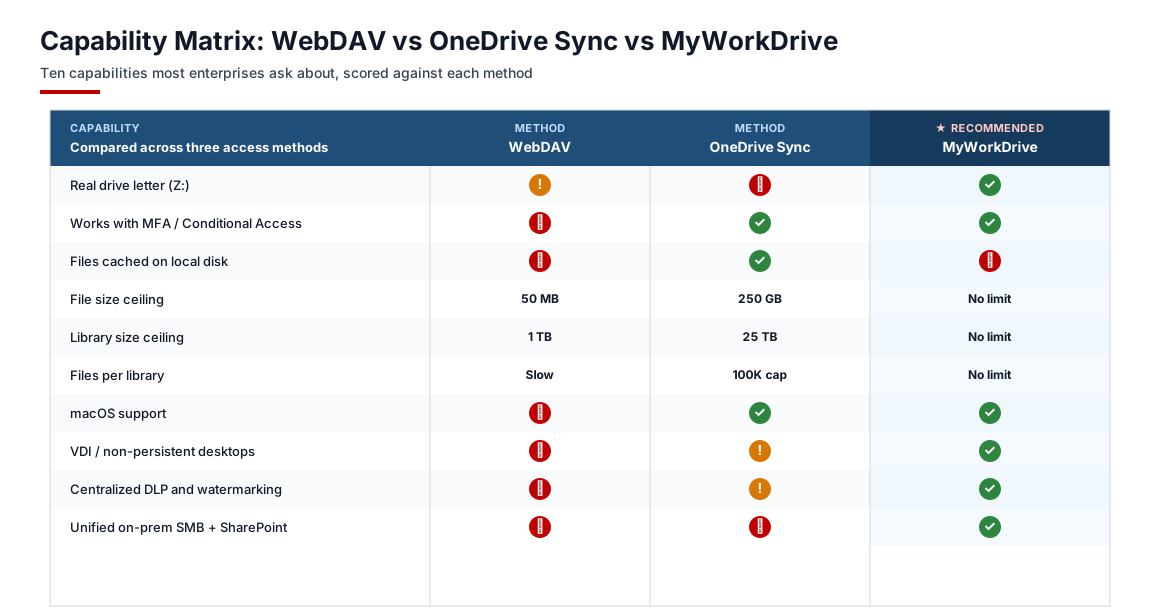
Figure 6. Ten capabilities scored across the three methods most enterprises actually compare.
| Capability | WebDAV | OneDrive Sync | ★ MyWorkDrive |
|---|---|---|---|
| Real drive letter (Z:) | ! | ✗ | ✓ |
| Works with MFA / Conditional Access | ✗ | ✓ | ✓ |
| Files cached on local disk | ✗ | ✓ | ✗ |
| File size ceiling | 50 MB default, 4 GB max | 250 GB | No limit |
| Library size ceiling | 1 TB | 25 TB | No limit |
| Files per library | Unlimited but slow | 100K cap | No limit |
| macOS support | ✗ | ✓ | ✓ |
| VDI / non-persistent desktops | ✗ | ! | ✓ |
| Centralized DLP and watermarking | ✗ | ! | ✓ |
| Unified on-prem SMB + SharePoint | ✗ | ✗ | ✓ |
Setup
- In the MyWorkDrive Admin portal, turn on SharePoint access. Connect your Microsoft 365 tenant through the default Graph App registration. Tenants with strict consent policies can use a custom registration instead. Full walkthrough in the SharePoint File Share Access Setup Guide.
- Create a share that points at the SharePoint Site, Library, or Subfolder you want exposed. Assign Active Directory or Entra ID security groups. Run Check Access to confirm the user permissions inherited from SharePoint look the way you expect before users see it.
- Pre-assign drive letters on the server. Each share locks to a specific letter. S for SharePoint, Z for archive, whatever your naming scheme is. Users get the same letter on every device, every login, every time.
- Push the Mapped Drive Client through Intune, SCCM, GPO, or Jamf. The MSI and PKG installers accept silent parameters for server URL, drive letter, map-at-startup, and DLP options. Full parameter list in the Desktop Clients Admin Guide.
- Users sign in with SSO. Their assigned libraries show up as mapped drives in File Explorer or Finder. No WebDAV. No sync. No registry edits.
When MyWorkDrive is the call
You want MyWorkDrive when the native tools start hitting walls. Libraries past 100K files. VDI rollouts where login speed actually matters. Hybrid setups where users need on-prem SMB and SharePoint side by side. Mac fleets. Anything subject to HIPAA, CMMC, GDPR, or FedRAMP. Legacy apps that demand a real drive letter and won't be modernized.
If you're a single user with a small library, OneDrive Sync. If you're an enterprise with any of the above, talk to us. Start a free trial or book a 15-minute call with our solutions engineering team.
Decision Matrix
If you don't want to read the article again, use this.
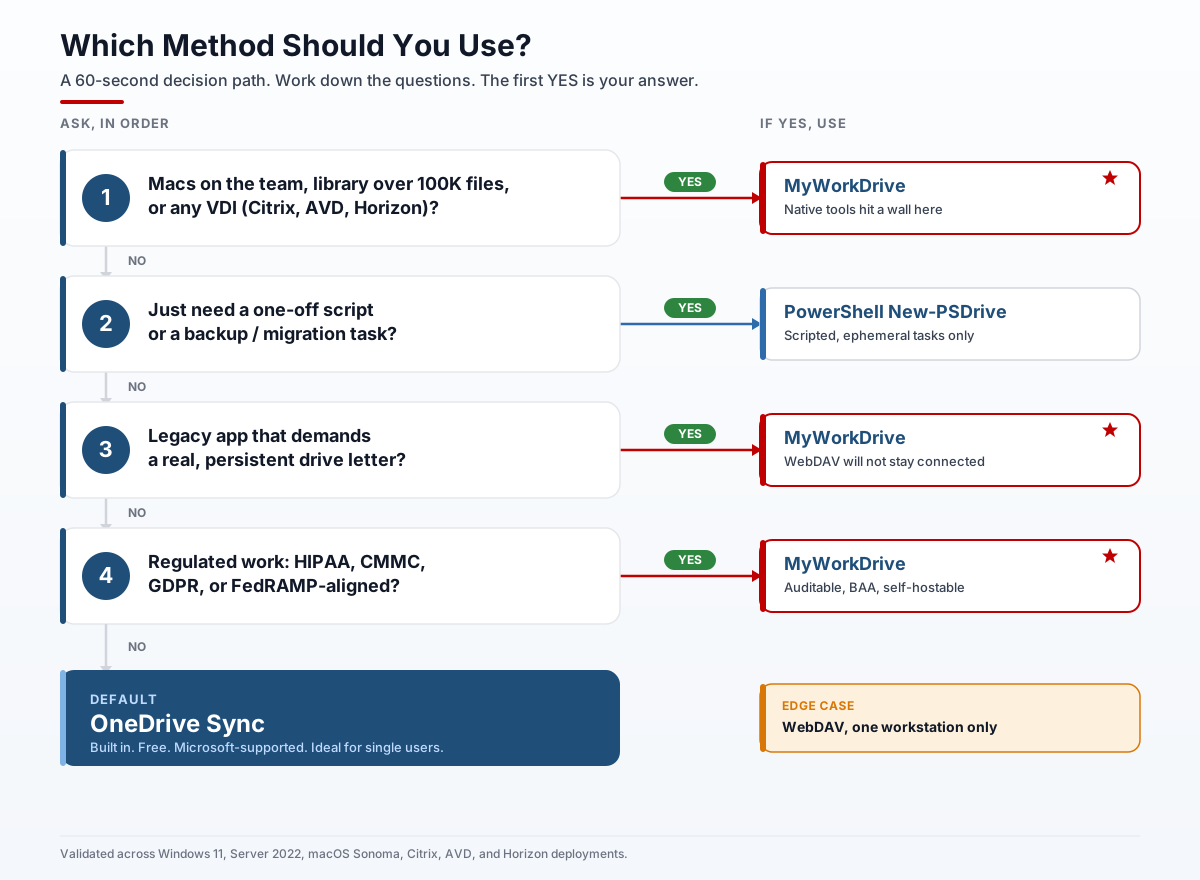
Figure 7. A 60-second decision tree. Answer four questions, land on the right method.
| Environmental signal | What to use |
|---|---|
| One user, one library under 100K files, modern Windows | OneDrive Sync |
| Macs on the team | MyWorkDrive (OneDrive Sync on Mac is unreliable for SharePoint) |
| Library past 100K files or 1 TB | MyWorkDrive (OneDrive Sync hits hard limits) |
| Citrix, AVD, Horizon, any non-persistent VDI | MyWorkDrive (no per-session sync penalty) |
| Legacy app requires a real drive letter | MyWorkDrive (WebDAV won't stay up) |
| On-prem SMB plus SharePoint accessible together | MyWorkDrive (unified hybrid access) |
| HIPAA, CMMC, GDPR, FedRAMP-aligned work | MyWorkDrive (auditable, BAA available, self-hostable) |
| One legacy script needs WebDAV | WebDAV, scoped to that one machine |
| Scripted one-off backup or migration | PowerShell New-PSDrive |
| Fleet rollout where you accept WebDAV's limits | GPO with WebDAV (the helpdesk will know it later) |
Security and Compliance
Mapping SharePoint touches identity, authorization, transport, and audit. The four methods come out very differently when you actually look at them.
Identity is the cleanest split. WebDAV uses cookies cached from the legacy IE stack. It can't do MFA. It can't do Conditional Access. OneDrive Sync and MyWorkDrive both speak OAuth and respect every policy your IdP throws at them. Any environment under NIST 800-171, CMMC, or the 2025 HIPAA Security Rule updates can't legitimately run WebDAV anymore.
Authorization works the same across all four methods because everything ultimately hits SharePoint's library-level ACLs. None of these methods can give a user more access than SharePoint already grants. MyWorkDrive can only restrict further, never elevate.
Transport on all four methods uses TLS 1.2 or higher. WebDAV's older cipher negotiation can fall back to TLS 1.0 on un-patched clients. Fix it with a registry policy, or move off WebDAV.
Audit is where the gap widens. OneDrive Sync and WebDAV give you whatever audit logs SharePoint itself produces, which means every read, write, and download mixed into the unified audit log alongside everyone else's activity. MyWorkDrive emits a separate application-level log per user and per file, streamable to a SIEM through Syslog. For regulated work, the second log isn't optional.
Data residency depends on hosting. WebDAV and OneDrive Sync route everything through Microsoft 365. MyWorkDrive can run self-hosted on your own infrastructure, in Azure (including Azure Government), or in a sovereign cloud. That matters for defense, finance, and certain healthcare customers. It matters less for everyone else.
Troubleshooting: Eight Errors You'll Actually See
"The mapped network drive could not be created because the following error occurred: 0x800700DF"
File is over 50 MB and you're on WebDAV's default ceiling. Raise FileSizeLimitInBytes in the registry up to 4 GB, or stop using WebDAV. MyWorkDrive has no file size cap, so the error doesn't exist there.
"Windows cannot access \yourtenant.sharepoint.com@SSL..."
WebClient service is stopped, or the SharePoint URL isn't in Trusted Sites. Start the service in services.msc. Add the tenant URL to the Trusted Sites zone. Make sure the user has signed into SharePoint in a browser in the last 30 minutes so the cookie's fresh.
Drive disconnects every 30 to 60 minutes
Tokens are expiring. There is no permanent fix at the OS level. Microsoft documented this as a known limitation in 2019 and hasn't fixed it since. Move to OneDrive Sync or a dedicated client.
OneDrive Sync stops syncing at 100,000 files
You've hit the published cap. Microsoft doesn't pop up a warning. Users see a partial library and assume someone deleted things. Two real fixes: split the library (painful) or switch to streaming access through MyWorkDrive (no equivalent cap).
"This filename contains characters that aren't allowed"
SharePoint blocks # % & in older paths. Several Windows-legal characters trigger the same error. Rename before sync, or use MyWorkDrive's mapped drive, which handles the encoding on the back end and shows users the original names.
Coauthoring stops working after mapping
WebDAV opens files with an exclusive lock. Coauthoring needs shared access. There's no fix without changing methods. MyWorkDrive supports browser-based coauthoring through SharePoint Service Mode while keeping the mapped drive experience for everything else.
Drive doesn't reconnect after VPN reconnects
WebDAV handles network transitions badly. Disconnect and remap by hand, or switch to anything that runs over port 443 only. One more thing: MyWorkDrive doesn't need a VPN at all. It brokers access over HTTPS.
"Cannot create a file when that file already exists" on macOS Finder
The built-in macOS WebDAV client has weak file locking. Use OneDrive for Mac for personal use, or the MyWorkDrive macOS client for fleet deployment. The built-in WebDAV is the wrong tool for SharePoint on a Mac.
Frequently Asked Questions
Can you map SharePoint as a network drive in Windows 11?
Yes. Microsoft's recommended method on Windows 11 is OneDrive Sync, not WebDAV. WebDAV mapping still technically works in Windows 11 with the same limits it's always had: 50 MB default file cap, 30 to 60 minute token expiration, no MFA. For a true persistent drive letter on Windows 11, a dedicated client like MyWorkDrive is what holds up over time.
Why does my SharePoint mapped drive keep disconnecting?
Tokens expire. The Windows WebDAV redirector caches cookies that live 30 to 60 minutes, then drops the connection. Microsoft hasn't fixed this in roughly a decade and isn't going to. Switch to OneDrive Sync or a third-party mapped drive client with persistent OAuth authentication.
What's the file size limit when mapping SharePoint as a network drive?
Depends which method. WebDAV defaults to 50 MB, raisable to 4 GB through the FileSizeLimitInBytes registry value. OneDrive Sync goes up to 250 GB per file. MyWorkDrive has no software limit; the file size cap is whatever your storage and connection can handle.
Does WebDAV mapping work with MFA?
No. The Windows WebDAV redirector can't complete modern OAuth or SAML flows. If your tenant enforces MFA or Conditional Access, WebDAV mapping isn't an option. Use OneDrive Sync or any modern client that supports OAuth instead.
Can I map SharePoint as a network drive on macOS?
Yes, but be picky. macOS's built-in WebDAV client is unreliable against SharePoint Online and we wouldn't ship it to users. OneDrive for Mac handles personal libraries fine. The MyWorkDrive macOS Mapped Drive Client gives you native Finder integration for enterprise deployments.
How do I map a SharePoint library with PowerShell?
Use New-PSDrive against the WebDAV path. Works for scripts and one-off tasks. Inherits every WebDAV limit, so don't deploy it to users. See the PowerShell code block in Method 4 above for the exact syntax.
What happens when a SharePoint library passes 100,000 files?
OneDrive Sync quietly stops syncing. Users see a partial library and assume files got deleted. There's no warning, no error in the sync client, no email. Microsoft documents the cap but doesn't enforce it loudly. Fix is either splitting the library (painful) or switching to a streaming access method that doesn't sync at all.
Can I map both on-prem file shares and SharePoint through one client?
Not with the Microsoft toolset. OneDrive Sync handles SharePoint and OneDrive. Traditional SMB mapping handles on-prem. They don't unify. MyWorkDrive does, which is why most of our hybrid customers end up there: one client, one drive letter scheme, one auth flow, both storage worlds.
Is mapping SharePoint as a network drive HIPAA-compliant?
WebDAV isn't. No MFA, and the audit logs the HIPAA Security Rule expects after the 2025 updates aren't there. OneDrive Sync can be HIPAA-compliant inside a properly configured tenant with a signed Business Associate Agreement. MyWorkDrive supports HIPAA with a BAA, application-level audit logs, and encryption in transit and at rest.
Is WebDAV ever the right answer anymore?
Only for a single workstation running a legacy app that absolutely requires it. For anything else, OneDrive Sync or a dedicated client.
Next Steps
That's the full picture. If you're a single user with a small library, OneDrive Sync is built in and supported and free. If you're running VDI, large libraries, hybrid storage, Mac fleets, or regulated work, start a free trial or book a 15-minute call with our solutions engineering team. We'll walk through your SharePoint topology and show you what the deployment looks like in your environment, not in a slide deck.
Start a free trialBook a demoView pricing
Related Reading
- MyWorkDrive vs SharePoint-Only: Why Choose When You Can Have Both
- Top 5 SharePoint Migration Costs to Plan For
- Unified Hybrid Storage Access: SMB plus SharePoint plus Azure Files
- SharePoint File Share Access Setup Guide
- Desktop Clients Admin Guide