
Overview
MyWorkDrive authenticates users by making Active Directory (AD) login requests via the .NET API directly from the server it is installed on. When Active Directory Sites and Services is not properly configured, Windows may route these authentication requests to a distant or suboptimal domain controller - causing slow, unpredictable login times. This article explains why this happens, why it matters, and how to fix it.
MyWorkDrive does not provide an option to specify a domain controller directly. Authentication requests are delegated to the Windows domain-joined host that MyWorkDrive is installed on, which means DC selection is governed by Windows and Active Directory - not by MyWorkDrive. Configuring AD Sites and Services correctly is the supported way to ensure the right DC is used.
Why Slow Authentication Happens
When the MyWorkDrive server needs to authenticate a user, Windows uses a process called DC Locator to find an available domain controller. DC Locator queries DNS for a list of domain controllers registered in the domain. If Active Directory Sites and Services has not been configured with the correct subnet-to-site mappings, DC Locator has no reliable way to determine which domain controller is closest to the MyWorkDrive server, and may select a remote DC - potentially across a WAN link or in a different data center.
This is not a MyWorkDrive-specific bug. It is the default behavior of DC Locator when AD site topology is incomplete or absent. Without subnet mappings, Windows falls back to contacting domain controllers essentially at random from the DNS list.
Why This Matters
Authentication is a blocking operation in MyWorkDrive - users cannot access their files until login completes. Routing authentication requests to a distant domain controller adds latency to every single login. In practice this means:
- Login times of 5-30 seconds or more in multi-site environments. We occasionally see 90-120 seconds, sometimes even running to timeout.
- Inconsistent login performance (sometimes fast, sometimes slow, depending on which DC responds)
- Support complaints that are difficult to diagnose, since the root cause is network topology rather than application behavior
- Potential for authentication to be routed to a Read-Only Domain Controller (RODC), which MyWorkDrive does not support and which will cause login failures
Note on RODCs: MyWorkDrive requires a writable domain controller for authentication. Proper Sites and Services configuration helps ensure authentication is never routed to an RODC. See Troubleshooting Failed Login / Missing Shares for more information.
The Solution: Active Directory Sites and Services
Active Directory Sites and Services is a Microsoft Management Console (MMC) snap-in that lets administrators define the physical and logical network topology of their organization within Active Directory. By associating IP subnets with AD Sites, and ensuring domain controllers are placed in the correct sites, you give DC Locator the information it needs to always route authentication to the nearest available writable DC.
The goal for MyWorkDrive is straightforward: the subnet of the MyWorkDrive server should be mapped to an AD Site that contains a local, writable domain controller. This ensures every authentication request is handled locally with minimal latency.
| Without Sites & Services | With Sites & Services |
|---|---|
| DC Locator picks a random domain controller | DC Locator selects the nearest domain controller |
| Authentication may traverse WAN links | Authentication stays on the local network |
| Slow, inconsistent login times | Fast, predictable login times |
| Risk of routing to an RODC | Local writable DC is always preferred |
How to Configure Active Directory Sites and Services
Prerequisites
- Domain Administrator privileges
- Access to Active Directory Sites and Services MMC snap-in (available on any Domain Controller, or via RSAT tools on Windows)
- The IP subnet(s) used by the MyWorkDrive server
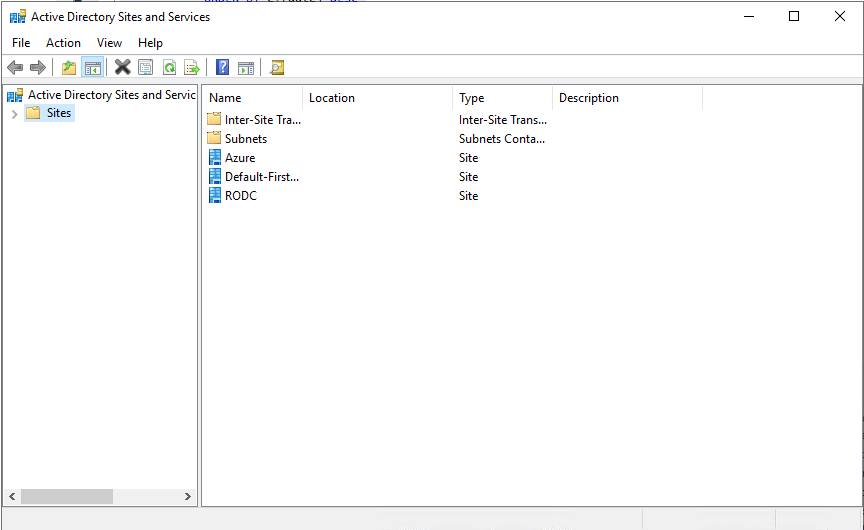
Step 1: Open Active Directory Sites and Services
- On a Domain Controller (or a machine with RSAT installed), open Server Manager
- Go to Tools | Active Directory Sites and Services
- Alternatively, run dssite.msc from a Run dialog (Win + R)
Step 2: Create a Site (if one does not already exist for your location)
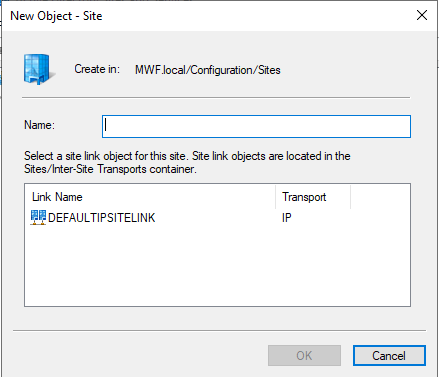
If a site does not yet exist for the network where MyWorkDrive is installed, create one:
- In the left panel, right-click Sites and select New Site
- Enter a descriptive name (e.g., HQ-Site, Datacenter-Primary, or Seattle-Office)
- Select a site link from the list - use DEFAULTIPSITELINK if you have not configured custom site links yet
- Click OK
Step 3: Define the Subnet for the MyWorkDrive Server
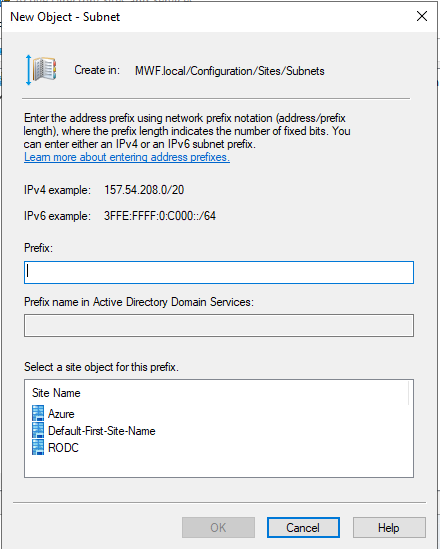
This is the most important step. You must associate the MyWorkDrive server's IP subnet with the site that contains the local domain controller.
- In the left panel, expand Sites, then right-click Subnets and select New Subnet
- In the Prefix field, enter the subnet for the network where MyWorkDrive is installed (e.g., 192.168.10.0/24)
- In the Site dropdown, select the site that contains your local, writable domain controller
- Click OK
Tip: If you are unsure of the MyWorkDrive server's subnet, run ipconfig on the server and note the IP address and subnet mask. Use a subnet calculator if needed to determine the CIDR prefix.
Step 4: Confirm the Domain Controller Is in the Correct Site
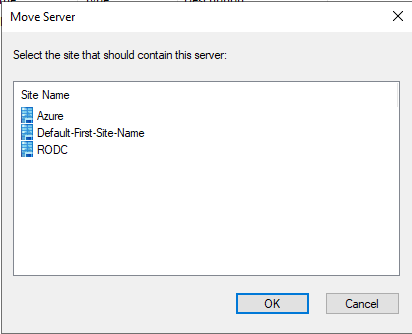
- In the left panel, expand your site, then expand Servers
- Verify the local domain controller you want MyWorkDrive to use appears here
- If the DC is listed under a different site, right-click the DC object, select Move, and choose the correct site
Step 5: Verify DC Locator Behavior
After saving your changes, verify that the MyWorkDrive server will use the correct domain controller. Run the following command on the MyWorkDrive server:
nltest /dsgetdc:<yourdomain.com>
Or to target a specific site explicitly:
nltest /dsgetdc:<yourdomain.com> /site:<SiteName>
The response should return a DC that is local to the MyWorkDrive server's site. Confirm the DC name and site shown in the output match expectations.
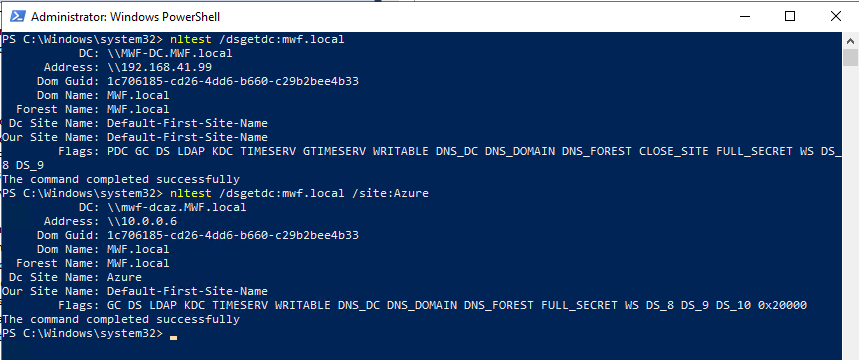
If the output still shows a remote DC, double-check that: - The subnet is correctly associated with the right site - The site contains at least one active, writable (non-RODC) domain controller - DNS has had time to update (you may need to wait a few minutes or flush the DNS cache with ipconfig /flushdns)
Step 6: Configure Site Links (Multi-Site Environments)
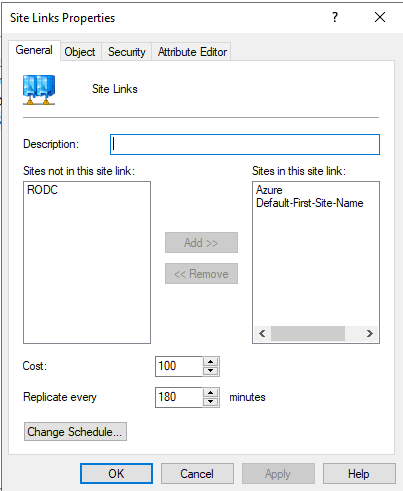
If your organization has multiple sites with domain controllers, configure site links to define paths between them and control which DC is preferred as a fallback.
- In the left panel, expand Sites | Inter-Site Transports | IP
- Right-click in the right panel and select New Site Link
- Add the sites to be connected and provide a descriptive name. Save. Open your new site link properties by right clicking on the name of the site link
- Set the Cost value - lower cost means higher preference. Assign a lower cost to the link connecting your primary DC site so it is preferred for replication and DC location
- Set the Replication Interval appropriate for your environment (180 minutes is the default)
Summary
Properly configuring Active Directory Sites and Services ensures that MyWorkDrive always authenticates against the nearest available writable domain controller, avoiding unnecessary WAN traversal and the latency it introduces. This is one of the most impactful configuration steps you can take to ensure fast, consistent login performance for your users.
If you continue to experience slow logins after completing this configuration, please contact MyWorkDrive Support for further assistance.