


By Scott Miller
Last Updated: June 1, 2026
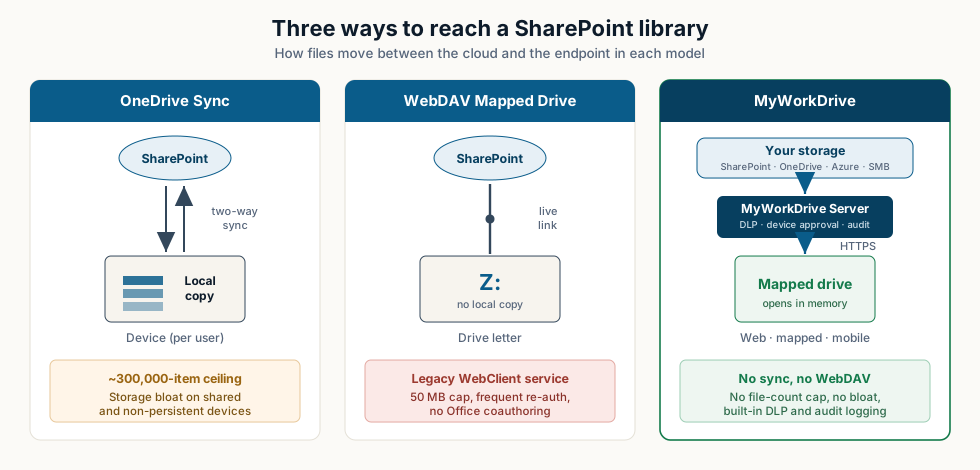
TL;DR: Microsoft recommends the OneDrive sync client over a WebDAV mapped network drive for SharePoint because sync supports Files On-Demand, offline access, and Group Policy control. Sync brings its own enterprise problems, though: a 300,000-file performance ceiling, sync conflicts, and storage bloat on shared and non-persistent devices. A WebDAV mapped drive avoids the local copy but is slow, depends on a legacy Windows service, and breaks Office coauthoring. MyWorkDrive sits between the two. It gives users a real mapped drive letter, plus web and mobile access, to SharePoint, OneDrive, Azure Files, and on-prem shares over HTTPS, with no sync, no WebDAV, and built-in DLP and audit logging.
Most IT teams that move file shares into SharePoint Online hit the same question: how do users get their drive letter back? Microsoft ships two native options, and they work very differently. The wrong choice often surfaces later as support tickets, higher storage costs, and audit gaps.
This guide explains what each method does, compares them on the criteria IT teams weigh most, and shows where each one is the right call and where neither is enough on its own.
Key takeaways
- OneDrive sync keeps a local copy. Files download to the device (or stream as placeholders through Files On-Demand) and sync in both directions.
- A WebDAV mapped drive is a live connection. Nothing is copied locally, but it relies on the legacy Windows WebClient service and a default 50 MB file limit.
- Microsoft's documentation describes WebDAV drive mapping as slower and less reliable than sync, and points most desktop scenarios toward the sync client.
- Sync's practical ceiling is roughly 300,000 items per user across all synced libraries, and it is a poor fit for VDI and shared workstations.
- Regulated environments need DLP, device control, and exportable audit logs that neither native option provides on its own.
What each method actually does
OneDrive sync: a local copy that syncs back
The OneDrive sync client (the same client behind "OneDrive for Business") connects a SharePoint or Teams document library to File Explorer or Finder. By default it downloads file content to the device and keeps it synchronized in both directions. Edit a file locally and the change uploads; when someone edits the cloud copy, it comes back down.
Files On-Demand reduces the storage hit. Files appear in the folder as placeholders and only download their full content when opened, so the library looks complete without consuming local disk for everything. The client still has to track the state of every item it knows about (hash, timestamp, sync status, and conflict state), which is why the file-count ceiling applies even when you are not downloading everything.
WebDAV mapped drive: a live connection with a drive letter
Mapping a SharePoint library to a drive letter such as Z: uses WebDAV, an older HTTP-based protocol handled by the Windows WebClient service. Nothing is copied to the device, so File Explorer talks to SharePoint live, request by request. That keeps the endpoint clean, but it comes with WebDAV's limitations. It depends on legacy components, can require periodic re-authentication to keep the session alive, carries a default 50 MB file-size limit, and disables modern coauthoring and autosave for Office files opened from the mapped path.
"Mapping a network drive uses WebDav, an older technology which is slower and less reliable than syncing SharePoint files with the new OneDrive sync client." — Microsoft Learn, Troubleshoot mapped network drives that connect to SharePoint Online
That line is why most guidance points to sync first. A Microsoft recommendation is not the same as the right fit for your environment, so it is worth comparing the two directly.
OneDrive sync vs. WebDAV mapped drive: side-by-side
The table below compares the two native methods on the criteria IT teams weigh most, with MyWorkDrive included for reference.
| Capability | OneDrive Sync | WebDAV Mapped Drive | MyWorkDrive |
|---|---|---|---|
| How files are accessed | Local copy (Files On-Demand placeholders) | Live connection, no local copy | Streamed over HTTPS; opens in memory, not stored locally |
| Drive letter in File Explorer | ○ Folder, not a true drive letter | ✔ Yes (Z: via WebDAV) | ✔ Yes, true mapped drive + UNC paths |
| Offline access | ✔ Yes (cached files) | ✕ No | ○ Online-first; cached/offline options |
| Speed on large libraries | ○ Good below ~300K items, then degrades | ✕ Slow, high-latency | ✔ Fast; no per-item sync overhead |
| File-count limit | ✕ ~300,000 items recommended max | ○ No count limit; 50 MB file cap | ✔ No sync cap; nothing is synced |
| Storage bloat on device | ✕ Yes; cache grows, esp. shared PCs | ✔ None | ✔ None |
| Office coauthoring / autosave | ✔ Yes | ✕ Disabled from mapped path | ✔ Yes, Office Online & SharePoint service mode |
| Data Loss Prevention (DLP) | ○ Via M365 E5 / Purview add-ons | ✕ None native | ✔ Built in: block download, watermark, clipboard limits |
| Audit logging | ○ Tenant-level via M365 audit log | ✕ Minimal | ✔ Per-file logs, threshold alerts, SIEM export |
| VDI / non-persistent desktops | ✕ Poor; re-syncs each session | ○ Works but brittle | ✔ Designed for it; nothing to re-cache |
| Mac support | ✔ Yes (sync client) | ✕ Unreliable / unsupported | ✔ Native macOS mapped drive client |
| Group Policy / scripted deploy | ✔ Yes | ○ Manual / registry | ✔ MSI/EXE, Intune, GPO |
✔ Strong / native ○ Partial / conditional ✕ Weak / not supported
When OneDrive sync is the right answer
For many users, sync is the best tool Microsoft ships. Choose OneDrive sync when:
- Files are personal or team-scoped and the library is small. Individual OneDrive content and modest Teams or SharePoint libraries sit comfortably under the file-count ceiling.
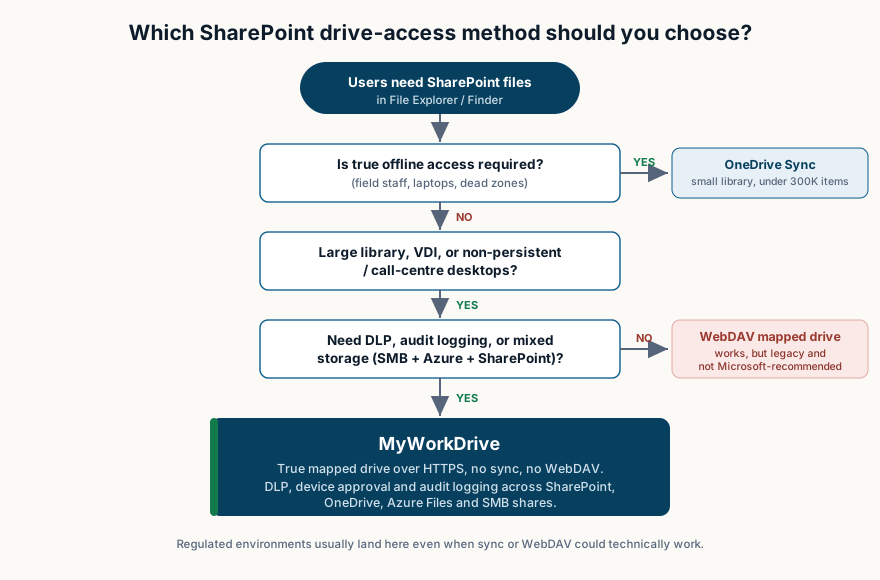
- Offline access is a hard requirement. Field staff, traveling consultants, and laptop users who work on planes or in dead zones need cached local copies, and only sync provides them.
- You want Files On-Demand and Group Policy management. Sync supports placeholder files and silent, centrally managed deployment to domain-joined devices.
- The device is persistent and single-user. A dedicated laptop or desktop tolerates a local cache far better than a shared or pooled machine.
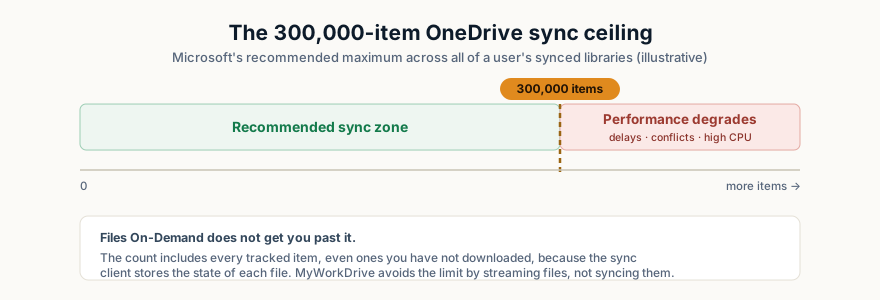
Watch the 300,000-item line. Microsoft recommends syncing no more than 300,000 items total across all of a user's synced libraries. It is a performance recommendation, not a hard block, but past it you will see sync delays, file conflicts, sustained CPU, and "my computer is slow" tickets. The count includes items you are not actively downloading, so Files On-Demand does not get you around it.
When a mapped drive is preferable
Some workloads do not fit the sync model at all. A mapped-drive approach is the better choice when:
- You run call centres, VDI labs, or non-persistent desktops. Pooled and non-persistent sessions cannot afford to re-download a sync cache on every logon, and Microsoft's higher-volume sync preview explicitly excludes VDI.
- Legacy or line-of-business apps require a real drive letter or UNC path. Accounting packages, CAD tools, and older software often hard-code paths that a synced folder cannot satisfy.
- Libraries are large. When a library holds hundreds of thousands of files, a live connection that does not track every item locally is the only workable option.
- Endpoints must stay clean. Kiosks, clinical workstations, and contractor machines should not accumulate a local copy of corporate data.
The problem is that the native way to get that drive letter for SharePoint is WebDAV, the technology Microsoft is steering customers away from. That leaves IT choosing between a method Microsoft no longer recommends and a method that does not fit the workload.
Why neither works well in regulated or enterprise environments
In a HIPAA, FINRA, CMMC, or GDPR environment, the priorities change. The question is less about drive letters and more about whether you can prove who accessed what and prevent data from leaving. Both native options fall short on that test.
- OneDrive sync puts corporate data on the endpoint. Once files cache locally, they can be copied, screenshotted, or carried out the door. Meaningful endpoint and content-aware DLP typically requires higher-tier Microsoft 365 or add-on Purview licensing, which adds real cost and complexity.
- WebDAV offers almost no governance layer. There is no built-in download blocking, watermarking, clipboard restriction, or device approval, and audit visibility is thin.
- Audit trails are coarse. Tenant-level Microsoft 365 audit logs help, but assembling per-file access into an exportable, SIEM-ready record across mixed storage is awkward.
- Mixed storage breaks the model. Most regulated organizations still keep data on on-prem SMB shares and Azure Files alongside SharePoint. Neither sync nor WebDAV gives one governed front door to all of it.
At this stage teams often add licensing, VPNs, and scripts to close the gaps, and the choice between two free methods becomes a project of its own.
MyWorkDrive: the mapped-drive experience without WebDAV or sync bloat
MyWorkDrive addresses the space between these two options. It gives users a true mapped drive letter, plus browser and mobile clients, to SharePoint, OneDrive, Azure Files, Azure Blob, and on-prem Windows file shares, all over HTTPS (port 443) with no VPN. Files open in memory rather than being copied to the device, so there is no local cache to grow and no library too large to handle.
Compared with OneDrive sync, MyWorkDrive removes:
- The 300,000-file ceiling, because nothing is synced
- Storage bloat on shared or pooled devices
- The VDI mismatch, since there is no cache to rebuild each session
- Sync conflicts
Compared with WebDAV, MyWorkDrive removes:
- The dependency on the legacy WebClient service
- The 50 MB file cap and repeated re-authentication prompts
- The loss of Office Online coauthoring
- The Windows-only, often-unreliable behaviour (it works on macOS too)
Because access runs through MyWorkDrive, governance is part of the product rather than an add-on. Data Loss Prevention can block downloads, disable clipboard copy and paste, watermark files on view, and restrict access per user, group, or share. Device approval requires an admin to authorise each new mapped-drive or mobile device. Every action (view, edit, download, share) is logged with configurable threshold alerts and SIEM or Syslog export. NTFS and Microsoft 365 permissions are honoured end to end, so you keep the access model you already have.
DLP and device approval are MyWorkDrive Enterprise features. For mapped-drive users, DLP-protected shares also use the MyWorkDrive Secure Driver, which is deployed alongside the desktop client — worth noting at the planning stage so it lands in your client rollout.
The practical fit. A regulated call centre on non-persistent desktops, a CAD team that needs a drive letter for a large library, or a hybrid organization that keeps data on SMB shares and SharePoint: in each case, sync bloats the device and WebDAV is unreliable. MyWorkDrive gives all of them one governed point of access, with no file migration — most teams pilot in a day and move to production shortly after.
See the mapped-drive experience without the sync or WebDAV trade-offs
Connect SharePoint, OneDrive, Azure Files, and on-prem shares to a secure mapped drive, with DLP, device approval, and audit logging built in. No VPN, no data migration — pilot in a day and roll out to production from there. See SharePoint access in detail.
Start a free trialBook a demoView pricing
Frequently asked questions
Does Microsoft recommend OneDrive sync or a mapped network drive for SharePoint?
Microsoft recommends the OneDrive sync client over a WebDAV mapped network drive for SharePoint Online. Its troubleshooting documentation describes WebDAV drive mapping as an older technology that is slower and less reliable than the sync client, which supports Files On-Demand, offline access, and Group Policy control. WebDAV still works, but Microsoft treats it as a legacy fallback.
What is the OneDrive sync file limit for SharePoint?
Microsoft recommends syncing no more than 300,000 items total across all of a user's synced OneDrive and SharePoint libraries. It is a performance recommendation rather than a hard block, and Microsoft notes that problems can appear above 300,000 items even when you are not syncing all of them and even with Files On-Demand enabled, because the client still tracks the state of every item.
Can you map a SharePoint library as a network drive with a drive letter?
Yes. You can map a SharePoint Online library to a drive letter using WebDAV, but it depends on the Windows WebClient service, may require periodic re-authentication, disables real-time coauthoring and autosave, and has a default 50 MB file-size limit. MyWorkDrive provides a true mapped drive letter for SharePoint and file shares over HTTPS without WebDAV, without local sync, and with central DLP and audit logging.
Does OneDrive sync work on non-persistent VDI desktops?
OneDrive sync is a poor fit for non-persistent VDI and pooled desktops because each new session re-downloads the synced cache, which causes slow logons and storage bloat. Microsoft's higher-volume (1,000,000-item) sync preview also explicitly excludes VDI environments. A mapped-drive layer that streams files on demand, like MyWorkDrive, suits non-persistent desktops and call-centre workstations far better.
How does MyWorkDrive differ from OneDrive sync and a WebDAV mapped drive?
MyWorkDrive gives users a mapped drive letter plus web and mobile access to SharePoint, OneDrive, Azure Files, and on-prem SMB shares over HTTPS. Unlike OneDrive sync, it never copies files to the endpoint, so there is no 300,000-file cap or storage bloat. Unlike WebDAV, it does not depend on the WebClient service or impose the 50 MB limit, and it adds DLP, device approval, and exportable audit logs.
Related reading
- How to map SharePoint as a network drive (and why WebDAV falls short)
- 10 Reasons why SharePoint is not a File Server
- Turn your Windows file server into a cloud file server
Sources
- Microsoft Learn — Troubleshoot mapped network drives that connect to SharePoint Online (WebDAV is slower and less reliable than the OneDrive sync client)
- Microsoft Support — Restrictions and limitations in OneDrive and SharePoint (300,000-item sync recommendation; 1,000,000-item preview excludes VDI)
- Microsoft Learn — Recommended sync app configuration (Files On-Demand, offline mode, Office coauthoring)
- Microsoft Learn — Use OneDrive policies to control sync settings (Group Policy / administrative templates)