
A Cloud File Server For Windows, Without Moving Any Files
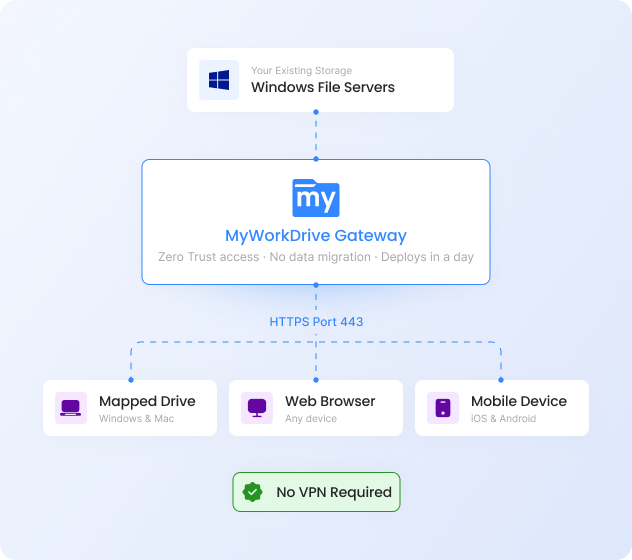
MyWorkDrive installs in front of your existing Windows file server and publishes the shares over HTTPS, so remote users get the same access they had on the LAN. You keep your file server, your NTFS permissions, and your backup strategy. The VPN goes away.


What is a cloud file server for Windows?
A cloud file server for Windows is a setup where the SMB shares on your existing Windows file server are published to the internet over HTTPS. Users reach them from a browser, a mapped drive client, or a phone, and they don't have to dial into a VPN to do it. The underlying file server doesn't change in any meaningful way. Active Directory keeps doing authentication, NTFS permissions keep enforcing access, file locking still works for the apps that need it, and your backups run the same way they always have. The “cloud” part is the access path, not the storage.
That's what MyWorkDrive provides. You install it on a Windows Server inside your domain, point it at the shares you want exposed, and put an SSL certificate on the IIS site it creates. Users sign in with the same AD or Entra ID credentials they already use, and they see a familiar share layout in a browser. From your side as IT, the security model is whatever it was yesterday.
A note on intent before you keep reading
People searching this term usually want one of two things. Some are evaluating Azure File Sync and trying to figure out the Microsoft-native path. Others want to keep the Windows file server they already have and bolt cloud access onto it. If you're in the second group, this page is mostly for you. If you're in the first, the comparison further down is worth reading before you commit to a migration plan, because the tradeoffs are not what most people assume.
Why this problem has gotten harder, not easier
Most enterprises and SMBs still run their primary file storage on Windows file servers, and there are good reasons for that. AD integration is mature. Gigabit LAN performance is unbeatable for the price (roughly 125 MB/s versus around 12.5 MB/s on a typical 100 Mbps internet link). And anyone who's tried to move 8 TB of departmental files with messy permissions into a cloud repository will tell you the migration economics rarely pencil out.
The catch is that SMB was never designed to face the internet. The traditional workaround of tunneling port 445 over a corporate VPN has aged badly. It widens the ransomware blast radius, gives security auditors heartburn, and creates the kind of standing network trust that most modern security frameworks now consider a liability rather than a feature.
The cloud-only alternatives have their own problems. SharePoint Online imposes a 15 GB file size cap, 5,000-item display limits, 100,000-file sync limits, lost NTFS metadata, no real SMB file locking for CAD or accounting apps, and storage that runs roughly ten times the per-GB price of Azure Files. Azure File Sync is a legitimate option if your goal is storage modernization, but it's a replication project with its own planning curve, and most teams underestimate how much of one until they're a few weeks in.
What a lot of organizations actually want is narrower than any of those options: keep the file server, lose the VPN.
How MyWorkDrive's cloud file server works
MyWorkDrive sits between users and your file shares. It doesn't make a copy of your data, doesn't sync files to client devices, and can't grant access beyond what users already have on the underlying NTFS or tenant permissions. What it does is broker TLS-encrypted HTTPS access to the shares you've already published, with your existing identity provider doing the actual authentication work.
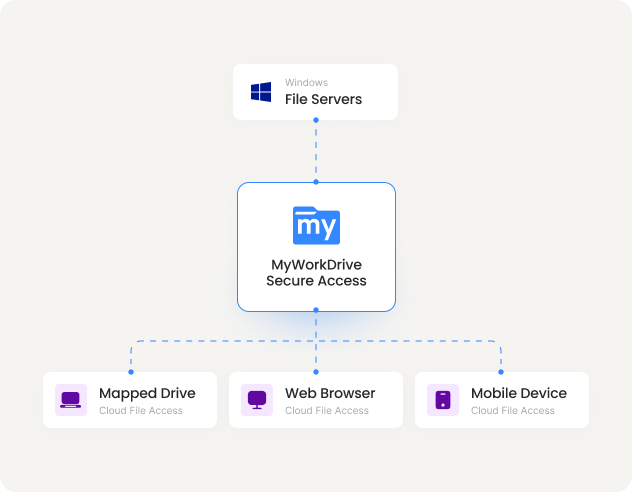
The architecture is built around three layers that intentionally stay loosely coupled:
- Identity stays with your IdP. Whether you're on traditional AD with SAML through ADFS, native Entra ID sign-in, Okta, or any OIDC provider, MyWorkDrive doesn't replace your authentication path. MFA, Conditional Access, and risk-based policies all enforce where they already do, which means your IdP team doesn't have to learn a new product to keep your access policies working.
- The app runs on a Windows Server box in IIS. File contents pass through the application in memory and never get written to disk on the MyWorkDrive server itself. If the box went down tomorrow, no customer files would be sitting on it to recover or to worry about.
- Storage stays put. Files keep living on whatever you already have: Windows SMB shares, Azure Files, Azure NetApp Files, Amazon FSx for NetApp ONTAP, SharePoint, OneDrive, or Azure Blob with Data Lake Gen2. The existing ACLs are the access model. MyWorkDrive can restrict further by policy, but it can never escalate beyond what the user already has on the underlying storage.
On the user side, that translates to three access paths: a browser-based Web File Manager, a Windows mapped drive client that runs over HTTPS instead of SMB, and native iOS and Android apps. None of them require a VPN, and all of them respect the file server's existing permissions because they don't have any other choice. The underlying ACLs are still doing the gatekeeping.
Where MyWorkDrive fits in a Zero Trust rollout
If you've been tasked with implementing Zero Trust at your organization, file access is often one of the harder pieces to get right. VPN-based file sharing fails the test on day one because it grants broad network-level trust before the user has done anything useful. MyWorkDrive starts from the opposite assumption: every request needs to authenticate, and the network can't be trusted with anything.
No SMB on 445, no NetBIOS on 139, no DNS exposure. The result is that the file-server attack vectors most commonly used by ransomware operators simply aren't reachable from outside the network.
Use the storage you have. No syncing. If you ever leave, nothing moves. Your files are already yours.
MyWorkDrive cannot grant rights beyond what NTFS, SharePoint, or Azure RBAC already give a user. Policies can restrict further (DLP, device approval, time windows) but never elevate.
Files stream in memory between client and storage. There's no cache, no local copy, no data at rest on the MyWorkDrive server for an attacker to harvest.
Some networks won't let you open any inbound ports at all, which is increasingly common in regulated environments. For that case there's the Cloud Web Connector, which uses an outbound-only Cloudflare tunnel on port 7844. Publication happens with zero firewall changes, and in our experience that's often the difference between a security review approving a deployment in days versus quarters.
MyWorkDrive vs Azure File Sync: side-by-side
Azure File Sync gets pulled into this comparison constantly, so it's worth being precise about what it actually is. Azure File Sync is a replication tool. It pushes the contents of your Windows file shares up to Azure Files, with optional tiering so the cold data lives in the cloud and the hot blocks cache locally. It solves storage modernization. It does not solve remote access, at least not in the way most teams searching for “cloud file server” mean.
If what you actually want is for your users to reach the files from outside the LAN, you don't necessarily need to move the files at all. Here's how the two products line up against each other for that use case:
Feature comparison between MyWorkDrive and Azure File Sync
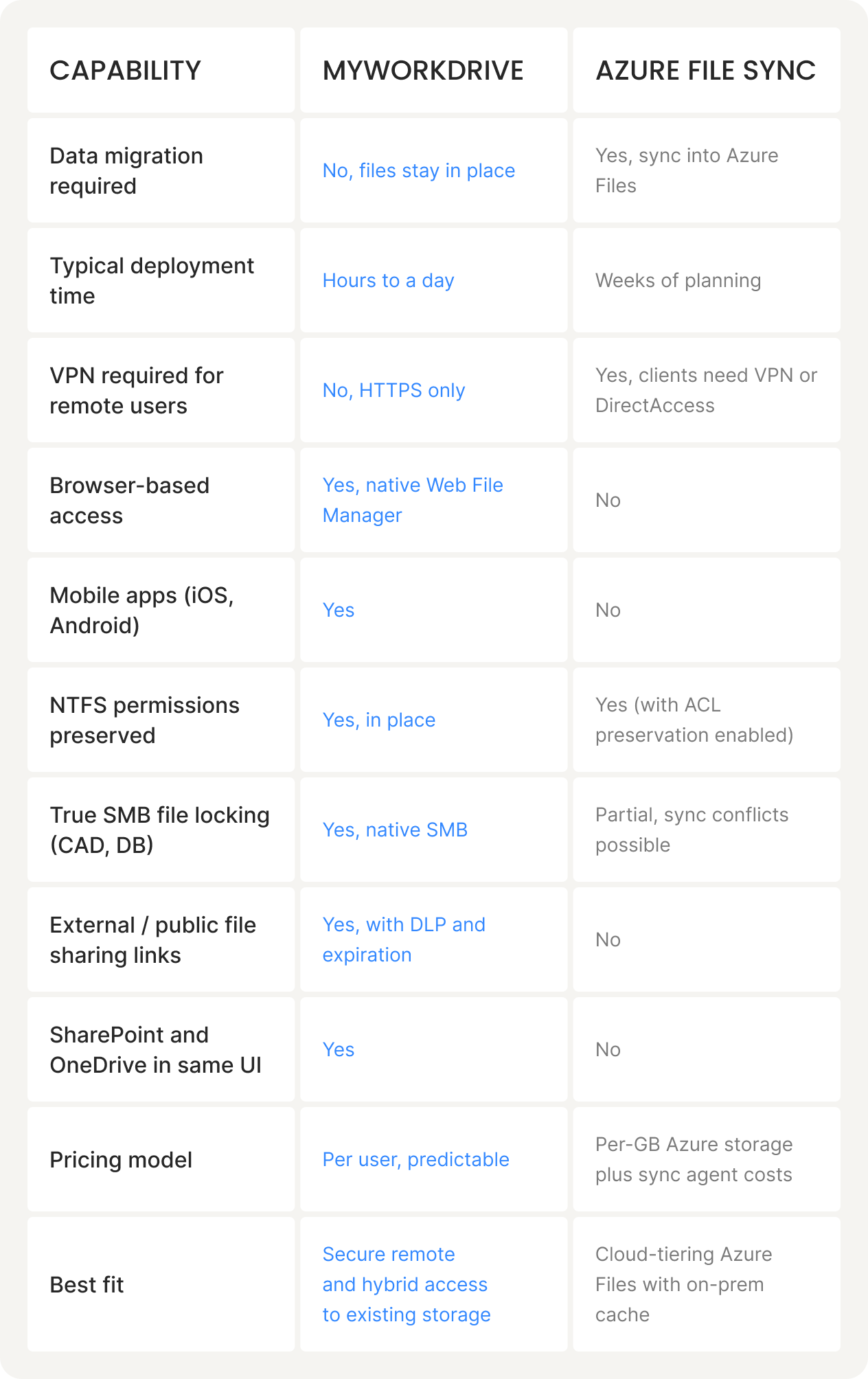
Both tools have a real use case. If you're closing data centers, decommissioning branch office servers, or consolidating onto Azure storage with caching at the edge, Azure File Sync is what it was built for and it's good at it. If you want to keep the file server you already have and just give your users a way to reach it from outside the LAN, that's MyWorkDrive's lane. The mistake is treating them as competing answers to the same question. They aren't.
How to convert a Windows file server to a cloud file server
What follows is a working production deployment, not a lab walkthrough. We've done versions of this for organizations ranging from 50 users up to several thousand, and the steps don't change much at scale. The slowest step is usually whoever owns SSL certificates internally.
-
01
Provision a Windows Server
Stand up a dedicated Windows Server 2019, 2022, or 2025 instance, either on-premises or in any cloud or hypervisor. Typical sizing runs 2 to 8 cores, 4 to 32 GB RAM, and a 120 GB disk for deployments up to a thousand or so users. Domain-join it if you're using Active Directory.
-
02
Run the MyWorkDrive installer
The installer deploys into IIS, configures the Windows services, and auto-detects your Active Directory or Entra ID domain. A single-server deployment needs no separate database. For multi-server HA you can add SQL Server, PostgreSQL, or Azure SQL to coordinate sessions and file locks across nodes.
-
03
Wire in your identity provider
On Active Directory, the server's domain join is enough on its own. Users and groups come along automatically. For modern SSO, configure SAML through ADFS, Entra ID, Okta, or any compliant provider. Whatever MFA and Conditional Access rules you already have keep enforcing, since the IdP is still doing the actual auth work.
-
04
Publish your shares
In the admin console, point at the SMB shares, Azure Files mounts, SharePoint sites, OneDrive accounts, or Azure Blob containers you want exposed. Restrict each to specific AD groups if you want a smaller initial blast radius for a pilot. NTFS and tenant permissions are honored as-is.
-
05
Add SSL and decide how you're publishing externally
Install an SSL certificate on the IIS site. From there you have four publishing options, in rough order from most direct to most firewall-friendly: direct HTTPS on port 443, behind a reverse proxy or WAF like F5, NGINX, Cloudflare, or Kemp, through Microsoft Entra Application Proxy, or via the Cloud Web Connector for environments where opening any inbound ports is a non-starter.
-
06
Smoke test from outside, then start the rollout
Get off the corporate network and act like an end user. Sign in via SSO, browse a share, open a Word doc and save your changes, install the mapped drive client, and send yourself a public share link. If those five things work, the install is sound. From there it becomes a question of communications and rollout pacing rather than technical readiness.
Edge cases worth testing first
DFS namespaces work fine, and you can point MyWorkDrive at either the namespace or the underlying file servers directly. If you're carrying forward shares from Windows Server 2012 or 2016, do your testing on shares that exercise the messy stuff: Access-Based Enumeration, unusual SID histories from past domain migrations, and anything with deeply nested permission structures. Those are the edge cases that occasionally trip things up. Everything else tends to just work.
What you get with MyWorkDrive Cloud File Server
The capabilities below all operate against the storage you already have. There's no migration step, no sync agent running on user laptops, and no proprietary repository sitting in the middle of your data.
Web File Manager
A browser-based view of your shares with drag-and-drop upload, full-text search across content, file previews, and an interface most users figure out in a couple of minutes without training.
Mapped drive client over HTTPS
A drive letter in Windows Explorer that operates over port 443 instead of SMB. Native Windows file locking is preserved end-to-end, which is why this works for AutoCAD, Revit, and accounting apps that other tools struggle with.
iOS and Android apps
Native mobile apps with biometric login, offline favorites for the documents users actually need on the road, and the same authentication path as the web client.
Office 365 co-authoring
Open Word, Excel, and PowerPoint documents in Office Online from any connected share. Real-time co-authoring works through temporary SharePoint staging that gets cleaned up automatically.
Pluggable SSO
AD with SAML, native Entra ID, ADFS, Okta, or any SAML 2.0 or OIDC provider. Your Conditional Access policies flow through without modification because the IdP is still doing all the actual authorization work.
DLP and device approval
Optional Data Loss Prevention with dynamic watermarking, download blocking on sensitive shares, and per-device approval before mapped drive or mobile clients can connect.
External sharing that auditors approve of
Public links with passwords, expiration windows, download limits, and per-tenant approval workflows where compliance teams require them. Every share is logged and revocable.
SIEM-ready audit logs
Comprehensive access logs ship to Splunk, Sentinel, Elastic, or whatever you're running. Every file open, download, edit, and share link creation is attributable to a named user with timestamps.
A note on customer outcomes
“We swapped out our VPN-based remote file access for 800 users over a weekend. No data migration, no permission rebuild, and the helpdesk had a quiet Monday. Users got faster file access from home than they ever had on the VPN, and our auditors stopped flagging the SMB exposure.”
IT Director, Multi-state Professional Services Firm
What this actually buys you
- The Windows file server, the Microsoft 365 entitlements, and the on-prem storage you already paid for all keep doing useful work instead of getting replaced in the name of “modernization.”
- No more VPN client to deploy or troubleshoot, and the SMB-over-VPN attack surface that security teams have been trying to retire for years goes away.
- Storage stays cheap. Files on existing SMB or Azure Files cost around $0.0255/GB. SharePoint storage costs roughly $0.20/GB. At a few terabytes that gap is real money every month.
- Files never leave the environment they're already in, which is what keeps HIPAA, GDPR, CMMC, and FedRAMP-aligned workloads on the right side of an audit.
- You can modernize at whatever pace fits the organization. Add cloud access today, change storage in a year, or never change storage at all if what you have is fine. The decision doesn't have to be coupled.
On This Page
Frequently Asked Questions
What is a cloud file server for Windows?

It's a setup where the SMB shares on a Windows file server are published over HTTPS so users can reach them from a browser, a mapped drive client, or a phone without dialing into a VPN. MyWorkDrive runs this way. It installs on a Windows Server inside your domain, uses your existing Active Directory or Entra ID for authentication, and serves the shares through IIS over port 443. The files stay on the file server, and the NTFS permissions you've already set up keep enforcing access.
How is MyWorkDrive different from Azure File Sync?
Azure File Sync is a replication tool. It pushes the contents of your Windows file shares up to Azure Files, with optional tiering so cold data lives in the cloud and hot data caches locally. It solves storage modernization. MyWorkDrive solves remote access. It doesn't move the files at all. It installs in front of your existing file server and brokers HTTPS access to the shares where they already live, which means you can keep your NTFS permissions, your SMB file locking for CAD and database apps, and avoid the per-GB Azure storage costs that come with replication.
Do I need to migrate my data to use MyWorkDrive?
No. Files stay where they are, whether that's a Windows file share, Azure Files, SharePoint, OneDrive, or Azure Blob storage. Nothing is copied to MyWorkDrive servers. Existing NTFS or tenant permissions are what govern access.
What ports does MyWorkDrive require?
Just HTTPS on port 443 for client traffic. No SMB (445), no NetBIOS (139), no LDAP exposed to the internet. For environments that can't open any inbound ports at all, the optional Cloud Web Connector uses an outbound Cloudflare tunnel on port 7844 instead, with no firewall changes required.
Is MyWorkDrive a Zero Trust file access solution?
Yes, in the practical sense that the architecture lines up with Zero Trust principles. Every request authenticates against your identity provider rather than relying on network-level trust. The single-port HTTPS model avoids the lateral-movement exposure that VPN-based file access creates. NTFS and tenant permissions enforce least-privilege. MFA and Conditional Access stay in force at your IdP.
How long does deployment take?
Most organizations get a working production deployment up in a day. The installer auto-detects your Active Directory or Entra ID domain and publishes shares through IIS. The thing that usually slows it down is whoever owns SSL certificates internally, not the software itself.
Does MyWorkDrive support HIPAA, GDPR, and CMMC compliance?
MyWorkDrive supports customer compliance programs including HIPAA, GDPR, and CMMC by keeping identity, data location, and audit logs under customer control. Files stay in customer-controlled storage, audit logs ship to SIEM, and FIPS-validated cryptographic components are used where available. Certification is achieved and maintained in the customer environment, since the data and identity controls live there.
Can MyWorkDrive handle CAD, database, and accounting files that need file locking?
Yes. Because MyWorkDrive talks to Windows file shares over native SMB on the back end, Windows file locking works the way AutoCAD, Revit, QuickBooks, and Sage expect it to. This is a meaningful advantage over sync-based tools and SharePoint-only setups, which handle locking at the web layer or not at all.
Continue your evaluation
VPN Replacement for File Access
The full Zero Trust story
Unified Hybrid Storage Access
One pane across SMB, Azure, SharePoint
Security and DLP
Watermarking, device approval, audit
HIPAA-Compliant File Sharing
For healthcare environments
Migrate File Servers to Cloud
If you do want to relocate storage
MyWorkDrive on Azure Files
Run the file server in Azure
See it running against your own shares
The fastest way to find out whether this fits your environment is a 30-minute demo against your file shares, or a free trial you can install on a spare Windows Server box this afternoon.