

By Dan Gordon
Last Updated: October 12, 2026
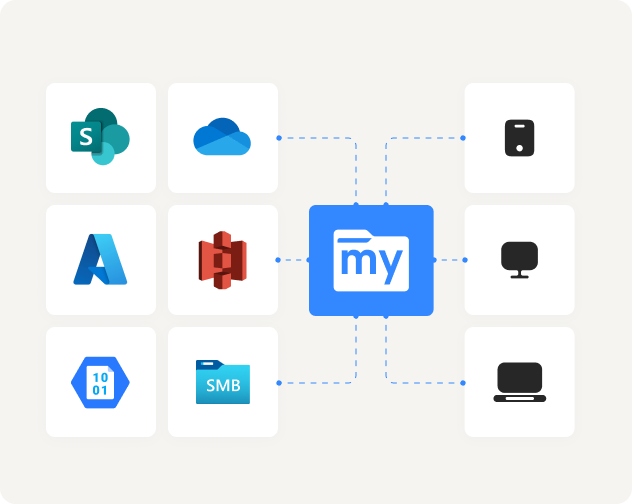
No. MyWorkDrive is best known for giving remote staff access to Windows file servers without a VPN, and many customers use it for exactly that. The same server also connects to NFS storage, Azure Files, Azure Blob Storage, SharePoint Online, OneDrive for Business, cloud-hosted SMB services such as Azure NetApp Files and Amazon FSx for NetApp ONTAP, and S3-compatible object storage. Each backend is published as a share, and users open every share from the same mapped drive, web, and mobile clients.
Below is the current list of supported storage with the connection method for each, followed by the differences that matter when you plan a deployment.
Why MyWorkDrive Has an On-Premises Reputation
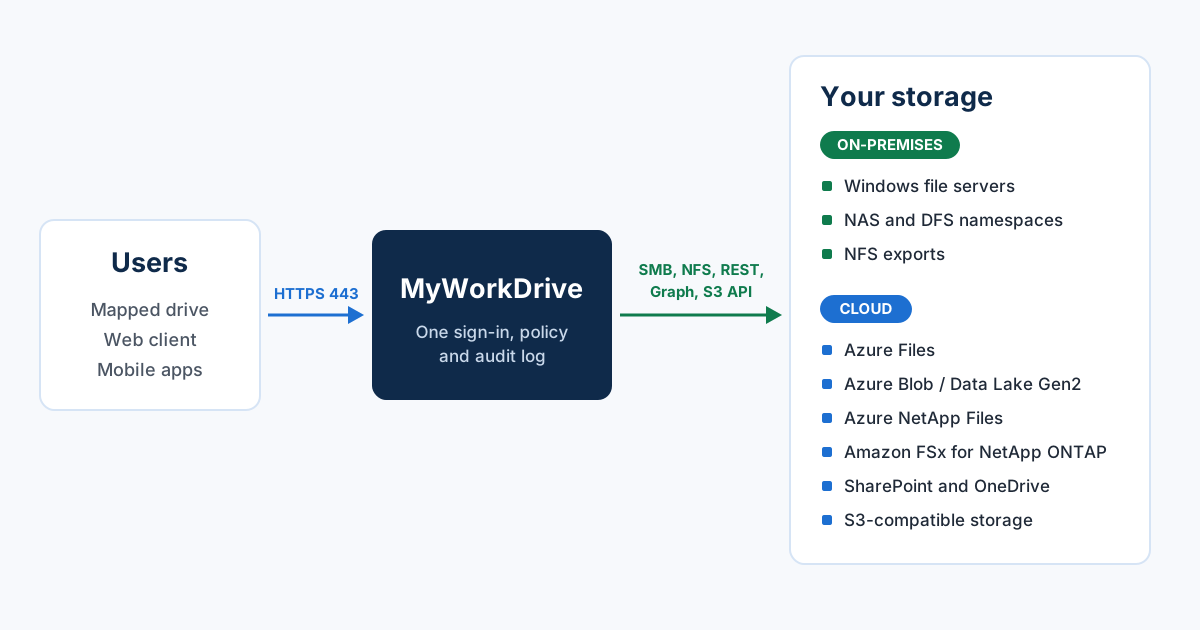
For most of its history, MyWorkDrive's main job was publishing SMB file shares over HTTPS on port 443 so people could reach a departmental file server from home without a VPN or an exposed SMB port. "No migration" became the phrase people associate with the product, and it was usually said about file servers.
Storage support grew over several releases. The Storage Options by Product Version chart shows OneDrive and SharePoint arriving in version 6.4. Version 7.0 added Azure Files and Azure Blob Storage over the Azure REST API, along with Entra ID as an alternative to Active Directory for user identity. The server release notes list S3 support in version 7.1 and a built-in S3 connector in version 7.3.
Storage MyWorkDrive Connects To
One MyWorkDrive deployment can publish several storage backends side by side. The table summarizes each one, and the sections after it cover the details that come up during planning.
| Storage | How MyWorkDrive connects | What controls access | Supported since |
|---|---|---|---|
| Windows file servers, NAS, and DFS namespaces | SMB | NTFS and share permissions, per user with Active Directory identity; through a service account with Entra ID identity | All versions |
| NFS exports | Mounted on the MyWorkDrive server with Client for NFS, then published as a local share | MyWorkDrive share assignment, plus the export’s permissions for the server | Not version-specific |
| Azure NetApp Files and Amazon FSx for NetApp ONTAP | SMB, added like any other file share | NTFS and share permissions | Same as SMB shares |
| Azure Files | Azure Files REST API (connection string, Entra ID, or managed identity), or SMB | MyWorkDrive share permissions and Azure roles over REST; NTFS permissions over SMB | 7.0 for REST; SMB in earlier versions |
| Azure Blob Storage and Data Lake Storage Gen2 | Blob REST API (connection string, Entra ID, or managed identity) | MyWorkDrive share permissions; file and folder ACLs with hierarchical namespace and Entra ID | 7.0 |
| SharePoint Online document libraries | Microsoft Graph | SharePoint site permissions and tenant policies | 6.4 |
| OneDrive for Business | Microsoft Graph | The user’s own OneDrive access | 6.4 |
| S3-compatible object storage | Built-in S3 connector with an access key and secret key | The access key’s permissions on the bucket, plus MyWorkDrive share assignment | 7.1; built-in connector in 7.3 |
Version details are from the Storage Options by Product Version chart and the server release notes.
File Servers and NAS: SMB, DFS, and NFS
This is where MyWorkDrive started. It publishes existing SMB shares on Windows file servers and NAS devices, including DFS namespaces, and leaves the folder structure as it is. On a server joined to Active Directory, MyWorkDrive reaches SMB shares in the signed-in user's context, so NTFS permissions and Access-Based Enumeration behave the way they do on the office network. On a server installed with Entra ID identity, SMB shares are reached through a service account and access is assigned per share in MyWorkDrive, as described in Active Directory vs Entra ID in MyWorkDrive 7.
NFS storage works too, which matters for Linux file servers and NAS volumes exported over NFS. The export is mounted on the MyWorkDrive server with Windows Server's Client for NFS, then published as a local share that appears in the same clients as SMB shares. The users and groups assigned to the share in MyWorkDrive decide who sees it, and the export's own settings still control what the MyWorkDrive server can read and write.
A file server also doesn't have to be in your building. A Windows file server running as a virtual machine in Azure or AWS is an SMB share like any other. MyWorkDrive documents the same approach for Oracle Cloud Infrastructure, where an OCI file system or a Windows file share VM is mounted to the MyWorkDrive instance and published from there.
Azure NetApp Files and Amazon FSx for NetApp ONTAP
These are managed services that present SMB shares from Azure and AWS. Azure NetApp Files supports SMB3 and dual-protocol volumes, and FSx for NetApp ONTAP volumes can be mounted over SMB as well as NFS. MyWorkDrive connects to the SMB side the same way it connects to a Windows file server, so the NTFS permissions and folder layout preserved in a lift-and-shift keep working. Remote users reach the shares over HTTPS on port 443 and don't need a VPN into the virtual network.
Azure Files
Azure Files is reachable over SMB, NFS, and the Azure Files REST API. MyWorkDrive can use SMB or the REST API, and the Azure File Storage Options article compares the connection methods side by side. Over REST, MyWorkDrive authenticates with a storage account connection string, the user's Entra ID identity, or the managed identity of an Azure VM running MyWorkDrive. MyWorkDrive recommends the managed identity option because no credentials are stored in the server configuration.
The connection string method works from a MyWorkDrive server on-premises or in any cloud, so an on-premises server can publish Azure file shares next to local ones. Performance then depends on the network path to Azure. The SMB method needs Active Directory, and the same article says it requires premium file shares and is the slowest of the options. Our Azure File Shares page has more background, and the post on browser editing for Azure Files after Office Online Server retires covers Office editing on these shares.
Azure Blob Storage and Data Lake Storage Gen2
MyWorkDrive publishes Blob containers as shares over the REST API using a connection string, Entra ID, or managed identity. When the storage account has a hierarchical namespace enabled, which makes it Azure Data Lake Storage Gen2, Microsoft applies POSIX-like access control lists to individual files and directories. In that configuration MyWorkDrive accesses data in the signed-in Entra ID user's context, so a user needs permission on the blob storage as well as on the MyWorkDrive share. The ACLs are managed in Azure Storage Explorer.
Blob storage suits archives and research datasets that people need to open occasionally without going through the Azure portal. See Map Network Drive to Azure Blob Storage for a walkthrough and Azure File Share vs Blob for how the two Azure services compare.
SharePoint Online and OneDrive for Business
MyWorkDrive connects to SharePoint document libraries and OneDrive through Microsoft Graph, the API Microsoft provides for files in OneDrive and SharePoint. SharePoint libraries and folders are published as shares, and each user sees their own OneDrive. Both work on servers using either Active Directory or Entra ID identity.
Because access goes through Graph, SharePoint site permissions and tenant policies stay in effect. The usual reason to add these is a partial migration, where some teams moved to SharePoint while others stayed on the file server. Publishing both through MyWorkDrive puts them next to each other as drive letters. The guides to mapping SharePoint as a network drive and mapping OneDrive as a network drive cover setup.
S3-Compatible Object Storage
MyWorkDrive Server 7.3 adds a built-in S3 connector. An administrator adds the provider under Integrations with an access key, secret key, and region, then publishes a bucket, or a subfolder inside one, as a share. The S3 Storage article lists Amazon S3, Backblaze B2, Cloudflare R2, and Wasabi among supported providers. Earlier versions reached S3 through S3 Drive from Callback Technologies, which mounts a bucket as a local folder on the MyWorkDrive server.
Access on an S3 share works differently from a file share. Every user of the share works through the same access key, so the key's permissions define what the share can reach in the bucket. The users and groups assigned in MyWorkDrive decide who sees the share, and granular permissions decide what each group can do with it, so plan share boundaries around buckets or subfolders. How to Map Amazon S3 as a Windows Drive covers S3 use cases in more detail.
What Stays the Same on Every Backend
Sign-in, client apps, policy controls, and audit logging are configured once on the MyWorkDrive server and apply to shares on any backend. Users sign in through Active Directory, Entra ID, or a SAML provider, with SSO and MFA handled the same way for every share, and shares from all backends appear together in the clients. DLP settings such as download blocking and watermarking are assigned per share and per group. File activity across all storage goes to one audit log that can be forwarded to a syslog server.
Files stay in the storage they came from. MyWorkDrive does not sync files to user devices or hold copies in a separate repository, and the S3 article notes that no data is cached on the server. Office for the web editing is an exception: according to the Office Online Editing Comparison, the OneDrive and SharePoint editing options copy the file to OneDrive or SharePoint for the editing session and remove it when editing is complete.
Where the Options Differ
The identity mode picked during installation decides which connection methods are available, and it can't be switched later. For version 7, the Storage Options by Product Version chart and the Active Directory vs Entra ID comparison break it down like this:
| Capability | Active Directory identity | Entra ID identity |
|---|---|---|
| SMB file shares | Native SMB in the user’s context | Through a service account |
| Azure Files over SMB | Supported | Not supported |
| Azure Files via connection string | Supported | Supported |
| Azure Files via Entra ID or managed identity | Not available | Supported |
| Azure Blob via connection string | Supported | Supported |
| Azure Blob via Entra ID or managed identity | Not available | Supported |
| SharePoint and OneDrive | Supported | Supported |
| File locking on SMB shares | SMB locks applied | Locks held inside MyWorkDrive only |
File locking depends on both the identity mode and the connection. With Active Directory identity, MyWorkDrive applies locks on SMB storage, so a file opened through MyWorkDrive is also locked for someone opening it from the office network. Locks on other storage types are held inside MyWorkDrive. With Entra ID identity, the Active Directory vs Entra ID comparison says no external locks are applied, so locks cover MyWorkDrive users only on every storage type, SMB included. The Azure File Storage Options grid says the same for Azure Files and Azure Blob connections over the REST API. Where other applications or users write to the same storage directly, make MyWorkDrive the single access path or coordinate edits another way.
Public share links work on most backends. The exception in the same grid is Azure Files over Entra ID, where public sharing requires the managed identity option on an Azure-hosted server.
If your environment mixes file servers with Azure, Microsoft 365, or S3 storage, the Unified Hybrid Storage Access page shows common combinations by sector, and the KB articles linked above cover setup for each storage type.
Test MyWorkDrive against the storage you run today. The free trial publishes shares from any supported backend.
Start Free TrialBook a DemoSee Supported StorageFrequently Asked Questions
Is MyWorkDrive only for on-premises file servers?
No. MyWorkDrive publishes on-premises Windows file servers, NAS devices, and NFS storage, and it also connects to Azure Files, Azure Blob Storage, SharePoint Online, OneDrive for Business, Azure NetApp Files, Amazon FSx for NetApp ONTAP, and S3-compatible object storage. Users open shares from every backend through the same MyWorkDrive clients.
Can one MyWorkDrive server publish on-premises and cloud storage at the same time?
Yes. A single deployment can publish multiple storage backends side by side, and users see them together in the mapped drive, web, and mobile clients. Which cloud connection methods are available depends on whether the server was installed with Active Directory or Entra ID identity.
Does the MyWorkDrive server need to run in Azure to connect to Azure storage?
No. Azure Files and Azure Blob connections that use a storage account connection string work from a MyWorkDrive server on-premises or in any cloud, although performance depends on the network path to Azure. The managed identity option, which MyWorkDrive recommends for security, requires the server to run as an Azure virtual machine.
Which S3-compatible storage providers work with MyWorkDrive?
The MyWorkDrive S3 Storage article lists Amazon S3, Backblaze B2, Cloudflare R2, and Wasabi, and says other S3-compatible providers are likely supported. MyWorkDrive Server 7.3 adds a built-in S3 connector that is configured with an access key, secret key, and region.
Does MyWorkDrive copy files into its own storage?
No. Files stay in the storage where they already live, and MyWorkDrive does not sync them to user devices. The exception is Office for the web editing through OneDrive or SharePoint, which places a temporary copy of the file in OneDrive or SharePoint during the editing session and removes it afterward.
Can MyWorkDrive connect to Google Drive, Dropbox, or Box?
MyWorkDrive's documentation does not list Google Drive, Dropbox, or Box as storage backends. Supported storage covers SMB and NFS file servers and NAS devices, Azure Files, Azure Blob Storage, SharePoint Online, OneDrive for Business, and S3-compatible object storage.
How does MyWorkDrive compare to other tools for compliant access to hybrid and cloud storage?
FileCloud, CentreStack, Nextcloud, and ownCloud can all run in an organization's own environment and reach existing file shares, so the differences show up in architecture. Nextcloud and ownCloud are file sync and share platforms that keep their own primary storage and mount SMB shares, S3 buckets, and other systems as external storage; ownCloud's Windows Network Drive app for file servers requires its Enterprise edition. FileCloud pairs its own managed storage with Network Folders, which can publish existing SMB shares with NTFS permissions as well as S3 buckets and Azure Blob containers. CentreStack also preserves NTFS permissions and Active Directory identities, and it can either attach file server shares directly or use an agent on the file server to synchronize them to cloud storage such as Azure Blob or Wasabi. MyWorkDrive keeps no file repository of its own and runs on Windows Server. It publishes each backend where the files already live, using Microsoft Graph for SharePoint Online and OneDrive and the Azure REST API for Azure Files and Azure Blob. None of these products makes an organization compliant by itself, because frameworks such as HIPAA and CMMC apply to how a system is deployed and operated.
Start a free trialBook a demoView pricing

Daniel, Founder of MyWorkDrive.com, has worked in various technology management roles serving enterprises, government and education in the San Francisco bay area since 1992. Daniel is certified in Microsoft Technologies and writes about information technology, security and strategy and has been awarded US Patent #9985930 in Remote Access Networking.