

By Dan Gordon
Last Updated: September 9, 2026
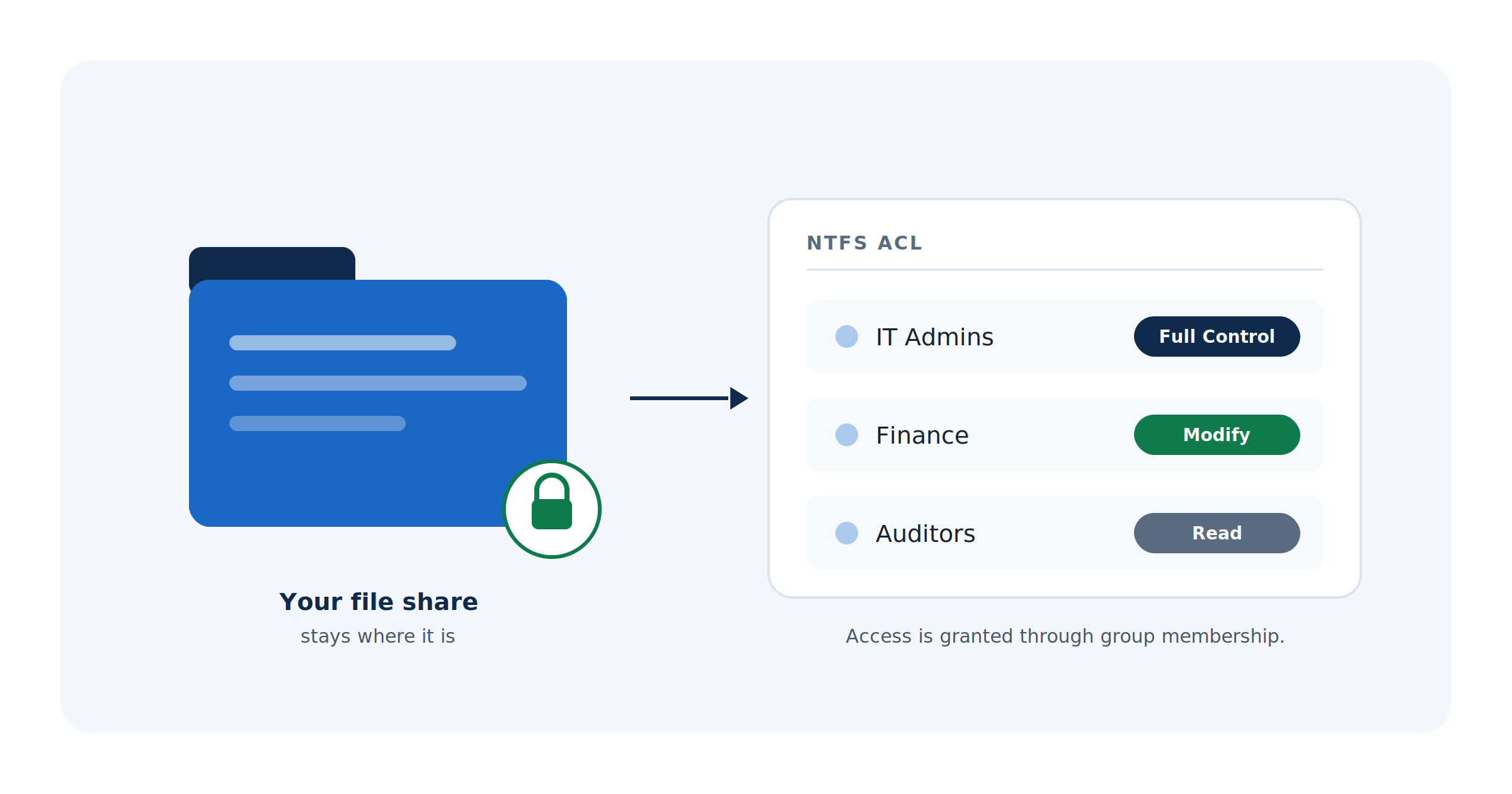
Most file server access problems are not really access problems. They are the result of permissions that were set correctly once, then modified by six different administrators over eight years, with inheritance broken in a dozen places and individual user accounts written directly onto folder ACLs. The permissions still work, mostly. Nobody can explain them.
This guide covers how Windows actually evaluates an ACL, why share permissions and NTFS permissions are separate layers that behave differently, the group design that holds up as an organization grows, and how to audit and migrate permissions without losing them. It closes with how MyWorkDrive enforces these same ACLs for remote users, including where that enforcement has limits.
Two Permission Layers, One Effective Result
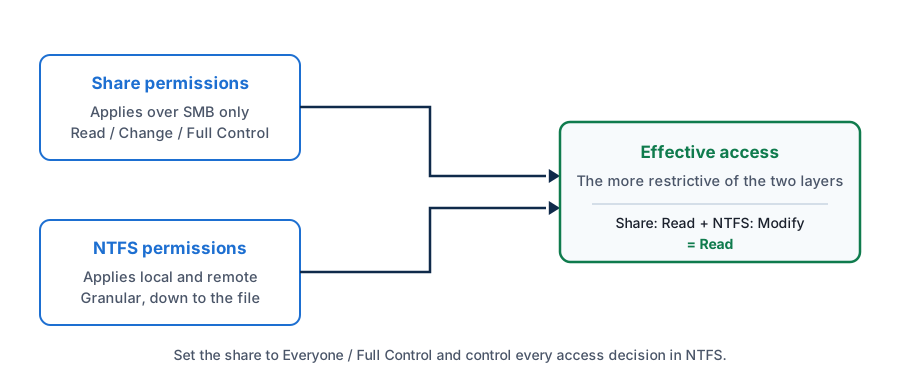
A shared folder on Windows has two independent sets of permissions, and confusing them is the most common source of access problems.
Share permissions apply only when the folder is reached over SMB. They offer three levels: Read, Change, and Full Control. They do nothing at all for a user working on the server locally, and they cannot be applied to individual files.
NTFS permissions live on the file system. They apply whether access arrives over the network or from a local session, they can be set on individual files, and they are far more granular.
When a user reaches a folder over the network, both layers are evaluated and the effective access is the more restrictive of the two. A user with NTFS Modify who hits a share granting only Read gets Read. This is why an administrator can spend an afternoon perfecting NTFS ACLs and still have users stuck read-only.
The standard practice for years has been to stop using share permissions as a control at all. Set the share to Everyone / Full Control and manage every access decision in NTFS. That gives you one place to look, one place to audit, and no chance of the two layers disagreeing.
The Standard Permission Sets and What They Actually Grant
Windows presents six standard permission sets in the Security tab. Each is a bundle of the underlying advanced permissions.
| Permission set | What it grants | Where it belongs |
|---|---|---|
| Full Control | Everything in Modify, plus changing permissions and taking ownership | Administrative groups only |
| Modify | Read, write, rename, delete files and subfolders, and execute | The default for users who contribute content |
| Read & Execute | View and open files, traverse folders, run programs | Reference material and read-only reviewers |
| List Folder Contents | See folder contents and traverse, without opening files | Rarely needed once ABE is enabled |
| Read | View file contents, attributes, and permissions | Read-only access where execute is not wanted |
| Write | Create files and folders and write data, without read | Drop boxes and upload-only locations |
The line that matters most in that table is the gap between Full Control and Modify. Full Control includes Change Permissions and Take Ownership, which means a user holding it can rewrite the ACL an administrator carefully set, and can take ownership of files in ways that are slow to unwind later. Modify covers everything a normal user actually does. The MyWorkDrive server setup guide makes the same recommendation, specifically to avoid file ownership problems.
How Windows Evaluates an ACL
Every file and folder carries a discretionary access control list, made up of access control entries. Each entry names a security identifier and either allows or denies a set of rights. When a user requests access, the Local Security Authority compares the SIDs in that user's access token, which includes the user SID plus every group SID including nested membership, against the entries in the DACL.
The order of those entries decides the outcome. Windows maintains them in what Microsoft calls canonical order:
- Explicit deny entries
- Explicit allow entries
- Inherited deny entries
- Inherited allow entries
Processing walks the list and stops as soon as the requested rights have been granted, or as soon as a deny entry blocks a right that has not already been granted.
That ordering produces a result many administrators get wrong. Deny does not universally win. An explicit deny on an object does beat an explicit allow on that same object, which is the rule most people remember. But an explicit allow set directly on a folder is evaluated before any deny inherited from a parent, so it overrides that inherited deny. A deny applied at the top of a tree to lock something down can be quietly undone by an allow someone added on a subfolder years later.
This is also why deny entries are worth avoiding as a design tool. Removing a group from an allow entry is easier to reason about, easier to audit, and does not create traps that surface only when someone traces effective access.
Inheritance, and the Sprawl It Hides
By default a new folder inherits its parent's permissions, and changes at the top propagate down. That is what makes a large tree manageable.
Inheritance gets disabled two ways. Converting inherited entries into explicit copies preserves current access but freezes it, so future changes at the parent no longer reach that folder. Removing all inherited entries strips access entirely and requires rebuilding from nothing.
Either choice creates a permanent exception. A handful of intentional exceptions is fine. What happens in practice is that exceptions accumulate, usually because a request came in for one person to see one folder and the fastest fix was to break inheritance and add them directly. Ten years later the tree has hundreds of explicit entries, dozens of individual user SIDs, and no way to answer the question of who can reach a given folder without querying it directly.
The signals that a share has drifted this far are consistent:
Individual user accounts on folder ACLs. Every one of these is a permission that will outlive the person's role and will not be caught by a group membership review.
Everyone or Authenticated Users on data folders. Usually a leftover from a share that was set up quickly and never tightened.
Users holding Full Control. Often granted to resolve an ownership error, then never reduced.
Orphaned SIDs. Entries showing as raw SID strings rather than names, left behind by deleted accounts or a domain migration.
Inheritance disabled several levels deep. The ones nobody remembers creating are the ones that cause the confusing tickets.
The Group Design That Holds Up
The long-standing Active Directory convention for this is AGDLP: accounts go into global groups that represent roles, those global groups nest into domain local groups that represent access to a specific resource, and permissions are assigned only to the domain local groups. Multi-domain and multi-forest environments extend it to AGUDLP by adding a universal group layer.
The value is separation. Role membership changes in one place when someone joins a team. Resource access changes in another place when a folder's requirements change. Neither operation touches a file system ACL, and the ACL itself stays short enough to read.
Group design also has a hard technical ceiling that permission sprawl runs into. A Windows access token holds at most 1,024 security identifiers, and the LSA consumes several, so the practical limit is 1,015 groups per user including nested membership. Logons typically break well before that, because the Kerberos ticket carrying those SIDs exceeds MaxTokenSize. That value has defaulted to 48,000 bytes since Windows Server 2012, and Microsoft's guidance is not to raise it beyond 48,000 on any version. Group scope affects the cost: a domain local group from the resource domain consumes roughly 40 bytes in the ticket, while a global or universal group from the user's own domain consumes about 8. Environments that create a group per folder rather than a group per role are the ones that meet this wall.
Access-Based Enumeration
Access-based enumeration hides files and folders a user has no read permission to, so they do not show up in a directory listing at all. It removes the awkward situation where a user can see a folder named for a project they are not on, and it lets you consolidate many shares into one tree without exposing structure.
Three things about ABE are worth being precise on. It applies only to content reached through a share, not to the local file system. It is enabled per share rather than globally. And it governs visibility rather than access, so a user who already knows a path is still stopped only by share and NTFS permissions. Microsoft states this directly for DFS namespaces: ABE does not prevent a user from obtaining a referral to a folder target if they already know the DFS path, and only the share or NTFS permissions on the target itself prevent access.
For access-based enumeration to work as intended, NTFS permissions need to be set with Active Directory groups rather than local groups such as Administrators or Users, since local group membership does not carry the per-user distinction ABE depends on.
How MyWorkDrive Enforces These ACLs Remotely
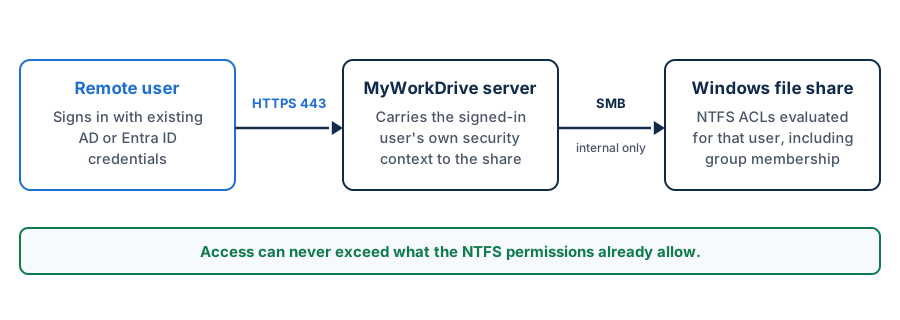
MyWorkDrive publishes existing SMB shares to a browser, a mapped drive on Windows and macOS, and mobile apps, all over HTTPS on port 443, which keeps SMB and port 445 off the internet. The relevant part for this topic is what happens to permissions on the way.
When configured with Active Directory or Entra ID identity, MyWorkDrive accesses files in the context of the signed-in user, so the same NTFS ACLs evaluated for a user sitting at a desk in the office are evaluated for that user on a laptop in a hotel. There is no service account elevation and no separate permission database to keep synchronized with the file system. By design the platform can restrict access further than NTFS allows through its own granular share settings, but it cannot grant access beyond what the ACLs already permit. An administrator who adds a share in MyWorkDrive does not thereby give anyone access they did not already have.
Access-based enumeration is supported in Active Directory mode with SMB storage in the user context. One configuration detail catches people out: the share must be added using its UNC path, as in \\server\share. A drive letter path works for basic access but ABE is not applied, so users see folders they cannot open.
Two limits are worth stating plainly. When MyWorkDrive is configured with Entra ID identity and reaches SMB storage through a service account, there is no signed-in user context at the storage layer, so ABE reflects what the service account can see rather than what the individual user can see. And for non-NTFS storage such as SharePoint, OneDrive, or Azure Storage accessed by API, permissions come from the storage platform or the storage connection rather than from NTFS, and MyWorkDrive's granular permissions control which shares a user is shown rather than the underlying rights.
Auditing What You Actually Have
Before changing anything, get a readable picture of the current state.
The Effective Access tab, under Advanced Security Settings, resolves the full evaluation for a specific user or group on a specific folder and shows the result rather than the inputs. It is the fastest way to settle an argument about why someone can or cannot open something.
For a whole tree, icacls <path> /save <file> /t /c writes every ACL beneath a path to a text file. That file is both an audit artifact and a restore point, since icacls <path> /restore <file> puts them back. In PowerShell, Get-Acl piped across a directory listing gives output you can filter, which is how you find the specific patterns listed earlier: entries naming users rather than groups, Everyone or Authenticated Users on data folders, Full Control on non-administrative principals, unresolved SIDs, and folders where inheritance is disabled.
Reads and writes themselves are a separate matter. NTFS records access attempts only when object access auditing is configured through a system access control list and the corresponding audit policy is enabled. MyWorkDrive logs file and login activity independently at the access layer, with Syslog export, which covers remote sessions without turning on file system auditing across an entire volume.
Preserving ACLs Through a Migration
Moving a share to new hardware is where permissions get silently lost, and the loss usually surfaces weeks later.
robocopy carries ACLs when told to. /COPY:DATSOU copies data, attributes, timestamps, security in the form of NTFS ACLs, owner information, and auditing information, and is equivalent to /COPYALL. /COPY:DATS, also written /SEC, copies ACLs without owner and auditing. Directory properties use their own flag, and the default is data and attributes only, so add /DCOPY:DAT if folder timestamps matter. /SECFIX reapplies security to files that already exist at the destination, which is what you want on a second pass.
Two things robocopy does not do. It does not copy share permissions, so shares have to be recreated at the destination with New-SmbShare or the equivalent. And it does not translate SIDs, so a move that crosses domains leaves entries for principals the new domain cannot resolve, which need remapping before cutover rather than after.
Verify rather than assume. Compare icacls /save output from source and destination, and spot-check with Effective Access for a few real users on a few real folders.
A Cleanup Sequence That Works
- Capture the current state first. Run
icacls /save /tacross each share and keep the output. Everything after this is reversible only because of this step. - Fix the share layer. Set share permissions to Everyone / Full Control and confirm that no access decision anywhere depends on the share layer.
- Find the exceptions. Enumerate folders with inheritance disabled, ACL entries naming individual users, unresolved SIDs, and Full Control granted to non-administrative principals.
- Build the group structure. Create role groups for people and resource groups for folders, then nest the first into the second. Do not touch ACLs yet.
- Replace entries, one share at a time. Swap user entries and ad hoc groups for the new resource groups, starting with the least contentious share so the pattern is proven before you reach the one everyone uses.
- Restore inheritance where the exception no longer has a reason. Most of them will not.
- Reduce Full Control to Modify for every principal that is not an administrative group, and resolve the ownership issues that surface.
- Enable access-based enumeration on each share, and confirm your shares are referenced by UNC path anywhere they are consumed, including in MyWorkDrive.
- Re-run the audit and keep the output. The difference between this file and the one from step one is the documentation you did not have before.
Frequently Asked Questions
What is the difference between share permissions and NTFS permissions?
Share permissions apply only when a folder is reached over SMB and offer three coarse levels: Read, Change, and Full Control. NTFS permissions apply to the file system itself, whether the access is local or over the network, and are far more granular. When both are in play, the effective access is the more restrictive of the two. Most environments set the share to Everyone / Full Control and control all access through NTFS.
Do deny permissions always override allow permissions?
No. Windows evaluates access control entries in canonical order: explicit deny, then explicit allow, then inherited deny, then inherited allow. An explicit deny on an object beats an explicit allow on that same object, but an explicit allow set directly on a folder does override a deny inherited from a parent. Processing stops as soon as the requested access has been granted.
Should users be given Full Control or Modify on a file share?
Modify. Full Control adds the ability to change permissions and take ownership, which lets users alter the ACLs an administrator set and creates ownership problems that are tedious to unwind. Modify covers everything a normal user needs, including read, write, rename, and delete. Reserve Full Control for administrative groups.
What does access-based enumeration do?
Access-based enumeration hides files and folders a user has no read permission to, so they do not appear in directory listings at all. It applies only to content reached through a share, not to the local file system, and it is enabled per share. ABE changes visibility rather than access. Only share and NTFS permissions control whether a user can open something.
How do I copy NTFS permissions to a new file server?
Use robocopy with /COPY:DATSOU, which is the same as /COPYALL and carries data, attributes, timestamps, NTFS ACLs, owner, and auditing information. Add /DCOPY:DAT so directory timestamps survive, since the default for directories is data and attributes only. Share permissions are not copied and have to be recreated separately with New-SmbShare.
How many Active Directory groups can a user be a member of?
A Windows access token holds a maximum of 1,024 security identifiers, and the Local Security Authority consumes several, so the practical ceiling is 1,015 groups including nested membership. Logons often fail before that point because the Kerberos ticket exceeds MaxTokenSize, which has defaulted to 48,000 bytes since Windows Server 2012.
Start a free trialBook a demoView pricing

Daniel, Founder of MyWorkDrive.com, has worked in various technology management roles serving enterprises, government and education in the San Francisco bay area since 1992. Daniel is certified in Microsoft Technologies and writes about information technology, security and strategy and has been awarded US Patent #9985930 in Remote Access Networking.