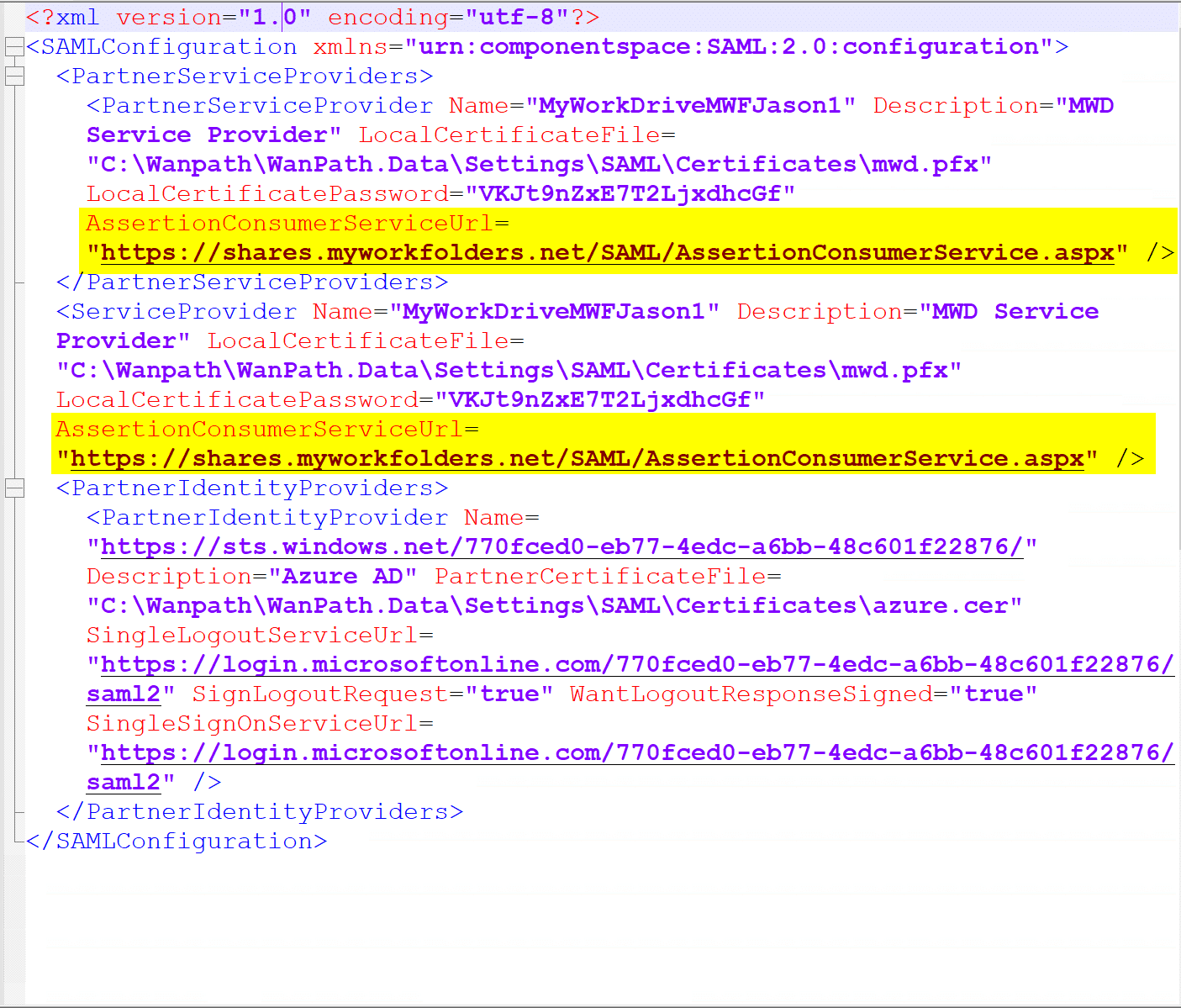
Our MyWorkDrive File Remote Access Server web portal can be easily integrated with Microsoft Entra application proxy service to automatically provide a secure web address without exposing the MyWorkDrive server to the internet or provisioning security appliances.
In addition to protecting the MyWorkDrive Server from direct public access attacks, customers may optionally enable Microsoft Entra application proxy Pre-Authentication and leverage conditional access. With Microsoft Entra Conditional Access, you can define restrictions on how users are allowed to access MyWorkDrive - for example - require their device is under management. You can also create policies that restrict sign-ins based on location, strength of authentication, and user risk profile.
The Microsoft Entra application proxy FAQ provides additional context on features and deployment scenarios for Application Proxy. Note that the recommended auth system for Microsoft Entra Application Proxy is Entra ID. Other auth sources like ADFS may not work or provide full functionality. REF 1 2
MyWorkDrive Integration
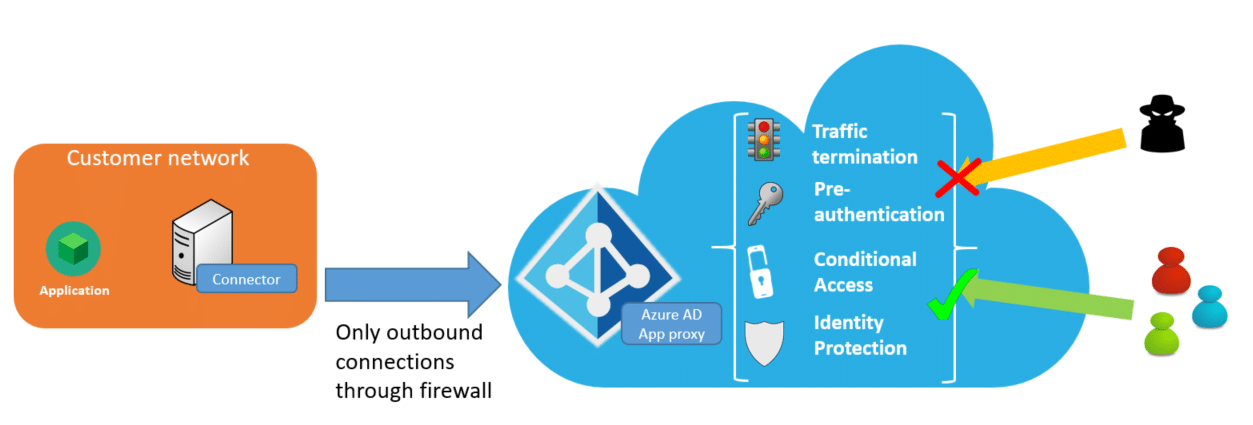
MyWorkDrive can be easily integrated into Microsoft Entra application proxy - simply point your Microsoft Entra application proxy connectors to the MyWorkDrive server internal URL. The internal URL can be the same as the external URL (you'll need to install a matching SSL certificate in this case) for example: https://share.example.com. This URL should resolve to the internal IP address of your MyWorkDrive server on the LAN and the Microsoft Entra application proxy CNAME from the Internet. Microsoft provides additional details in their planning article and in their publishing steps on how to Add an on-premises application for remote access through Microsoft Entra application proxy in Microsoft Entra ID
MyWorkDrive Client Pre-Authentication
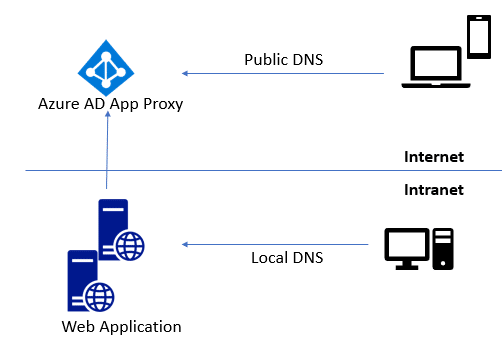
The MyWorkDrive Web Browser and install clients from version 6.0 support Azure AD Application Proxy Pre-Authentication. With Pre-Authentication, clients cannot connect to the MyWorkDrive server URL until authenticated by Azure AD. Once clients are authenticated by Azure AD and pass any Conditional Access policies they can then proceed with logging in (typically using Azure AD SAML).
Performance Considerations
In our experience and as reported by other users, Azure App Proxy adds significant overhead from proxying traffic through the cloud service and connector, often resulting in 25-50% slower response times compared to direct access. Users have noted lag spikes, slow connectors, and reduced responsiveness in RDS, web apps, and high-traffic scenarios. Consider direct access or alternatives like Azure Application Gateway for latency-sensitive apps. Ref 1 2 3
Configuration
Please reference these specific instructions for MyWorkDrive configuration. They are in addition to the complete steps provided by Microsoft in their complete guide
These instructions assume you are setting up an application excuslively for Azure AD Proxy. You may alternatley choose to enable multiple features in a single app in Azure/Entra. See this article for configuration instructions for an "all in one" application.
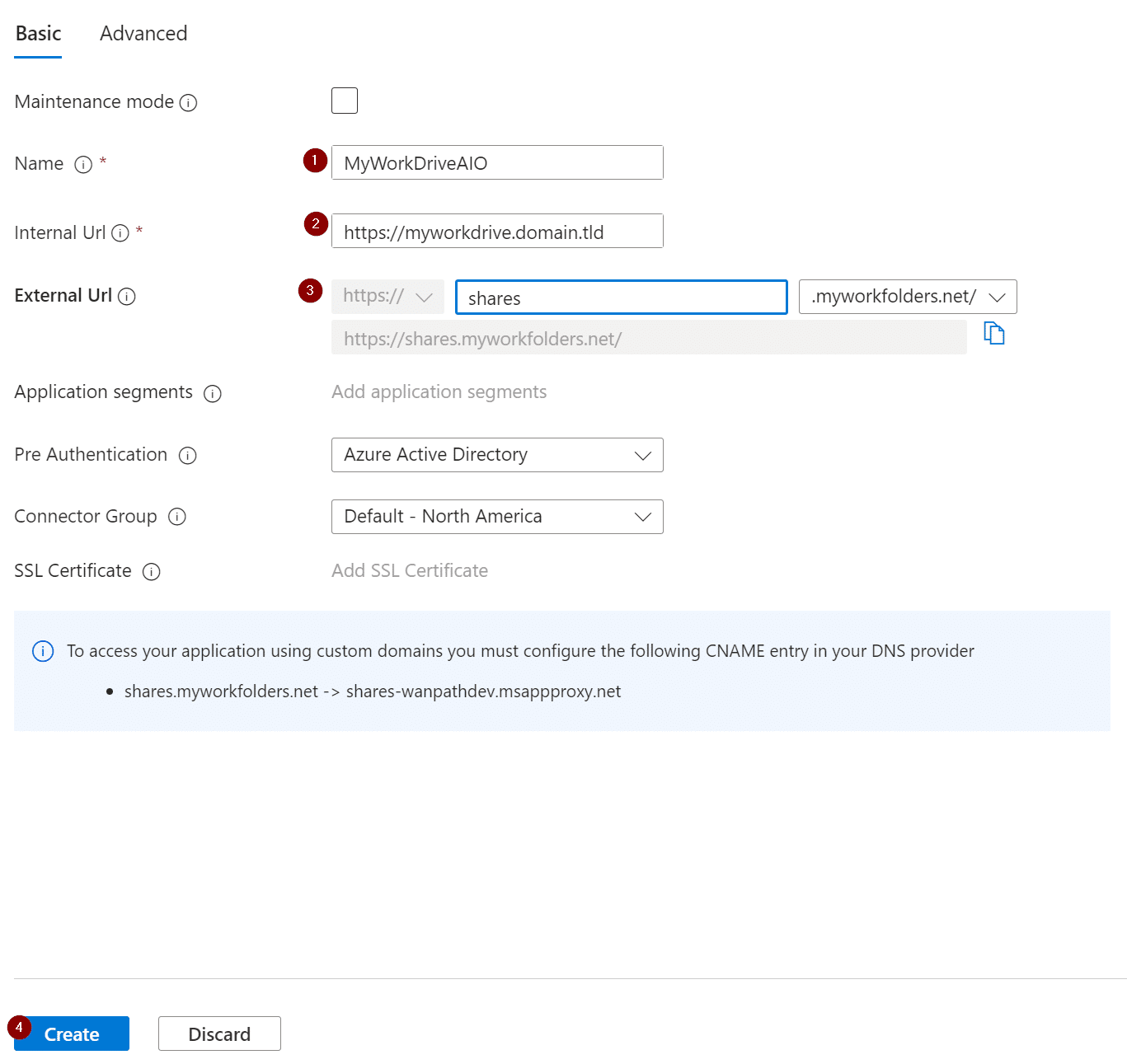
Browse to Azure AD and select Application proxy and then select Configure an app.
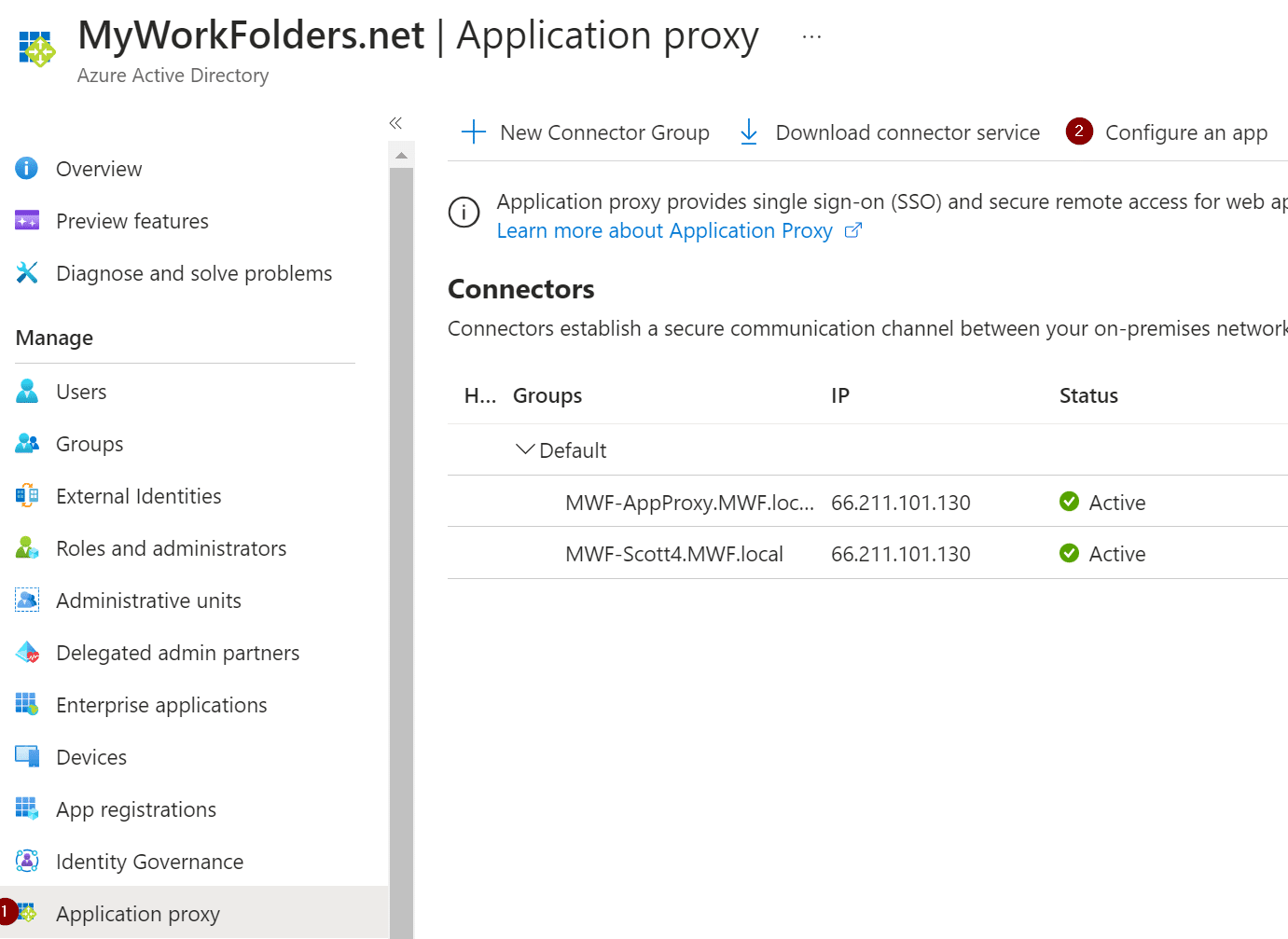
Fill in the details for the name of your app, your MyWorkDrive server, external dns name, and select Create.
Manual Saml Update
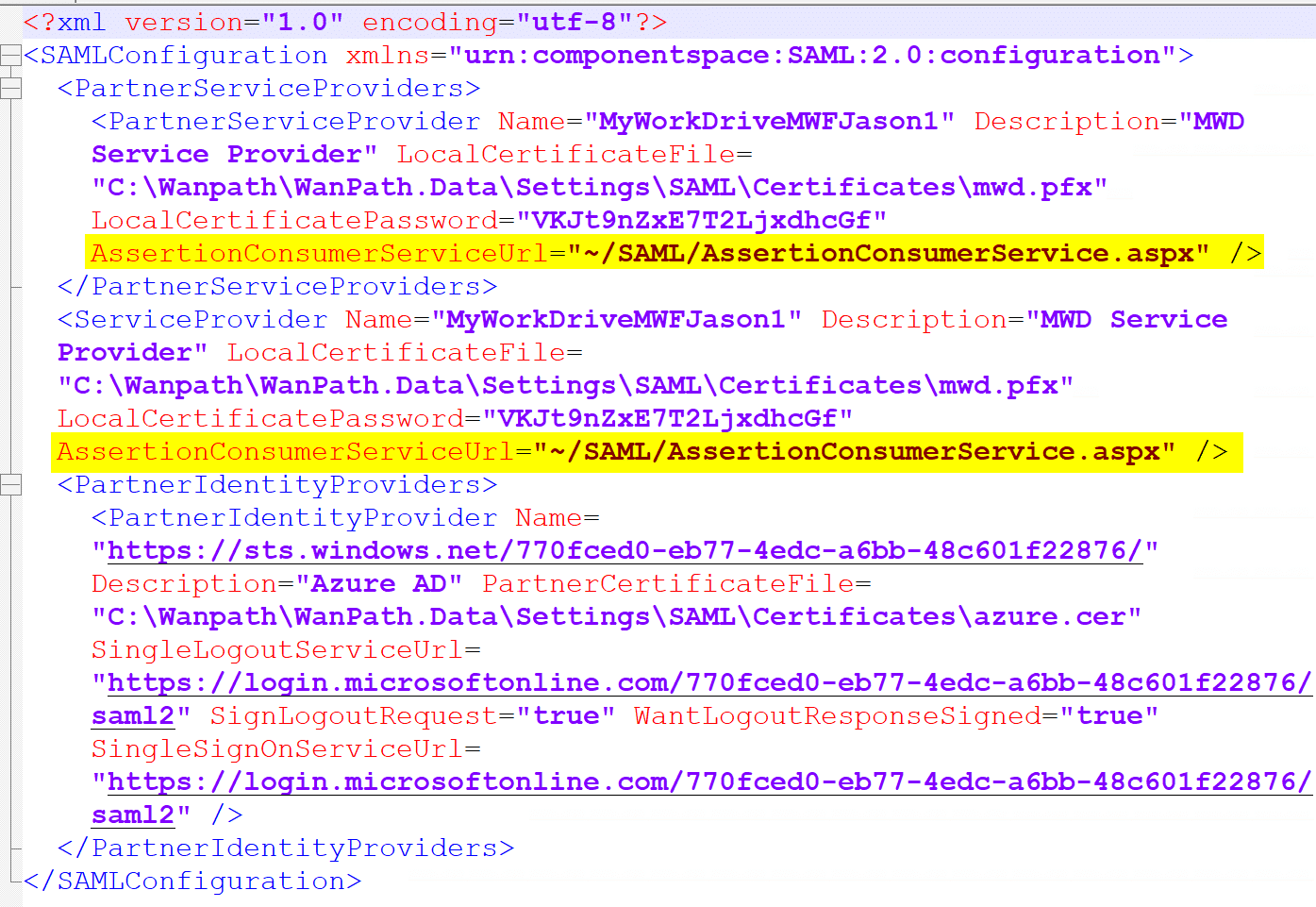
Note: If you are using SAML SSO with Application proxy, there is one more additional step. Open windows explorer and navigate to:
C:\Wanpath\WanPath.Data\Settings\SAML
And edit the saml.config file with your preferred text editor in an elevated window (IE, run as Administrator).
Find both the AssertionConsumerServiceUrl fields and change the “~” in each field to the full server URL and save the file.
Before:
After: