
Run A Secure Azure File Server Without Migrating Your Data
Deploy MyWorkDrive from the Azure Marketplace and give your team browser, mapped drive, and mobile access to files in Azure. Store data on the VM, on Azure Files, or back on-premises. There's no VPN to manage and no migration project to schedule.
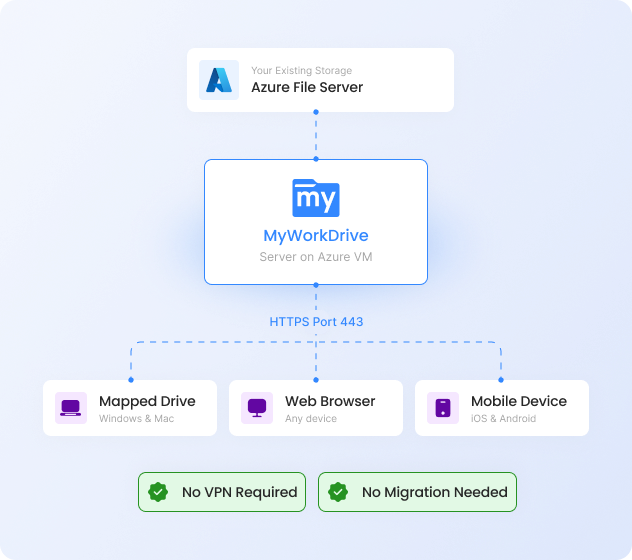


What people usually mean by "Azure file server"
Search for "Azure file server" and you'll get two very different kinds of results. Microsoft's own documentation explains how to stand up Windows Server in an Azure VM, or how to use Azure Files as managed SMB storage. Those are the building blocks. What they leave out is the part most teams are actually after: a way for people to reach those files from outside the Azure network without a VPN, in a browser, on a phone, or as a mapped drive.
MyWorkDrive handles that side. You run it as a virtual machine in Azure, point it at your storage, and it publishes the files securely over HTTPS. The storage can sit on the VM's own disk, on Azure Files, or back on a server on-premises, and users get the same browser and mapped-drive access either way. You don't have to relocate a single file to get there.
Deploy the pre-configured VM image in minutes, with automatic domain join, right inside your own Azure subscription.
A quick note on intent before you read on
If you landed here trying to decide between MyWorkDrive and Azure File Sync, skip to the comparison — the two tools solve different problems and the distinction saves a lot of wasted planning. If you want the deployment steps, the setup walkthrough is further down.
Why teams run their file server in Azure
The move usually has nothing to do with chasing "the cloud" as a buzzword. It's a way to retire one rack of aging hardware without taking on a full data-center project. A file server in Azure means no physical box to babysit, backups and redundancy handled through Azure's own tooling, and a VM you can resize as headcount changes. And because you deploy it inside your own Azure subscription, the compute and storage land on the same Azure bill you're already reconciling each month.
What stalls a lot of these projects is the assumption that "file server in Azure" means migrating everything into a new repository and retraining users on a new interface. It doesn't have to. MyWorkDrive keeps the files in standard NTFS-formatted storage you control, and users keep working with familiar folders and drive letters. What changes is where the server lives and how people reach it, not how anyone's day-to-day works.
How MyWorkDrive runs as an Azure file server
The Marketplace image boots as a Windows Server VM with MyWorkDrive already installed. On first start it asks a few questions (company name and the like) and sets up a local Active Directory database, so a standalone deployment works straight out of the box. Already running Active Directory? Join the VM to your existing domain instead. That domain controller can live in Azure, or connect back to on-premises over ExpressRoute or a VPN tunnel, and Entra Domain Services works as well.
Files land on a standard NTFS data disk attached to the VM, or on Azure Files shares mounted over SMB. Either option keeps the data out of any MyWorkDrive database or third-party sync service. The files stay in storage you own, and you can move them later, whether that means syncing to on-premises or shifting to a different region, without unwinding a proprietary format first. Your files are just files on NTFS, which is the whole point of "no vendor lock-in" when it's more than a slogan.
Once the server is up, MyWorkDrive assigns a private URL under myworkdrive.net so you can start using the web file manager immediately, or you can bind your own domain and SSL certificate for production. For tighter control over who reaches the server, you can publish it behind Microsoft Entra Application Proxy or the built-in Cloud Web Connector instead of opening a direct connection.
Users reach the Azure file server over port 443 from a browser, mapped drive, or mobile app. No VPN client to deploy, and no SMB exposed to the internet.
Standalone AD, an existing domain, or Entra Domain Services. SAML SSO through Entra ID, Okta, Ping, or ADFS, with MFA and Conditional Access enforced at the IdP.
Files sit on standard NTFS storage. The permissions you set in Active Directoryare the permissions users get, with nothing re-mapped through a web layer.
Keep data on the VM, on Azure Files, or synced on-premises. Move it whenever you want. There's no proprietary repository holding your files hostage.
MyWorkDrive on Azure vs Azure File Sync
This is the comparison most buyers are really running in their heads, so it's worth being clear about it. Azure File Sync and MyWorkDrive get mentioned in the same breath, but they aren't competing for the same job. Azure File Sync is a storage tool. It replicates your Windows file shares into Azure Files and caches the hot data locally, which earns its keep when you're consolidating branch servers or tiering cold data off expensive on-prem disk. The one thing it won't do is give a remote user a way to open those files from a laptop at home.
MyWorkDrive is the access layer. It runs in Azure and serves files to people over HTTPS, wherever those files happen to live. The two aren't mutually exclusive, and plenty of customers run Azure File Sync for the storage side and MyWorkDrive for the access side. But if remote access is what you're actually solving for, here's the honest side-by-side:
Comparison of MyWorkDrive on Azure and Azure File Sync
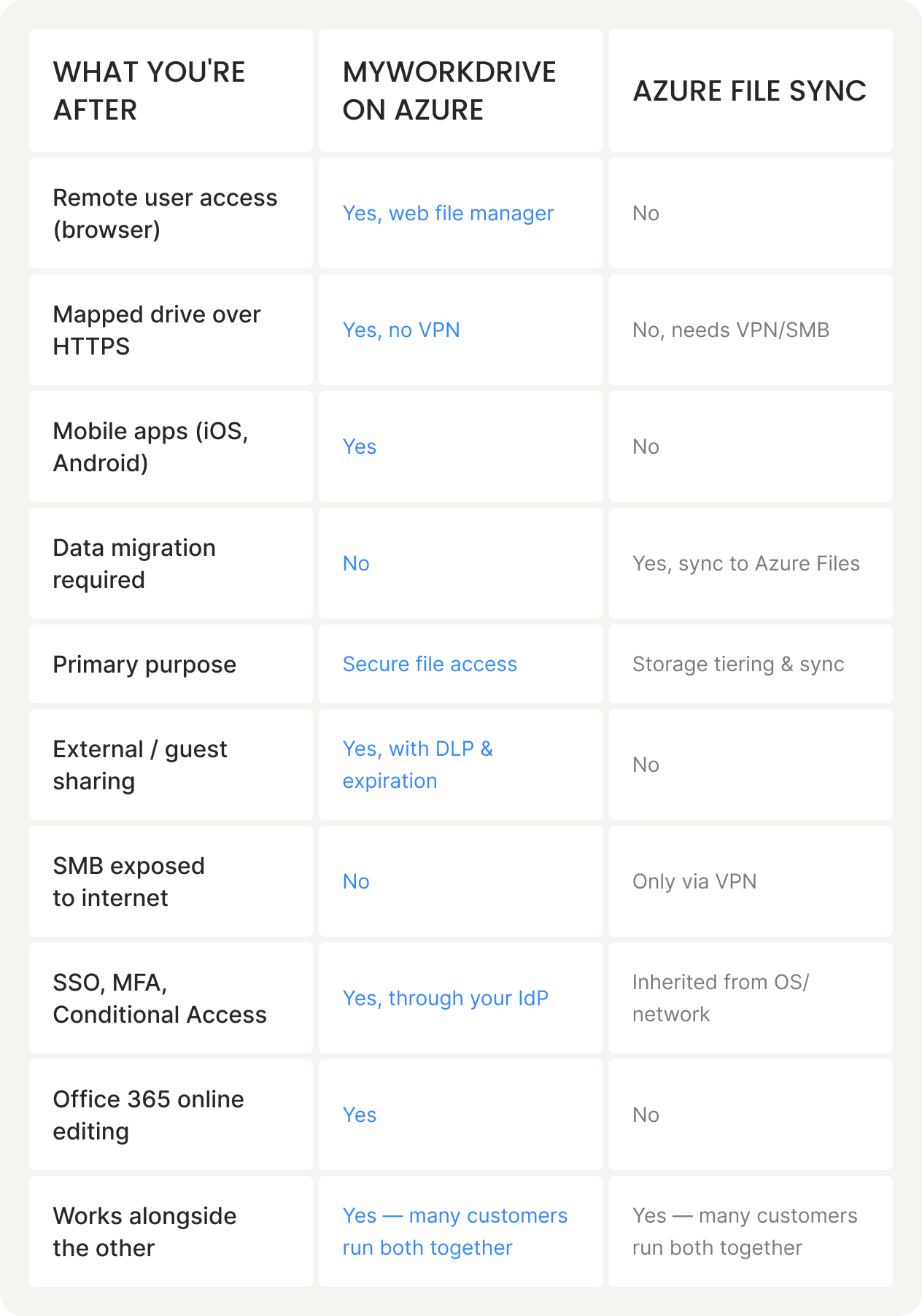
So the rule of thumb is straightforward enough. If the problem is tiering or consolidating storage, Azure File Sync was built for that. If the problem is getting people to files in Azure without a VPN, that's where MyWorkDrive earns its place. The projects that go sideways are usually the ones where someone picked the storage tool to solve an access problem, or the other way around.
How to set up an Azure file server with MyWorkDrive
Here's the realistic path from zero to a working production deployment. We've run this with customers from small teams up through several thousand users, and the shape doesn't change much with scale.
-
01
Deploy the Marketplace image
From the Azure Marketplace listing, create the VM. A D-series size with two or more vCPUs is a good starting point because it supports Accelerated Networking, which matters for Azure Files performance. The image arrives with MyWorkDrive already installed.
-
02
Answer the first-boot setup
On startup the configuration wizard asks for a company name and a few basics, then sets up a local Active Directory database for a standalone deployment. If you have an existing domain, point the VM at it instead — a DC running in Azure, one reachable over ExpressRoute/VPN, or Entra Domain Services all work.
-
03
Attach your storage
Use the NTFS data disk attached to the VM, or mount Azure Files shares over SMB. For Azure Files with AD permissions, sync Active Directory to Entra ID first and make sure your storage account name stays under 15 characters (an Active Directory computer-name limit that trips people up).
-
04
Add your shares and set permissions
Point MyWorkDrive at the folders you want to publish and assign access by Active Directory group. NTFS permissions are honored as they are, so you're not rebuilding an access model — you're exposing the one you already have.
-
05
Publish it the way your security team prefers
Start instantly on the assigned yoursite.myworkdrive.net URL, or bind your own domain with an SSL certificate for production. For more control, publish behind Microsoft Entra Application Proxy or the Cloud Web Connector, which needs no inbound firewall changes at all.
-
06
Turn on the enterprise features you need
Layer in SAML SSO, two-factor authentication, Data Loss Prevention, and external guest sharing through Microsoft B2B. SSO with an Active Directory user database takes about 15 minutes once delegation is set; Office Online editing through your own Azure tenant runs closer to 30–60 minutes.
Want the deep version?
The full step-by-step with screenshots, prerequisites, and the Azure Files / Entra ID specifics lives in the server setup guide. This page is the overview; that's the manual.
Azure file server features for remote teams
These all work against storage you control, with no sync agent on user devices and no third-party repository in the middle.
Web File Manager
Browser access to your Azure file server with drag-and-drop upload, content search, previews, and online Office editing. Most users need no training to find their way around.
Mapped drive over HTTPS
A real drive letter that works over port 443 instead of SMB, so remote staff get the familiar Explorer experience without a VPN tunnel back into Azure.
Mobile and Teams access
Native iOS and Android apps, plus a Microsoft Teams integration so files in Azure show up where people are already working.
SAML SSO and 2FA
Entra ID, Okta, OneLogin, Ping, or ADFS for single sign-on, with two-factor authentication and Conditional Access enforced at your identity provider.
Data Loss Prevention
Watermarking, download controls on sensitive shares, and device approval before mapped-drive or mobile clients can connect.
External guest sharing
Share folders with outside collaborators through Microsoft B2B or expiring links, with passwords and download limits where compliance calls for them.
What an Azure file server deployment looks like in practice
"We stood up MyWorkDrive in Azure from the Marketplace image and had remote file access live the same afternoon. No data migration, no new storage to provision, and it billed straight against our existing Azure agreement. The auditors liked that nothing was exposed over SMB."
Infrastructure Lead, Mid-Market Engineering Firm
On This Page
Frequently Asked Questions
How do I host a file server on Azure?

Deploy a Windows Server VM in Azure and install file server software on it. With MyWorkDrive, the fastest route is the pre-configured image on the Azure Marketplace, which spins up a Windows Server VM with MyWorkDrive already installed. You attach storage (an NTFS data disk or Azure Files), join it to Active Directory or Entra ID, and users get browser, mapped drive, and mobile access over HTTPS without a VPN.
What's the difference between MyWorkDrive on Azure and Azure File Sync?
Azure File Sync replicates your on-premises Windows file shares into Azure Files and caches hot data locally — it's a storage tool. MyWorkDrive is an access tool: it runs as a VM in Azure and serves your files to remote users over HTTPS with a web file manager, mapped drives, and mobile apps. Azure File Sync gives you cloud-tiered storage but no user access layer. MyWorkDrive gives you the access layer with no forced migration. Many customers run both.
Can I deploy MyWorkDrive from the Azure Marketplace?
Yes. MyWorkDrive publishes a pre-configured VM image on the Azure Marketplace, so you can deploy it in minutes directly into your own Azure subscription, with automatic Active Directory domain join. The compute and storage run in your subscription and appear on your normal Azure bill. MyWorkDrive user licenses are purchased separately, either monthly or annually, and a 14-day free trial is available.
Where are my files stored when I use MyWorkDrive on Azure?
Wherever you choose. Files can live on a standard NTFS data disk attached to the Azure VM, on Azure Files shares, or on an on-premises file server reached over ExpressRouteor VPN. Nothing is stored in a MyWorkDrive database or a third-party sync repository, so you keep full control of storage location and can move it later with no vendor lock-in.
Do I need a VPN to access an Azure file server with MyWorkDrive?
No. MyWorkDrive publishes the file server over HTTPS on port 443. Users reach it from a browser, a mapped drive client, or a mobile app without a VPN. You can publish through a direct SSL connection, behind Microsoft Entra Application Proxy, or via the built-in Cloud Web Connector when you can't open inbound ports.
Does it work with Entra ID and Active Directory?
It supports either, or a mix. The Azure image can run a standalone local Active Directory, join an existing Active Directory domain in Azure or reachable over ExpressRoute/VPN, or use Entra Domain Services. For single sign-on, MyWorkDrive supports SAML through Entra ID, Okta, OneLogin, Ping, ADFS, or any SAML-compliant provider, so MFA and Conditional Access enforce at your IdP.
Can MyWorkDrive give remote access to existing Azure Files shares?
Yes. MyWorkDrive connects to Azure Files over SMB and presents those shares through the web file manager, mapped drive, and mobile apps. AD-based permissions on the Azure Files share are honored, so you can give external users browser access to Azure Files without exposing SMB to the internet.
Related reading
Azure File Shares Access
Connect MyWorkDrive to Azure Files
Cloud File Server for Windows
The on-prem-to-cloud access story
Migrate File Servers to Cloud
If you do want to relocate storage
VPN Replacement for File Access
The Zero Trust angle
Azure Blob Storage Access
Serve Blob containers to users
Microsoft License Optimization
Trim per-seat costs
Spin one up in Azure this afternoon
Deploy the Marketplace image to test it against your own shares, or book a 30-minute demo and we'll walk through the architecture for your environment.