
Introduction
Our MyWorkDrive File Remote Access Server web portal can be easily integrated with Cloudflare® Tunnel services to automatically provide a secure web address without exposing the MyWorkDrive server to the internet or provisioning security appliances.
The public Internet does its best to deliver your content — but it can’t account for network congestion, leading to slow load times and a degraded end-user experience. By simply enabling Cloudflare Argo to proxy DNS name resolution for a host, real-time network congestion and routing of web traffic across the fastest and most reliable network paths is automatic. On average, web sites perform 30% faster.
Optionally customers may also utilize Argo Tunneling to reverse proxy traffic through an Argo tunnel agent. While large enterprise customers may wish to use their own direct connection (with their own hostname/SSL Certificate) and manage their own Office Online server, by utilizing our integration with Cloudflare’s Argo and tunnel service the same or better network speeds, security and compliance objectives can be more easily achieved by companies of any size.
Benefits Overview
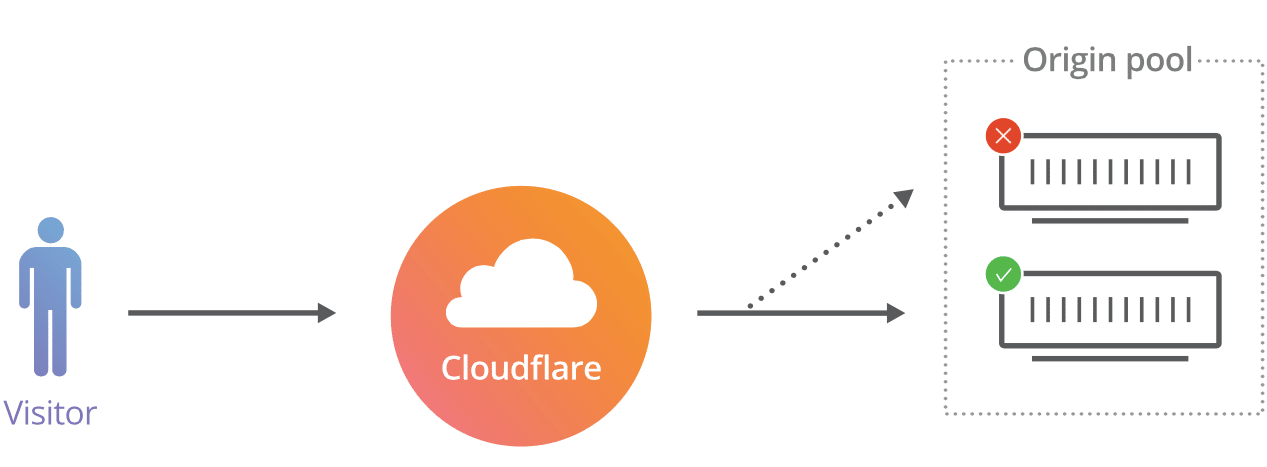
Using a lightweight agent installed on the MyWorkDrive Server, Cloudflare Argo Tunnel creates an encrypted tunnel between the nearest Cloudflare data center and the MyWorkDrive server without opening a public inbound port. This offers an additional layer of protection to keep the MyWorkDrive server website available by protecting the IP address from exposure and DDoS attacks. Starting with Version 5.4 MyWorkDrive integration is easy, simply enable our Cloud Web Connector or Office 365 Online integration.
Argo Smart routing
Automatically routes traffic around network congestion to improve performance and reduce latency. The Cloudflare network routes over 10 trillion global requests per month — providing Cloudflare Tunneling a unique vantage point to detect real-time congestion and route web traffic across the fastest and most reliable network path.
Improved Security
The built in Web Application Firewall (WAF) features protect again Cross-Site Scripting, SQL Injection, Cross-Site Request Forgery and the OWASP Security rule set at the edge, protecting your MyWorkDrive website from the OWASP top-10 vulnerabilities at all times. By utilizing the Cloudflare Tunneling service an A+ rating on Qualys SSL Labs SSL Scan is achieved instantly with no manual configuration or lockdown of IIS protocols needed. Cloudflare's Web Application Firewall (WAF) is PCI compliant which enables customers to achieve PCI requirement 6.6 instantly when enabled alongside MyWorkDrive.
Denial of Service Protection
DDoS stands for Distributed Denial of Service and is a term used to describe attacks on the Network, Transport, and Application layers of the Open Systems Interconnection (OSI) model. Attacks at the Network, Application and IP layer are automatically dropped at the Cloudflare network before ever reaching your MyWorkDrive Server.
Automatic SSL Installation
MyWorkDrive server automatically provisions and deprovisions unique SSL Certificates for use exclusively by each MyWorkDrive server. The SSL integration between the MyWorkDrive Server and Cloudflare Argo Tunneling is automatic, and ensures your website is encrypted from end-to-end without exposing your servers to the internet or managing SSL Certificates and firewall rules.
How it works
Argo tunnel works by installing an agent on each Windows IIS Web Server. The tunnel agent is configured to connect to a local port and makes a secure connection outbound on TCP port 7844 to the Cloudflare networks. No inbound firewall ports need be exposed. Next a host is created and configured in Cloudflare to relay inbound requests to the internal host (the origin). In advanced configurations internal origin hosts can be configured for failover and load balancing. Cloudflare Argo requires TCP port 7844 outbound from your server to Cloudflare IP’s.
Limits
As of version 6.4, there are no file size limits when using the Cloud Web Connector. The earlier 200MB Limit (6.1.1 and later) or 100MB Limit (5.4 - 6.0.2) no longer applies.
You may wish to create your own Cloudflare tunnels in your own Cloudflare account to take advantage of other Cloudflare security features, or be able to manage your own WAF and settings. The Cloudflare Argo documentation here has complete details.
Running your own Cloudflare with MyWorkDrive
Several important considerations to be aware of when running your own Cloudflare tunnels with MyWorkDrive.
- MyWorkDrive uses a legacy method to establish tunnels with a local cloudflare yml, pem and/or json files in the location c:\wanpath\wanpath.data\settings (the exact files you will have depend on if you are using named tunnels or not). You will ignore these files/paths if you are deploying your own Cloudflare tunnel.
- MyWorkDrive default installs the Cloudflare tunnel agent (service) to C:\Wanpath\WanPath.Utilities\Exe. The default install location is C:\Program Files (x86)\cloudflared\cloudflared.exe.
- MyWorkDrive will automatically update the Cloudflared service settings when MyWorkDrive is updated, which will result in your settings being destroyed if the registry entries for the service are not updated.
- MyWorkDrive will manage the default Cloudflare service automatically and disable it if there are no configured features in MyWorkDrive using it, so it is important you rename the default service to avoid MyWorkDrive updating it or disabling it.
Here is the Procedure:
Create your Tunnel
1) In your Cloudflare account, follow the procedures to create a tunnel from the dashboard
- Choose "Cloudflared" as the tunnel type
- Enter a name (label), the dns name will be set separately after the tunnel is activated
- Save the tunnel
2) On the MyWorkDrive server, download and install the tunnel software. The installer will just run and give you on indication it is completing, but it will run.
3) In an elevated command window, uninstall the existing tunnel agent service with the following command
cloudflared service uninstall
4) Run the command to establish a new Cloudflared service with your token. It is instruction 4 on the Cloudflared instructions "Run the following command:" and looks like this
cloudflared.exe service install <TUNNEL_TOKEN>
Once the command has finished running successfully, your connector will appear in your Cloudflare Tunnels List. Proceed with Step 2a, publish an application
Connect an Application
1) Choose an appropriate subdomain, such as MyWorkDrive
2) Choose your Domain (if you have more than one configured in cloudflare)
3) Do not set a Path (subfolder)
4) Choose HTTP as the service. Do not choose HTTPS, the application url will automatically be SSL/TLS protected with an HTTPS url for public access. This setting is the internal access for the tunnel to the application and will use an internal service site MyWorkDrive creates specifically for using with Cloudflare tunnels.
5) Set the URL to 127.0.0.1:8357
Click save. The hostname + domain name you configured should not work in a browser to access your MyWorkDrive server.
Registry Update
You should now complete the following steps to edit the registry and change the default service to use a self-named service, so MyWorkDrive does not attempt to manage it.
They also assume you're using the default path C:\Program Files (x86)\cloudflared\cloudflared.exe for your cloudflare executable and files. If you've stored them in another location, update these instructions as appropriate.
1) Update ImagePath
HKEY_LOCAL_MACHINE\SYSTEM\CurrentControlSet\Services\Cloudflared with your ImagePath:
"C:\Program Files (x86)\cloudflared\cloudflared.exe" tunnel run --token <TUNNEL_TOKEN>
2) Rename Service
HKEY_LOCAL_MACHINE\SYSTEM\CurrentControlSet\Services\Cloudflared to Cloudflared2 (or a name of your choosing)
3) Rename Eventlog
HKEY_LOCAL_MACHINE\SYSTEM\CurrentControlSet\Services\EventLog\Application\Cloudflared to Cloudflare2 (or a name of your choosing)
After making these changes, you must reboot your server, or you will get errors in Services regarding "the system cannot find the file specified" and "<Failed to read description. Error code: 2>". This is normal. Windows only fully picks up a new service name after restart, and this also clears the "failed to read description, error code 2" cache.
You'll then be running on your own credentials and installer path.
When you re-install MyWorkDrive it will re-create a cloudflared service on our paths, which you can safely ignore if you are only running your own instance of Cloudflare.
If you want to run Office Online editing alongside your own Cloudflare, go configure Office Online in MyWorkDrive after you've re-installed MyWorkDrive and re-created our default Cloudflare service.*
Monitoring your WAF
The Cloudflare WAF may occasionally false positive on the MyWorkDrive API for Map Drive clients or Office Online editing, and result in unexpected file operations such as files not opening, files not saving or files being corrupted on save. If you are using the Cloudflare WAF, you are encouraged to monitor the log activity in Cloudflare and adjust rules to avoid data corruption. In particular, the OWASP package.
Troubleshooting
See our Cloud Connector/Office 365 Relay Troubleshooting for guidance troubleshooting issues with Cloudflare tunnels.