

Traditional Windows file servers were built for on-premises access. In a hybrid workforce, they create VPN dependencies, security gaps, and administrative overhead that IT teams can no longer afford. A Windows file server alternative bridges this gap, delivering secure, remote access to existing file storage without forcing a cloud migration or abandoning your current infrastructure.
Organizations look for an alternative to Windows file server infrastructure for several reasons: VPN-based remote access introduces security risks and operational overhead, cloud migration projects are costly and disruptive, and traditional Windows server file sharing was never designed for a distributed workforce. Whether the goal is to replace a Windows file server entirely or simply modernize how users connect to it, the right file server alternative to Windows Server should solve these problems without requiring a rip-and-replace approach.
-
Zero data migration:
- Access existing SMB shares, Azure Files, SharePoint, and OneDrive without moving files to a proprietary platform
-
VPN-free security:
- Replace network-level VPN tunnels with application-layer HTTPS access over port 443
-
Full permission inheritance:
- Preserve your existing NTFS permissions and Active Directory groups with no re-provisioning
What Is a Windows File Server Alternative?
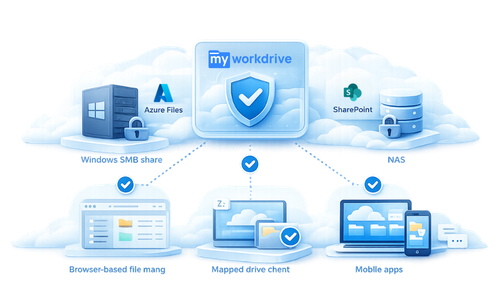
A Windows file server alternative is a secure access layer that sits in front of your existing file storage infrastructure, Windows SMB shares, Azure Files, SharePoint, or NAS, and provides remote access over HTTPS without requiring VPN connections or data migration to cloud-hosted platforms. It preserves your current file permissions, directory structure, and storage location while adding modern access methods such as browser-based file management, mapped drive clients, and mobile apps.
The best Windows file server alternative is typically an HTTPS-based access layer that enables secure, remote file access without VPN or migration, while preserving existing infrastructure. Rather than replacing your storage, it modernizes how users connect to it, providing browser, mapped drive, and mobile access through a single secure application endpoint.
Why IT and Security Teams Should Care
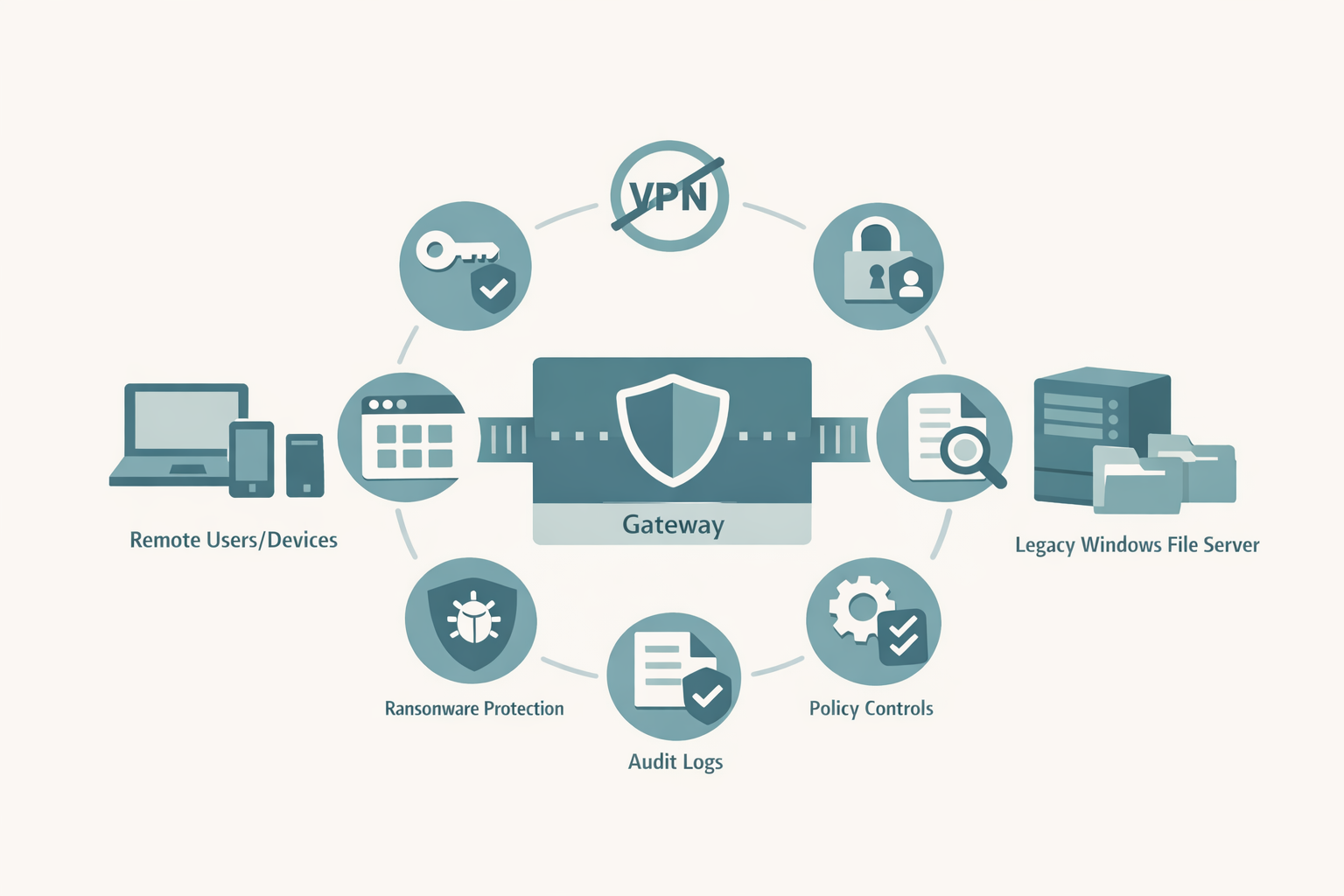
For IT directors and CISOs managing hybrid workforces, the core challenge is straightforward: users need to access files from anywhere, but traditional approaches, VPNs, SMB port exposure, or full cloud migrations, each introduce unacceptable trade-offs in security, cost, or operational complexity.
VPNs grant broad network access, expanding the attack surface and enabling lateral movement after a single credential compromise. Full cloud migrations to platforms like SharePoint Online or Box require months of planning, data restructuring, and user retraining, with ongoing per-user storage costs that compound over time. A Windows file server alternative eliminates these trade-offs by providing application-level access to files where they already reside.
Traditional Windows File Server vs. a Windows File Server Alternative
To understand the practical difference, consider how each approach handles remote file access. A traditional Windows file server setup requires VPN tunnels that grant network-level access, remote users connect to the entire corporate network just to reach their files, exposing domain controllers, print servers, and other resources along the way. A Windows server file sharing alternative like an HTTPS-based access layer flips this model: users connect only to specific file shares through an encrypted application endpoint on port 443, with no network-level exposure. The security difference is significant, VPN-based access expands the attack surface to your entire network, while application-level access restricts it to authorized file resources only. From a deployment perspective, a traditional setup demands VPN concentrators, client software management, and split-tunnel configurations, whereas a modern Windows file server replacement deploys as a lightweight layer on your existing Windows Server infrastructure with no additional network appliances required.
Why It Matters
Reduced Attack Surface for Security Teams
VPN connections place remote users directly on the internal network. A compromised endpoint connected via VPN can reach domain controllers, file servers, and other sensitive resources. Application-layer file access restricts connectivity to specific shares over HTTPS, aligning with the resource-focused access model described in NIST SP 800-207, Zero Trust Architecture.
Lower Operational Overhead for IT Directors
Managing VPN infrastructure means maintaining VPN concentrators, client software across diverse endpoints, split-tunnel configurations, and constant help-desk support for connection failures. A file server alternative deployed on existing Windows Server infrastructure eliminates this stack entirely while preserving the mapped drive experience users already know.
Business Continuity and Compliance
Regulated industries, healthcare, financial services, government, defense contracting, require demonstrable controls over data access, storage location, and audit trails. Migrating to third-party cloud storage often complicates compliance by placing data outside organizational control. Keeping files on your own servers while layering secure remote access preserves data sovereignty and simplifies compliance with frameworks like HIPAA, GDPR, CMMC, and FINRA.
Predictable Cost Structure
Cloud file-sharing platforms charge per user per month with additional costs for storage, egress, and premium features. Organizations that already own their storage infrastructure can avoid these compounding costs by deploying an access layer over their existing file shares.
Common Challenges and Risks
-
VPN security exposure: VPN tunnels grant broad network access, enabling lateral movement and ransomware propagation from compromised remote endpoints. The CISA Zero Trust Maturity Model explicitly recommends moving away from network-level access in favor of application-level controls.
-
Cloud migration complexity: Moving terabytes of structured file data to SharePoint or other cloud platforms requires extensive planning, permission remapping, and user retraining, often taking months with significant risk of data loss or permission errors during transition.
-
Permission management fragmentation: Cloud platforms maintain their own access control models separate from Active Directory. This creates dual permission systems that drift over time and complicate audits.
-
Vendor lock-in and escalating costs: Once data resides in a third-party cloud, egress fees and proprietary formats make switching providers or repatriating data prohibitively expensive. Major providers have steadily increased storage pricing, knowing most customers are locked in.
-
Compliance complications: Moving data off-premises to multi-tenant cloud infrastructure can conflict with data residency requirements, industry regulations, and internal governance policies that mandate organizational control over file storage.
-
User adoption friction: Forcing users to learn new interfaces, abandon mapped drives, or adopt sync-based workflows creates productivity loss and increases help-desk volume during transitions.
How to Solve It
Transitioning from traditional file server access to a secure, remote-capable architecture does not require starting from scratch. Follow these steps:
-
Audit your current file infrastructure. Inventory all SMB shares, their sizes, permission structures, and which user groups access them. Document any compliance requirements tied to specific data sets.
-
Evaluate your identity infrastructure. Confirm whether you are using on-premises Active Directory, Microsoft Entra ID (formerly Azure AD), or a hybrid configuration. This determines your SSO and MFA integration path.
-
Choose an access platform that preserves existing permissions. Select a solution that inherits NTFS permissions and AD group memberships natively, without importing users into a separate database or requiring permission re-provisioning.
-
Deploy on your existing Windows Server environment. Install the access platform on a dedicated Windows Server (2019 or later) joined to your domain. Point it at your existing file shares. No SQL databases or complex multi-server architectures are required for initial deployment.
-
Configure identity and security controls. Enable SSO via SAML 2.0 (ADFS, Entra ID, or Okta), enforce MFA through your identity provider, and apply Data Leak Prevention policies to sensitive shares.
-
Publish access securely. Use a cloud web connector for zero inbound firewall changes, or publish via direct HTTPS on port 443 with your own SSL certificate. For additional protection, deploy behind a WAF or reverse proxy.
-
Roll out client access. Provision users with web browser access, mapped drive clients for Windows and macOS, and mobile apps for iOS and Android. Assign drive letters centrally to match the in-office experience.
-
Enable audit logging and monitoring. Connect file access logs to your SIEM for real-time visibility into who accessed what, when, and from which device. Set alert thresholds for unusual activity.
Several approaches exist to modernize file server access, but not all preserve existing infrastructure while meeting security and compliance requirements. Some solutions require migrating data to proprietary cloud storage. Others demand complex multi-server architectures or leave gaps in permission enforcement. The strongest Windows file server replacement options keep your data in place, inherit your existing permissions, and layer secure access on top, without introducing new infrastructure dependencies.
This type of solution is best for: organizations that want to avoid cloud migration while still providing modern remote access; hybrid workforces that need secure, VPN-free file access from any device and location; and compliance-heavy industries, such as healthcare, financial services, government, and defense contracting, that require data sovereignty, audit trails, and demonstrable access controls.
How MyWorkDrive Helps
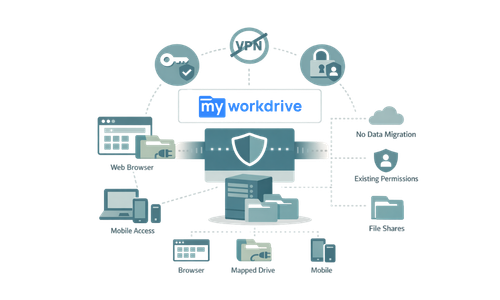
MyWorkDrive is a secure file access platform purpose-built as a Windows file server alternative. It deploys on your existing Windows Server infrastructure and provides browser, mapped drive, and mobile access to your file shares, without VPN, data migration, or changes to your permission structure.
MyWorkDrive brokers access only. Files never leave your servers, and the platform cannot elevate permissions beyond what your existing NTFS and AD policies allow.
-
Native Active Directory and Entra ID integration: Authenticates users through your existing identity provider with SSO via SAML 2.0, OAuth/OIDC, and Kerberos constrained delegation. No separate user database to manage.
-
Full NTFS permission inheritance: Honors your existing share and folder permissions in real time. MyWorkDrive cannot elevate rights, it can only restrict further by policy.
-
VPN-free HTTPS access on port 443: Eliminates exposure of SMB port 445 and NetBIOS port 139 to external clients. All connections encrypted with TLS 1.2/1.3.
-
Built-in Data Leak Prevention (DLP): Block downloads, disable clipboard and printing, apply watermarks, and restrict file operations on a per-share, per-group, or per-user basis.
-
Multi-storage backend support: Connect to Windows SMB shares, Azure Files, Azure Blob Storage, Azure NetApp Files, Amazon FSx, SharePoint Online, OneDrive for Business, and S3-compatible storage, all from a single platform.
-
Office Online and local editing: Users edit documents directly in the browser with Office on the web, or open files in their local Office applications via mapped drive clients. All edits save back to the original file share.
-
Device approval and endpoint controls: Require administrator approval for each device before granting mapped drive or mobile access. Audit device details including OS version and last login.
-
Comprehensive audit logging with SIEM export: Log all file access, sharing, and editing activity. Export logs to your SIEM for compliance reporting and anomaly detection.
-
Compliance-ready architecture: Supports CMMC, HIPAA, GDPR, FINRA, FIPS 186-4 RSA (validated, certificate #3018), and FEDRAMP requirements while keeping all data under your organizational control.
-
Rapid deployment: Install on a dedicated Windows Server in 60–90 minutes. No SQL databases, no complex multi-tier architecture. Scale with additional servers behind a load balancer as needed.
How It Works
MyWorkDrive provides a straightforward workflow for both administrators and end users:
-
Install MyWorkDrive Server on a Windows Server 2019+ machine joined to your Active Directory domain (or configured with Entra ID). The installer configures IIS and all required components automatically.
-
Point to existing file shares. In the admin console, add your SMB shares, Azure Files, SharePoint libraries, or other storage backends. MyWorkDrive imports your Active Directory users and groups automatically.
-
Configure identity and security. Enable SSO through your SAML or OIDC identity provider. Enforce MFA via Entra ID Conditional Access, Okta, or DUO. Apply DLP policies to sensitive shares.
-
Publish securely. Choose the Cloud Web Connector (zero inbound firewall changes, outbound port 7844 only) or direct HTTPS publishing with your own domain and SSL certificate.
-
Deploy clients to users. Users access files through any modern web browser, the MyWorkDrive mapped drive client for Windows and macOS, or iOS and Android mobile apps. Drive letters are pushed from the server and auto-reconnect at each login.
-
Monitor and audit. All file operations are logged with user identity, timestamp, file path, client IP, and device details. Logs export to Splunk, Sentinel, or any SIEM via standard formats.
The data flow is simple: Users → TLS 1.2+ → Identity Provider (SSO/MFA) → MyWorkDrive Server → Your Storage (SMB/Azure/SharePoint). No customer file content persists on the MyWorkDrive application servers. All file processing occurs in memory only.
Security and Compliance
Zero Trust Architecture Alignment
MyWorkDrive implements application-level access consistent with NIST SP 800-207 zero trust principles. Every request is authenticated and authorized before granting access to specific file resources. No implicit trust is granted based on network location.
Encryption and Data Protection
All client-to-server communication uses TLS 1.2 or 1.3. The platform has been issued FIPS 186-4 RSA algorithm validation certificate #3018 from NIST. File content is processed in memory only on application servers, no customer data is written to disk or persisted on MyWorkDrive servers.
Least Privilege Access
MyWorkDrive enforces your existing NTFS and share permissions. It cannot grant access beyond what your Active Directory and file system policies already define. Additional restrictions can be layered through DLP policies, device approval requirements, file-type blocking, and file-size limits.
Audit and Compliance Reporting
Every file access, edit, download, and sharing event is logged with full context: user identity, timestamp, client IP, device type, and file path. Logs can be exported to SIEM platforms for compliance with:
-
HIPAA – Access logging and minimum necessary standard for healthcare data
-
GDPR – Data sovereignty and access auditability for EU personal data under the General Data Protection Regulation
-
CMMC / NIST 800-171 – Controlled unclassified information (CUI) protections for defense contractors
-
FINRA – Record-keeping and supervision requirements for financial services
-
FEDRAMP – Security controls for cloud services used by federal agencies
Data Leak Prevention Controls
DLP in MyWorkDrive blocks file downloads while still allowing browser-based viewing and editing. When DLP is enabled on a share, clipboard access, printing, and downloading are disabled, and a watermark overlay is displayed on all viewed files to discourage screen captures. These controls are configurable at the global, share, group, or individual user level.
Use Cases
Remote and Hybrid Workforce Access
Who: IT directors at organizations with distributed employees who need daily access to departmental file shares. Outcome: Employees access files from any location via web browser or mapped drive with the same experience as the office, while IT eliminates VPN infrastructure and reduces help-desk tickets.
Regulated Industry Compliance
Who: CISOs and compliance officers at healthcare, financial services, or government organizations subject to HIPAA, FINRA, CMMC, or GDPR. Outcome: Files remain on organization-controlled servers with full audit trails, DLP controls, and encryption, meeting regulatory requirements without migrating data to third-party platforms.
Cloud Migration Avoidance
Who: IT directors evaluating alternatives to migrating terabytes of file data to SharePoint Online, Box, or Dropbox Business. Outcome: Users gain cloud-like access, browser editing, mobile apps, external sharing, without the cost, complexity, or lock-in of a full cloud migration. Existing storage investments are preserved.
VPN Elimination for File Access
Who: System administrators managing VPN infrastructure primarily used for file share access. Outcome: MyWorkDrive replaces the VPN for file access use cases entirely, operating over HTTPS port 443 only. SMB ports are never exposed to the internet, and the attack surface is reduced to a single application endpoint.
Multi-Site File Server Consolidation
Who: IT teams managing file servers across multiple branch offices or data centers. Outcome: A centralized MyWorkDrive deployment provides secure access to all file shares from a single web URL with centralized drive letter assignments, eliminating per-site VPN configurations and reducing administrative overhead.
External Collaboration and Partner Access
Who: Project managers and department heads who need to share files with external contractors, auditors, or partners. Outcome: Secure file sharing via password-protected links or Microsoft Entra B2B guest access, with DLP controls that prevent unauthorized downloads while allowing controlled viewing and collaboration.
FAQ

What is the best Windows file server alternative?
The best Windows file server alternative is an HTTPS-based access layer that provides secure, remote file access without VPN or data migration while preserving your existing infrastructure. MyWorkDrive is purpose-built for this use case, it deploys on your existing Windows Server, inherits your NTFS permissions and Active Directory groups, and provides browser, mapped drive, and mobile access over port 443 only. For organizations that need to replace Windows file server remote access without abandoning their current storage, MyWorkDrive delivers enterprise-grade security features including SSO, MFA, Data Leak Prevention, and comprehensive audit logging, with deployment typically completed in 60–90 minutes.
What is a Windows file server alternative?
A Windows file server alternative is a solution that provides secure, modern remote access to files stored on existing Windows file servers (or other storage backends) without requiring VPN connections or migrating data to cloud platforms. It typically uses HTTPS to deliver browser, mapped drive, and mobile access while preserving existing NTFS permissions and Active Directory authentication.
How does a Windows file server alternative differ from a cloud file-sharing platform?
Cloud platforms like SharePoint Online, Box, or Dropbox require migrating data into their proprietary storage. A Windows file server alternative keeps files on your existing infrastructure and layers secure remote access on top. This preserves your current permissions, eliminates data migration projects, and avoids vendor lock-in.
Does MyWorkDrive require data migration?
No. MyWorkDrive connects to your existing file shares, Windows SMB, Azure Files, SharePoint Online, OneDrive for Business, Azure Blob Storage, and S3-compatible storage, without copying, syncing, or migrating any files. Files remain in their current location under your control.
What storage backends does MyWorkDrive support?
MyWorkDrive supports Windows SMB file shares, Azure Files (native API), Azure Blob Storage and Data Lake Gen2, Azure NetApp Files, Amazon FSx, SharePoint Online, OneDrive for Business, NFS, and S3-compatible object storage from multiple providers.
How does MyWorkDrive handle security and authentication?
MyWorkDrive authenticates through your existing Active Directory or Microsoft Entra ID. It supports SSO via SAML 2.0, OAuth/OIDC, and Kerberos constrained delegation. MFA is enforced through your identity provider (Entra ID Conditional Access, Okta, DUO, or others). All connections use TLS 1.2/1.3 encryption, and no file content persists on MyWorkDrive servers.
Can MyWorkDrive replace our VPN entirely?
For file access use cases, yes. MyWorkDrive provides VPN-free access to file shares over HTTPS port 443, eliminating the need for network-level VPN tunnels when the primary use case is accessing and editing files. Organizations that use VPN for other purposes (such as accessing line-of-business applications) may still need VPN for those workflows.
What compliance frameworks does MyWorkDrive support?
MyWorkDrive supports compliance with HIPAA, GDPR, CMMC/NIST 800-171, FINRA, FIPS (validated certificate #3018), and FEDRAMP requirements. Built-in controls include DLP, audit logging with SIEM export, device approval, file-type blocking, and encryption in transit.
How long does deployment take?
A standard MyWorkDrive deployment takes 60–90 minutes with the necessary resources prepared (DNS access, firewall rules, SSL certificates, and either domain administrator or Azure Global Administrator credentials). No SQL databases or complex multi-tier architectures are required for initial setup.
How much does MyWorkDrive cost?
MyWorkDrive starts at $5 per user per month for self-hosted deployments. Users are only billed when they log in during a billing cycle, and the pricing includes full-service support. See MyWorkDrive pricing plans for complete details.
Does MyWorkDrive support Office document editing?
Yes. Users can edit Office documents directly in the browser using Office on the web (Word, Excel, PowerPoint), through OnlyOffice, or in their local desktop Office applications via mapped drive clients. All edits save back to the original file on your server, files are never moved to a proprietary location.