

By Ron Bhojwani
Last Updated: November 13, 2026
On November 12, 2026, an Exchange Online failure spread across Microsoft 365, disrupting Outlook, Teams, SharePoint Online and Copilot worldwide into November 13. Microsoft logged the Exchange incident as EX1550543 at 11:17 AM ET and opened a wider incident, MO1550821, about two hours later. Both were still open at 11:23 AM ET on November 13, and Microsoft says it has found no evidence of malicious activity.
This post covers what failed, why services beyond email failed with it, how it compares with this year's other incidents, and how to keep file access running next time. Microsoft has said it will publish a Post-Incident Report with the root cause once mitigation is complete. We'll update this page when it does.
THE SHORT VERSION
On Thursday, November 12, a Microsoft 365 incident that began in Exchange Online spread to Outlook, Teams, SharePoint, Copilot and Defender XDR, with Downdetector reports from 74 countries. Microsoft traced the strain to servers becoming unexpectedly unavailable, which pushed load onto the remaining infrastructure. Some restored servers went down again overnight, and recovery was still underway Friday morning.
No cloud platform is immune to incidents like this. The lesson for IT and security leaders is architectural: when email, collaboration and documents all run on one provider's shared infrastructure, a fault in one component can reach all of them at once.
Files kept on an organization's own Windows file servers and NAS do not share that dependency. MyWorkDrive provides secure remote file access to those servers through a gateway the organization hosts and controls, using existing NTFS permissions and with no data migration. When a cloud suite has a bad day, IT still controls the file servers, the gateway and the access path.
What happened during the November 12 Microsoft 365 outage
The outage started at 11:17 AM ET on November 12 in Exchange Online. A process on Exchange servers that establishes secure connections became overwhelmed, servers stopped responding, and features in other Microsoft 365 services that depend on Exchange failed with them. By Friday morning email queues were close to normal, but Microsoft had not closed the incident.
Early on, Microsoft's @MSFT365Status account said the elevated load wasn't caused by more traffic, "but by a number of servers being unexpectedly unavailable; straining the remaining infrastructure." The company paused all deployments, moved traffic off the affected infrastructure and restarted servers. A Teams incident earlier that morning was logged separately, and Microsoft hasn't said whether the two are related.
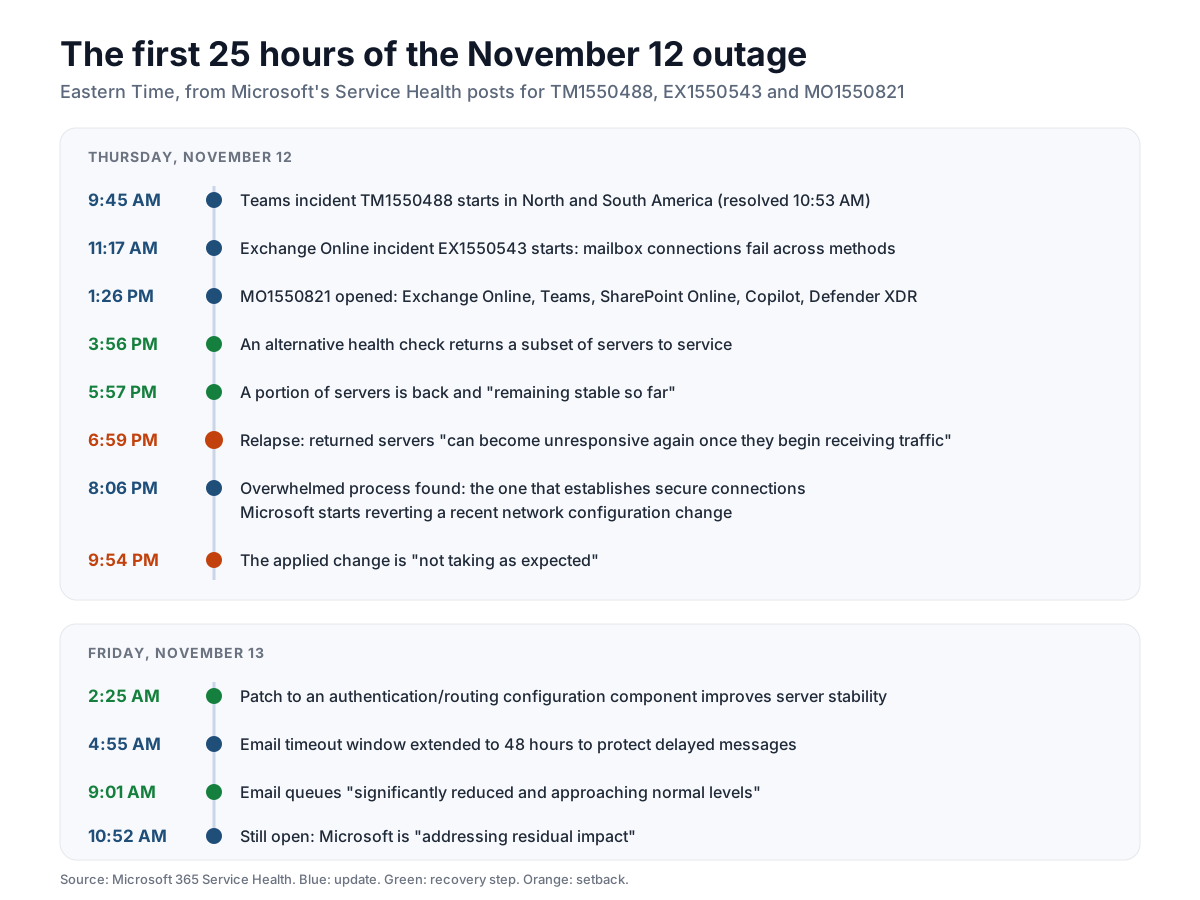
| When | Incident | What Microsoft reported |
|---|---|---|
| Nov 12, 9:45 to 10:53 AM | TM1550488 (Microsoft Teams) | Some users in or routed through North and South America may have been unable to access or use Teams functionality. Resolved the same morning. |
| Nov 12, 11:17 AM | EX1550543 (Exchange Online) | Users may be unable to connect to mailboxes through Outlook on the web, MAPI, Exchange ActiveSync or REST. On-premises mail flow to or from Exchange Online may be affected. |
| Nov 12, 1:26 PM | MO1550821 (Microsoft 365 suite) | Users may be unable to connect to multiple services. First list: Exchange Online, Microsoft Teams, SharePoint Online, Microsoft Copilot 365 and Microsoft Defender XDR. Cause at that point: elevated load across multiple regions. |
| Nov 12, 6:59 PM to Nov 13, 2:25 AM | Overnight relapse | Servers returned to service became unresponsive again once they received traffic. At 8:06 PM Microsoft began reverting a network configuration change that correlated with the start of impact, and at 9:54 PM said its fix was not taking as expected. A patch to an authentication/routing configuration component brought the first lasting stability at 2:25 AM. |
| Friday, Nov 13 | EX1550543 and MO1550821 | Email timeout window extended to 48 hours at 4:55 AM. Queues "approaching normal levels" at 9:01 AM. Both incidents still open at 11:23 AM, with Microsoft "focused on addressing residual impact." |
Affected services, as Microsoft names them
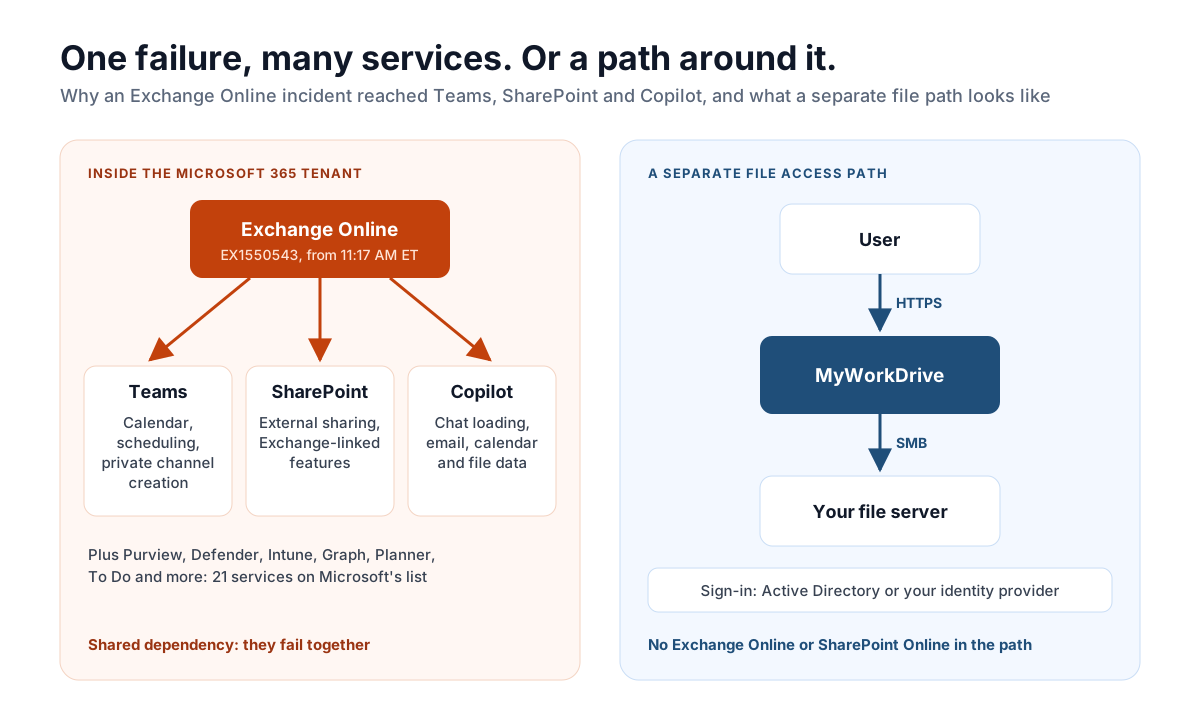
By its 10:52 AM ET update on November 13, MO1550821 listed 21 services: Exchange Online, Microsoft 365 admin center, Microsoft 365 apps, Microsoft 365 Apps Admin Center, Microsoft 365 Education, Microsoft Copilot 365, Microsoft Defender for Office 365, Microsoft Defender XDR, Microsoft Fabric, Microsoft Graph, Microsoft Intune, Microsoft Planner, Microsoft Power Apps, Microsoft Purview, Microsoft Teams, Microsoft To Do, Power BI, SharePoint Online, Universal Print, Viva Engage and Windows 365.
Azure was not on Microsoft's list. Some users reported Azure problems on Downdetector, but Microsoft's incident posts don't mention Azure. OneDrive isn't named either.
How an Exchange Online failure reached SharePoint, Teams and Copilot
Microsoft 365 services share dependencies inside each tenant. Teams scheduling, SharePoint external sharing, Copilot's access to work data and Purview labeling all call Exchange Online or Microsoft Graph APIs that read Exchange data. When Exchange stopped answering, those features failed together, while the parts of each service that don't touch Exchange kept running. Microsoft put it plainly in MO1550821: "Elements of those services that do not depend on interaction with Exchange Online remain functional."
Teams is a good example. Microsoft said calls, meetings, group chats and channel messages mostly worked. Calendar scheduling, meeting invites, Live and Virtual events, and the creation of private or shared channels did not.
“Accessing files stored directly in SharePoint Online remains functional.”
Source: Microsoft 365 Service Health, incident MO1550821, November 13, 2026 (public copy via PennO365)
Outside reports agree that SharePoint files could still be opened. Treat that as provisional: it comes from status updates written mid-incident, not from Microsoft's review. What Microsoft did confirm is that some users had trouble sharing SharePoint files with people outside their organization, that Microsoft 365 apps may not show recently used files, and that Copilot couldn't reliably reach files.
The side effects went well beyond mail:
- Copilot and connectors. Copilot Chat might not load or answer, and Copilot experiences "may be unable to access work data such as email, calendar, and files." Graph API requests touching Exchange data could time out. A separate Power Platform advisory, PP1550869, covered flows, apps and connectors that rely on Graph data; Microsoft marked it restored at 10:50 AM ET on November 13.
- Defender Safe Links. Earlier MO1550821 updates listed failures for Safe Links, Safe Attachments, Quarantine and Threat Explorer in Defender for Office 365. Later updates narrowed this to policy evaluation that relies on Purview signals.
- Intune. Device enrollment, device check-in and device compliance policies "may have been intermittently impacted." If your Conditional Access policies require a compliant device, check sign-in logs for that window.
- Purview. DLP, auto-labeling, sensitivity labels, audit searches and eDiscovery were affected, and users might not be able to open protected content. Windows 365 Cloud PCs using Purview Customer Key might not connect.
Microsoft 365 outages in 2026
We count seven notable Microsoft 365 incidents in 2026 through November 13. Exchange Online was the root service in four of them, all since October 12, and Exchange or Outlook was affected in six. The North American outages in January and July each ran 10 to 11 hours. The November 12 incident has already run longer than both.
| Date | Incident ID | Root service | Services affected | Duration | Region |
|---|---|---|---|---|---|
| January 22 to 23 | MO1221364 | Service infrastructure in North America "not processing traffic as expected," per Microsoft | Exchange Online and Outlook, Teams, Microsoft 365 admin center, Defender, Purview | About 10 hours | North America |
| July 23 | MO1437424 | Networking; Microsoft reverted a networking update | SharePoint Online, OneDrive, Teams, Microsoft 365 admin center, Copilot Chat, Power Automate, Loop | About 11 hours | North America |
| October 12 | EX1500900 | Exchange Online: an update to Exchange admin center authentication components | Exchange admin center (admins only) | 4 hours 35 minutes | Not stated |
| October 13 | MO1505952 | Global Secure Access infrastructure | Outlook, Outlook on the web, OneDrive, SharePoint Online, Teams, Windows 365, for users connecting through Global Secure Access | 10 hours 51 minutes | Germany and the UK |
| November 6 | EX1542182 | Exchange Online mailbox infrastructure | Mailbox access through any connection method | 2 hours 52 minutes | North America |
| November 9 | Not published in public sources | Exchange Online: connection terminations | Mailbox access through Outlook on the web | About 4.5 hours | Europe, Middle East and Africa |
| November 12 to 13 | EX1550543, MO1550821 | Exchange Online | 21 services on Microsoft's list | More than 24 hours; still open | Worldwide |
The table leaves out Microsoft's many smaller weekly advisories. Incident IDs, times and root causes come from Microsoft's Service Health posts where they're public. The January and July durations come from coverage by The Register and BleepingComputer, and the November 9 duration from public status trackers.
Which file access paths were affected
Of the ways people reach files, browser and Teams-based access to SharePoint took the most visible hits, though Microsoft says opening files there kept working. Files on on-premises servers were not affected by this incident unless the sign-in for that path ran through a Microsoft 365 service that failed.
| Access path | What it depends on | Observed impact |
|---|---|---|
| SharePoint and OneDrive in the browser | SharePoint Online or OneDrive, Entra ID sign-in, and Exchange Online for sharing and some features | SharePoint: opening files reported working by Microsoft; external sharing issues and missing recent files lists confirmed. OneDrive: not reported |
| OneDrive sync client | OneDrive sync service, with a local cache on the device | Not reported. Files already downloaded to the device stay usable offline either way |
| Teams Files tab | Teams client and SharePoint Online | Not reported for opening files. Teams calendar, channel creation and Copilot in Teams affected |
| SharePoint over WebDAV | SharePoint Online, the Windows WebClient service and a browser sign-in cookie | Not reported |
| On-premises SMB over VPN | VPN gateway, your domain controllers, your MFA provider | Not reported. Affected only if VPN sign-in relied on a service on Microsoft's list |
| On-premises SMB through MyWorkDrive | MyWorkDrive server, your file server, Active Directory or your identity provider | Not reported. Office for the web editing relies on OneDrive or SharePoint staging |
If your mapped SharePoint drives were acting up, our comparison of OneDrive sync and WebDAV mapped drives explains where each one breaks.
What IT teams should do during a Microsoft 365 outage
Check Service Health and note the incident IDs, move staff communication to a channel outside Microsoft 365, and point people to whatever file access still works.
- Confirm the incident. Open Health > Service health in the Microsoft 365 admin center and search for the incident ID. Some admin center pages failed on November 12, so keep @MSFT365Status bookmarked as a fallback.
- Record the impact. Note the incident IDs, when your users were affected, and how many. You'll need these for internal reporting and for any SLA credit claim, which Microsoft doesn't apply automatically.
- Switch channels. Send updates by SMS, a phone tree or an external status page. When Outlook and Teams calendars are both down, an email about the outage won't reach anyone.
- Tell people where their files are. Point staff to the paths that still work: synced files, on-premises shares, desktop Office with local saves.
- Leave things alone. Pause tenant changes. Tell users not to sign out, clear app data or reinstall, which is the advice Microsoft gave Power Apps mobile users during this incident.
- Expect late mail, not lost mail. Microsoft extended its email timeout to 48 hours, so delayed messages should still arrive.
A file access self-audit
Answer these while November 12 is still fresh:
- Where do each team's working files live? SharePoint, OneDrive, on-premises shares, Azure Files, or a mix. Write it down per team, not per company.
- Which identity provider signs users in for each access path? A file server is only as available as the sign-in in front of it.
- Which editing path does each group rely on? Office for the web, desktop Office, or a self-hosted editor.
- What's the backup channel when email and Teams are both down? Name it, test it, and make sure staff know it exists.
- Which files did people need on November 12 and couldn't reach? Ask department heads this week, while they still remember.
Keeping file access separate from Microsoft 365
Give staff a path to their files that doesn't depend on Exchange or SharePoint being available. For files that already live on your own servers, that path can sit entirely outside the Microsoft 365 tenant.
There are three common ways to do it:
- VPN. It works independently of Microsoft 365, but it puts every remote device on the network and needs a client installed on each one.
- Sync clients with a local cache. Files already on the device stay available. Anything not yet synced, or stored online-only, is out of reach, and changes wait in a queue.
- An HTTPS gateway in front of on-premises file servers. Users reach shares from a browser or mapped drive without a VPN, and sign-in goes through your own directory.
MyWorkDrive is the third kind. It publishes your existing SMB shares from a Windows server you run, with browser, mapped drive and mobile access and NTFS permissions enforced as they are today. There's no migration and no second copy of the data. The same server can also connect SharePoint and Azure Files next to your SMB shares, which matters for the honest limits below.
| Setting | What it depends on | Holds up during an M365 outage? |
|---|---|---|
| Entra ID sign-in | Microsoft Entra ID | Yes, if Entra stays up. Entra was not on Microsoft's list for this incident |
| Active Directory sign-in | Your domain controllers; your SAML provider if you use single sign-on | Yes. With single sign-on, it follows the availability of your identity provider |
| Office for the web editing | A temporary copy staged in OneDrive or SharePoint | No. It works only while OneDrive or SharePoint does |
| Desktop Office, Office Online Server, ONLYOFFICE | Your own infrastructure | Yes |
| SharePoint or Azure Files backend | Microsoft | Same as Microsoft |
Two more notes. If you publish MyWorkDrive through its cloud connector relay rather than your own hostname and certificate, that path runs on Cloudflare's tunnel service, not Microsoft's. And if you plan on self-hosted editing, set up ONLYOFFICE or Office Online Server before you need it; Office Online Server reaches end of life on December 31, 2026, which makes ONLYOFFICE the longer-term choice. Our Office editing and identity and access pages cover the options in detail.
Cloud outages aren't unique to Microsoft. We wrote about the same question after the October 2025 AWS outage.
Updates after Microsoft's post-incident review
Status as of November 13, 2026, 11:23 AM ET: Microsoft has not published its Post-Incident Report. This section will be updated with the confirmed root cause, the final duration, and whether SharePoint file access held up throughout.
- Root cause: pending
- Final duration: pending
- SharePoint file access during the outage: pending confirmation
Sources
- Microsoft 365 Service Health, incidents TM1550488, EX1550543, MO1550821 and PP1550869 (public copy via PennO365)
- Microsoft 365 Status on X: server availability, deployments paused, core process overwhelmed
- CNN: Massive Microsoft outage disrupts businesses, schools and governments around the world
- BleepingComputer: Massive Microsoft 365 outage disrupts Outlook, Teams, Copilot worldwide
Frequently Asked Questions
What caused the Microsoft 365 outage on November 12, 2026?
Microsoft hasn't published a root cause yet. Its status updates say a process on Exchange Online servers that establishes secure connections became overwhelmed, so servers stopped processing requests. Microsoft began reverting a network configuration change that correlated with the start of impact, patched an authentication and routing component, and found no evidence of malicious activity.
Was Azure down during the November 12 Microsoft 365 outage?
Azure was not on Microsoft's list of affected services. The incident started in Exchange Online, and Microsoft named 21 Microsoft 365 services that depend on it. Some users reported Azure problems on Downdetector, but those were user reports, and Microsoft's incident updates did not confirm any Azure impact.
Could users open SharePoint files during the outage?
According to Microsoft's status updates, yes. Microsoft said that accessing files stored directly in SharePoint Online remained functional, while external sharing and features that depend on Exchange Online were affected. Treat this as provisional until the post-incident review is out, because individual tenants may have seen different behavior.
How do I access files when SharePoint is down?
Use a path that doesn't run through SharePoint. Files the OneDrive sync client has already downloaded open offline, though changes won't sync until service returns. Files on an on-premises file server stay reachable over VPN or through an HTTPS gateway such as MyWorkDrive, as long as their sign-in method is working.
What should IT do during a Microsoft 365 outage?
Check Service Health in the Microsoft 365 admin center and note the incident IDs. Send staff updates through a channel outside Microsoft 365, such as SMS or a status page. Point people to file access that still works, pause tenant changes, and record affected users and times for any SLA credit claim.
How often does Microsoft 365 go down?
Microsoft posts smaller advisories every week, but broad outages are less frequent. We count seven notable incidents in 2026 through November 13, including multi-hour outages in January, July, October and November. Exchange Online was the root service in four of them, all since October 12.
Does MyWorkDrive work when Microsoft 365 is unavailable?
Yes, for files on your own servers, as long as the sign-in method stays up. With Active Directory sign-in, MyWorkDrive doesn't depend on Microsoft 365. Entra ID sign-in depends on Entra, which wasn't on Microsoft's affected list. Office for the web editing stages files in OneDrive or SharePoint, so it depends on them.
Start a free trialBook a demoView pricing

Ron is CEO of MyWorkDrive and a product engineer by background: he spent six years in engineering and product leadership at CData Software, then served as MyWorkDrive's Chief Product Officer before stepping into the CEO role. A Dartmouth College alum, he writes for IT leaders navigating file access, data sovereignty, and enterprise IT strategy.