


By Kyle Lachmann Last Updated: April 30, 2026
TL;DR. OneDrive for Business and SharePoint Online are built for document collaboration, not for replacing an enterprise file server. Organizations that try to use OneDrive as a file server hit a predictable set of issues: silent sync conflicts, a 300,000-item performance ceiling, $0.20/GB storage costs (roughly 9× commodity cloud rates), 400-character path failures that can delete data, ransomware propagation across every connected user, and broken support for databases, CAD files, and line-of-business apps. This guide documents all 11 limitations, explains why they happen, and covers the architecture pattern most enterprises adopt instead.
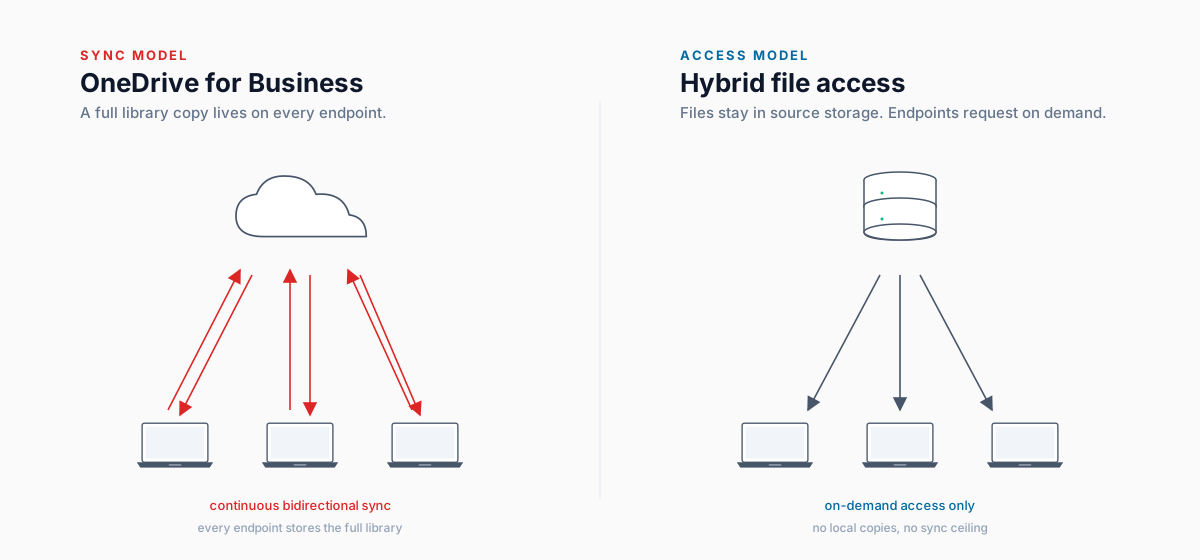
The short answer: can OneDrive replace your file server?
For document-centric Microsoft 365 collaboration, like Word, Excel, and PowerPoint files edited by small or medium teams, yes. For everything else a traditional file server does (large binary assets, locked database files, deep folder hierarchies, line-of-business application integrations, and predictable file locking), no, not without significant trade-offs.
The OneDrive sync client is a _sync engine_, not a _file system_. That distinction is the root of nearly every issue documented below. When IT teams treat the sync client as a wholesale file server replacement, they inherit the limitations of a sync model (eventual consistency, conflict copies, item-count ceilings) without the guarantees of a real file server: deterministic locking, NTFS-style permissions, and predictable performance under load.
This post documents the 11 most consequential limitations enterprise IT teams encounter, with the underlying technical reasons and what to do about each one. For the complementary architectural argument, that is, why SharePoint Online specifically struggles as a file server replacement, see Why SharePoint Is Not a File Server.
1. Sync latency creates silent version conflicts
The most universally reported issue in enterprise OneDrive deployments is also the most invisible: sync is not instantaneous, and in collaborative environments the gap is long enough to spawn destructive version conflicts.
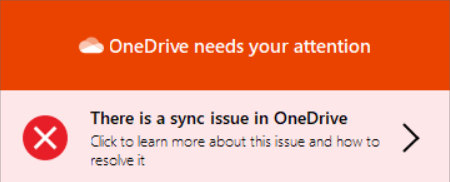
How it happens. When two users open and edit the same file from their locally synced copies within a short window, the sync engine cannot reconcile the changes. Instead of merging, OneDrive creates a second file, typically named filename (User B's conflicted copy), and quietly drops it next to the original. In a large team library, dozens of orphaned conflict copies accumulate without anyone noticing.
What makes it worse:
- Network throttling on constrained corporate links, or with many users syncing at once, pushes upload queues minutes behind reality.
- Large files like engineering drawings, video rushes, and database exports widen the conflict window proportionally to their size.
- Office autosave uploads near-real-time, but the sync client still serializes, creating mismatches on multi-user files.
- VPN latency compounds the problem for remote workers.
Documented incident, June 2024. Microsoft acknowledged a widely reported bug in which shared folders vanished from local OneDrive directories and were replaced with web shortcut (.url) files. As of March 2025, the issue was still being reported by enterprise administrators. Organizations went almost a year with broken offline access and broken sync for shared libraries.
For organizations coming from traditional file servers, where file locking is definitive, the probabilistic conflict model of OneDrive is a significant cultural and operational adjustment. End users frequently do not notice conflict copies until significant rework is lost.
2. The 300,000-item sync limit slows enterprise libraries
Microsoft's recommended maximum for a OneDrive-synced SharePoint library is 300,000 items (files and folders combined) for optimal client performance, and the same threshold applies cumulatively across all libraries a user is syncing. The 300,000 figure is a soft limit rather than a strict technical wall, but in practice many enterprise sync clients become unreliable, slow, or unresponsive well below this threshold in deeply nested libraries.
Why this is a problem at enterprise scale. Legacy on-premises file servers routinely housed millions of files across thousands of folders. Migrating even a single department's shared drive (legal, finance, or engineering) can surface 500,000 to several million items, putting a single sync client over the threshold immediately. Organizations face a no-win architectural decision: fragment the library into dozens of separate SharePoint sites (which increases administrative overhead and breaks familiar folder navigation), or accept degraded sync client performance for the users who depend on it most.
A few additional quirks compound the issue:
- Item count includes all retained versions, accelerating the count in active libraries.
- The 300,000 limit applies _across all libraries a user syncs_, not per library, so users who sync several team libraries hit the ceiling faster than expected.
- Even with selective sync enabled, the client must enumerate the full remote library to determine what to skip.
- Microsoft has begun rolling out an expanded sync ceiling for endpoints meeting specific hardware requirements (SSD, 16+ GB RAM, recent CPU). Devices that don't meet those requirements continue to operate under the 300,000-item soft limit.
Planning rule. Treat 300,000 items as the practical ceiling. Sync client behavior degrades (slow enumeration, sync errors, "Processing changes" hangs) well before that threshold in real-world libraries with deep folder nesting.
3. SharePoint storage costs ~9× commodity cloud rates
OneDrive for Business gives each licensed user 1 TB of personal storage, generous by any measure. But shared organizational files live in SharePoint Online, and the economics of SharePoint storage surprise most organizations after migration.
The included formula. SharePoint Online includes 1 TB per organization plus 10 GB per licensed user. That works out to:
| Organization size | Included shared storage |
|---|---|
| 30 users | ~1.3 TB |
| 100 users | ~2 TB |
| 500 users | ~6 TB |
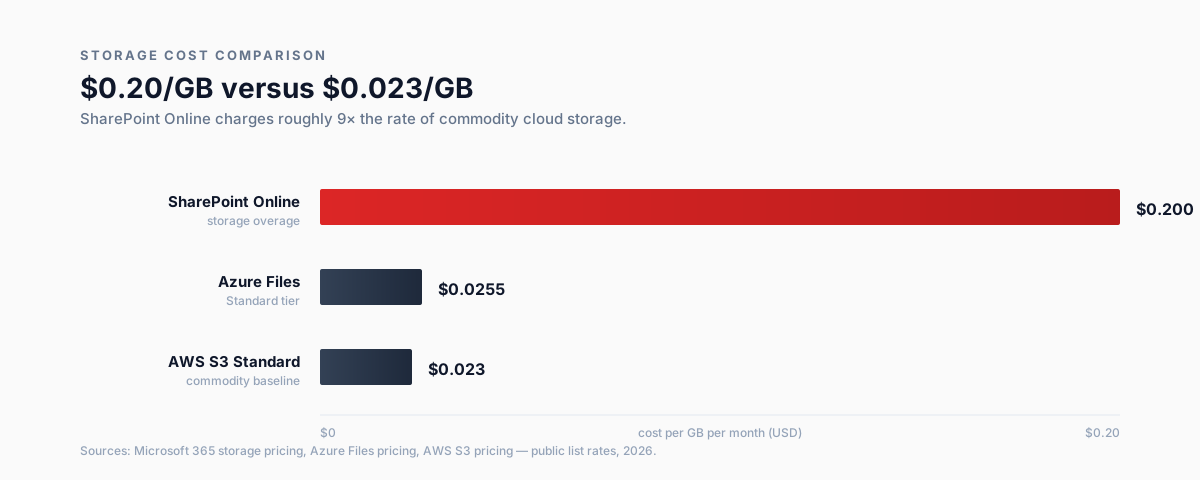
Additional storage runs approximately $0.20 per GB per month through Microsoft's Office 365 Extra File Storage add-on. That's among the highest per-GB rates in enterprise cloud storage. For comparison, AWS S3 Standard runs roughly $0.023/GB/month, and Azure Files runs roughly $0.0255/GB/month. Organizations that exceed their included SharePoint allocation pay close to 9× the commodity storage rate for what is effectively a file hosting layer.
Where organizations hit the wall. Architecture and engineering firms (CAD), media (video rushes), healthcare (DICOM imaging), and manufacturing all routinely exceed the included allocation. SharePoint also retains 500 versions of each file by default, so a frequently edited 10 MB spreadsheet can consume 5 GB of version history alone. Migration artifacts (duplicates, empty folders, archival data) further inflate post-migration consumption. For a deeper breakdown of the total cost picture, see the top 5 SharePoint migration costs to plan for.
4. The 400-character file path limit can silently delete data
OneDrive enforces a maximum file path length of 400 characters for the combined local root path, folder names, and filename. That sounds generous in the abstract, until you migrate from an on-premises server.
Why legacy paths are long:
- Traditional Windows file servers were accessed via UNC paths like
\\server\share\department\year\project\client\deliverables\drafts\filename.docx. Structures like that compound fast. - The Windows historical
MAX_PATHof 260 characters was a known limitation but rarely hit on internal servers because UNC paths started at the share, not the drive root. - OneDrive's local path includes
C:\Users\Username\CompanyName\as a prefix. That's 40 to 60 characters consumed before the first folder. - Usernames in email-address format can alone consume 30 to 50 characters of path budget.
The dangerous part. When a file path exceeds the OneDrive limit, behavior ranges from silent sync failures (the file simply doesn't appear on other devices) to active data loss. In documented cases, OneDrive has rolled back files to previous versions and deleted content entirely when attempting to resync files with paths exceeding 400 characters.
Documented incident, June 2025. A user post on Microsoft's official Q&A forum described a OneDrive file path/name length limit change that forced bulk file renames, deleted image and video files, and rolled back Word documents to previous versions, destroying content the user had added since. Microsoft support was unable to recover the data and closed the case. A Microsoft Independent Advisor responded confirming others were hitting the same issue and that paths exceeding 400 characters can cause data loss and version rollback when OneDrive resyncs.
Microsoft's support guidance is to rename or restructure files. For large organizations mid-migration, that's not realistic at scale.
5. Office Online retraining hits hard with online-only licensing
Organizations moving from Microsoft 365 Business Standard or E3 (which include locally installed Office) to Microsoft 365 Business Basic or other online-only SKUs encounter a disorienting shift in how file editing works, and a measurable spike in help desk tickets.
The core behavior change. With locally installed Office, double-clicking a synced OneDrive file opens it in the desktop app and autosaves to the cloud. On an online-only license, the same double-click attempts to open Office for the Web in a browser. Users conditioned to expect their familiar desktop experience are confused by the browser editor, the reduced feature set, and the unfamiliar save behavior.
Specific friction points:
- Macros and VBA are not supported in Office for the Web. Organizations with VBA-driven Excel workflows find those files effectively unusable in the browser.
- Third-party add-ins (Adobe Acrobat, DocuSign, industry-specific tools) installed locally are unavailable in Office for the Web.
- Offline editing is impossible. Files opened from sync in the online-only model cannot be meaningfully edited without connectivity.
- Save dialogs in Office for the Web are cloud-centric and don't match the folder-based mental model users have built.
- PDF rendering behavior differs between desktop Office and Office for the Web, producing layout variations that affect document distribution.
The retraining burden is invisible at the infrastructure layer. Files exist in the same OneDrive locations and folders look identical, but the editing experience is fundamentally different. There is, however, a workaround: MyWorkDrive's Office Online editing feature enables full browser-based Office editing directly against on-premises file shares, which means the license downgrade from E3 to F3 doesn't have to mean losing browser editing on existing files.
6. File locking is broken for non-Office formats
Traditional Windows file servers use opportunistic locking (OpLock) to prevent two users from writing to the same file simultaneously. The second user gets a clear notification: "This file is locked for editing by [Username]. You can open a read-only copy."
OneDrive and SharePoint Online use a different model. For Office formats (.docx, .xlsx, .pptx), Microsoft co-authoring attempts to merge simultaneous edits in real time, which works well when both users are editing in Office for the Web or in current desktop Office with AutoSave enabled.
Where the model breaks down:
- Non-Office file types (PDFs, CSVs, ZIP archives, database files, CAD files) have no co-authoring support. Concurrent writes create conflicts silently.
- Older Office desktop clients (Office 2016, 2019, or LTSC versions) may not fully participate in co-authoring, generating conflicts even on Office formats.
- Third-party applications that open and write files directly (accounting software, ERP integrations, CRM exports) bypass the co-authoring layer entirely.
- Files opened via the sync client rather than through a browser or Teams are more likely to encounter locking inconsistencies.
For most enterprise use cases, especially line-of-business applications writing flat files to shared locations, OneDrive provides neither the locking guarantees of a traditional file server nor the rich co-authoring experience of fully browser-based workflows.
7. OneDrive is not a backup, and ransomware proves it
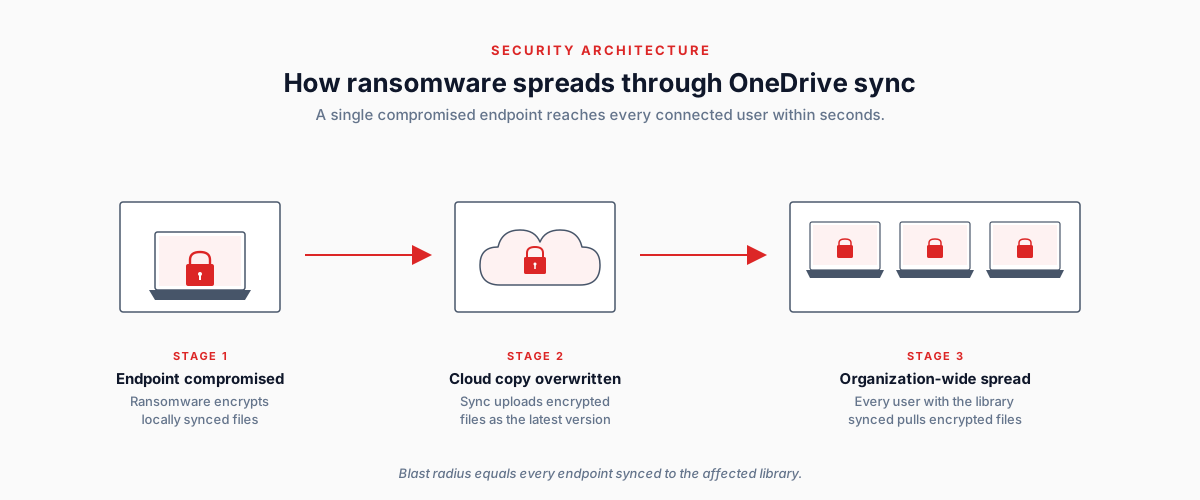
A common and dangerous misconception is that OneDrive itself is a backup. It is not. It is a sync service. Deletions, overwrites, and ransomware propagate from the local sync client to the cloud within seconds, often before any human can intervene.
Native recovery limitations:
- Version history retains up to 500 versions per file by default, with no time-based expiration unless an admin explicitly configures one. Version history can be exhausted by ransomware that encrypts and re-encrypts files in rapid succession.
- Microsoft's built-in Files Restore feature only supports rollback to points within the last 30 days.
- Selective file recovery is not natively supported. Restoring to a recovery point deletes all changes made after that date.
- Recovery does not occur automatically. An administrator must manually initiate the process after discovery.
- Recycle bins hold deleted items for 93 days but do not protect against files that are overwritten (rather than deleted) by ransomware.
The propagation problem. Because the OneDrive sync client continuously watches the local filesystem and uploads changes, a ransomware infection on a single endpoint will encrypt locally synced files and faithfully synchronize those encryptions to the cloud. Every user who has that SharePoint library synced will then find their local copy encrypted as well. The blast radius of a single compromised endpoint in a shared library is the entire organization's shared file store.
Industry guidance is consistent: third-party backup (Veeam, Spanning, AvePoint, Datto SaaS, or equivalent) is required for any Microsoft 365 environment holding business-critical data. Microsoft does not provide first-party backup that meets enterprise RTO/RPO requirements for shared file storage.
8. Character and filename restrictions break migrations
OneDrive and SharePoint Online prohibit a wider set of characters and reserved names than traditional NTFS file servers. This causes friction during migration and ongoing operations.
Prohibited characters in OneDrive-synced files: " * : < > ? / \ |. Filenames cannot begin or end with a space or period, cannot be Windows reserved device names (CON, PRN, AUX, NUL, COM0–COM9, LPT0–LPT9, _vti_, desktop.ini, or any filename starting with ~$), and cannot contain only whitespace.
Organizations migrating from file servers where users have accumulated date-stamped exports like Report 2023:10:05.xlsx, asterisks in project names, or question marks in draft filenames will encounter bulk migration failures requiring pre-processing scripts to rename files at scale.
SharePoint URL length. Separately, SharePoint Online enforces a 400-character maximum URL length for the complete path including site URL, library name, folder path, and filename. This is a different constraint from the local file path limit and can cause sync failures even when the local path is within limits.
9. The sync client has a regression problem
The OneDrive sync client updates frequently, often silently, through Microsoft's automatic update ring. It has a documented history of regressions that temporarily break functionality for large numbers of users:
- June 2024 disappearing folders bug. A widely reported update caused shared folders to disappear from local sync and be replaced with web shortcuts (
.urlfiles), breaking offline access. Microsoft acknowledged the issue, but reports of the problem persisted into 2025. - June 2025 path-length data loss. The path-length change documented in Section 4 above caused file deletion and version rollback for users with paths exceeding 400 characters, with Microsoft support unable to recover affected data.
- Opaque diagnostic UI. The "Processing changes" indicator provides minimal information, making it difficult for end users or IT to determine whether a file is actually syncing, stuck, or silently failing.
- macOS feature parity. The Mac sync client has historically lagged Windows in feature parity, creating inconsistent experiences in mixed-OS environments.
- VDI/RDS complexity. Remote Desktop Services and Virtual Desktop Infrastructure environments require FSLogix Profile Containers for reliable OneDrive sync, adding infrastructure complexity that does not exist with traditional file server mappings.
10. SharePoint permissions don't scale like NTFS
On-premises file servers use NTFS permissions, which are well-understood by most IT teams and auditable through standard Windows tooling. SharePoint Online's permission model is more granular and more flexible, but that flexibility introduces complexity that scales poorly for large organizations.
Inheritance and broken inheritance. SharePoint libraries inherit permissions from their parent site by default. When individual folders or files are granted unique permissions ("broken inheritance"), SharePoint creates a separate permission scope. Libraries with hundreds of uniquely permissioned folders become difficult to audit, and Microsoft caps unique permission scopes per library at 50,000, with a recommended general limit of just 5,000 before performance degrades. That's a threshold that's easier to hit than expected in large migrations.
External sharing governance. The OneDrive sharing model is permissive by default. Without proactive governance:
- "Anyone with the link" sharing creates unauthenticated access URLs that persist until manually revoked.
- Shared links do not expire by default (configurable, but not enforced in most tenants).
- Permissions granted through OneDrive sharing don't appear in NTFS-style ACL reports. Auditing requires SharePoint-specific tooling.
For regulated industries (healthcare, finance, legal, government contractors), these defaults create compliance exposure that didn't exist on internal file servers that were never internet-accessible.
11. Specific workloads simply don't belong in OneDrive sync
Beyond general sync latency, certain workload types perform poorly with the sync model regardless of network quality:
| Workload | Why it fails in OneDrive sync |
|---|---|
| Database files (SQLite, Access .accdb) | Internal locking mechanisms are incompatible with sync clients. Data corruption is a known risk. These should never be synced. |
| Software development repos (Git, node_modules, build outputs) | Generates thousands of rapid, small file changes that overwhelm the sync engine. Belongs in Git hosting (GitHub, Azure DevOps), not OneDrive. |
| Large folder operations | Moving a folder containing thousands of files within a synced library can appear instant locally while taking hours to reconcile in the cloud. Files are in indeterminate state on other devices during that window. |
| Frequently modified small files (logs, telemetry, automated outputs) | Continuous sync churn from automated processes degrades overall client performance. |
| CAD and engineering files | Combination of large binary size, file locking requirements, and concurrent access patterns. Exactly where OneDrive is weakest. |
| Line-of-business app data (ERP, CRM exports, accounting) | Apps that write files directly bypass co-authoring and create silent conflicts. |
OneDrive enterprise file server limitations: at a glance
| # | Limitation | Impact |
|---|---|---|
| 1 | Sync latency / version conflicts | Multi-user edits within the sync delay window produce conflict copies |
| 2 | 300,000-item sync soft limit | Sync client performance degrades in large libraries |
| 3 | SharePoint storage cost | ~$0.20/GB/month for storage over the included allocation (~9× commodity cloud) |
| 4 | 400-character path limit | Exceeding the limit causes sync failures and potential data loss |
| 5 | Office Online retraining | Browser-based editing lacks macros, add-ins, offline access |
| 6 | File locking gaps | No locking for PDFs, CSVs, CAD, database files, with silent conflicts as a result |
| 7 | Ransomware propagation | Endpoint infection syncs encrypted files to cloud and all users |
| 8 | Character / name restrictions | Migration failures for files using colons, asterisks, reserved names |
| 9 | Client regressions | Silent auto-updates have broken sync for extended periods |
| 10 | Permission governance | SharePoint sharing is permissive by default; requires active governance |
| 11 | Incompatible workloads | Databases, Git repos, and high-frequency writes are unsuitable for sync |
What enterprises do instead: the hybrid access pattern
Most enterprise IT teams that have lived through these limitations end up at the same architectural conclusion: OneDrive and SharePoint are for collaboration, not for file serving. The pattern that works is to keep file shares where they are (on existing Windows file servers, NAS, Azure Files, or SharePoint where it makes sense) and put a secure access layer in front of them. Users get a consistent, browser- and drive-letter-based experience without forcing migration.
That's the architecture pattern MyWorkDrive was built around. Instead of moving files into a proprietary repository, MyWorkDrive brokers access to existing storage (Windows SMB shares, Azure Files, Azure NetApp Files, Amazon FSx for NetApp ONTAP, SharePoint, OneDrive, and Azure Blob) over HTTPS, with authentication delegated to your existing Active Directory or Microsoft Entra ID.
The practical effect is that the OneDrive limitations above stop being trade-offs you accept and start being problems you don't have:
| OneDrive limitation | Hybrid access outcome |
|---|---|
| 300,000-item sync soft ceiling | No item count limits. Access is brokered against source storage in real time, not synced. |
| ~$0.20/GB SharePoint overage | Files stay on whatever storage tier you're already paying for. Azure Files at $0.0255/GB, on-prem SMB at sunk cost. |
| 400-character path failures | Native NTFS paths continue to work as designed. |
| File locking gaps on non-Office formats | Native SMB locking for CAD, databases, and accounting apps. |
| Ransomware propagation via sync | No sync engine. Endpoints don't hold a synchronized local copy to encrypt. |
| Office Online retraining on F-series | Drive-letter access and browser-based Office Online on on-premises files. |
| Permission re-scoping during migration | NTFS permissions preserved. No re-permissioning project; existing AD groups continue to enforce. |
This hybrid approach is explored in more depth on the secure remote file access page, and a direct comparison of SharePoint-only versus unified hybrid access is covered in the SharePoint alternatives guide.
Recommendations: if you're committed to OneDrive, do these things first
If full migration to OneDrive and SharePoint is the chosen direction regardless, the following mitigations meaningfully reduce risk:
- Pre-migration audit. Inventory file path lengths, item counts, and prohibited characters before migration begins. Remediate at the source, not after sync failures start.
- Buy third-party Microsoft 365 backup. Veeam, AvePoint, Spanning, Datto SaaS, or equivalent. Don't rely on version history as a backup strategy. Budget for it from day one.
- Model SharePoint storage realistically. Use the formula
1 TB + (10 GB × licensed users)as your baseline and plan for version history bloat. Budget overage at $0.20/GB. - Exclude incompatible workloads from sync. Databases, software repositories, log directories, CAD libraries, anything modified programmatically at high frequency. Keep these on a real file server or a hybrid access platform.
- Plan retraining for online-only licensing. Identify macro-dependent workflows in advance. Provide Office Online alternatives or maintain desktop Office for those users.
- Enable external sharing governance before broad rollout. Link expiration, approved domains, Microsoft Purview DLP. Default tenant settings are too permissive for most regulated environments.
- Consider a hybrid access layer. For workloads incompatible with sync, retain an on-premises or cloud-connected file server and front it with a secure access platform that gives users a consistent experience across both worlds.
Frequently asked questions
Can OneDrive replace a file server?
For document-only collaboration with small to medium teams editing primarily Office files, OneDrive and SharePoint Online can serve a file-server-like role. For workloads involving large binary files, databases, CAD drawings, line-of-business application integrations, deep folder hierarchies exceeding 300,000 items, or strict file locking requirements, OneDrive is not a complete replacement. Most enterprises retain a file server or use a hybrid access platform.
Why do OneDrive sync conflicts keep happening?
Because OneDrive uses an eventual-consistency sync model rather than authoritative file locking. When two users edit a non-Office file (or an Office file outside co-authoring conditions) within the sync delay window, OneDrive cannot reconcile the changes and creates a separate "conflicted copy" file. Sync latency is amplified by network throttling, large file sizes, VPN connections, and high simultaneous user load.
What is the OneDrive sync item limit?
Microsoft recommends a maximum of 300,000 items (files and folders combined) synced across all libraries for reliable sync client performance. Exceeding this in deeply nested libraries causes the client to slow significantly, become unresponsive, or fail to enumerate changes. The 300,000 limit applies cumulatively across all libraries a user is syncing, not per library, and item counts include all retained file versions. Microsoft has begun rolling out an expanded sync ceiling for endpoints meeting specific hardware requirements, but most enterprise endpoints continue to operate under the 300,000-item soft limit.
Is OneDrive a backup?
No. OneDrive is a sync service, not a backup. Deletions, overwrites, and ransomware encryption on the local endpoint propagate to the cloud within seconds. Microsoft's native version history and recycle bin provide limited point-in-time recovery (typically 30 to 93 days depending on library settings) but do not meet enterprise backup, retention, or RTO/RPO requirements. Third-party Microsoft 365 backup is industry-standard practice.
What's the best alternative to using OneDrive as a file server?
The most common enterprise pattern is a hybrid access layer: keep files on existing storage (Windows file servers, NAS, Azure Files, or selectively SharePoint where it fits) and put a secure broker in front of them so users get unified access through drive letters, web, and mobile. This avoids migration cost and risk, preserves NTFS permissions, supports incompatible workloads, and eliminates SharePoint storage premiums. MyWorkDrive is one platform built specifically for this pattern.
How much does SharePoint storage cost compared to alternatives?
SharePoint Online includes 1 TB per organization plus 10 GB per licensed user. Storage above the included allocation costs approximately $0.20/GB/month. By comparison, Azure Files runs roughly $0.0255/GB/month and AWS S3 Standard runs roughly $0.023/GB/month, meaning SharePoint overage is approximately 8 to 9× more expensive than commodity cloud storage. For 10 TB of overage, that's roughly $2,000/month on SharePoint versus $255/month on Azure Files.
Does OneDrive have a file path length limit?
Yes. OneDrive enforces a 400-character maximum file path length, including the local prefix (C:\Users\Username\CompanyName\), folder names, and filename. Exceeding this can cause silent sync failures or, in documented cases, file rollback to older versions and outright deletion. SharePoint Online also enforces a separate 400-character URL length limit on the cloud-side path.
See also
- Why SharePoint Is Not a File Server, the architectural case for keeping SMB shares in place
- The top 5 SharePoint migration costs, what to budget beyond the license fee
- SharePoint alternatives comparison, side-by-side evaluation of collaboration platforms
- Secure remote file access without VPN, the zero trust architecture pattern
- Azure Files remote access, cost-effective storage without SMB exposure
- Cloud file server for Windows environments
- HIPAA-compliant file sharing for healthcare
- Office Online editing on on-premises files, enables E-series to F-series license optimization