


By Vitalii Chetak Last Updated: April 29, 2026
Understanding how MyWorkDrive handles large files will help get the absolute most out of the platform.
The Deliberate Architecture Behind MyWorkDrive
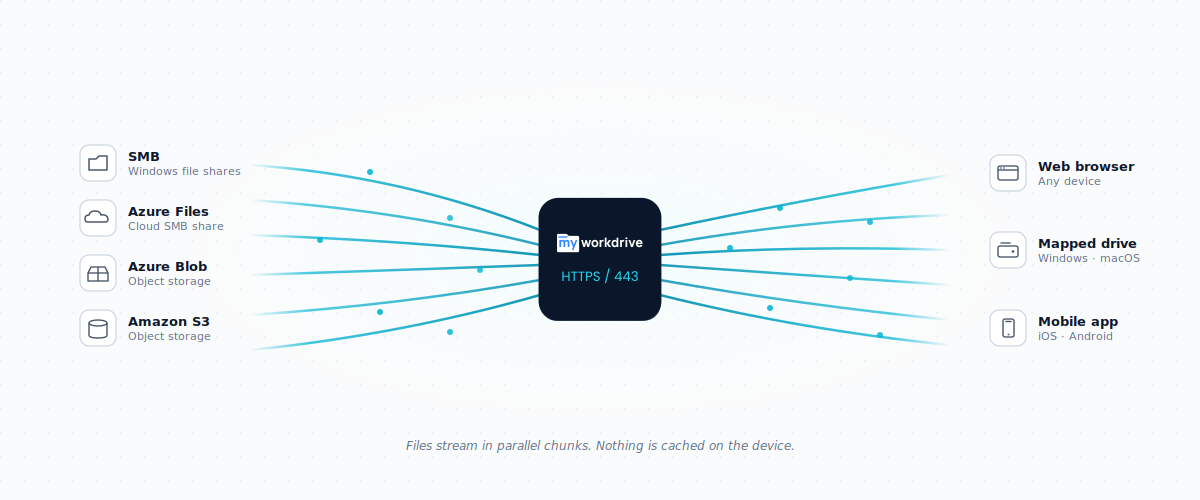
MyWorkDrive is built around a principle that sync-and-share tools like OneDrive, Box, and Dropbox have never fully solved: keeping your files off end-user devices by default.
When a file is synced locally, as it is with those tools, it's exposed. A lost laptop, a stolen device, a compromised endpoint: all of those mean your data is at risk. With MyWorkDrive, all file access runs over HTTPS through a single port (443). Nothing lives on the device unless the user has a file actively open for editing. There's nothing to steal because there's nothing there.
That security-first design does come with a trade-off: files must travel from storage to server to client on demand, rather than being pre-loaded locally. Network latency is a real variable, one we are transparent about and one we actively engineer around.
What Can Affect Large File Performance
Performance with any remote file access platform is a function of the full path data travels. For MyWorkDrive, that means several links in the chain:
-
Server-to-Storage Proximity If your MyWorkDrive server and your storage are colocated (an Azure VM with Azure Files, an EC2 instance with S3, or a Windows Server directly alongside your SMB file shares), the server-to-storage leg of the journey is near-instant. Mixing providers or regions adds avoidable latency here.
-
Server Sizing and Configuration An undersized server running low on RAM or CPU, or sitting behind an overly aggressive WAF performing deep packet inspection, will create a bottleneck regardless of how fast the surrounding infrastructure is.
-
Server Internet Connection Every user's data flows through the server's internet connection. A 1 Gbps synchronous connection handles concurrent loads at scale. A shared or throttled connection does not.
-
End-User Connection Quality This is often the most overlooked variable. Residential internet connections are shared by nature (cable infrastructure). Other household members streaming or gaming, older home routers, and asymmetric upload/download ratios all create real-world ceiling effects that are outside MyWorkDrive's control.
In a properly configured environment (server co-located with storage, dedicated 1 Gbps connection, modern end-user hardware and connections) MyWorkDrive handles large file workflows across sales, marketing, engineering, and other teams without issue.
What We've Built to Make Large Files Access Fast
File performance is one of our most active areas of investment, and we ship improvements with every release. Here's what we've recently delivered:
Multi-Threaded File Operations
All file operations in MyWorkDrive are multi-threaded. Rather than waiting for one piece of data at a time, our client-server architecture transfers files via parallel data streams. One large file arrives in simultaneous chunks. Multiple smaller files transfer concurrently. The performance difference over single-threaded approaches is significant, particularly at scale.
Remote ZIP Compression (Web File Manager and Mapped Drive Client)
MyWorkDrive supports server-side ZIP compression before download. Files are compressed remotely and delivered as a single stream, reducing the number of individual requests and, for compressible file types, the total data transferred. In the Mapped Drive client, ZIP compression is also available directly from the context menu.
Version 7.0: Background File Operations and Direct Upload (Windows and macOS Clients)
MyWorkDrive 7.0 introduced a progress bar for background storage operations in the Mapped Drive client, shifting large file writes away from foreground transfer windows that demand user attention. Large files write in the background; users can optionally monitor progress but are not required to. Version 7.0 also introduced Direct Upload to Azure Storage, OneDrive, and SharePoint under supported storage configurations, improving upload performance by writing directly to storage rather than routing through the server.
Version 7.1: Enhanced Bulk Uploader (Web File Manager)
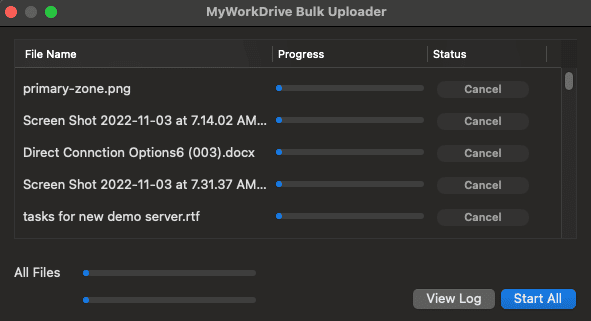
MyWorkDrive 7.1 introduced a significantly enhanced bulk uploader in the Web File Manager, specifically designed to handle large file volumes. It runs in a dedicated window with real-time transfer tracking and cancellation support, making it practical to manage large, multi-file upload jobs without losing visibility into what is happening.
No-Move Sharing with Public Share Links
One of the most underappreciated features for large file workflows: MyWorkDrive lets you share files without moving them. Public share links and guest user access mean a large file can be shared with an external partner directly from where it lives, whether on an SMB file share, Azure Files, Azure Blob Storage, or Amazon S3. No copying to a third-party service, no duplication, no added transfer overhead. The file stays in your repository; the recipient gets a secure link.
If you have questions about your specific configuration or want help assessing your environment, our team is here to help.
MyWorkDrive provides secure private cloud file access to Windows File Shares, Azure Files, Azure Blob Storage, and Amazon S3 from any browser, Mapped Drive, or mobile device, without VPN and without migrating your files.
Frequently Asked Questions
How does MyWorkDrive optimize remote file access speed?
MyWorkDrive is built for performance from the ground up: multi-threaded parallel transfers deliver files in simultaneous data streams, server-side ZIP compression reduces total data in transit, and Direct Upload to Azure Storage sends files straight to their destination without routing through the server. The result is a remote file access experience that scales well even with large files and high user concurrency.
How does server placement improve performance?
Placing your MyWorkDrive server on the same network or cloud region as your storage eliminates the server-to-storage hop entirely. An Azure VM paired with Azure Files, or an EC2 instance alongside S3, keeps that leg of the data path near-instant and ensures the server is never the bottleneck.
What server internet connection delivers the best experience?
A dedicated synchronous 1 Gbps connection is what we use internally and what we recommend for organizations with meaningful concurrent user loads. That kind of connection ensures the server can sustain parallel transfers across your entire user base without contention.
How does end-user connectivity factor into performance?
Users on dedicated business-grade connections with modern routers consistently get the best experience. For employees where file access performance is critical, that investment pays off immediately and noticeably in day-to-day use.
How can security infrastructure be configured for optimal throughput?
MyWorkDrive operates entirely over HTTPS on a single port (443), which makes it straightforward to configure security appliances correctly. Ensuring WAFs and perimeter security are tuned for HTTPS file traffic rather than applying generic deep packet inspection keeps throughput clean and consistent on both the storage and client-facing sides.
How do I get help getting the most out of my MyWorkDrive environment?
Our team is available to help assess your specific configuration and identify optimization opportunities. Reach out and we'll work through the environment variables with you.