

By Ron Bhojwani
Last Updated: May 30, 2026
Quick answer: A file server is a centralized computer that stores files and controls who can open, edit, and share them across a network. It uses protocols like SMB and NFS to serve files to many users at once, and access permissions to keep data secure. Increasingly, organizations pair a traditional file server with secure, VPN-free remote access so employees can reach those files from anywhere.
Key takeaways
- A file server centralizes storage so teams share one authoritative copy of every file instead of scattering versions across email and devices.
- The two protocols that matter most are SMB (the standard in Windows environments) and NFS (common in Linux and Unix).
- File servers come in several forms: on-premises Windows Server, NAS appliances, and cloud file servers, each with different tradeoffs in cost, control, and scalability.
- The biggest weakness of the traditional file server model is remote access. VPNs are slow, raise security risk, and frustrate users, and solving that is the problem MyWorkDrive was built for.
What is a file server?
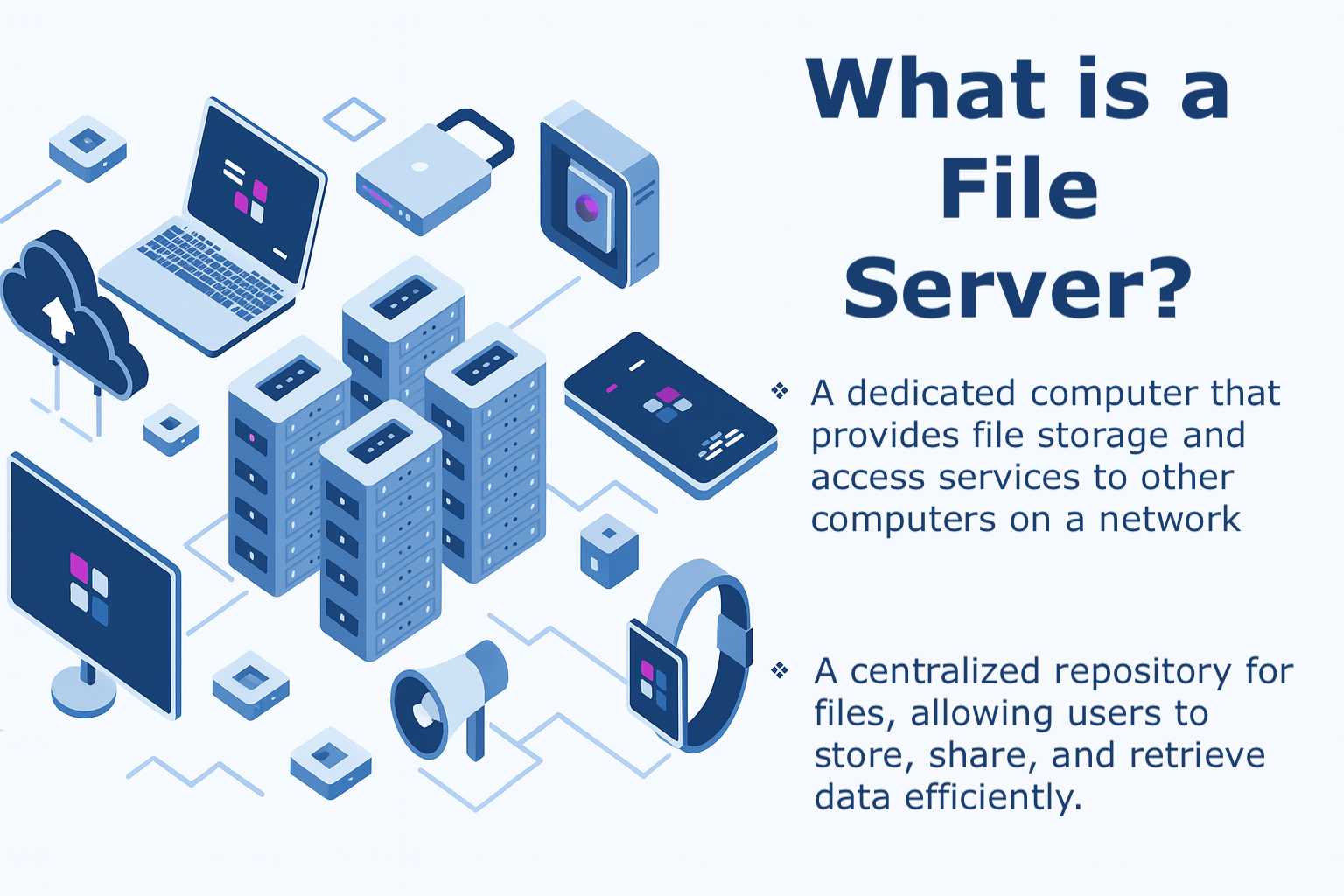
A file server is a dedicated computer on a network whose primary job is to store files and manage access to them. Instead of each employee keeping documents on their own laptop, everyone connects to the same central location. That means one current version of every file, and it lets IT control exactly who sees what.
When a user opens a document from a mapped network drive (the classic S:\ or Z:\ drive), they are talking to a file server. The server checks their permissions and then streams the file to them over the network. Several people can read and write to the same shares at the same time, because the server handles file locking so two people don't overwrite each other's work.
A file server does three jobs:
- Centralized storage: a single repository for an organization's files.
- Multi-user access: many people reaching the same files at once, over the network.
- Permission control: rules that determine who can read, write, or delete each file.
That last job is what separates a real file server from a plain shared folder. Access is governed by the file system's permission model (most commonly NTFS permissions on Windows) and tied to user identities in a directory service like Active Directory.
How file servers work: operating systems and architecture
A file server is software running on a server operating system, sitting on top of physical or cloud storage. The OS determines its features, security model, and which protocols it speaks.
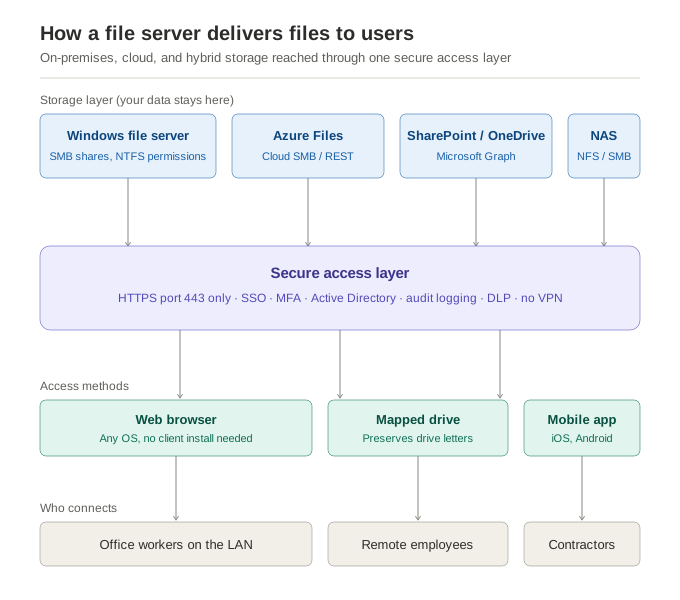 File server architecture: storage stays in place while a secure access layer serves files to users over HTTPS.
Windows Server
The most common choice in business environments. Windows Server file servers use NTFS permissions for granular, per-file access control and integrate natively with Active Directory, so access follows the same user groups IT already manages. Features like File Server Resource Manager (quotas, file screening) and DFS Namespaces (presenting multiple shares under one logical path) make it the default for departmental and enterprise shares.
Linux and Unix
Linux file servers offer flexibility and lower licensing cost, which appeals to technically staffed teams. They serve files over NFS natively and can speak SMB to Windows clients through Samba, an open-source implementation of the SMB protocol. Unix systems are valued for stability in long-running, high-uptime environments.
Dedicated vs. non-dedicated servers
A dedicated file server does nothing but serve files, which generally means better performance and reliability. It's the right call when you're managing large volumes of data. A non-dedicated server doubles as something else, an application host for instance, which saves hardware cost but can drag down file performance under load. The choice comes down to scale, budget, and how critical fast file access is to daily work.
Types of file servers
The term "file server" now covers several distinct architectures, and picking the right one is among the more important storage decisions an organization makes.
| Type | Where files live | Best for | Tradeoff |
|---|---|---|---|
| On-premises Windows file server | Your own hardware, on your LAN | Full control, NTFS/AD integration, fast local access | Remote access requires a VPN or a modern access layer |
| NAS appliance | A purpose-built storage device on your network | Simple, cost-effective departmental storage | Limited compute; fewer enterprise security features |
| Cloud file server (e.g. Azure Files, Amazon FSx) | A cloud provider's data center | Scalability, no hardware to maintain | Ongoing storage costs; data leaves your premises |
| Hybrid model | A mix of on-prem and cloud | Keeping legacy shares while modernizing access | Managing access consistently across both |
Most organizations no longer fit neatly into one row. They have legacy SMB shares, plus SharePoint, plus some Azure storage, which is exactly why a consistent access layer across all of them has become so valuable.
File server protocols: SMB, NFS, FTP, and SFTP
A protocol is the language a client uses to talk to a file server. The right one depends on your operating systems and security needs.
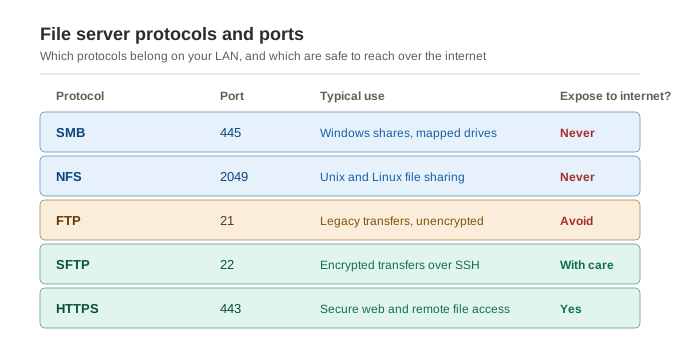 File server protocols and the ports they use. SMB (445) and NFS (2049) should stay on the LAN; only HTTPS (443) is built for internet-facing access.
SMB (Server Message Block)
SMB is the protocol behind Windows file sharing and mapped drives. It handles shared access to files and printers and underpins nearly every Windows file server. SMB traffic runs on port 445, which is exactly why it should never be exposed directly to the internet. (See our breakdown of the SMB port and why attackers target it so often.)
NFS (Network File System)
NFS lets users mount and access remote files as if they were local, and is the standard in Unix and Linux environments. Cross-platform shops often run both SMB and NFS, bridging the two with Samba.
FTP and SFTP
File Transfer Protocol (FTP) is one of the oldest ways to move files over a network, but it sends data in the clear, credentials included, which makes it unsuitable for sensitive information. SFTP fixes that by running over an encrypted SSH connection. For one-off transfers SFTP is fine. For everyday multi-user collaboration, SMB or NFS behind a secure access layer is the better model.
File server security and access control
Centralizing files makes them easier to manage and also makes them a bigger target. Strong file server security rests on three areas.
Access permissions
Use role-based access control (RBAC) so people get access based on their job rather than ad-hoc requests. On Windows that means structuring NTFS permissions around Active Directory groups, reviewing them regularly, and turning on access-based enumeration so users only see the folders they're allowed to open. File locking keeps simultaneous edits from corrupting data.
Protecting against vulnerabilities
Patch the server OS promptly, firewall the storage network, encrypt data in transit and at rest, and watch access logs for unusual patterns. One rule matters above the rest: never expose SMB (port 445) directly to the internet. It's among the most exploited ports in ransomware attacks. Remote access should always run through an encrypted, authenticated layer, not an open file-sharing port.
Backup and disaster recovery
Follow the 3-2-1 rule: three copies of your data, on two types of media, with one off-site or in the cloud. Automate the backups, and then test them. Restoration that has never been tested isn't really a backup plan, just an assumption.
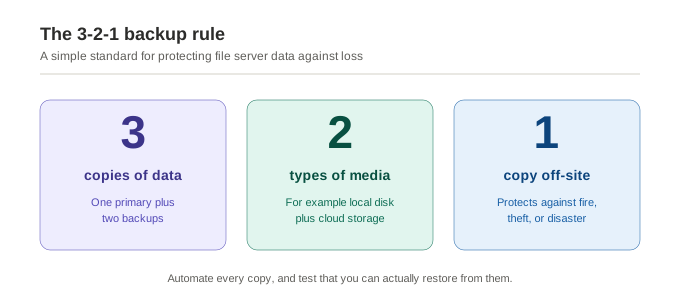 The 3-2-1 rule is the baseline standard for protecting file server data against loss.
The modern problem with traditional file servers
Most "what is a file server" explanations stop at the definition, but there's an important catch worth covering. The traditional file server was designed for an office where everyone worked on the same local network. Once a workforce goes hybrid, that assumption breaks down, and the classic model starts to show its age in three ways.
The usual fix for remote access is a VPN, and it's a frustrating one. A VPN gives a remote device broad access to your network when the user only wanted to open a file. That runs against Zero Trust principles, widens your attack surface, and creates a steady stream of help-desk tickets for slow connections and dropped sessions.
The alternative some teams reach for is worse: opening SMB to the internet so people can connect directly. Exposing port 445 this way is responsible for a large share of ransomware infections, and it should never be done.
The third option is to migrate everything to SharePoint or a cloud platform. That's a real project, often 12 to 18 months and $30 to $50 per user, with a genuine risk of breaking permissions and workflows on the way.
So most organizations feel stuck between living with VPN friction and committing to an expensive migration. There is another way.
A better model: secure file server access without VPN or migration
MyWorkDrive takes the file servers you already run (Windows SMB shares, plus Azure Files, SharePoint, OneDrive, and Azure Blob) and makes them securely reachable from anywhere, without a VPN and without moving your data. It sits between your users and your existing storage as a secure access layer.
The practical effect is that all client connections come in over HTTPS on port 443 only. SMB (445) and NetBIOS (139) are never exposed to the internet, because SMB communication stays server-side on your LAN. Because access happens at the application level rather than the network level, a remote user reaches their files and nothing else, and authentication still flows through your existing identity provider with SSO and MFA. This is what people mean when they describe MyWorkDrive as Zero Trust by design.
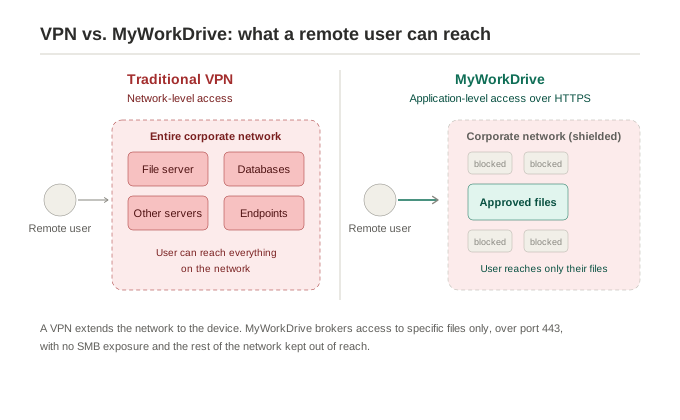 With a VPN, a remote device can reach the whole network. With MyWorkDrive, the user reaches only their files over port 443.
Your data never moves. MyWorkDrive brokers access to files where they already live rather than copying or syncing them into a proprietary repository, so you keep full data sovereignty. Your permission model comes along untouched: NTFS and Active Directory permissions and SharePoint ACLs are all preserved, and MyWorkDrive can only ever restrict access further by policy, never elevate it.
For users, little changes. They reach files through a web browser, a mapped drive with familiar drive letters, or mobile apps on iOS and Android, so there's effectively no retraining. For IT and compliance teams, the controls that matter are built in: DLP with watermarking, device approval, and a single audit trail across every storage type that exports to your SIEM, which makes demonstrating HIPAA, GDPR, and CMMC compliance considerably easier.
Most organizations are up and running in days rather than the months a migration takes. For the technical detail, see VPN-free file access, Security & DLP, and our guide to turning a Windows file server into a cloud file server.
File server vs. NAS vs. cloud: how MyWorkDrive fits
| Capability | Traditional file server | NAS | Cloud file server | File server + MyWorkDrive |
|---|---|---|---|---|
| Remote access | VPN required | VPN required | Native, but data moves to cloud | VPN-free over HTTPS |
| Keep existing data in place | Yes | Yes | No (migration) | Yes |
| NTFS / Active Directory permissions | Yes | Partial | Reconfigured | Preserved |
| Internet-exposed SMB risk | High (if opened) | High (if opened) | N/A | None (443 only) |
| Setup time for secure remote access | Weeks (VPN) | Weeks (VPN) | Months (migration) | Days |
Frequently asked questions
What is a file server in simple terms?
A file server is a central computer that stores files and lets multiple people on a network open, edit, and share them, while controlling who is allowed to access what. It's the system behind the mapped network drives most office workers use every day.
What are the main types of file servers?
The main types are on-premises Windows file servers, NAS (network-attached storage) appliances, and cloud file servers like Azure Files or Amazon FSx. Many organizations run a hybrid mix and use a tool like MyWorkDrive to provide one consistent, secure way to access all of them.
What is the difference between SMB and NFS?
SMB (Server Message Block) is the file-sharing protocol used in Windows environments and behind mapped drives. NFS (Network File System) does the same job for Unix and Linux. Samba bridges the two, letting Linux servers share files with Windows clients over SMB.
How do I access a file server remotely without a VPN?
Instead of opening your file server to the internet or routing users through a VPN, you place a secure access layer in front of it. MyWorkDrive provides browser, mapped-drive, and mobile access to your existing file shares over HTTPS (port 443) only, with SSO and MFA. There's no VPN, no exposed SMB port, and no data migration.
Is it safe to expose a file server to the internet?
No. Exposing SMB (port 445) directly to the internet is one of the most common ways ransomware spreads and should never be done. Secure remote access should always go through an encrypted, authenticated layer that keeps file-sharing ports closed to the outside.
How is MyWorkDrive different from migrating to SharePoint or the cloud?
A migration moves your data into a new platform, a project that often takes 12 to 18 months and risks breaking permissions and workflows. MyWorkDrive leaves your files where they are and adds secure remote access on top, deploying in days while preserving your existing storage, permissions, and user habits.