


By Dan Gordon
Last Updated: August 12, 2026
IT teams get this request constantly: a contractor or a remote employee needs to reach files on a Windows file server, and they need it from a machine where installing a VPN client or sync agent is not an option. The answer most admins land on after trying WebDAV, FTP replacements, or a SharePoint migration is a gateway that publishes existing SMB shares to a browser over HTTPS.
This guide walks through that exact deployment with MyWorkDrive. You install a gateway service on a Windows Server, point it at your existing shares, and users log in from Chrome, Edge, Firefox, or Safari with their Active Directory credentials. Files stay on your file servers and NTFS permissions remain authoritative. Users get a full web file manager with Office editing in the browser. With DNS access, a certificate, and firewall change rights ready, a working deployment typically takes 60 to 90 minutes.
Prerequisites checklist
Verify these before you start:
- Windows Server 2019 or later, dedicated to MyWorkDrive (no Exchange or other IIS sites on the box)
- Sizing: 4 cores and 8 GB RAM handles roughly 250 concurrent users; 2 cores and 4 GB is the minimum; 120 GB disk
- Domain-joined if your users and groups live in on-premises Active Directory
- Administrator access to the server, typically via RDP (the admin console runs on the server desktop)
- Existing SMB shares with NTFS permissions configured (UNC paths like
\\fileserver\Engineering) - A public DNS name you control, such as
files.yourcompany.com, plus an SSL certificate for it (skip both if you use the Cloud Web Connector) - Outbound port 443 to
licensing.myworkdrive.net, and outbound 7844 if you plan to use the Cloud Web Connector - Antivirus exclusions for the MyWorkDrive program, data, and temp directories per the antivirus settings KB article
One decision to make before you run the installer: user directory mode. You choose Active Directory or Entra ID during setup, and the choice is permanent for that installation. Pick Active Directory when users and groups live in on-prem AD and your storage is Windows SMB shares. Pick Entra ID for cloud-first environments or Azure-native storage.
Step 1: Install MyWorkDrive Server
- Download
MyWorkDrive-Setup.exefrom your account at portal.myworkdrive.com. - Run it as Administrator on the server. The installer handles prerequisites itself, including required .NET versions, C++ redistributables, and IIS with the necessary features. You do not need to pre-install the IIS role.
- Select your user directory mode when prompted (Active Directory for this guide).
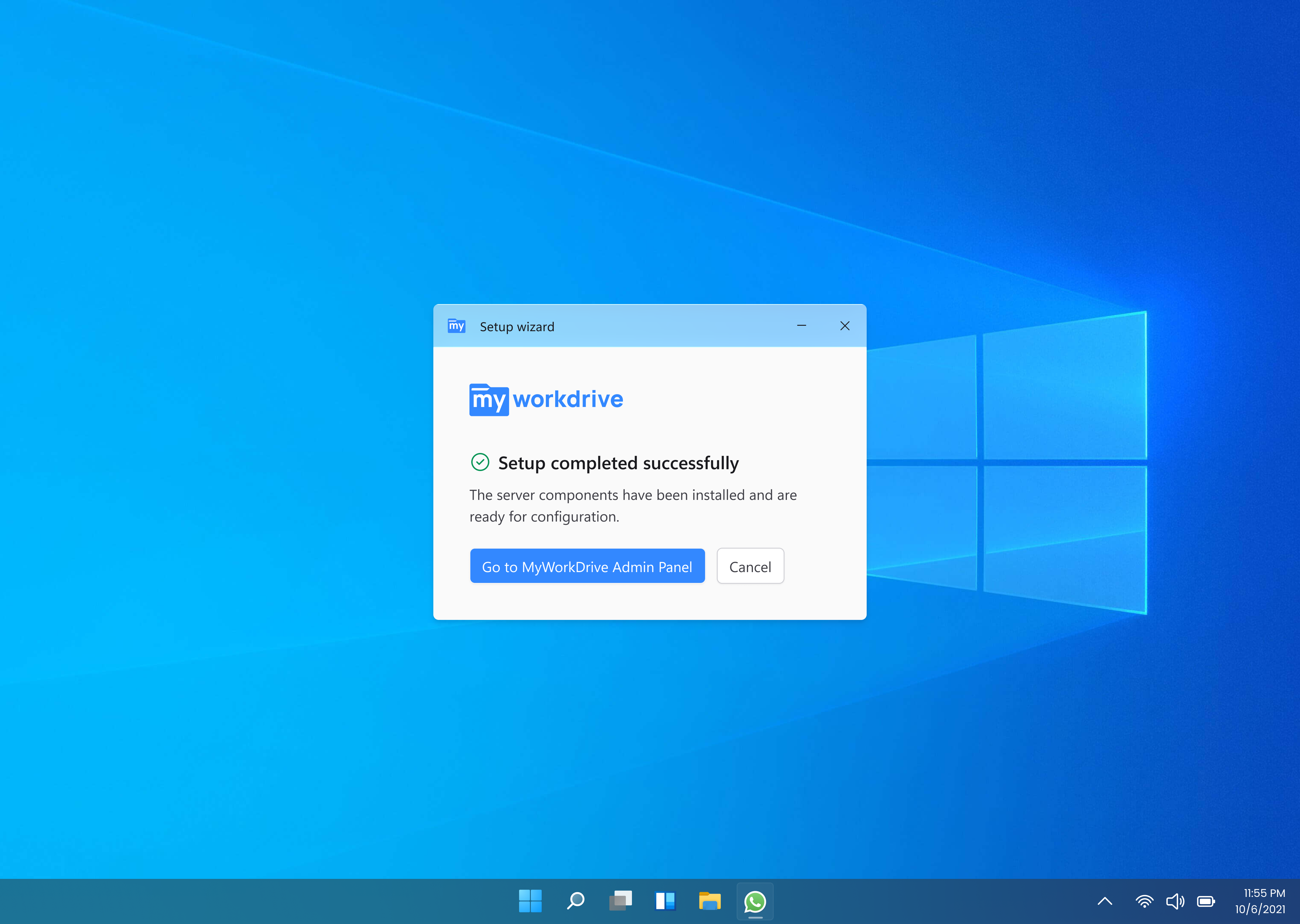
- When installation completes, launch the MyWorkDrive shortcut from the server desktop and open the Admin Panel. A Domain Admin account is authorized automatically; a local administrator also works.
- The first-run wizard appears. Choose Direct Connection as the publishing method for now and skip Office Online, file limits, and home folders. Everything in the wizard can be changed later.
Step 2: Choose how to publish the server
Users need to reach the server over HTTPS before you add shares. There are two common paths.
| Publishing method | Inbound firewall changes | Outbound requirement | Hostname | Best for |
|---|---|---|---|---|
| Cloud Web Connector | None | Port 7844 to Cloudflare | yourcompany.myworkdrive.net | Fast start, no public IP, restrictive networks |
| Direct HTTPS | Port 443 inbound | Standard licensing traffic | Your own domain and certificate | Custom branding, single-site deployments with a public IP |
| Reverse proxy / WAF | Proxy listener ports | Standard licensing traffic | Your own domain | Enterprises with F5, Kemp, NetScaler, or nginx in front |
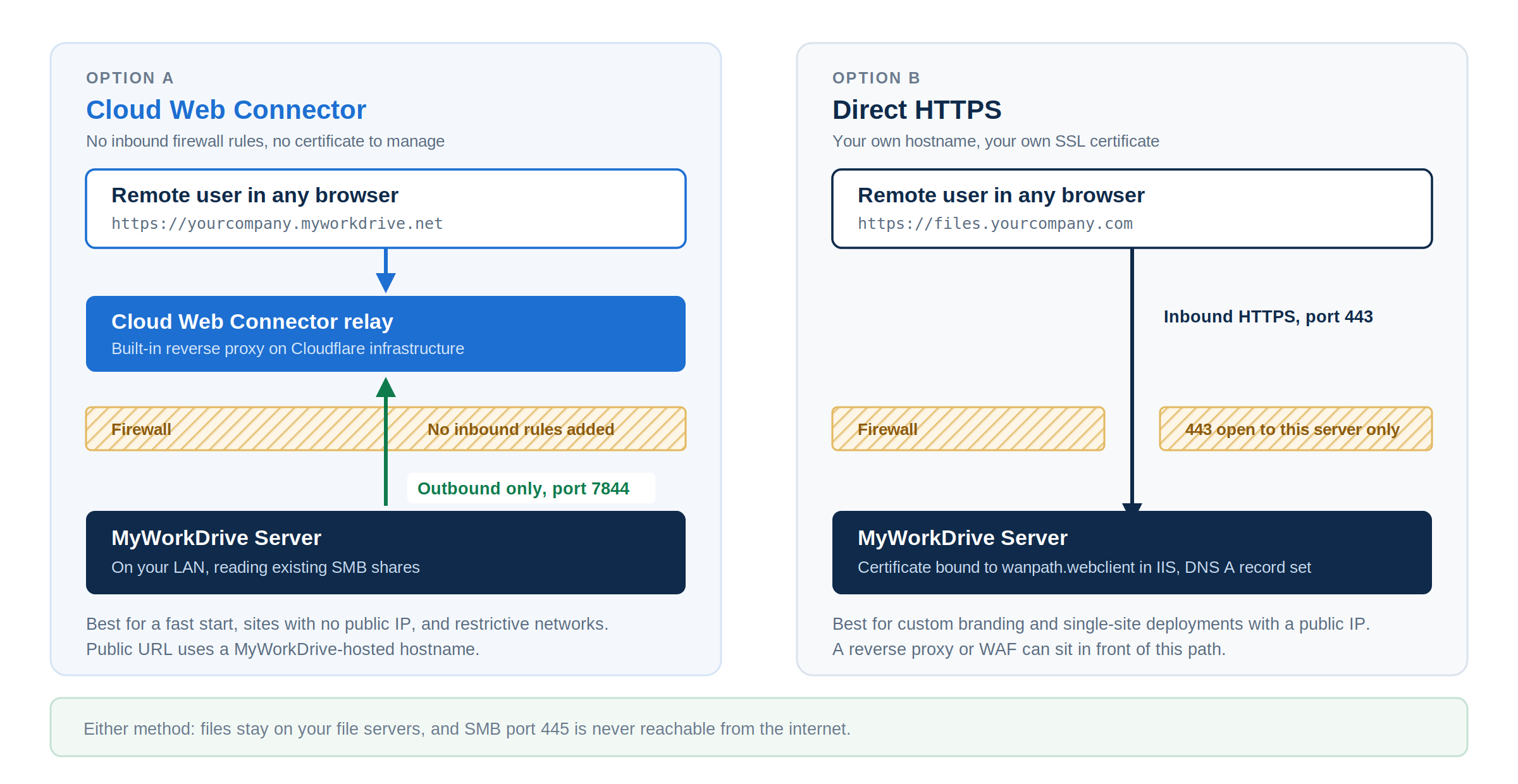
Option A: Cloud Web Connector. In the Admin Panel, go to Settings, enable Cloud Web Connector, and note the URL it assigns (https://yourcompany.myworkdrive.net). This is a built-in reverse proxy running on Cloudflare infrastructure. The server makes an outbound-only connection on port 7844, so no inbound firewall rules or certificates are needed. It is the fastest way to get a working deployment, and many teams start here even if they move to a custom domain later.
Option B: Direct HTTPS. Import your SSL certificate into IIS and bind it to port 443 on the wanpath.webclient site. Create a DNS A record pointing files.yourcompany.com at the server's public IP, open inbound 443 on the firewall, and set TLS 1.2 as the minimum with TLS 1.3 preferred. Clients only ever connect on 443. SMB, LDAP, and DNS traffic stays internal between the MyWorkDrive server and your infrastructure, which is the reason this architecture is safer than exposing port 445 or running always-on VPN tunnels into the LAN.
If you sit behind a load balancer or WAF instead, disable HTTP compression for the site, enable WebSockets end to end, and preserve the X-Forwarded-For header. Details are in the load balancing KB article.
Before moving on, browse to the URL from an external network. The login page should load over HTTPS with no certificate warnings, and a test sign-in should show an empty share list.
Step 3: Add your file shares
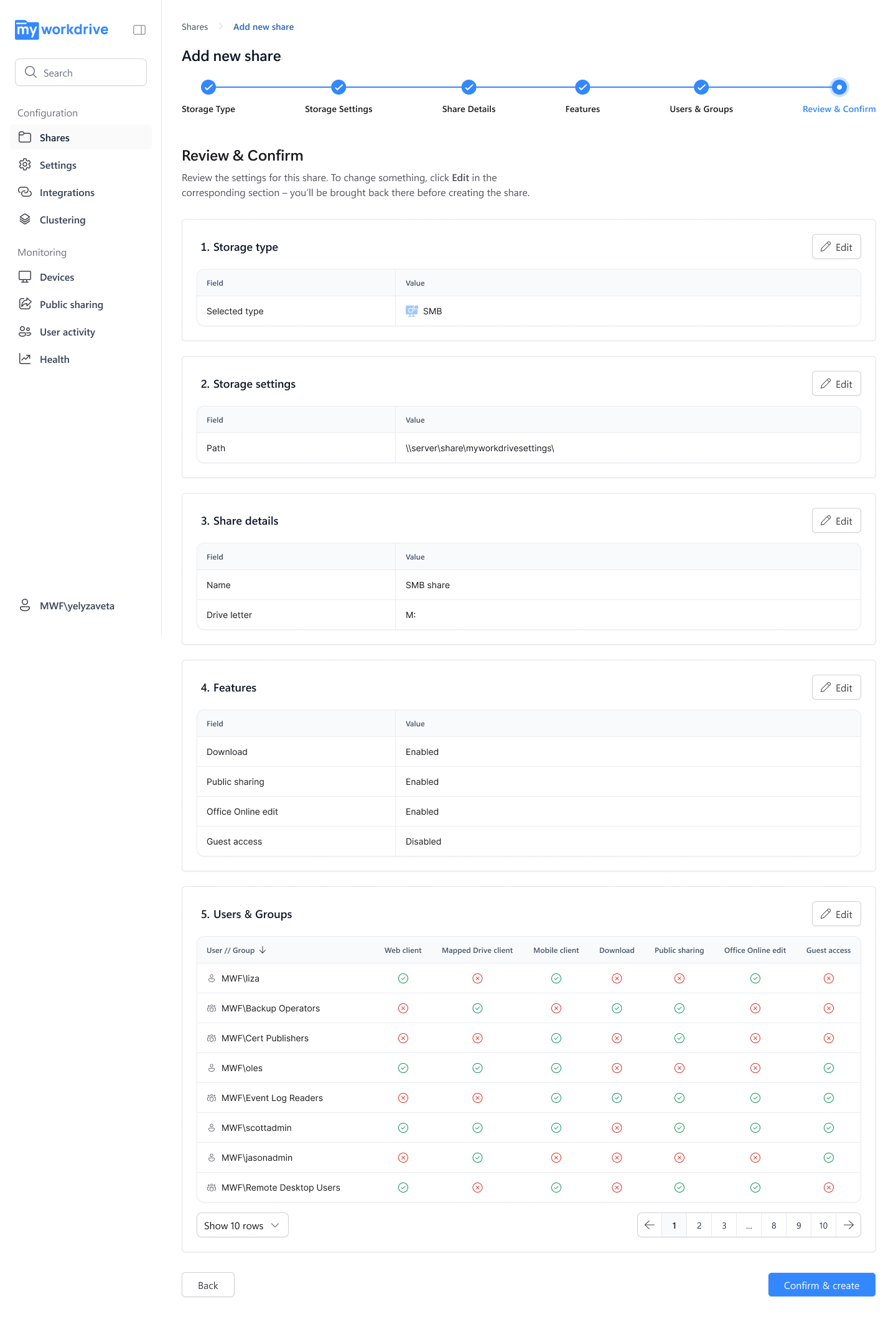
- In the Admin Panel, go to Shares → Add Share.
- Enter the UNC path, for example
\\fileserver\Engineering. - MyWorkDrive imports the existing NTFS permissions automatically and maps AD users and groups to access rights. There is no separate permission model to build and no data to migrate.
- Click Test Share, then use Effective Access to confirm a test user sees the folders you expect.
- Repeat for each share. For DFS namespaces, add the namespace servers and the back-end file servers.
Per-share options let you set read-only access, block downloads, or watermark previews for sensitive shares. These matter later for contractor and external access scenarios.
Step 4: Configure authentication and MFA
Active Directory integration works out of the box: users sign in at the web URL with their existing domain credentials. From there you can layer on what your security policy requires.
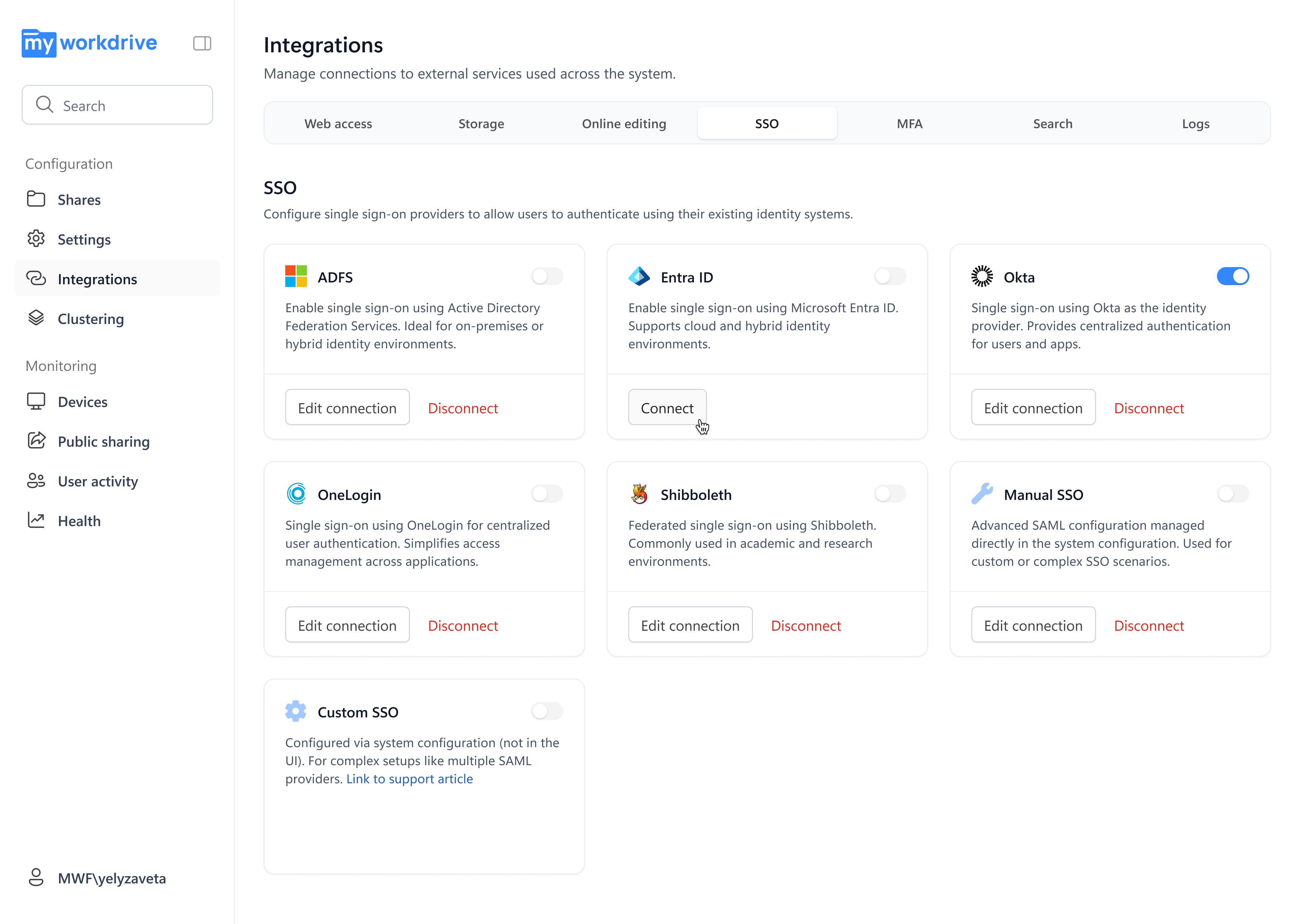
- SAML SSO. Connect any SAML 2.0 identity provider, including Entra ID, Okta, OneLogin, and ADFS. If SSO or public sharing is enabled, the Admin Panel checks Kerberos delegation and shows a Fix Delegation button that configures CIFS delegation to your file servers automatically.
- MFA. Enforce it through your SAML provider, or use Duo integration for environments without SSO.
- Guest accounts. Contractors without AD accounts can be provisioned as external users, scoped to specific shares.
Step 5: Test from a user's browser
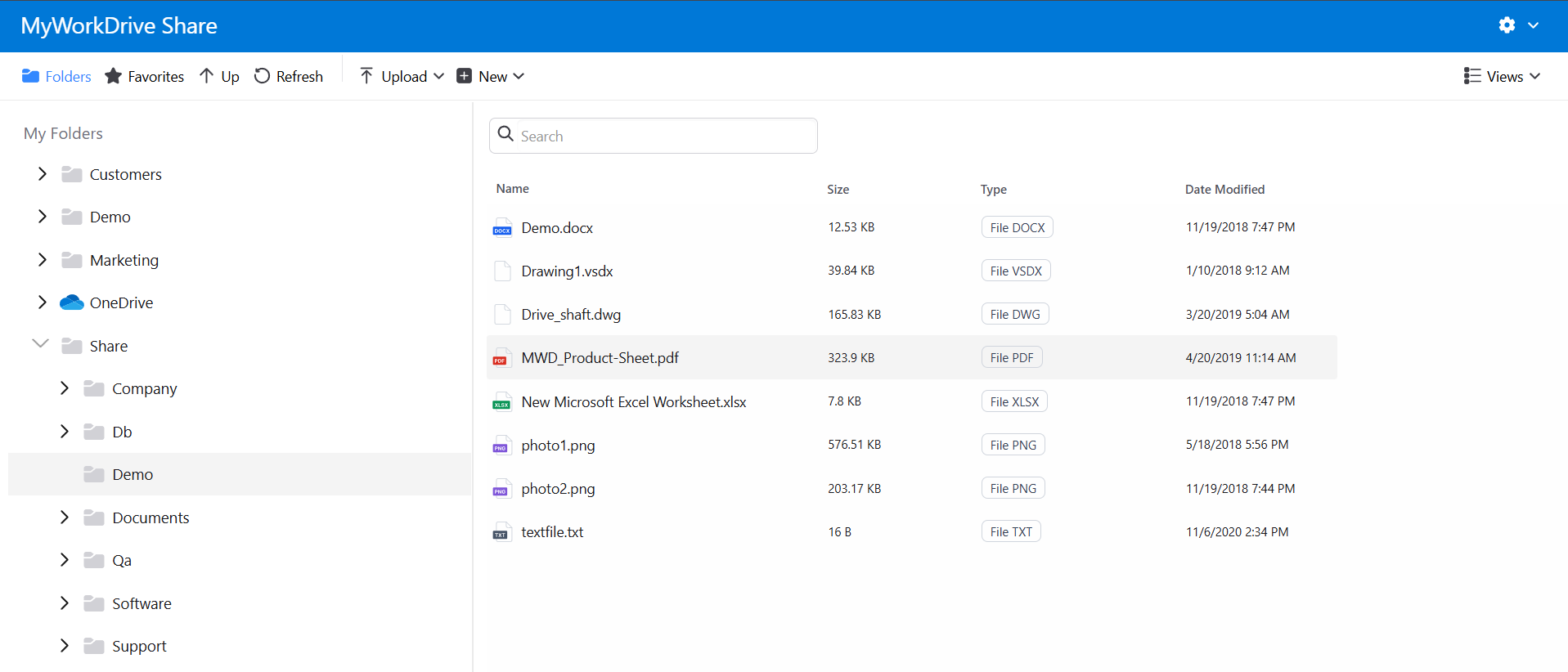
Open any modern browser on a machine outside your network and go to your MyWorkDrive URL. After login, users see their authorized shares in a view similar to Windows File Explorer, with drag-and-drop upload, folder download as zip, search, and file previews. With Office Online configured, Word, Excel, and PowerPoint files open for editing directly in the browser and save back to the file server. Repeat the test on a phone browser; the web client works on iOS Safari and Android Chrome with no app required, though native mobile apps are available.
Office editing in the browser is a an additional implementation step and takes a supported configuration step with your Microsoft 365 tenant. Local Office editing through the mapped drive client works without it.
Troubleshooting common issues
| Symptom | Likely cause | Fix |
|---|---|---|
| Server not reachable externally | DNS not propagated or firewall rule missing | Verify the A record with nslookup; confirm inbound 443 (direct) or outbound 7844 (Cloud Web Connector) |
| SSL certificate warning | Missing intermediate CA or expired certificate | Re-import the full certificate chain and rebind to the wanpath.webclient site |
| Access denied for AD users | Server not domain-joined, or NTFS/share permission mismatch | Verify domain membership; run Effective Access against the share |
| Shares not visible after adding | UNC path unreachable from the MyWorkDrive server | Use the File Share Test Tool; confirm SMB (445) connectivity to the file server |
| SSO login fails against SMB shares | CIFS delegation not configured | Use the Fix Delegation button in the Admin Panel, or configure constrained delegation manually |
| Office Online editing not working | Integration not yet configured | Complete the Office Online setup phase with your Microsoft 365 tenant per the deployment guide |
Deployment checklist
- Windows Server 2019+ prepared, domain-joined, AV exclusions set
- MyWorkDrive-Setup.exe installed; user directory mode selected
- Publishing method configured (Cloud Web Connector or direct 443 with SSL and DNS)
- External HTTPS login page verified with no certificate warnings
- Shares added by UNC path; Effective Access validated for test users
- SSO and MFA configured; delegation verified if SSO is enabled
- Health Dashboard checks green in the Admin Console
- Browser test passed from an external network, desktop and mobile
- Office editing validated (local via mapped drive, or Office Online if configured)
How this compares to the alternatives
Admins researching this problem usually evaluate a few other routes. IIS with WebDAV publishes shares to a browser but delivers a dated interface and well-documented client compatibility problems. Nextcloud or FileBrowser with an SMB mount adds an open-source layer, but you take on maintaining the platform and a second permission model layered on top of NTFS. Migrating to SharePoint Online moves the data itself, which brings path length limits and a permission remapping project. RD Web Access gives browser entry to a full desktop session when what most users need is their files.
The gateway approach covered here keeps the file server as the single source of truth and adds browser access as a layer on top. If a proof of concept doesn't work out, you uninstall one server application and nothing about your storage has changed.
Start a trial
MyWorkDrive offers a free trial at myworkdrive.com, and the support team runs guided setup calls that cover everything in this guide. Have your DNS access, certificate, and a couple of test accounts ready and you can be live the same day.
FAQ
Can users access Windows file shares from a browser without installing anything? Yes. MyWorkDrive publishes existing SMB shares through a web file manager that runs in Chrome, Edge, Firefox, or Safari. Users sign in with their Active Directory credentials at an HTTPS URL. No client software, browser extension, or VPN is installed on the user's device.
Do I have to migrate files off my Windows file server? No. MyWorkDrive is a gateway installed on a Windows Server in your environment. It reads your existing SMB shares by UNC path and honors the NTFS permissions already in place. Files stay on your file servers.
What ports need to be open to the internet? With direct publishing, only inbound TCP 443 to the MyWorkDrive server. With the Cloud Web Connector, no inbound ports at all; the server makes an outbound connection on port 7844 to Cloudflare infrastructure. SMB port 445 is never exposed externally in either model.
Does browser access respect existing NTFS permissions? Yes. NTFS and share permissions remain authoritative. When you add a share in the Admin Panel, MyWorkDrive imports the existing permissions and maps Active Directory users and groups to access rights automatically.
Can users edit Office documents in the browser? Yes. With Office Online integration configured, users open and edit Word, Excel, and PowerPoint files directly in the browser, with edits saved back to the file server. Documents are cached temporarily in your own Microsoft 365 tenant during editing and removed when editing completes.
How long does setup take? Most deployments take 60 to 90 minutes when DNS access, an SSL certificate (or the Cloud Web Connector), and firewall change rights are available at the start. The Cloud Web Connector path is fastest because it needs no certificate or inbound firewall work.
What Windows Server versions are supported? Windows Server 2019 or later, on a server dedicated to MyWorkDrive. A 4-core, 8 GB RAM virtual machine supports roughly 250 concurrent users, and multiple servers can run behind a load balancer for larger deployments.
Start a free trialBook a demoView pricing

Daniel, Founder of MyWorkDrive.com, has worked in various technology management roles serving enterprises, government and education in the San Francisco bay area since 1992. Daniel is certified in Microsoft Technologies and writes about information technology, security and strategy and has been awarded US Patent #9985930 in Remote Access Networking.