

By Ron Bhojwani
Last Updated: September 2, 2026
There are two ways to put on-premises file share content within reach of an AI agent. The first indexes your files into a cloud search service that the agent queries. The second attaches a filesystem path that the agent reads during a session. Both avoid a migration project. They produce very different data footprints, different permission models, and different audit trails, and the choice between them is usually made by whoever sets up the connector rather than by anyone in security.
This article covers what each model actually does with your file content, what MyWorkDrive contributes in each case, and what MyWorkDrive does not do. The last part matters, because there is no configuration in any file access gateway that prevents an AI model from receiving file contents once a user hands it a folder.
Why can't an AI agent see my file server by default?
A file server on a private network has no route to a cloud AI service. Nothing about installing Copilot or Claude changes that. Something has to bridge the gap, and the available bridges fall into a small number of categories.
Agentic tools that work on local files run partly on the user's machine. Anthropic's documentation describes Claude Cowork sessions running in an isolated environment on Anthropic's servers, reaching local files through the Claude Desktop app and only for folders the user has connected. The cloud session cannot route to a LAN address on its own and has no VPN client. Microsoft's approach for on-premises content is different: content gets crawled and indexed before any agent sees it, using an agent component installed inside the network.
So the practical question for an administrator is which bridge to build, and what each one leaves behind.
What are the two models for AI access to file shares?
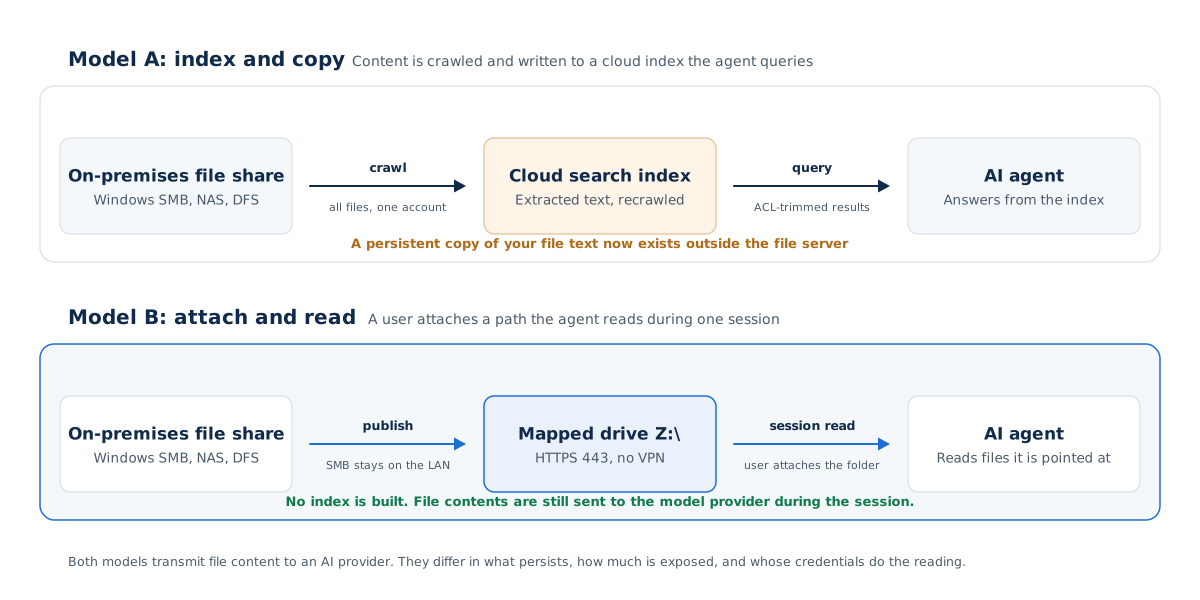
Index and copy
A connector crawls the share, extracts text, and writes it to a cloud index. The AI agent never touches the file server. It queries the index. Microsoft 365 Copilot connectors work this way, as do most enterprise search products with AI layers on top.
Content in the index is a derived copy of your file text. It lives wherever the index lives, it persists between sessions, and it is refreshed on a crawl schedule.
Attach and read
A user points the agent at a filesystem path. The agent lists directories and opens files inside that path during a session. Claude Cowork, Claude Code, and MCP filesystem servers work this way.
No index is built. File content is read on demand and transmitted to the model provider for inference during the session, which is a real data transfer, just not a persistent one.
Migrate
The third option, moving the shares into SharePoint or OneDrive so that the native Copilot experience covers them, is a storage project rather than an access decision. It carries item count limits, path length constraints, permission rebuilds, and a timeline measured in months. It is outside the scope of this article, though it is worth pricing against the two above before assuming it is the default.
How does the Microsoft 365 Copilot File Share connector work?
Microsoft documents the File Share connector as a way for users to search on-premises Windows file shares from Microsoft Search and Microsoft 365 Copilot. Setup requires the Microsoft Graph connector agent installed inside the network, on a machine Microsoft recommends placing on the same network as the data source for latency and throughput. You then supply the UNC path and the credentials for a Windows user account with read access to all the files in the file share.
The connector indexes textual content from a defined format list including DOC, DOCX, PDF, XLSX, PPTX, TXT, HTML, MSG, and ZIP. Multimedia content is ignored, and for other file types only metadata is indexed. There are hard limits: files over 100 MB are not indexed at all, processing stops once a file reaches 4 MB post-processed, and a single connection covers up to twenty file shares. Symlinks, NTFS junctions, and volume mount points are not supported.
Permission handling is configurable and needs attention. Search permissions can be trimmed using Share ACLs or NTFS ACLs, and the accounts and groups in those ACLs have to be managed by Active Directory. If they are not, the available option is an "everyone" setting that lets any user search all indexed files, with source access controls only applying when a user tries to open the file. Microsoft also warns that Windows grants Read to Everyone in Share ACLs by default when a folder is shared, so choosing Share ACL trimming without cleaning up that default makes all indexed files searchable by all users.
Where the indexed content lives
This is the part most often described inaccurately in vendor content, so worth stating precisely. Microsoft's connector FAQ says data entering the Microsoft cloud through the Copilot connectors platform is stored in the region where your Microsoft 365 tenant is located. It is not handed to a third party. It goes into your own tenant, in your tenant's geography, under your existing Microsoft agreements.
What changes is that a text copy of on-premises file content now exists in a cloud service and is in scope for whatever governs that tenant. Microsoft's own guidance is direct about treating this as a decision rather than a default: synced connectors are opt in, and customers should evaluate their governance, compliance, and sensitivity labeling requirements before enabling data synchronization from external systems into Microsoft 365. Microsoft also notes that external source systems may use classification models that do not automatically map to Microsoft Purview labels, so label-based protections you rely on inside Microsoft 365 do not automatically follow content in from a file share.
For a marketing share or an engineering standards library, that may be entirely fine. For CUI, PHI, or student records it is a documented decision with a named owner, and organizations with data residency obligations should confirm where their tenant's index actually sits before the crawl runs.
How does session-attached file access work?
Anthropic's Claude Desktop documentation covers the Windows case directly. A user can attach a mapped network drive such as Z:\ as a workspace folder through the folder picker. Raw UNC paths like \\fileserver\projects are not supported, and the guidance is to map the share to a drive letter first. The same applies to WSL paths.
Two constraints in that documentation function as security boundaries. Within an attached read/write folder, the agent can read and write every file the user's OS account can reach, so the attached folder is the blast radius. And the agent cannot attach a network drive path on its own; only the user can, through the folder picker. Anthropic describes that second one as a security boundary explicitly.
Capability on the mapped drive depends on timing. If the drive was mapped and reachable when the sandbox started, the sandbox mounts it alongside local folders and both file tools and shell commands work. If it was mapped later or was unreachable at sandbox start, file tools still work but shell commands cannot reach the drive, and the documented workaround is copying files to a local folder first. Since the sandbox can persist between sessions, a drive mapped mid-session stays in the second category until the sandbox restarts.
The requirement worth noticing here is the drive letter. On a corporate LAN a user gets one from SMB directly. Off the LAN, without a VPN, there is normally no drive letter to attach at all.
Which model puts your file content in fewer places?
| Consideration | Index and copy | Attach and read |
|---|---|---|
| Persistent copy of file text | Yes, in a cloud index refreshed on a crawl schedule | No index is created |
| Content transmitted to a model provider | Yes, at query time from the index | Yes, for files opened during the session |
| Scope of exposure | Everything the crawl covered, whether or not anyone asks about it | The folder a user attached, for the duration of the session |
| Credential used to read files | A service account with read access to all files in the share | The signed-in user's own account |
| Who decides what is in scope | An administrator, once, at connector setup | The user, per session, through a folder picker |
| File size and type constraints | 100 MB cap, 4 MB post-processed cap, defined format list | Practical limits from storage latency and file size |
| Freshness | As current as the last incremental crawl | Live, read at the moment of access |
| Available offline from the endpoint | Yes, the index stands alone | No, the endpoint has to be online with the drive mapped |
Neither column is uniformly better. The index model gives you recall across an entire corpus and works without anyone's laptop being on. The attach model gives you a narrower, per-session exposure surface and a read path that runs under the user's own identity. An organization with FERPA or CMMC obligations on part of its storage will usually find the second model easier to document, and the first model easier to use.
Where does MyWorkDrive fit?
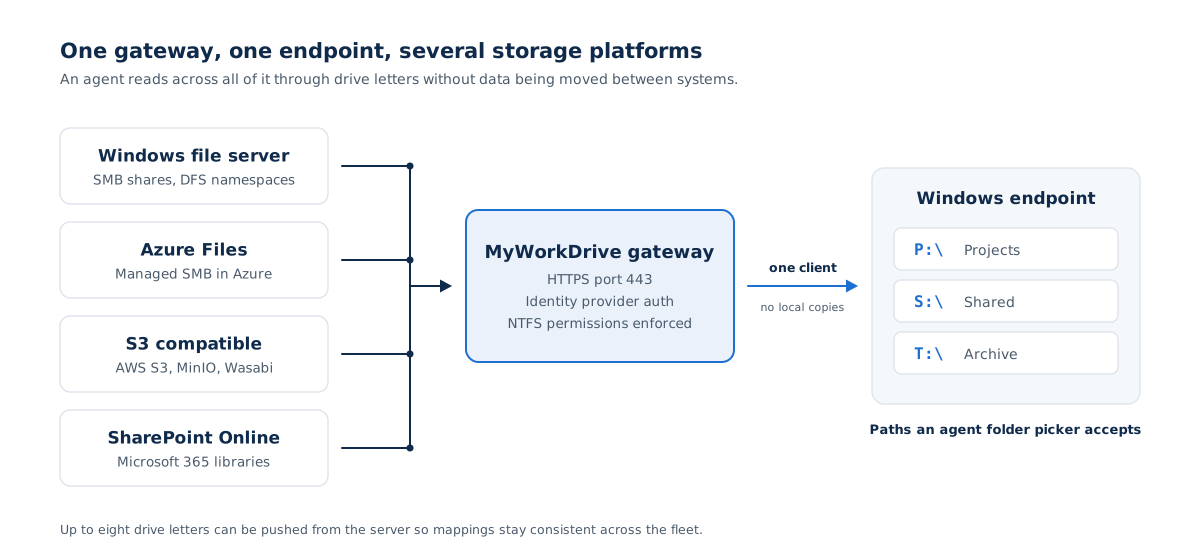
MyWorkDrive publishes existing storage over HTTPS on port 443 without a migration. Supported back ends include Windows SMB shares, DFS namespaces, Azure Files, Azure NetApp Files, Azure Blob with Data Lake Gen2, Amazon FSx, S3 and S3-compatible storage, SharePoint Online, and OneDrive for Business. Clients reach the gateway on 443, and SMB traffic stays server-side on the LAN, so ports 445 and 139 are not exposed to the internet. Authentication happens at your own identity provider through Active Directory, Entra ID, or any SAML 2.0 IdP, so MFA and Conditional Access policies apply before a user reaches a file.
For the attach-and-read model, the relevant piece is the Windows mapped drive client, which presents published shares as native drive letters in File Explorer. Files are not synced to the endpoint. A path like Z:\Projects\2026\Client-Deliverables is something a folder picker will accept, and the drive exists without a VPN tunnel onto the internal network.
That last distinction is the one that tends to decide it. A VPN gives the endpoint, and every process running on it, a route into the internal network. A gateway gives the endpoint the shares an administrator published, subject to per-share policy, with file events recorded.
Dispersed storage under one set of drive letters
Storage in most organizations is not in one place. A file server holds legacy project data, Azure Files holds something a previous IT team moved, a NAS holds engineering assets, and SharePoint holds the last two years of documents. An agent attached to one folder on one of those systems sees one slice.
MyWorkDrive publishes multiple back ends through one gateway, and the Windows client supports up to eight drive letters pushed from the server, so mappings are consistent across the fleet. An agent working across P:\, S:\, and T:\ reads three different storage platforms through one authenticated, logged path, with no data moved between them.
What does MyWorkDrive do and not do for AI access?
Being specific here is more useful than a claim that data never leaves. Once a user attaches a folder to an agent, file content from that folder is going to the model provider. That is what the agent is for.
| Function | In scope | Detail |
|---|---|---|
| Create a drive letter without a VPN | Yes | Shares published over HTTPS on 443; SMB stays on the LAN |
| Cap what the agent can reach | Yes | The client authenticates as the signed-in user and honors NTFS and AD group permissions live |
| Grant access beyond storage permissions | No | MyWorkDrive can restrict access. It cannot grant access beyond what the storage allows |
| Keep a share off the mapped drive entirely | Yes | Client access is set per share, so a share can allow browser access with no drive letter and no attachable path |
| Restrict handling of sensitive shares | Yes | View-only, blocked downloads, watermarking, and file type blocking through Data Leak Prevention, plus device approval to allowlist endpoints |
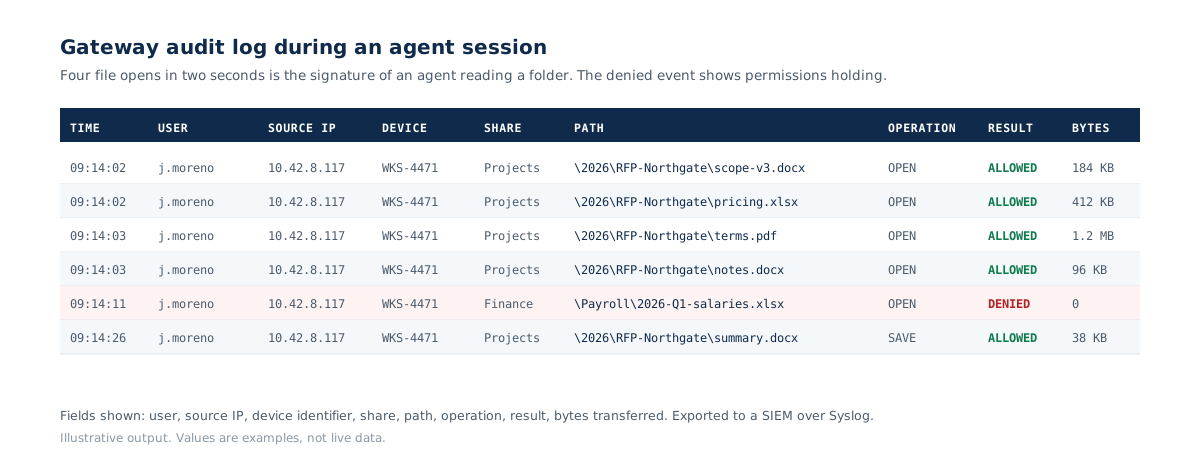
| Log what the agent touched | Yes | Authentication and file operations including opens, downloads, uploads, saves, and deletes, with user, source IP, device identifier, share, path, operation, result, and bytes transferred |
| Export to a SIEM | Yes | Syslog over UDP or TCP, with configurable email alerts on thresholds such as excessive downloads and bulk deletions |
| Stop file content reaching the model provider | No | Once a folder is attached, contents of files the agent opens are transmitted for inference. Anthropic states that because Cowork sessions run on its servers, files opened through the desktop app are processed there rather than staying on the computer |
| Scan or classify file contents | No | Content inspection and sensitivity labeling are not MyWorkDrive functions. Classification stays with your data governance tooling |
| Encrypt data at rest | No | Encryption at rest is provided by your storage layer. Transport uses TLS 1.2 or higher |
| Log activity inside the agent session | No | Prompts, tool calls, and approval decisions are visible only through the AI vendor's own logging. On Claude Team and Enterprise plans that is available via OpenTelemetry to a SIEM |
| Verify endpoint health | No | Device approval is an allowlist for MyWorkDrive clients, not a compliance check. Use Conditional Access at your identity provider for posture enforcement |
| Index content for AI retrieval | No | MyWorkDrive is an access gateway. It builds no search index and runs no model |
On certifications, two points get conflated often enough to be worth stating plainly. MyWorkDrive holds FIPS 186-4 RSA algorithm validation under NIST Certificate #3018 and supports Windows FIPS mode, which is algorithm validation rather than FIPS 140 cryptographic module validation. MyWorkDrive is also not itself a FedRAMP authorized service; deployment on your own infrastructure or on Azure Government is what supports federal use cases. Controls support a compliance program, and your organization remains responsible for that program.
Can an AI agent read files the user cannot?
Through a MyWorkDrive mapped drive, no. The client authenticates the signed-in user and enforces NTFS and Active Directory group permissions at access time, and the gateway has no mechanism for elevating rights above what the storage grants. An agent working in an attached folder has exactly the rights of the person who attached it.
The index model works differently, and this is where the two architectures diverge most sharply on permissions. The Copilot connector crawls using a service account with read access to all files in the share, then applies trimming to search results afterward based on Share or NTFS ACLs. Read access is broad at crawl time and narrowed at query time. That design is fine when the ACLs are clean and AD-managed. It is a problem when Share ACLs still carry the default Read for Everyone, or when accounts are managed outside Active Directory and the fallback is the "everyone" setting.
Auditing effective permissions before turning on an index connector is worth more than any control applied afterward.
What should be logged when an agent reads files?
An agent session on a file share should leave the same evidence a person would. That means user identity, timestamp, source IP, device, share, full path, operation, result, and volume.
MyWorkDrive records authentication events and file operations at that level and exports them via Syslog, which puts agent file activity in the same timeline as everything else your SIEM sees. Threshold alerts cover the pattern that matters most with an agent, which is volume: an agent asked to summarize a folder will read every file in it, and an agent given a broader path than intended will read a great deal more than that.
Pair the storage-side log with the AI vendor's session log. Neither is sufficient alone. The gateway shows which files were opened. The vendor's log shows what the agent was asked to do and what it did.
A control checklist before attaching a folder
- Decide the data classification of the folder in question, and get that decision from whoever owns the classification policy rather than from IT.
- Audit effective permissions on the share. Confirm the intended user resolves to the NTFS rights you expect, and clean up any default Read for Everyone on Share ACLs.
- Disable mapped drive access on shares that should not be reachable by an agent, so no drive letter and no attachable path exists for that content.
- Configure sensitive shares as view-only with downloads blocked where the content should be readable by people but not extractable. On Windows, a DLP restricted share is presented through the Secure Mode Driver namespace extension rather than a standard drive letter, which is worth testing against a folder picker before relying on it either way.
- Publish the share with a fixed drive letter so paths are predictable and procedures are portable across the fleet.
- Map the drive at login, then start the agent session, so the drive is reachable when the sandbox initializes.
- Attach the narrowest folder that covers the task. Not the root of the drive.
- Run a read-only task first, then confirm the expected events appear in the audit log with the expected user identity.
- Set session duration with long agent runs in mind, since an expired session stops the drive responding mid-task.
- Confirm shadow copies or Previous Versions are current before any agent has write access to a production share.
- Where the AI platform supports it, restrict which paths users may attach and stream session telemetry to your SIEM. MyWorkDrive's recommended security settings cover the server-side hardening that sits underneath all of the above.
Where to start
Take one project folder, one user, and a read-only task. Publish the share with a fixed drive letter, install the client, attach the folder, and check the audit log against what you expected to see. An afternoon of that surfaces more about your governance assumptions than a policy document will.
MyWorkDrive runs a 14-day trial, so the access path can be validated against your own storage and your own policies before it goes anywhere near a rollout.
Related reading:
Frequently asked questions
Can an AI agent access files on an on-premises file server? Yes, through one of two paths. A connector can crawl the share and index its text into a cloud service the agent queries, which is how Microsoft 365 Copilot connectors work. Or a user can attach a filesystem path that the agent reads during a session, which is how Claude Cowork, Claude Code, and MCP filesystem servers work. Neither requires migrating the shares.
Do I need a VPN to give an AI agent access to my file server? No. A MyWorkDrive mapped drive publishes SMB shares over HTTPS on port 443, so a drive letter exists on the endpoint without a VPN tunnel and without exposing SMB ports 445 or 139 to the internet. The SMB connection happens server-side on the LAN.
Where does Microsoft store on-premises file content indexed by a Copilot connector? Microsoft's connector documentation states that data entering the Microsoft cloud through the Copilot connectors platform is stored in the region where your Microsoft 365 tenant is located. The index is a derived text copy inside your own tenant rather than content handed to a third party. Microsoft advises evaluating governance, compliance, and sensitivity labeling requirements before enabling data synchronization from external systems into Microsoft 365.
Can an AI agent read files the user does not have permission to see? Not through a MyWorkDrive mapped drive. The client authenticates as the signed-in user and enforces NTFS and Active Directory group permissions at access time, and MyWorkDrive cannot grant access beyond what the storage allows. Index-based connectors work differently, crawling with a service account that has read access to all files in the share and then trimming search results afterward, so effective permissions should be audited before one is enabled.
Does MyWorkDrive stop file contents from reaching an AI provider? No. Once a user attaches a folder, contents of files the agent opens are transmitted to the model provider for inference. Anthropic states that because Cowork sessions run on its servers, files opened through the desktop app are processed there rather than staying on the computer. What MyWorkDrive controls is which shares have a reachable path, what rights apply, and what gets logged.
How do I keep a sensitive share out of reach of an AI agent? Disable mapped drive client access for that share in the MyWorkDrive admin console, so no drive letter and no attachable path is created for it. Users can still reach the content through the browser client where policy permits, and the share can be configured view-only with downloads blocked. Where the AI platform supports a workspace folder allowlist, that provides a second constraint on the endpoint.
What gets logged when an agent reads files through a mapped drive? MyWorkDrive records authentication events and file operations including opens, downloads, uploads, saves, and deletes, with user, source IP, device identifier, share, path, operation, result, and bytes transferred. Events export to a SIEM over Syslog using UDP or TCP, with configurable email alerts on thresholds such as excessive downloads and bulk deletions. Activity inside the agent session is visible only through the AI vendor's own logging.
Does MyWorkDrive index my files for AI retrieval? No. MyWorkDrive is an access gateway. It builds no search index, runs no model, does not scan or classify file contents, and file content does not persist on MyWorkDrive servers.
What are the file size limits on the Copilot File Share connector? Microsoft documents that files over 100 MB are not indexed, that processing stops once a file reaches 4 MB post-processed, and that a single connection covers up to twenty file shares. Only textual content of supported formats is indexed, with metadata only for multimedia and other file types.
Can an AI agent work across storage in more than one place? Yes, if each location is reachable as a filesystem path. MyWorkDrive publishes Windows SMB shares, DFS namespaces, Azure Files, Azure NetApp Files, Amazon FSx, S3-compatible storage, SharePoint Online, and OneDrive through one gateway, with up to eight drive letters on the Windows client pushed from the server, so an agent can read several storage platforms through one authenticated and logged path without data being moved.
Start a free trialBook a demoView pricing

Ron is CEO of MyWorkDrive and a product engineer by background: he spent six years in engineering and product leadership at CData Software, then served as MyWorkDrive's Chief Product Officer before stepping into the CEO role. A Dartmouth College alum, he writes for IT leaders navigating file access, data sovereignty, and enterprise IT strategy.