
Edit Office Files on Mobile Devices Without Migrating to OneDrive
MyWorkDrive lets employees open, edit, and save Word, Excel, and PowerPoint files in the Microsoft Office mobile apps on iOS and Android while every file stays on your company’s own file server. Files are never migrated to OneDrive or SharePoint, and users connect without a VPN or sync client. Users authenticate with their existing Active Directory credentials, edits save back to your Windows file shares automatically, and nothing persists on the device or in the cloud after the editing session ends.
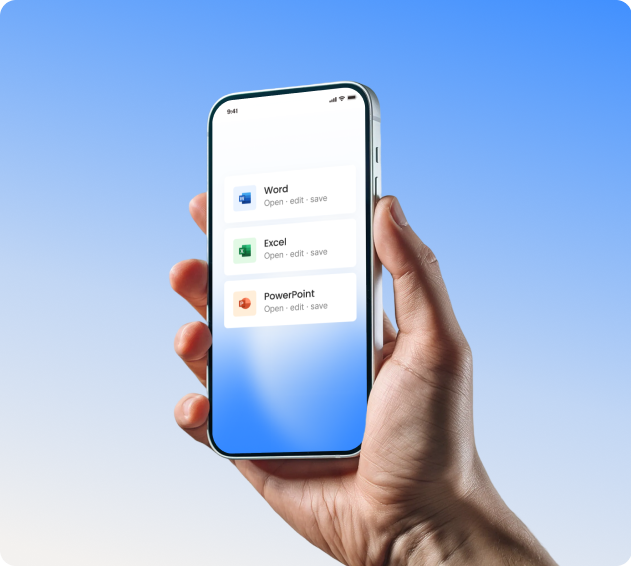
Watch a one-minute demonstration of opening and editing a file server document in Word for iOS
How Mobile Office Editing Works with MyWorkDrive
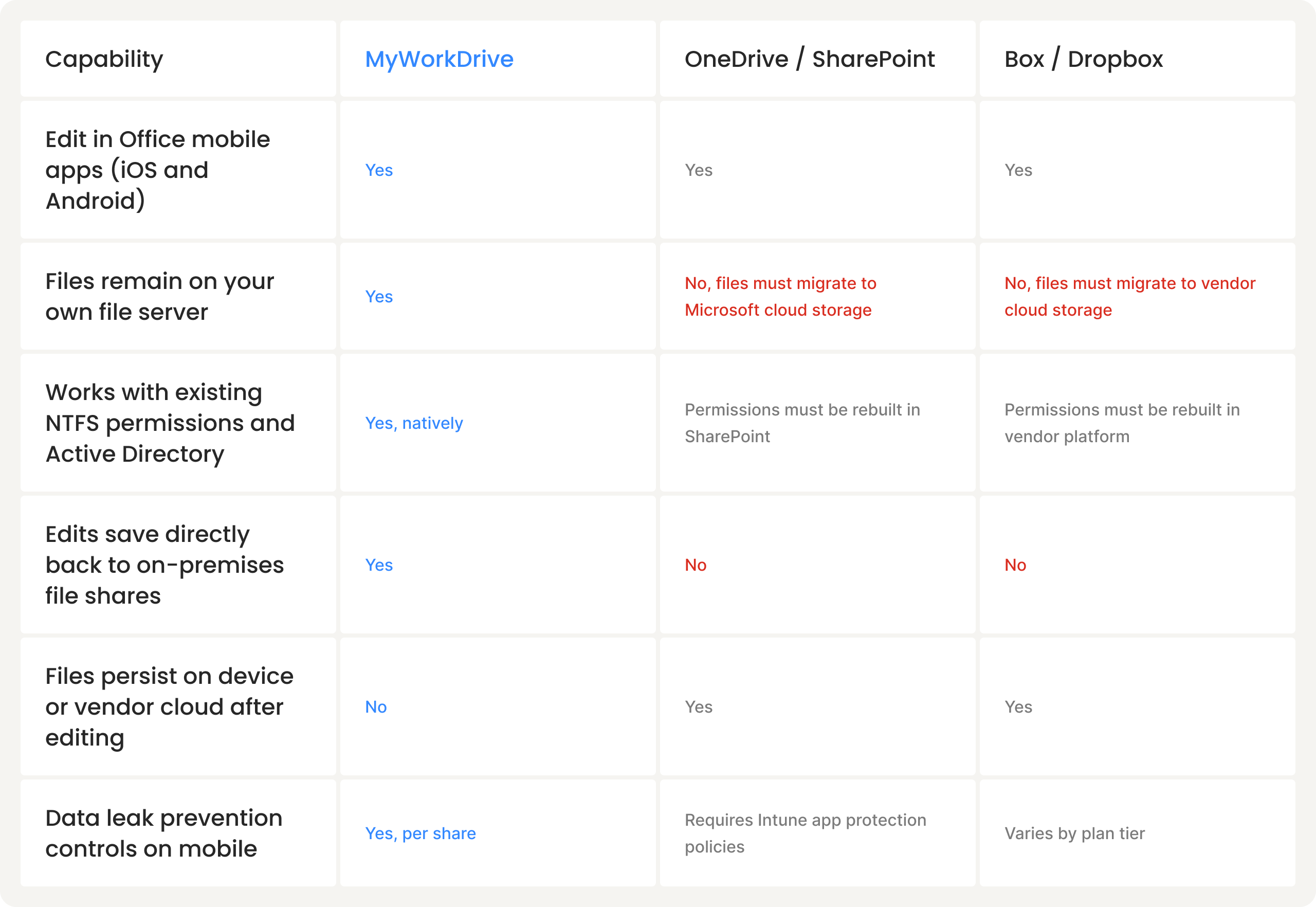
Box and Dropbox support the Office mobile apps only for documents already stored in their clouds, and OneDrive editing assumes your files live in Microsoft 365. MyWorkDrive instead brokers a secure HTTPS connection between the Office mobile app and your own server, so documents stay on your on-premises Windows file shares, Azure Files, existing SharePoint storage, or S3-compatible object storage.
S3 buckets are supported through MyWorkDrive’s S3 Drive integration, which mounts a bucket as a folder on the MyWorkDrive server and shares it like any other file share. This works with Amazon S3 as well as compatible providers such as Wasabi, Backblaze B2, Cloudflare R2, and MinIO, and S3 shares get the same mobile access, Office editing, and data leak prevention features as SMB shares. MyWorkDrive provides the S3 Drive installer, license key, and step-by-step configuration support, so adding a bucket requires only your S3 access key and secret key.
When a user opens a document from the MyWorkDrive mobile app, the file opens directly in Word, Excel, or PowerPoint for iOS or Android. Changes save back to the original file share automatically as the document is saved. A file lock is placed on the document during editing so two users cannot overwrite each other’s work, and the lock releases when editing completes.
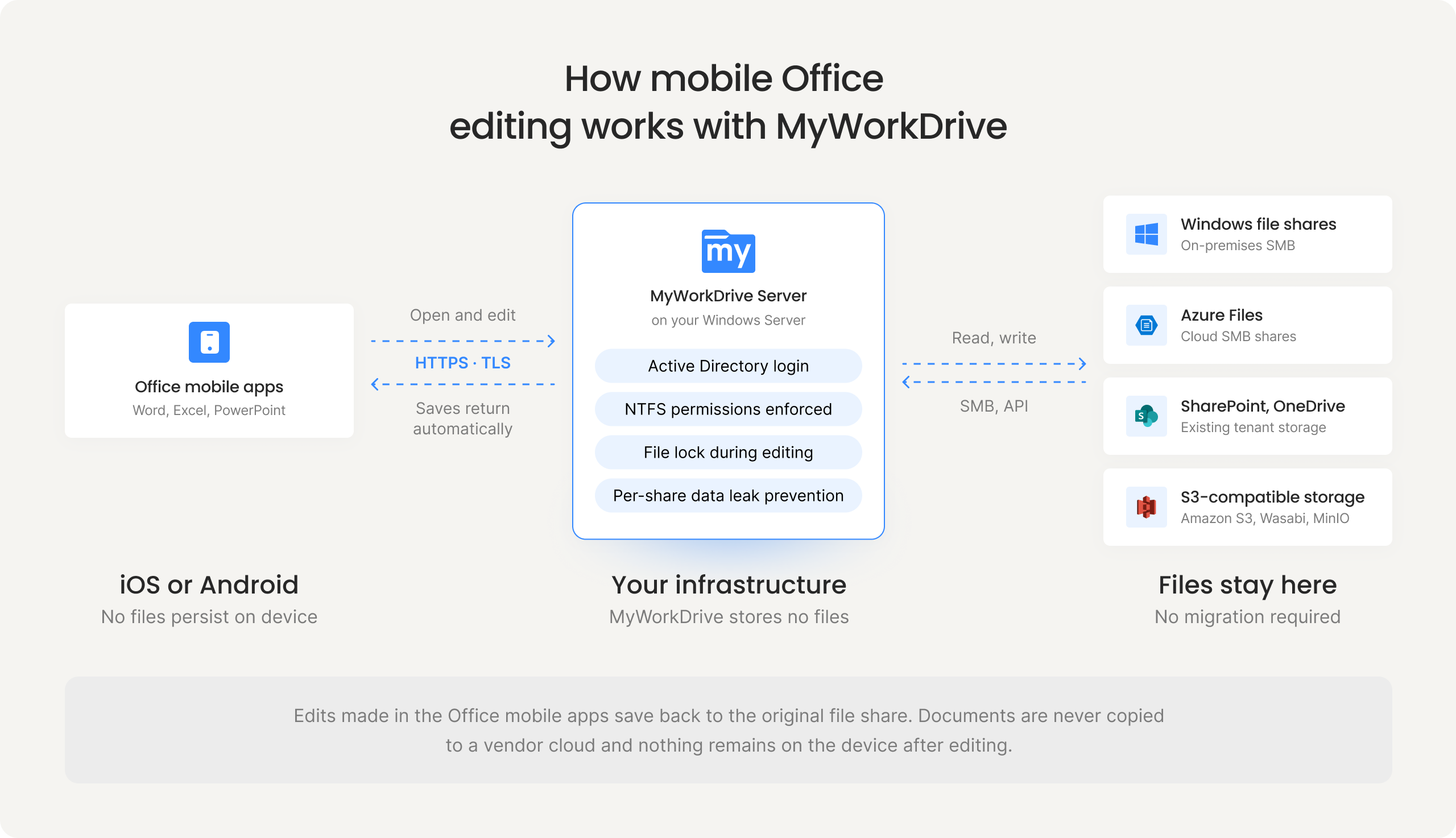
Documents open in the Office mobile apps over an encrypted connection while files remain on existing company storage.
Three Ways to Open Office Files on Mobile
Users can open file server documents in the Office mobile apps through any of three methods. The right choice depends on whether your organization signs in with single sign-on.
Open directly from the MyWorkDrive app
Select a document, choose "Open with Microsoft Word" (or Excel, PowerPoint) from the action menu, and the file opens for editing. This method requires a one-time secondary login per session and is not compatible with SSO providers such as Microsoft Entra ID, Okta, or OneLogin due to limitations in Microsoft's Office 365 login protocol.
Share, then open from the action menu
Organizations using SSO should use the "Share" option followed by "Open with Microsoft Word", which authenticates reliably through identity providers.
Open from Storage inside the Office apps
Users who work primarily inside Word or Excel can add MyWorkDrive as a storage location in the Office mobile apps, then browse and open file server documents without leaving Office. Documents authored locally on the device can also be saved directly back to MyWorkDrive from inside the app, so new files land on the company file share rather than the phone.
Requirements for Mobile Office Editing
Editing remote documents through MyWorkDrive in the Office mobile apps requires a Microsoft 365 Business subscription assigned to the user. Viewing documents does not. Microsoft supports the Office apps on the two most recent versions of iOS; when a new version of iOS ships, the requirement moves to that version and the one before it. On Android, the apps run on currently supported Android versions on devices with an ARM-based or Intel x86 processor. Full details are in Microsoft’s system requirements documentation.
One licensing detail worth knowing for tablet deployments: Microsoft allows free basic editing on devices with screens of 10.1 inches or smaller, but creating and editing documents on larger devices such as the iPad Pro requires a qualifying Microsoft 365 subscription regardless of how the file is accessed.
MyWorkDrive vs. Cloud Storage for Mobile Office Editing
Security and Data Leak Prevention on Mobile Devices
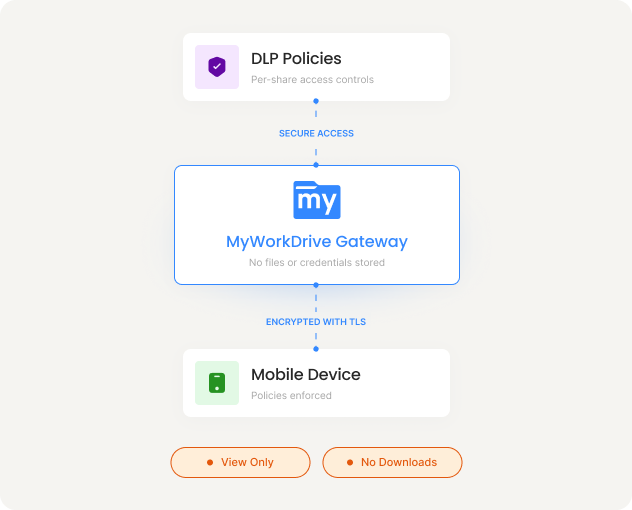
Administrators can enable data leak prevention on a per-share basis. With DLP enabled, mobile users can view documents in the built-in viewer but cannot download them to the device or share them to other applications, depending on policy. All traffic between the device and your MyWorkDrive server is encrypted over TLS, and authentication is handled by your own Active Directory.
MyWorkDrive stores no files and holds no credentials. Two-factor authentication is supported for all mobile logins, and DLP-restricted shares are clearly marked in the mobile client so users understand what they can and cannot do with each document. Learn more about data leak prevention and providing remote file access without VPN.
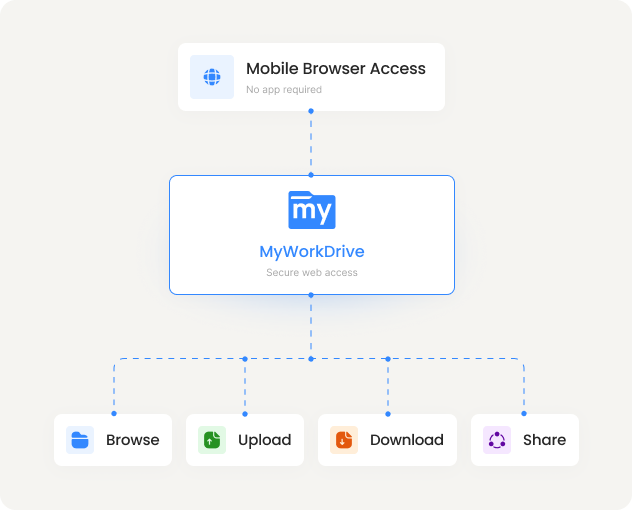
Mobile Browser Access Without an App
For users who prefer not to install an app, the MyWorkDrive mobile web client provides browsing, upload, download, sharing, and document viewing from any mobile browser, with thumbnail views for photos and Office document viewing through Office Online. For security, browser logins are limited to one session per user at a time. For browser-based editing in detail, see our web file manager and browser-based Office editing pages, or download the iOS and Android clients.
Frequently Asked Questions
Can I edit Word documents on my iPhone if the files are on our company file server?

Yes. MyWorkDrive opens file server documents directly in Word, Excel, and PowerPoint for iOS and Android. Edits save back to your Windows file shares automatically and no files are migrated to the cloud.
Do I need OneDrive to edit Office files on mobile?
No. Files remain on your company file server. Editing in the Office mobile apps requires a Microsoft 365 Business subscription, but no OneDrive or SharePoint migration is needed.
Does mobile Office editing work with SSO providers like Okta or Microsoft Entra ID?
Yes. Organizations using SSO should open documents using the Share option or by adding MyWorkDrive as a storage location inside the Office apps. The direct "Open in Word" method does not support SSO due to limitations in Microsoft's Office 365 login protocol.
Are files stored on my phone after editing?
No. MyWorkDrive does not sync files to the device. Documents are accessed during the editing session and all changes save back to the company file server.
Does co-authoring work in the Office mobile apps?
Yes. Co-editing through Office 365 is fully supported in the MyWorkDrive iOS and Android clients as well as the web and Windows clients.
Can I edit Office files stored in Amazon S3 from a mobile device?
Yes. MyWorkDrive's S3 Drive integration mounts S3-compatible buckets as standard shares on the MyWorkDrive server, so documents in Amazon S3, Wasabi, Backblaze B2, and similar providers can be opened and edited from the mobile clients like any other file share.
Provide Mobile Access To Your File Server Documents
MyWorkDrive deploys on a Windows Server in your environment in under an hour. Your files and NTFS permissions stay exactly where they are today.