


By Ron Bhojwani
Last Updated: August 3, 2026
Remote employees can access Windows SMB file shares without a VPN by publishing those shares through an HTTPS gateway such as MyWorkDrive, which proxies file access over port 443 while your files, NTFS permissions, and Active Directory groups stay exactly where they are. A typical deployment takes 60 to 90 minutes on a single Windows Server, with no data migration and no client VPN software to manage.
This guide walks through the full deployment: prerequisites, server installation, identity integration, publishing options, high availability, and a validation checklist you can hand to your security team. It is written for the IT admin who has been told to "just move everything to SharePoint" and wants a faster, lower-risk path that keeps existing file servers in place.
Why do VPNs fail for remote file access?
VPNs extend a network to a remote endpoint. Serving files over that extended network runs into four recurring problems.
Latency and throughput. SMB is a chatty protocol. Every file open triggers a series of round trips, and over a high-latency VPN tunnel a file that opens in 3 seconds on the LAN can take 45 seconds or longer remotely. Users respond by copying files to desktops and emailing them around, which defeats the point of central storage.
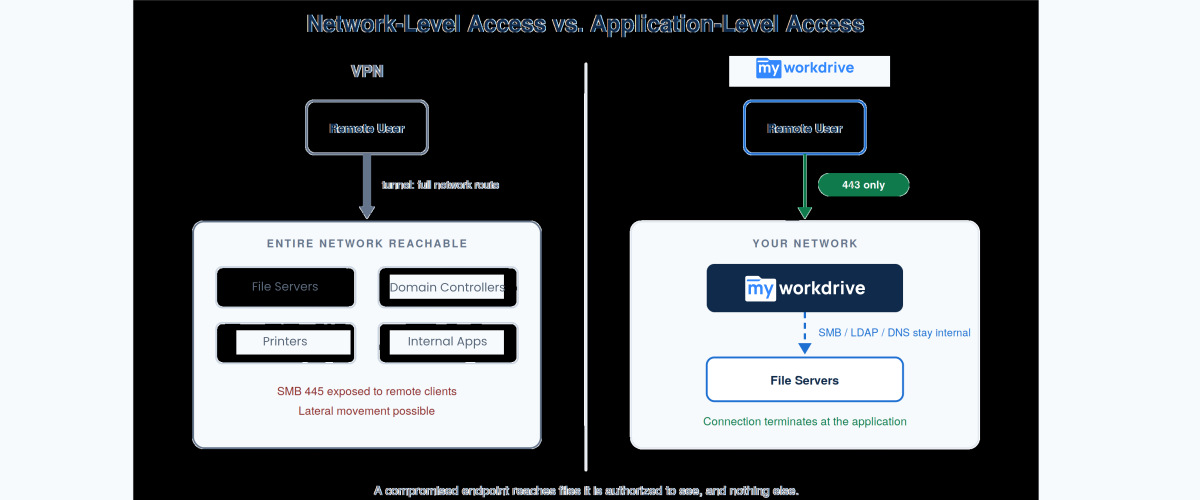
Attack surface. A VPN session grants network-level access. A compromised laptop on the tunnel can reach domain controllers, printers, and every server the user's subnet can route to, and ransomware moves laterally across that same path. Exposing SMB port 445 or NetBIOS 139 to remote clients is a well-documented ransomware vector.
User friction. VPN clients drop on sleep, fail on hotel and guest Wi-Fi that blocks tunneling protocols, and force users through reconnect loops. In one baseline analysis of a 5,000-user organization, VPN connection failures, slow file operations, and re-authentication delays added up to an estimated $385,000 per year in lost productivity.
License and infrastructure cost. Concentrators need patching, capacity planning, and per-user licensing that averages around $120 per user per year once support and infrastructure are included. In many organizations a large share of those licenses exist only so users can open files.
What is the HTTPS-based alternative to a VPN for file shares?
The alternative is application-level access instead of network-level access. MyWorkDrive installs on a Windows Server inside your network and acts as a gateway: it authenticates the user against Active Directory or Entra ID, reads your existing SMB shares server-side over the LAN, and delivers files to the user over TLS on port 443.
The architecture has three properties that matter to security reviewers:
- Clients connect on port 443 only. SMB 445, NetBIOS 139, LDAP 389, and DNS 53 stay internal between the MyWorkDrive server and your infrastructure. None of them are exposed to the internet.
- The connection terminates at the application. There is no tunnel and no route to other network resources, so lateral movement from a compromised endpoint stops at the gateway.
- Permissions are enforced live from NTFS and AD. There is no separate permission database to build or keep in sync. Users see exactly what their existing group memberships grant on the file server, and nothing more.
Users get three access methods over the same port and the same policies: a web file manager in any browser, a mapped drive client for Windows and macOS that behaves like a normal network drive, and iOS and Android apps. Files open in memory on the client rather than syncing to local disk.
What do you need before deployment? The pre-deployment checklist
Plan for a 60 to 90 minute install once the items below are ready. Most delays come from waiting on certificates, DNS changes, or the right admin being unavailable, so line these up first.
People to have available:
- Windows/Server admin (VM creation, domain join, IIS)
- Active Directory admin, if using AD mode (delegation rules)
- Network/security admin (DNS records, firewall rules, SSL certificate)
- Azure Global Administrator or equivalent, if using Entra ID mode (app registration)
- A project owner who knows which shares and groups need access
Server sizing:
| Deployment size | CPU | RAM | Disk |
|---|---|---|---|
| Minimum (small pilots) | 2 cores | 4 GB | 120 GB for OS, updates, logs, and temp files |
| Recommended start (~250 concurrent users) | 4 cores | 8 GB | |
| Large (1,000+ active users) | 8 cores | 32 GB |
The server must run Windows Server 2019 or later, be dedicated to MyWorkDrive (no Exchange, no other IIS sites), and be domain-joined if you plan to use Active Directory mode.
Port and firewall requirements:
| Direction | Port | Purpose |
|---|---|---|
| Inbound from internet | 443 (or none) | 443 for direct publishing or behind your proxy; none if using the Cloud Web Connector |
| Outbound to internet | 443 | Licensing (licensing.myworkdrive.net) and Microsoft cloud APIs |
| Outbound to internet | 7844 | Only if using the Cloud Web Connector (Cloudflare tunnel) |
| LAN only | 53, 389/636, 445 | DNS, LDAP/LDAPS, and SMB between the MyWorkDrive server and your domain controllers and file servers |
All SMB, LDAP, and DNS traffic stays internal. The full reference is in the firewall settings KB article.
Certificate. For direct HTTPS publishing you need an SSL certificate for your chosen hostname from a recognized CA, plus a DNS record pointing at the server. If you start with the Cloud Web Connector, certificates and DNS are handled for you and you can add a custom domain later.
One decision you cannot change later. During installation you choose the user directory mode for the server: Active Directory or Entra ID. Pick AD when users and groups live in on-prem AD (SSO still works through any SAML 2.0 provider, including Entra ID, Okta, and ADFS). Pick Entra ID for cloud-native sign-in with OAuth/OIDC and Conditional Access. This choice is fixed per server, so confirm it with your identity team before you run the installer.
How do you install and configure the MyWorkDrive server? Step by step
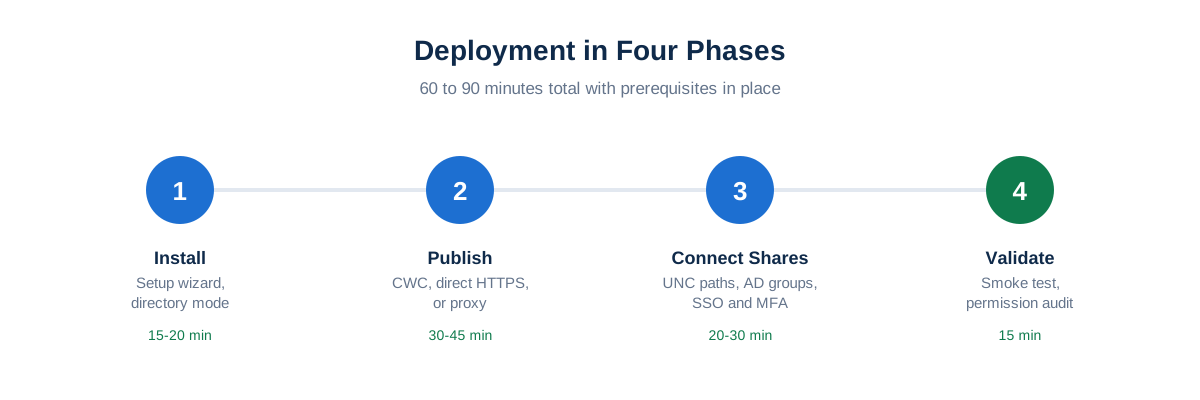
Phase 1: Install the server software (15-20 minutes)
- Download the server installer from your MyWorkDrive account and run it on the prepared Windows Server. The installer configures the required IIS components.
- Run the setup wizard. Select your user directory mode (AD or Entra ID) when prompted. This is the permanent choice covered above.
- Accept the defaults for now: choose Direct Connection as the placeholder publishing method, and skip Office Online, file size limits, and home folders. All of these can be configured after publishing works.
Phase 2: Publish the server (30-45 minutes)
Publishing makes the server reachable from outside, which is required before SSO and Office Online editing will work. Choose one of four methods; you can switch between them at any time.
| Method | Inbound ports | Best fit |
|---|---|---|
| Cloud Web Connector | None (outbound 7844 only) | Fastest start; no firewall changes or certificates; includes Cloudflare WAF and DDoS protection |
| Direct HTTPS | 443 | Your own hostname and certificate; simple single-server setups |
| Reverse proxy / WAF | Proxy listener ports | Environments with existing F5, Kemp, NetScaler, or nginx infrastructure |
| Entra Application Proxy | None | Entra SSO environments that want pre-authentication and Conditional Access before traffic reaches the server |
For direct HTTPS: bind your certificate to port 443 on the wanpath.webclient site in IIS, create the DNS record, open 443 inbound, and set TLS 1.2 as the minimum with TLS 1.3 preferred.
For a reverse proxy: disable HTTP compression for the MyWorkDrive site, enable WebSockets end to end, and preserve X-Forwarded-For or X-Real-IP headers so audit logs record real client addresses.
Verify from an external network that the login page loads over HTTPS with no certificate warnings before moving on.
Phase 3: Connect storage and permissions (20-30 minutes)
Add your shares in the admin console using UNC paths, for example \\fileserver01\Engineering. Assign access by Active Directory group rather than by individual user; group membership changes in AD then flow through automatically with no per-user administration in MyWorkDrive.
NTFS permission passthrough is the core of the model. In AD mode the server uses Kerberos constrained delegation, so every file operation runs in the user's own security context against the file server. Deny rules, inheritance, and share-level restrictions all apply exactly as they do on the LAN. There is nothing to re-permission and no shadow ACL to audit.
Beyond Windows SMB shares and DFS namespaces, the same console connects Azure Files, Azure Blob, SharePoint, OneDrive, and S3-compatible storage, so one gateway can front a mixed estate during a gradual cloud transition.
Phase 4: Turn on SSO and MFA
In AD mode, configure SSO through your SAML 2.0 identity provider (Entra ID, Okta, OneLogin, or ADFS). In Entra ID mode, sign-in is native OAuth/OIDC. Either way, MFA and Conditional Access are enforced by the identity provider before the user ever reaches a file, so the MFA policy your organization already trusts applies here with no parallel system to manage.
How should you handle high availability and load balancing?
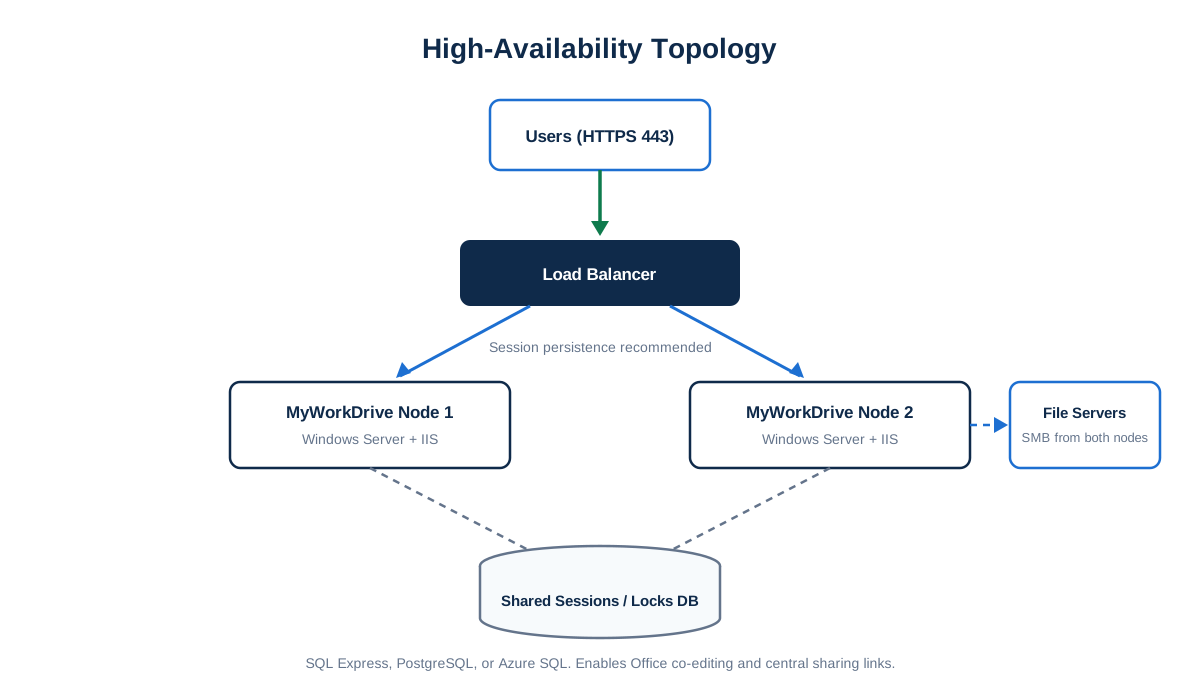
A single server is fine for a pilot. For production, plan around three components:
- Load balancer. Use what you already run (F5, Kemp, NetScaler, nginx). Session persistence is recommended to reduce reconnect churn for WebSockets and large uploads; if all nodes share the same sessions and locks database and your proxy fully supports WebSockets, affinity becomes optional.
- Shared database. Pointing all nodes at a shared SQL database (SQL Express, PostgreSQL, or Azure SQL are supported) enables Office co-editing across nodes and stores public sharing links centrally.
- Configuration strategy. Shared configuration between nodes is optional and depends on your change-management preferences.
Round out production hardening with the checklist from the deployment guide: TLS 1.2 minimum with 1.3 preferred, cipher suites set per your security policy, HTTP compression disabled at the proxy, log retention and SIEM forwarding configured, configuration backed up, and certificate renewal scheduled.
How do you validate the deployment? The go-live checklist
Run this smoke test before announcing the URL. It takes about 15 minutes.
- External access (2 min). Browse to the public URL from outside your network. Confirm HTTPS loads with no certificate warnings.
- Authentication (3 min). Sign in with a test account through SSO. Confirm MFA triggers and the user lands on the correct share list.
- Permission audit (5 min). With two test accounts in different AD groups, confirm each sees only its authorized shares, that a deny rule on the file server is honored, and that an edit saved in the browser persists on the source storage.
- Client access (3 min). Install the mapped drive client, connect as a test user, and open a file from the drive letter.
- Security controls (2 min). If you configured DLP shares, confirm downloads are blocked, watermarks render, and the attempted download appears in the audit log. Verify audit events are reaching your SIEM if Syslog forwarding is enabled.
Every file operation is logged (authentication, open, edit, save, delete, share), so your validation run itself produces the audit evidence a security reviewer will ask for.
How does this compare to a full SharePoint or OneDrive migration?
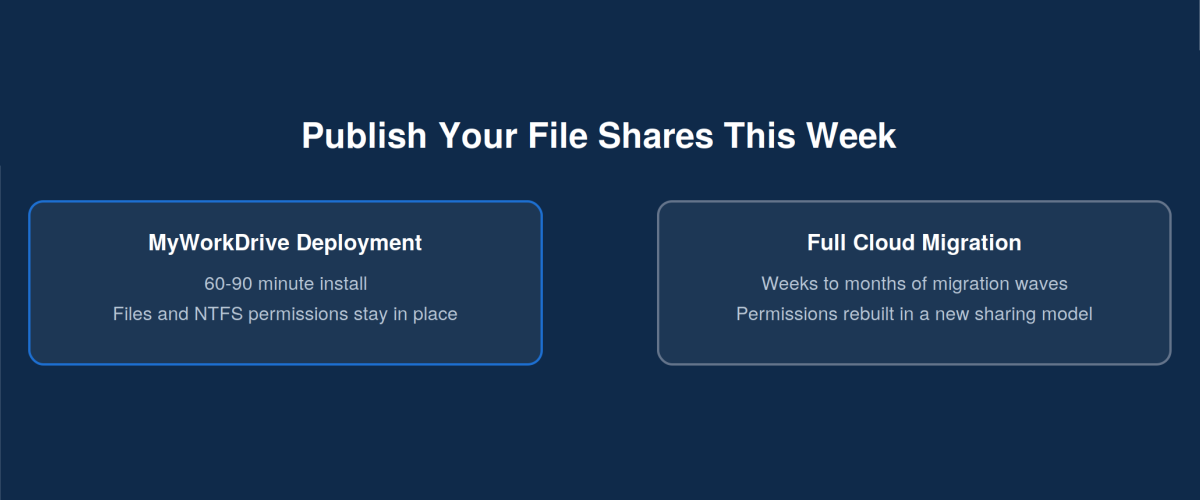
The default advice for VPN-weary organizations is to migrate file shares to SharePoint or OneDrive. That is a legitimate long-term strategy for some data, but as an answer to "remote users need their files," it trades a 90-minute deployment for a multi-month project.
| Factor | MyWorkDrive gateway | Full SharePoint/OneDrive migration |
|---|---|---|
| Time to remote access | 60-90 minutes for the first server; pilot users same day | Weeks to months of discovery, mapping, migration waves, and validation |
| Permissions | Existing NTFS ACLs and AD groups enforced live; nothing rebuilt | NTFS permissions must be translated to a different sharing model, a common source of accidental over-exposure |
| Data movement | None; files stay on your servers | Every file copied to Microsoft's cloud, with rework for paths, links, and line-of-business apps that expect UNC paths |
| Typical project cost | Licensing plus one Windows Server VM | Migration services commonly estimated at $30-50 per user, plus training and productivity loss during the transition |
| Data sovereignty | Files remain in your datacenter or chosen cloud region under your control | Data residency governed by Microsoft's datacenter footprint and terms |
| Large files and legacy workloads | CAD, media, and database-adjacent files served from existing storage at LAN speed for on-site users | Large-file and sync behavior needs case-by-case evaluation against current service limits |
The two approaches also combine well. Because the same gateway fronts SMB shares and SharePoint or OneDrive libraries in one interface, you can publish shares over HTTPS today and migrate specific datasets to Microsoft 365 later, on your own schedule, without users changing how they work.
Start a free trialBook a demoView pricing
Frequently asked questions
Can remote employees access Windows file shares without a VPN?
Yes. An HTTPS file access gateway such as MyWorkDrive publishes existing SMB shares over port 443. Users sign in through the browser, a mapped drive, or a mobile app with their normal AD or Entra ID credentials, and NTFS permissions are enforced live. No VPN client, tunnel, or data migration is required.
What ports does a VPN-free file access deployment require?
Clients connect on port 443 (HTTPS) only. SMB 445, NetBIOS 139, LDAP 389/636, and DNS 53 stay internal between the MyWorkDrive server and your domain controllers and file servers. If you publish through the Cloud Web Connector, no inbound ports are needed at all; the server makes an outbound connection on port 7844.
Do NTFS permissions still work without a VPN?
Yes. MyWorkDrive enforces your existing NTFS ACLs and Active Directory group memberships on every file operation, using Kerberos constrained delegation in AD mode. There is no separate permission system to configure, and users cannot see or reach anything beyond what the file server itself grants them.
How long does deployment take?
A standard single-server deployment takes 60 to 90 minutes when DNS, certificate, and firewall access are ready: install on Windows Server 2019 or later, publish the server, connect your shares, and configure SSO. The Cloud Web Connector option is faster still because it removes the certificate and inbound firewall steps.
Do we have to migrate files to SharePoint or OneDrive first?
No. Files stay on your existing Windows file servers, DFS namespaces, Azure Files, or S3-compatible storage. Nothing is copied, synced, or re-permissioned. If you later choose to move some data to SharePoint or OneDrive, the same gateway presents those libraries alongside your SMB shares in one interface.
Will this work for users on hotel or guest Wi-Fi that blocks VPNs?
Yes. All traffic runs over standard HTTPS on port 443, which passes through hotel networks, guest Wi-Fi, and restrictive firewalls that block VPN protocols such as IPsec or WireGuard. Users on locked-down networks connect the same way they connect to any website.
How is MFA enforced without a VPN client?
MFA is enforced by your identity provider during sign-in. In Active Directory mode, SSO runs through any SAML 2.0 provider such as Entra ID, Okta, OneLogin, or ADFS; in Entra ID mode, sign-in is native OAuth/OIDC with Conditional Access support. The MFA and device policies you already run apply before a user reaches any file.
Next steps: review the VPN replacement overview for the architecture summary, see the web file manager for the browser experience your users will get, or start a free trial and run the 15-minute smoke test on your own shares this week.