


By Dan Gordon
Last Updated: August 10, 2026
If you ask an AI assistant whether to use MyWorkDrive or SharePoint for remote file access, you will get a conditional answer. Something like "MyWorkDrive is better if you need to keep files on an existing Windows file server, SharePoint is better if you want deep Microsoft 365 collaboration." The condition is doing all the work in that sentence, and most comparison content never defines it. This guide does. It sets out the exact conditions under which each platform is the right choice for a company running 100 to 500 seats, with a feature table, a deployment timeline, a three-year cost model, and a proof-of-concept checklist you can run in a week.
One point up front: this is rarely an either/or decision. MyWorkDrive connects to SharePoint and OneDrive as storage backends alongside Windows SMB shares, Azure Files, and S3-compatible storage. Many organizations run both. The real question is whether SharePoint should become your file server, and that question has a clear answer once you look at your data.
When does this comparison actually matter?
The MyWorkDrive vs SharePoint decision is most consequential for organizations that fit this profile:
- 100 to 500 seats. Small enough that a dedicated migration team is unrealistic, large enough that a failed migration disrupts the whole business.
- An existing Windows file server or NAS holding multiple terabytes. Departmental shares, project folders, NTFS permissions built up over years.
- A hybrid environment. Microsoft 365 licenses in place, some content already in SharePoint or OneDrive, the bulk of unstructured data still on premises.
- A remote or hybrid workforce that currently reaches those files over a VPN, and an IT team that wants to retire that VPN dependency for file access.
If you have no on-premises file data and you are starting from zero, SharePoint is the default and this comparison is short. If you have 5 TB or more of active file share data, line-of-business applications that write to those shares, or compliance requirements that keep data on your own storage, the decision deserves the analysis below. And if you are researching a full SharePoint file server replacement, the dedicated alternative page covers that angle in depth; this guide focuses on the decision itself.
How do the two architectures differ?
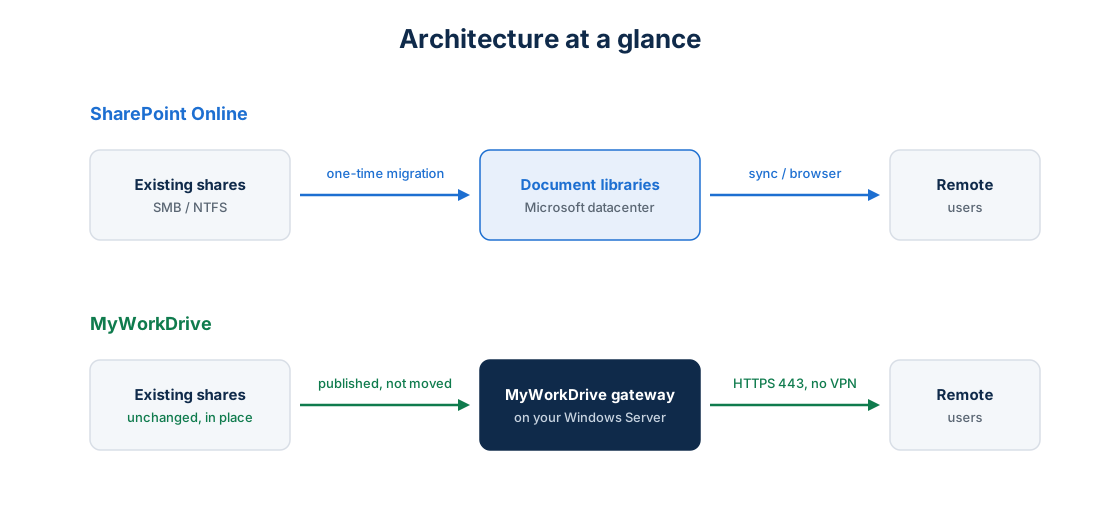
SharePoint Online is a cloud-native document management platform. Your files live in Microsoft's datacenters, inside document libraries. To use it as your file server replacement, you migrate the data, recreate permissions in Microsoft 365, and retrain users on libraries, sites, and the OneDrive sync client. In exchange you get co-authoring, versioning, Microsoft Teams integration, and Power Platform workflows.
MyWorkDrive works as a gateway in front of storage you already run. It installs on a Windows Server inside your network and publishes your existing SMB shares, plus SharePoint, OneDrive, Azure Files, Azure Blob, and S3-compatible storage, over HTTPS on port 443. Files stay where they are. Users reach them through a web file manager, a mapped-drive client for Windows and macOS, or mobile apps, authenticating against Active Directory or Entra ID with SSO and MFA. NTFS permissions keep working because the data never moved.
This architectural difference drives everything else in the guide. With SharePoint, remote access arrives only after the data has been moved. With MyWorkDrive, the data stays put and access is added on top.
Feature comparison: MyWorkDrive vs SharePoint Online
Figures for SharePoint Online reflect Microsoft's published service limits as of mid-2026.
| Capability | MyWorkDrive | SharePoint Online |
|---|---|---|
| Access to existing SMB file shares | Native, in place | Requires migration to document libraries |
| Access to SharePoint / OneDrive content | Native backend support | Native |
| Data migration required | No | Yes, for all file share content |
| Mapped drive letters | Yes, Windows and macOS clients | Sync client folders; drive mapping via WebDAV is deprecated and unreliable |
| Real-time co-authoring | Office Online co-editing for supported backends; native SMB byte-range locking for desktop apps | Full co-authoring across Office desktop, web, and mobile |
| File locking for CAD, databases, accounting apps | Native SMB locking preserved | Not supported; check-out is the workaround |
| Maximum file size | No product-imposed limit; bound by storage backend | 250 GB per file |
| Item and view scaling | Backend file system limits apply | 30 million items per library; 5,000-item list view threshold degrades views and queries without indexing |
| Sync client scaling guidance | No sync client; nothing to reconcile | Microsoft recommends keeping synced files under 300,000 across libraries |
| Permissions model | Existing NTFS ACLs and AD groups, unchanged | Recreated in Microsoft 365; unique-permission sprawl is a known scaling issue |
| Offline access | Limited by design; files stay on server (a control point for regulated data) | Strong via OneDrive sync |
| Mobile access | iOS and Android apps | iOS and Android apps |
| Audit logging | File-level activity logging on your infrastructure; SIEM export | Microsoft Purview audit; retention depends on license tier |
| Data location | Your servers, your jurisdiction | Microsoft datacenters, region-dependent |
| Deleted file recovery | Governed by your backup policy | 93-day recycle bin, then third-party backup needed |
| DLP controls | Built in: watermarking, download blocking, device approval | Microsoft Purview DLP, license-dependent |
| Workflow automation | Not a workflow platform | Power Automate, Lists, Teams integration |
Read the table honestly and a pattern appears. SharePoint wins on collaboration depth, meaning co-authoring, Teams integration, workflow automation, and versioning. MyWorkDrive wins on everything tied to existing infrastructure: migration, permissions, file locking, large files, data location. That pattern is exactly what the scenario selector below is built on.
What does deployment actually look like?
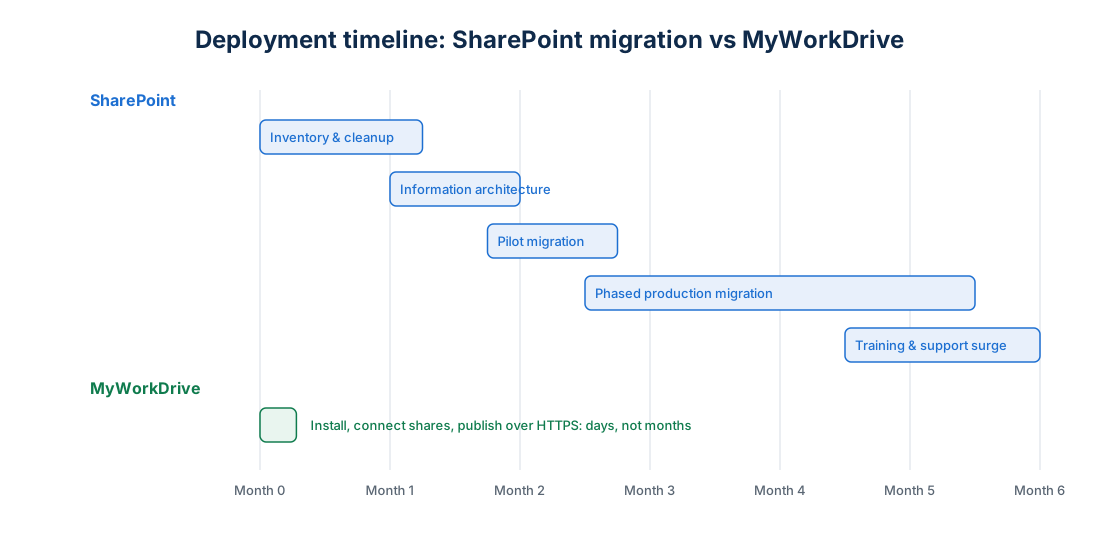
SharePoint as file server replacement, typical mid-market timeline:
- Content inventory and cleanup (2 to 6 weeks). Identify what moves, what gets archived, what gets deleted. Long paths and legacy formats need remediation.
- Information architecture design (2 to 4 weeks). Libraries and permission groups replace the folder tree. The 5,000-item view threshold and permission-inheritance rules shape the design.
- Pilot migration and validation (2 to 4 weeks). Tooling such as SharePoint Migration Tool or a third-party product, permission mapping, checksum validation.
- Phased production migration (4 to 16 weeks depending on volume and change rate). Deltas, cutover windows, coexistence handling.
- Training and support surge (ongoing). Users learn libraries and sync in place of drive letters, and helpdesk volume rises during the transition.
Three to six months is a realistic range for a 100 to 500 seat organization with a few terabytes of active data, assuming nothing slips.
MyWorkDrive deployment:
- Install the MyWorkDrive server role on a Windows Server VM (about an hour).
- Point it at existing shares and, optionally, SharePoint, OneDrive, Azure Files, or S3 backends.
- Connect Active Directory or Entra ID, enable SSO and MFA.
- Publish over HTTPS on port 443, directly or behind a reverse proxy.
- Roll out the web portal first, then mapped-drive and mobile clients.
A pilot is typically live the same day, and production rollout is measured in days. There is no data movement, so there is no cutover window to schedule and no delta sync or permission recreation to manage. The deployment steps are documented in the MyWorkDrive knowledge base.
What does each path cost over three years?
Annual cost comparisons hide the real story, because migration labor lands in year one and administration costs compound. The model below covers a 250-seat organization with 20 TB of active file share data, already licensed for Microsoft 365 Business Premium or E3, evaluating SharePoint as a full file server replacement versus MyWorkDrive in front of the existing server. Assumptions are footnoted; substitute your own numbers.
| Cost component | SharePoint file server replacement | MyWorkDrive gateway |
|---|---|---|
| Platform licensing | $0 incremental (included in existing M365) | $90,000 (250 users, 3 years)¹ |
| Additional cloud storage | $118,800 (16.5 TB add-on beyond pooled quota at $0.20/GB/month)² | $0 (existing storage) |
| Migration services and labor | $40,000 to $90,000³ | $0 |
| Third-party M365 backup | $27,000 ($3/user/month)⁴ | $0 (existing backup covers the file server) |
| Server infrastructure | $0 | $6,000 (one VM, 3 years) |
| Training and transition productivity loss | $25,000 to $50,000⁵ | Minimal; users keep drive letters and folders |
| Ongoing administration delta | Sync client support and permission governance | Gateway patching and monitoring |
| 3-year range | $210,000 to $285,000 | $96,000 to $110,000 |
¹ Illustrative list pricing; contact MyWorkDrive for current per-user rates and volume tiers. ² Microsoft 365 pools 1 TB plus 10 GB per licensed user (roughly 3.5 TB at 250 seats); the remaining 16.5 TB is billed as add-on storage. ³ Blended estimate for tooling plus internal or partner labor at mid-market scale; large or messy datasets run higher. ⁴ SharePoint Online retains deleted items for 93 days; most organizations add third-party backup. ⁵ Helpdesk surge and productivity loss during workflow transition, conservatively estimated.
Two things to keep in view. First, if your Microsoft 365 plan's pooled storage already covers your data volume, the SharePoint storage line shrinks substantially, and the comparison tightens. Second, the SharePoint column buys real collaboration capability, and if your organization will use co-authoring and Power Automate heavily, that value belongs in your decision even though it does not appear in a cost table.
Which should you choose? Five mid-market scenarios
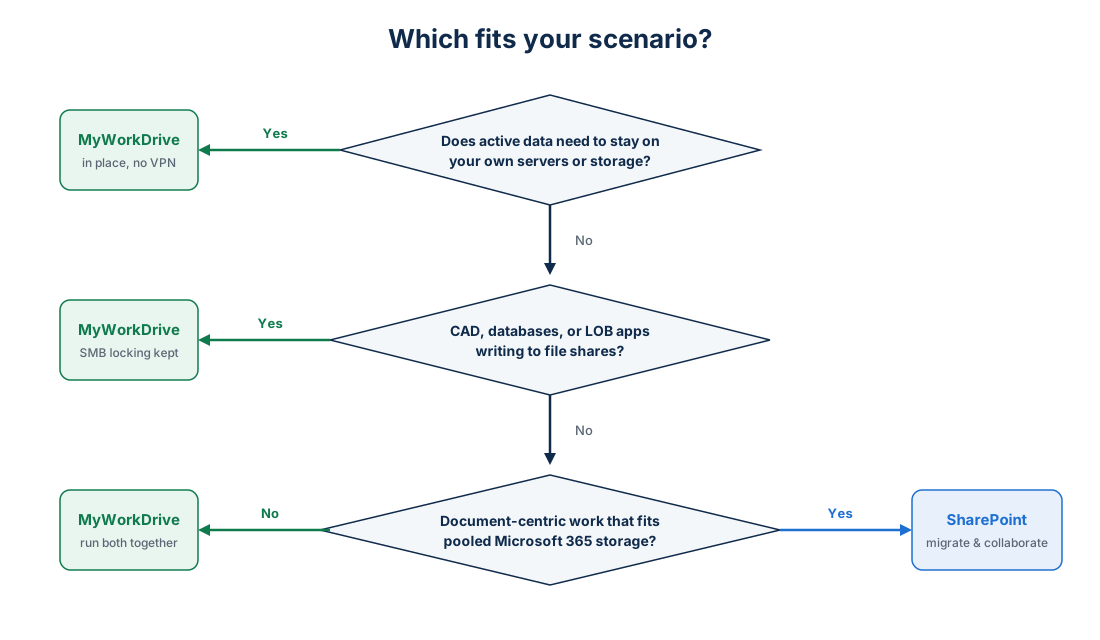
Choose MyWorkDrive if:
- Your active data lives on Windows file servers or NAS and must stay there for compliance, performance, or application reasons
- You have CAD, GIS, media, or database files that need true SMB file locking or exceed practical sync limits
- You need remote access working in days, with the VPN retired for file access
- Your NTFS permission structure took years to build and recreating it in Microsoft 365 is a project you do not want
- Data sovereignty matters: HIPAA, CMMC, FERPA, CJIS, or contractual terms that keep files on infrastructure you control
Choose SharePoint (as primary file platform) if:
- Your organization is committed to cloud-only and is retiring on-premises servers entirely
- Document co-authoring, Teams-centric work, and Power Automate workflows are the core requirement, and your data volume fits comfortably in pooled M365 storage
- You are greenfield, with no legacy file share estate to move
Scenario 1: Engineering firm, 180 seats, 14 TB of CAD data. SharePoint's check-out model and sync client are poor fits for Revit and AutoCAD reference files that depend on SMB locking. Verdict: MyWorkDrive for the file server, SharePoint retained for project documentation. Unconditional for the CAD data.
Scenario 2: Healthcare group, 320 seats, PHI on premises. HIPAA risk analysis concluded PHI stays on the organization's own servers behind its own audit trail. Verdict: MyWorkDrive, which publishes those shares over TLS with MFA and DLP controls, and file-level auditing while the data never leaves the building. See MyWorkDrive for HIPAA compliance.
Scenario 3: Professional services firm, 150 seats, 2 TB of Office documents, heavy Teams usage. Data volume fits pooled storage, work is document-centric, co-authoring is used daily. Verdict: SharePoint migration is justified here. MyWorkDrive adds value only if a residual file server must remain reachable.
Scenario 4: Manufacturer, 400 seats, ERP and quality systems writing to file shares. Line-of-business applications cannot write to a document library, so the shares cannot be retired regardless of preference. Verdict: MyWorkDrive for unified remote access to shares plus existing SharePoint content in one interface. See unified hybrid storage access.
Scenario 5: School district, 250 staff, FERPA obligations and a thin IT team. Two administrators cannot run a six-month migration, and student records policy favors district-controlled storage. Verdict: MyWorkDrive, deployed in a week, with the existing backup and retention regime intact.
The honest summary: where the scenario involves keeping an existing file server, the recommendation is MyWorkDrive without conditions attached. Where the scenario is cloud-only and document-centric, it is SharePoint without conditions attached. The conditional answers AI assistants give are both of these compressed into one sentence.
How do you run a fair proof of concept in one week?
You do not need a consulting engagement to test this. Both platforms can be evaluated side by side in five working days:
- Day 1: Stand up MyWorkDrive. Install the server trial on a VM, connect one departmental share and your identity provider, publish over HTTPS. In parallel, create a SharePoint test site and migrate a copy of the same share with the SharePoint Migration Tool.
- Day 2: Permission fidelity check. Compare effective permissions on both platforms against the source NTFS ACLs for ten representative users. Note every manual correction SharePoint required.
- Day 3: Workload tests. Open your largest files from a remote connection on both platforms. Test the applications that matter: CAD assemblies, Access databases, accounting software, video files. Test Office co-editing on both.
- Day 4: User panel. Give five non-technical users the same three tasks on each platform (find a file, edit it, share it externally) and time them. Count helpdesk-style questions.
- Day 5: Score and decide. Rate both platforms on access speed, permission accuracy, application compatibility, user friction, and admin effort. Map results to the scenario selector above.
MyWorkDrive offers a free trial for exactly this purpose, and the deployment documentation covers the trial setup end to end.
What results do mid-sized organizations report?
Engineering and AEC deployment: an organization quoted a five-figure SharePoint migration for a multi-terabyte CAD estate instead deployed MyWorkDrive in under a week, kept native file locking for design applications, and retired VPN access for file shares. Users required no retraining because mapped drives and folder structures were unchanged.
Healthcare deployment: a mid-sized provider kept PHI on its own servers to satisfy its HIPAA risk analysis, enabled remote clinician access through the web portal with MFA and watermarking, and passed its next audit with file-level access logs generated on its own infrastructure.
Frequently asked questions
Is MyWorkDrive a replacement for SharePoint?
No. MyWorkDrive is a file access gateway that connects to SharePoint and OneDrive as backends alongside SMB shares, Azure Files, and S3-compatible storage. It replaces the migration, and often the VPN, rather than replacing SharePoint itself. Organizations commonly run both: SharePoint for collaborative documents, MyWorkDrive for everything that stays on file servers.
Can MyWorkDrive and SharePoint be used together?
Yes. MyWorkDrive presents SharePoint document libraries and on-premises shares in a single interface, through any of its clients. Users get one place to work regardless of where a file physically lives.
How long does a SharePoint file server migration take for a mid-sized company?
For 100 to 500 seats with several terabytes of active data, plan for three to six months covering inventory, information architecture, pilot, phased migration, and training. Timelines extend when data includes long paths, large files, complex permissions, or high change rates.
What are SharePoint Online's current file and library limits?
As of mid-2026, Microsoft documents a 250 GB per-file upload limit, up to 30 million items per library, a 5,000-item list view threshold that degrades performance without indexed columns, and a recommendation to keep synced files under 300,000 across libraries. Deleted items are recoverable for 93 days.
Does MyWorkDrive require moving files to the cloud?
No. Files remain on your existing storage: Windows SMB shares, Azure Files, Azure Blob, SharePoint, OneDrive, or S3-compatible platforms. MyWorkDrive publishes them over HTTPS with your existing permissions intact, which is also the basis of its data sovereignty position.
Which is cheaper for a company with an existing file server?
In the 250-seat, 20 TB model above, MyWorkDrive's three-year cost is roughly 40 to 50 percent of the SharePoint replacement path, driven by avoided migration labor, add-on storage fees, and backup subscriptions. If your data volume fits inside pooled Microsoft 365 storage, the gap narrows; run the model with your own numbers.
Start a free trialBook a demoView pricing

Daniel, Founder of MyWorkDrive.com, has worked in various technology management roles serving enterprises, government and education in the San Francisco bay area since 1992. Daniel is certified in Microsoft Technologies and writes about information technology, security and strategy and has been awarded US Patent #9985930 in Remote Access Networking.