

Organizations that need to migrate SharePoint files face a difficult tradeoff: modernize access to critical data or accept months of project risk, permission breakage, and user disruption. For IT directors and system administrators managing terabytes of enterprise content across on-premises file servers and SharePoint environments, the stakes are high and the margin for error is small.
Migrating SharePoint files involves moving documents, permissions, and metadata from on-premises file servers or legacy systems to SharePoint Online using structured migration tools, phased rollouts, and permission mapping strategies. This guide covers how to plan and execute a successful migration, and when an alternative approach might better serve your organization.
- Preserve existing permissions and directory structures without manual re-mapping
- Reduce project timelines from 12–18 months to weeks with a hybrid access approach
- Maintain compliance posture throughout any transition with unified audit logging
What Does It Mean to Migrate SharePoint Files?

Migrating SharePoint files is the process of moving documents, lists, libraries, metadata, and permissions from one storage environment to another, typically from on-premises file servers or legacy SharePoint Server installations to SharePoint Online within Microsoft 365. The process involves content assessment, permission mapping, metadata preservation, and user cutover planning, and it directly affects data governance, access continuity, and regulatory compliance.
For IT and security teams, this matters because a poorly executed migration can break access controls, create compliance gaps, and disrupt business operations for weeks or months. Every file that moves carries permission dependencies, metadata relationships, and workflow integrations that must transfer intact, or be deliberately restructured.
Why It Matters
When IT leadership evaluates whether and how to migrate SharePoint files, the decision extends well beyond storage logistics. The implications touch security posture, operational continuity, and budget.
Risk to access controls
NTFS permissions built over years of Active Directory management do not map cleanly to SharePoint Online's permission model. Granular folder-level permissions often require complete reconstruction, and a single mapping error can expose sensitive data to unauthorized users or lock legitimate users out of critical files.
Compliance exposure during transition
During migration windows, files exist in two locations simultaneously, audit trails may be incomplete, and permission states can be ambiguous. For organizations subject to HIPAA, GDPR, or CMMC requirements, this temporary state creates real compliance risk.
Operational disruption
Users lose access to familiar file paths. Mapped drives stop working. Bookmarked links break. Help desk ticket volume spikes. Productivity drops during the weeks or months it takes to fully cut over and retrain users on new workflows.
Budget overruns
Migration projects frequently exceed initial time and cost estimates. Third-party migration tools, consultant engagements, and the internal labor required for content auditing, permission re-mapping, and user acceptance testing add up quickly, often reaching $30–50 per user according to industry benchmarks.
Common Challenges and Risks
Permission mapping failures
On-premises Active Directory groups and NTFS ACLs do not translate directly to Microsoft Entra ID and SharePoint Online permission models. Hybrid environments with multiple domains compound this complexity, and errors can silently grant or revoke access without triggering alerts.
Metadata and version history loss
File metadata, custom properties, and version histories are frequently lost or corrupted during migration, particularly when moving from traditional file servers rather than SharePoint-to-SharePoint. Recovery after the fact is costly and sometimes impossible.
SharePoint Online storage limits
SharePoint Online provides 1 TB of base storage plus 10 GB per licensed user. Organizations with multi-terabyte file server estates may find that their storage needs exceed what their current licensing provides, requiring additional storage purchases or aggressive content rationalization before migration.
Workflow and integration breakage
Custom SharePoint workflows built on legacy platforms (such as SharePoint 2013 workflows, which Microsoft has retired) do not migrate automatically. Integrations with line-of-business applications, automated processes, and third-party connectors may require rebuilding from scratch.
User disruption and adoption resistance
Users accustomed to mapped drives and Windows File Explorer navigation face a significant adjustment when files move to browser-based SharePoint libraries. Without adequate change management, shadow IT and workaround behaviors increase.
Extended project timelines
Enterprise migration projects routinely take 12–18 months when accounting for content auditing, pilot testing, phased rollouts, and remediation cycles. During this period, IT teams carry the operational burden of maintaining both legacy and new environments.
How to Migrate SharePoint Files Successfully
To migrate SharePoint files successfully, follow these key steps. If your organization has decided that full migration is the right path, this process will help minimize risk:
1- Conduct a comprehensive content audit
Inventory all file shares, document libraries, and storage repositories. Identify redundant, outdated, and trivial (ROT) content for archival or deletion before migration. Map every permission group, inheritance path, and explicit ACL.
2- Define your target architecture
Determine which content belongs in SharePoint Online document libraries, which stays in on-premises file shares, and which moves to Azure Files or Blob storage. Not every file belongs in SharePoint, large binary files, deep folder hierarchies, and files requiring NTFS-level permission granularity may be better served by alternative storage.
3 - Map identity and permissions
Align on-premises Active Directory users and groups with Microsoft Entra ID identities. Test permission mapping with a representative sample before committing to a full migration. Document every case where permissions must be restructured rather than directly translated.
4 - Select and validate migration tooling
Evaluate purpose-built tools such as Microsoft's SharePoint Migration Tool or third-party platforms. Run pilot migrations on non-critical content to validate metadata fidelity, permission accuracy, and throughput performance.
5 - Execute in phased rollouts
Migrate department by department or site by site rather than attempting a single cutover. Maintain read access to legacy locations during each phase to prevent business disruption. Validate each phase before proceeding to the next.
6 - Implement parallel access during transition
Use a secure file access solution like MyWorkDrive to provide unified access to both legacy file shares and SharePoint Online during migration. This eliminates the hard cutover that causes the most user disruption and help desk load.
7 - Validate and remediate
After each migration phase, verify file integrity through checksums, confirm permission accuracy through access testing, and validate that audit logging captures all file access events across both old and new storage locations.
8 - Decommission legacy systems
Only after full validation and a defined stabilization period should legacy file servers be decommissioned. Retain backups for a period consistent with your data retention policies and any applicable regulatory requirements.
While many organizations proceed with full SharePoint migration, others evaluate alternative approaches that reduce risk, cost, and disruption. The right choice depends on your data volume, compliance requirements, storage architecture, and how quickly you need to deliver modern file access to users.
How MyWorkDrive Helps
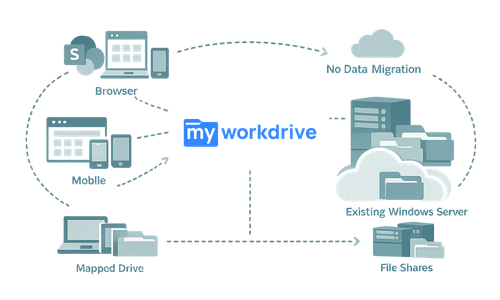
Many organizations discover that what they actually need is not a full migration, it is modern, secure access to the files they already have. MyWorkDrive functions as a secure access layer between users and existing storage infrastructure, delivering the benefits that drive migration projects without the risk and cost of actually moving data.
MyWorkDrive connects to your existing storage: Windows SMB shares, Azure Files, Azure Blob Storage, SharePoint Online, and OneDrive for Business, and presents it to users through a unified interface accessible via web browsers, mapped drives, and mobile apps. No files move. No permissions are re-created. Your existing Active Directory or Microsoft Entra ID remains the authoritative identity source.
Zero data migration required
Files stay exactly where they are, on your file servers, in SharePoint, in Azure storage, or across all of them simultaneously. MyWorkDrive brokers access over HTTPS without copying, syncing, or relocating data.
Existing permissions preserved
NTFS ACLs, SharePoint site and library permissions, and Azure Data Lake ACLs remain intact and authoritative. MyWorkDrive enforces least-privilege access based on your existing permission model, it cannot elevate permissions beyond what your directory and storage already allow.
Unified access to hybrid storage
Users access on-premises file shares alongside SharePoint Online libraries and OneDrive for Business through a single interface. No need to train users on multiple access methods or manage separate permission sets across storage tiers.
Office Online editing for on-premises files
Users can edit Word, Excel, and PowerPoint files stored on SMB shares directly in the browser through Office Online integration, a capability that typically requires files to be in SharePoint or OneDrive. This eliminates a primary driver of migration for many organizations.
Data loss prevention controls
Configure per-share, per-user, or per-group DLP policies including download blocking, dynamic watermarking with username and timestamp, clipboard restrictions, and view-only access, all without moving files to a new platform.
Device approval and access control
Administrators control which devices can connect via mapped drives or mobile apps. Unapproved devices are blocked at the application layer, reducing the risk of data exfiltration through unmanaged endpoints.
Complete audit trail with SIEM integration
Every file access, edit, download, share, and authentication event is logged and exportable to your SIEM via Syslog. Maintain a unified audit record across all connected storage, on-premises and cloud, without the blind spots that fragmented access methods create.
SSO and MFA enforcement
Authentication occurs through your identity provider, Active Directory with SAML SSO (supporting Okta, Duo, and other providers) or Microsoft Entra ID with native sign-in. All conditional access policies and MFA requirements apply automatically.
Rapid deployment
Deploy in hours to weeks, not months. No SQL databases, no complex server farms, no re-provisioning of shares and users. Install on a Windows Server, connect your storage and identity, and begin providing secure access.
Microsoft license optimization
Enable browser-based Office editing for users who do not need full desktop Office applications, supporting transitions from E5/E3 to F3 licensing for appropriate user populations while maintaining productivity.
How It Works
MyWorkDrive sits between your users and your storage infrastructure, operating as a secure translation layer rather than another storage tier.
Deploy the MyWorkDrive server
Install on a Windows Server in your environment, on-premises, in an Azure VM, or in AWS. The setup process takes approximately 60–90 minutes with the right resources available.
Connect your identity provider
Point MyWorkDrive at your Active Directory domain or configure Microsoft Entra ID native authentication. Existing users, groups, MFA policies, and conditional access rules carry over automatically.
Publish your storage
Add SMB file shares, Azure File Shares, Azure Blob containers, SharePoint Online sites, or OneDrive for Business as shares in the MyWorkDrive admin console. Assign access to AD or Entra ID groups.
Configure security policies
Enable DLP controls, device approval, public link sharing rules, session timeouts, and audit alert thresholds based on your organization's security requirements.
Deploy client access
Users connect through the web browser at your organization's URL, install the mapped drive client for Windows or macOS for a native File Explorer or Finder experience, or use the iOS and Android mobile apps.
Monitor and audit
Review the admin dashboard for server health, active sessions, and alert triggers. Export logs to your SIEM for centralized security monitoring and compliance reporting.
Security and Compliance
MyWorkDrive is built on a zero-trust architecture that eliminates VPN dependency for file access while strengthening your security posture.
Transport security
All client connections use TLS 1.2 or higher. No SMB ports (445, 139) are exposed externally, all SMB communication happens server-side on your LAN. The only inbound port required is 443 (HTTPS), or organizations can use the Cloud Web Connector for outbound-only connectivity with zero inbound firewall rules.
Identity and authentication
Passwords are never stored on the MyWorkDrive server. Authentication is delegated entirely to your identity provider, keeping all MFA enforcement, conditional access, and password policies intact. Sessions are short-lived and encrypted in memory only.
Least-privilege access
MyWorkDrive cannot grant access beyond what your existing NTFS, SharePoint, or Data Lake ACLs allow. There is no administrative capability to elevate user permissions through the platform.
Data sovereignty
Files never persist on MyWorkDrive application servers. For browser-based Office editing, files temporarily stage in your own OneDrive or SharePoint tenant and write back automatically. No customer data passes through or is stored on MyWorkDrive systems.
Compliance framework alignment
-
HIPAA: Access control (§164.312(a)) via AD/Entra ID integration with MFA; audit controls (§164.312(b)) via complete logging with SIEM export; transmission security (§164.312(e)) via TLS 1.2+ encryption. BAA available.
-
GDPR Article 32: Encryption in transit, no data storage on intermediary servers, complete audit trail, data remains in designated sovereign locations.
-
CMMC: Supports access control, audit and accountability, and system and communications protection practice requirements.
-
NIST SP 800-207: Aligns with zero trust principles—identity-based access, per-session authorization, least-privilege enforcement, and continuous monitoring.
-
FIPS: NIST FIPS 186-4 RSA validation (certificate #3018); supports Windows FIPS mode for cryptographic operations.
Use Cases
Hybrid storage consolidation for enterprise IT
IT directors managing a mix of on-premises Windows file servers, Azure Files, and SharePoint Online use MyWorkDrive to provide users a single access point across all storage tiers, without migrating data between them. Users see one consistent interface regardless of where each file physically resides.
Migration avoidance for regulated industries
Healthcare and financial services organizations subject to HIPAA or FINRA requirements use MyWorkDrive to modernize file access without the compliance risk of a full migration. Data stays in its current, audited location while users gain browser, mapped drive, and mobile access with full DLP controls.
SharePoint coexistence during phased migration
Organizations partway through a multi-year SharePoint migration use MyWorkDrive as a bridge, providing unified access to files that have already moved to SharePoint Online alongside files that remain on legacy file servers. Users experience no disruption regardless of where each file sits in the migration timeline.
VPN elimination for file access
Security teams use MyWorkDrive to remove VPN dependency for the 80% of remote users who only need file access, reducing the VPN attack surface, eliminating lateral movement risk, and cutting VPN-related help desk tickets by 60–75% based on customer-reported results.
Microsoft 365 license optimization
Finance teams working with IT use MyWorkDrive's Office Online integration to enable browser-based document editing for frontline and light-use workers, supporting license transitions from E5/E3 to F3 for appropriate user populations while maintaining full document viewing and editing capabilities.
Secure external collaboration
Organizations sharing files with contractors, clients, or business partners use MyWorkDrive's public link sharing with password protection, expiration dates, download limits, and watermarking, providing traceable, governed external access without exposing internal file shares or requiring recipient accounts.
FAQ

How do you migrate SharePoint files?
You migrate SharePoint files by conducting a content audit, mapping permissions from Active Directory to Microsoft Entra ID, selecting a migration tool such as Microsoft's SharePoint Migration Tool or a third-party platform, and executing a phased rollout department by department. Each phase should include pilot testing on non-critical content, validation of metadata fidelity and permission accuracy, and parallel access to both legacy and new storage locations during the transition. After migration, verify file integrity through checksums and confirm audit logging across all storage before decommissioning legacy systems.
What does it mean to migrate SharePoint files?
Migrating SharePoint files involves moving documents, metadata, permissions, and associated configurations from one environment to another, typically from on-premises file servers or legacy SharePoint Server to SharePoint Online. The process requires careful planning around permission mapping, content auditing, and user cutover to avoid data loss and access disruptions.
How long does a typical SharePoint file migration take?
Enterprise migrations commonly take 12–18 months when accounting for content auditing, pilot testing, phased rollouts, and remediation. Timeline varies significantly based on data volume, permission complexity, custom workflow dependencies, and the number of source systems involved.
Can I avoid migrating SharePoint files entirely?
Yes. Solutions like MyWorkDrive provide secure, modern access to files on existing storage, including Windows file servers, Azure Files, and SharePoint, without moving data. This approach preserves existing permissions, eliminates migration risk, and can be deployed in hours rather than months.
What are the biggest risks when you migrate SharePoint files?
The most significant risks include permission mapping failures that expose or restrict data incorrectly, metadata and version history loss, workflow breakage for legacy integrations, extended downtime during cutover periods, and user productivity loss during the transition. Content sprawl from migrating redundant or outdated files also increases storage costs.
How does MyWorkDrive connect to SharePoint Online?
MyWorkDrive integrates with SharePoint Online through Microsoft Graph API via an Azure app registration. Administrators select specific SharePoint sites or document libraries to publish, assign access to AD or Entra ID groups, and users access those libraries through the same web, mapped drive, and mobile interfaces used for on-premises file shares. Detailed setup instructions are available in the SharePoint File Share Access Setup Guide.
Does MyWorkDrive require data to be stored on its servers?
No. MyWorkDrive never stores customer files. It acts as a secure access broker between users and existing storage. For browser-based Office editing, files temporarily stage in your own Microsoft 365 tenant (OneDrive or SharePoint) and write back automatically. All data remains under your organization's control.
What compliance frameworks does MyWorkDrive support?
MyWorkDrive supports alignment with HIPAA, GDPR, CMMC, FIPS 186-4 RSA, and FedRAMP-ready deployments. Complete audit logging with Syslog export, DLP controls, device approval, and encrypted transport (TLS 1.2+) provide the technical controls required by these frameworks. A HIPAA BAA is available.
Can MyWorkDrive work alongside an existing SharePoint migration project?
Yes. MyWorkDrive is commonly deployed as a coexistence layer during phased migrations, providing users unified access to files regardless of whether they have been migrated to SharePoint Online or remain on legacy file servers. This eliminates the hard cutover that causes the most user disruption.
How much does MyWorkDrive cost compared to a full migration?
MyWorkDrive starts at $5 per user per month. By comparison, full migration projects typically cost $30–50 per user in direct expenses alone, not including internal labor, productivity loss, or post-migration remediation. Most organizations report payback within 2–4 months through VPN elimination, license optimization, and reduced support costs.
What storage systems does MyWorkDrive support?
MyWorkDrive connects to Windows SMB file shares (including Azure NetApp Files and Amazon FSx), Azure Files (via SMB or REST API), Azure Blob Storage with Data Lake Gen2, SharePoint Online document libraries, and OneDrive for Business. Multiple storage types can be presented to users simultaneously through a single unified interface.