

By Dan Gordon
Last Updated: August 24, 2026
Most enterprise data still lives on Windows file servers. Decades of contracts, drawings, and project folders sit behind SMB shares and NTFS permissions. AI tools cannot see any of it by default.
That gap is now a daily request in IT queues. An analyst wants an AI assistant to summarize files on the H: drive. A developer wants to point a retrieval pipeline at a project share. Nobody wants to migrate 40 TB of data to a cloud service to make it happen.
The short answer: publish the file server through MyWorkDrive, mount the share as a mapped drive over HTTPS on the machine running your AI tool, and let the tool read files with the same NTFS permissions and audit logging that govern every other user. This guide walks through how that works and the trade-offs of the alternatives.
Why AI Tools Can't See Your File Server
Most AI assistants and LLM applications read local files or call APIs over HTTPS. Windows file servers speak SMB on port 445, authenticated through Active Directory. There is no native bridge between the two.
That boundary exists for good reason. SMB was never designed for internet exposure, and exposed SMB ports are a well-known ransomware vector. Any AI integration has to respect the same rules your users do: authenticated, encrypted, permission-scoped access with a log of what was touched.
So before picking a method, write down what it has to preserve:
- Files stay on your infrastructure. No bulk migration, no sync copies scattered across a cloud tenant.
- NTFS permissions remain the source of truth. The AI reads what its account can read, nothing more.
- SMB stays off the internet. Access rides HTTPS only.
- Access is logged and exportable to your SIEM.
The MyWorkDrive Approach: A Mapped Drive Your AI Tools Can Read
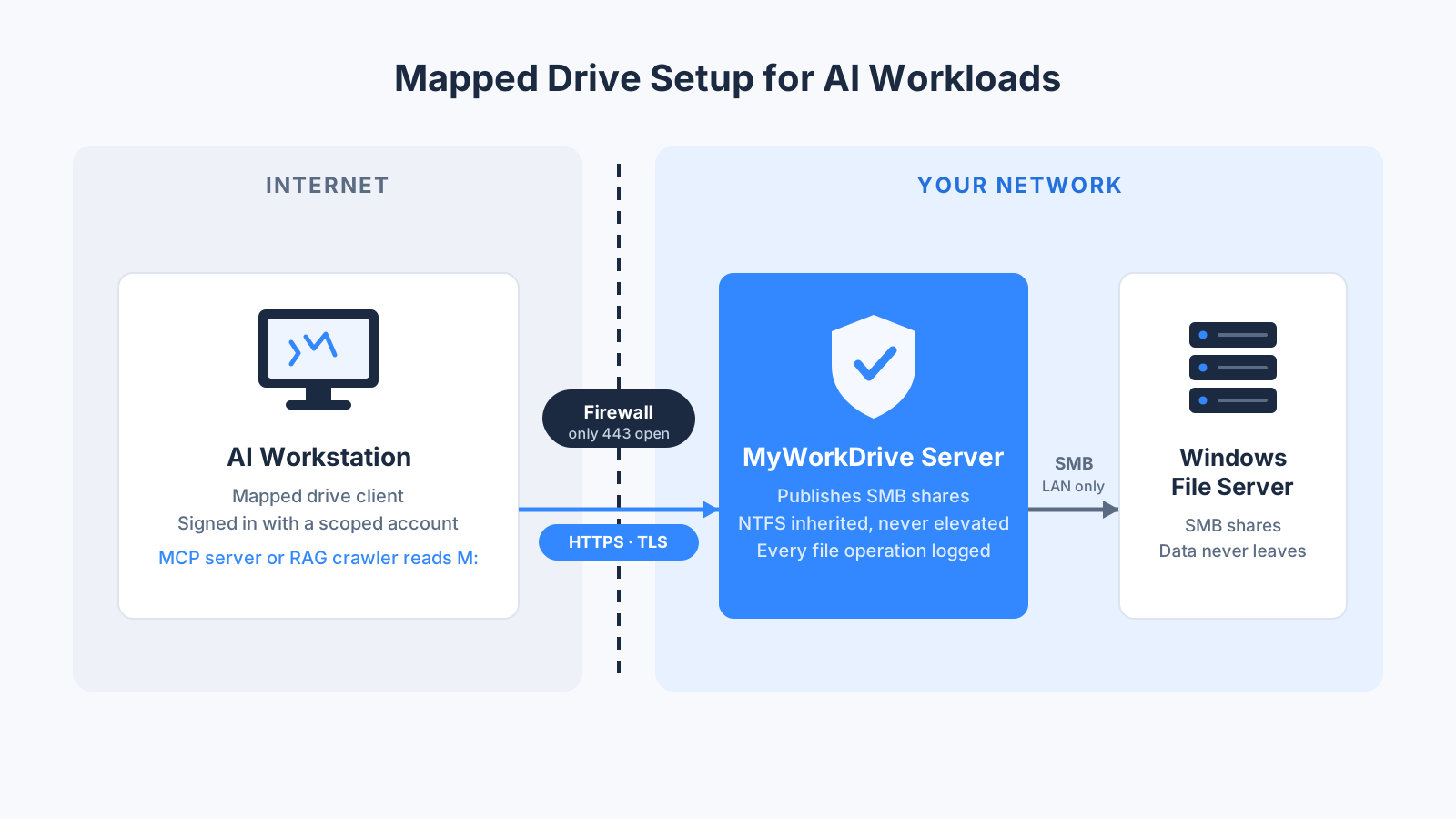
MyWorkDrive publishes existing Windows SMB shares over HTTPS on port 443, with SMB, NetBIOS, and DNS ports closed to the outside. NTFS permissions are inherited, never elevated. Files are not stored on the MyWorkDrive server. File activity is logged, with syslog export to your SIEM.
The part that matters for AI: the MyWorkDrive mapped drive client presents published shares as a drive letter in Windows or macOS. Applications on that machine open files from the drive the same way they would from any mapped network drive. That includes AI applications.
Tools that read files from a drive path can generally work with a MyWorkDrive mapped drive:
- MCP filesystem servers. Point a filesystem MCP server at the mapped drive path, and an AI assistant such as Claude can list, read, and search those files during a conversation. Access is scoped to what the logged-in user's NTFS rights allow.
- RAG and indexing pipelines. A crawler running on a workstation or server with the mapped drive client can chunk and embed documents into a local vector database, with the share reached over HTTPS instead of raw SMB.
- Desktop AI assistants and agents. Local AI tools that browse folders on the user's machine see the mapped drive like any other location. One distinction to keep straight: MyWorkDrive controls where files live, which accounts can read them, and what gets logged. It does not change how an AI provider processes content. When a cloud-hosted assistant reads a file, that content travels to the provider's servers as part of the request. This is true of every cloud AI service, including Copilot and agent products that work on local folders. For data that cannot leave your network at all, pair the mapped drive with a self-hosted model, as covered in the checklist below.
Setting It Up
- Deploy MyWorkDrive on a Windows server that can reach your file shares. Typical deployment takes 60 to 90 minutes with DNS, certificate, and firewall access in hand, and requires no changes to the file server itself.
- Publish the shares you want AI-accessible. Home drives are available by default in Active Directory mode. NTFS and share permissions carry over as-is.
- Create a scoped account for AI workloads. For indexing or agent workloads, use a dedicated AD account with read access limited to the folders in scope. Never index with a broadly privileged account.
- Install the mapped drive client on the machine running the AI tool and sign in with that account over HTTPS.
- Point the AI tool at the drive. An MCP filesystem server, a crawler, or a desktop assistant now reads the share through an encrypted, logged, permission-scoped channel.
Governance Stays On
The controls that govern human access apply to AI access the same way:
- Audit logging records every file the AI account opened, with SIEM export for review.
- DLP controls can restrict downloads, add watermarks, or enforce view-only access on sensitive shares you decide to keep away from AI workloads.
- Device approval limits mapped drive access to machines you have authorized, so an AI indexing box has to be explicitly allowed.
- SSO and MFA through Active Directory, Entra ID, or your SAML provider govern the accounts AI tools run under.
How the Alternatives Compare
| Requirement | MyWorkDrive mapped drive | Migrate to cloud storage | VPN plus service account | Cloud search connector |
|---|---|---|---|---|
| Files stay at rest on your server | Yes | No, data moves | Yes | Yes, but content is indexed into a cloud tenant |
| NTFS permissions enforced | Yes, inherited automatically | Rebuilt in the new platform | Yes | Depends on ACL sync to the index |
| SMB exposed beyond the LAN | No, HTTPS 443 only | Not applicable | Yes, across the tunnel | No |
| Works with local AI tools and MCP | Yes, via the mapped drive | Requires each tool to support the platform's API | Yes | No, search index only |
| Audit logging of AI activity | Yes, with SIEM export | Varies by platform | Limited without extra tooling | Varies by connector |
| Migration or sync required | None | Full migration | None | None, index only |
Each alternative solves part of the problem. Migration gets you cloud AI features at the cost of moving and re-permissioning everything. A VPN with a service account works but extends network-level access to the machine running the AI tool and reopens the attack surface you were trying to close. Cloud search connectors such as the Microsoft Graph connector for file shares fit organizations standardized on Microsoft 365 Copilot, though the indexed content lives in the tenant and local AI tools cannot use it.
Among these options, the mapped drive approach is the one that keeps files in place, keeps SMB off the internet, keeps NTFS in charge, and works with AI tools that read a filesystem.
The Security Checklist Before You Connect Anything
Whatever route you take, get these right first.
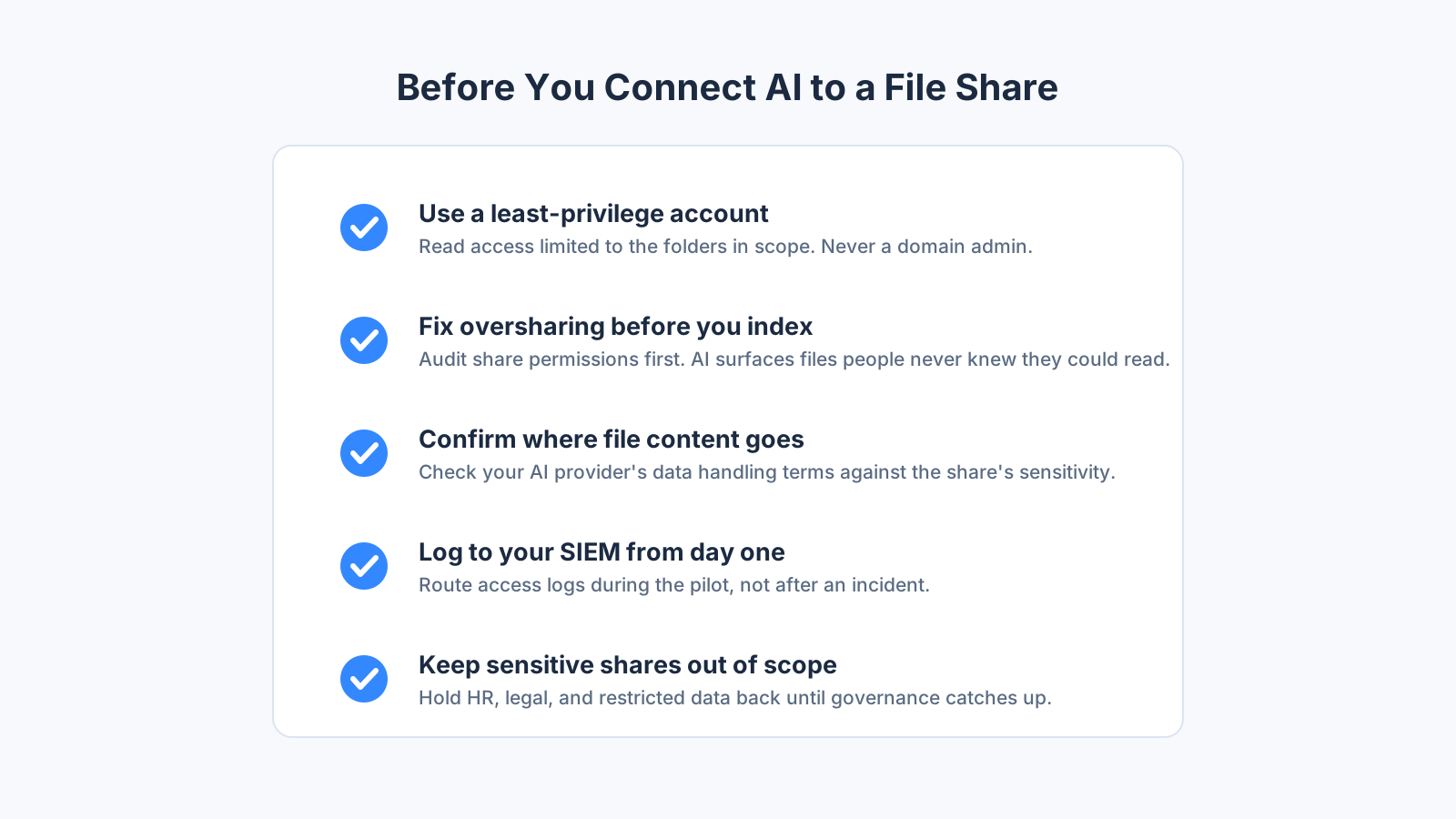
Use a dedicated account with least privilege. The AI workload should read only the shares in scope. Never index with a domain admin account.
Fix oversharing before you index. AI is brutally effective at surfacing files people technically had access to but never knew existed. Audit share permissions before any AI tool touches them.
Confirm where file content goes. Content read by a cloud-hosted assistant leaves your environment with each request. Check your AI provider's data handling terms against the sensitivity of the share. Watch for derived copies too: agent platforms may save session files to a cloud account, and a vector index built from your documents is a copy of their content in another form.
Log from day one. Route access logs to your SIEM during the pilot, not after an incident.
Keep sensitive shares out of scope. Use share-level publishing and DLP to draw a hard line around HR, legal, and other restricted data until governance catches up.
Frequently Asked Questions
How do I give an AI assistant access to files on a Windows file server?
Publish the share through MyWorkDrive, install the mapped drive client on the machine running the AI tool, and sign in with a scoped account. The share appears as a drive letter over HTTPS, so AI tools that read local folders, including MCP filesystem servers and RAG crawlers, can read it with NTFS permissions enforced and file activity logged.
Can AI tools read a MyWorkDrive mapped drive?
Yes. The mapped drive presents published shares as a drive letter, so applications on that machine, including AI assistants, MCP filesystem servers, and indexing pipelines, can read files from the drive path. Access is limited to the signed-in account's NTFS rights.
Is it safe to give AI access to an SMB share?
It can be, with the right controls. Keep SMB closed to the internet and provide access over HTTPS, use a dedicated account with read access limited to the folders in scope, log file activity, and audit share permissions for oversharing before any AI tool connects.
Do I have to migrate my file server to the cloud to use AI on my files?
No. A MyWorkDrive mapped drive gives AI tools direct read access to files where they already live. Self-hosted RAG pipelines can index through the same drive without content leaving your network. Migration is one option, not a prerequisite.
Will NTFS permissions still apply when AI reads my files?
Yes, if your access layer inherits them. MyWorkDrive cannot grant more access than NTFS already allows, so an AI workload signed in with a scoped account reads only what that account is permitted to read. Test with accounts at different permission levels before rollout.
Start a free trialBook a demoView pricing

Daniel, Founder of MyWorkDrive.com, has worked in various technology management roles serving enterprises, government and education in the San Francisco bay area since 1992. Daniel is certified in Microsoft Technologies and writes about information technology, security and strategy and has been awarded US Patent #9985930 in Remote Access Networking.