

Modernizing how employees access files does not have to mean ripping out your existing infrastructure or moving terabytes of data into a new cloud platform. The goal is to achieve a modern platform that supports remote work, scalability, and enhanced data connectivity, all while leveraging your current systems. You can modernize Windows file servers by transforming access, security, and governance while your data stays exactly where it is.
This guide explains how to modernize your Windows file server environment without a risky migration, and how MyWorkDrive provides the ability to enhance organization efficiency and security with direct, cloud-style file access on top of your existing Windows file servers and cloud storage.
Introduction to Modernization
Modernizing your Windows Server environment is more important than ever as organizations face the end of extended support for Windows Server 2012 and 2012 R2. Without ongoing updates, these legacy systems become increasingly vulnerable to security threats and compliance risks. To stay ahead, many organizations are turning to modern platforms that offer enhanced security, scalability, and performance.
Managing Windows Server environments today means embracing cloud technologies, integrating with Active Directory, and keeping your operating system up to date. Azure services, such as Azure Files and Windows Admin Center, make it easier to streamline your storage migration service and manage both on-premises servers and cloud resources from a single pane of glass. These tools help you upgrade your infrastructure, protect your data, and ensure business continuity with features like extended security updates, virtual machines, and advanced data protection.
Whether you’re planning to upgrade your on-premises servers or migrate workloads to the cloud, it’s essential to evaluate the benefits of each solution. By leveraging the latest Azure services and modern management tools, you can create a secure, scalable, and future-ready environment that supports your organization’s evolving needs.
Why Modernizing Windows File Servers Does Not Require Migration
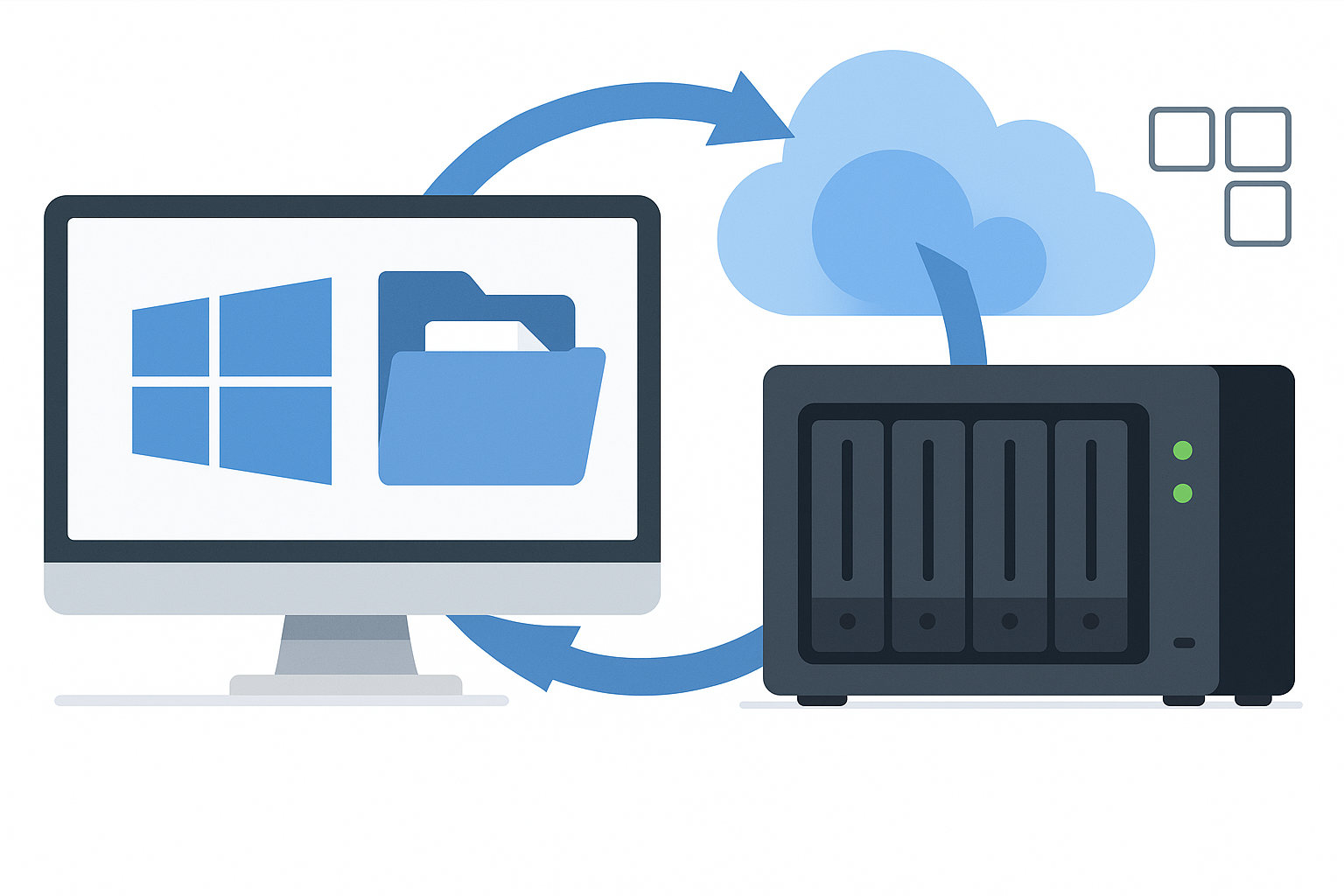
For many IT teams, “modernization” is equated with “migrate everything to SharePoint or a cloud file service.” Traditional migration projects introduce risk and cost:
-
Rebuilding or re-mapping NTFS permissions
-
Re-training users on new tools and URLs
-
Rebuilding integrations that expect SMB shares and mapped drives
A more practical strategy is to modernize Windows file servers in place. This approach avoids the need for new hardware investments or complex install processes. Instead of moving data, you modernize:
-
How users access file shares
-
How security, MFA, and Conditional Access policies are enforced
-
How you log, audit, and control data loss
MyWorkDrive secure file sharing accomplishes this by acting as a secure HTTPS access layer for your existing Windows file servers and supported cloud file storage, without VPN, sync clients, or data migration.
Step 1: Assess Your Current Windows File Server Environment
Before you modernize any part of your environment, inventory what you already have. Use tools to scan your environment for existing file servers, shares, and disks to ensure a comprehensive assessment:
-
File servers and shares
-
Which Windows file servers exist today
-
What SMB shares, DFS namespaces, and home drives they host
-
Identity and permissions
-
On-premises Active Directory, Entra ID, or hybrid
-
How you manage NTFS permissions and AD groups
-
Remote access mechanisms
-
VPN, RDP, VDI, legacy web gateways
-
User pain points such as slow performance, frequent disconnects, or complex login steps
-
Compliance and data residency
-
Where sensitive data is stored
-
Which shares are subject to HIPAA, GDPR, FERPA, CMMC, or internal data residency rules
The goal is to identify where you can immediately improve the user experience and security posture by modernizing access, without touching the data layer.
Step 2: Make Migration Optional Instead Of Mandatory
When you modernize Windows file servers, you do not have to start with storage migration. Treat migration as an optional optimization for specific workloads, not a prerequisite for secure remote work. Cloud services can be integrated alongside your on-premises resources, allowing you to modernize at your own pace and leverage the scalability and flexibility of the cloud.
With MyWorkDrive:
-
Data remains on existing Windows file servers, SAN, NAS, Azure Files, or other SMB compatible storage.
-
NTFS permissions and AD groups are preserved.
-
Existing backup, DR, and retention policies continue as designed.
You can still introduce cloud storage over time. MyWorkDrive can present, side by side:
-
Traditional SMB shares and Windows file servers
-
Azure Files and Azure File Sync for hybrid caching of cloud file shares on Windows Server, enabling seamless datacenter integration and extension to hybrid environments
-
SharePoint and OneDrive libraries in Microsoft 365
-
Azure Blob or other object storage for archives
All of these appear to users in a unified interface, without forcing you to move everything at once. That is a key way to modernize Windows file servers without migrating data.
Step 3: Modernize Identity And Authentication First
Modernization starts with identity. A modern access strategy for Windows file servers should:
-
Use your existing identity provider
-
Enforce strong MFA and Conditional Access policies
-
Avoid creating new identity silos
-
Ensure robust domain management and maintain domain integrity throughout the modernization process
MyWorkDrive supports two primary identity models:
-
Active Directory plus SSO
-
Use your existing on-premises AD
-
Integrate with SAML SSO providers such as ADFS, Okta, Duo, or Ping
-
Preserve NTFS and AD groups for access control
-
Entra ID native integration
-
Allow cloud-only or hybrid identities to sign in
-
Apply Entra Conditional Access policies, risk based controls, and MFA
-
Ideal for organizations standardizing on Microsoft 365 and Entra ID
By modernizing identity first, you can modernize Windows file server access without disrupting group structures, approval workflows, or compliance reviews.
Step 4: Replace VPN With A Secure HTTPS Access Layer
Legacy approaches to remote file access rely on broad network access:
-
Full tunnel VPN
-
RDP to a Windows desktop
-
VDI sessions that still connect to on-premises file servers
These models increase attack surface and frustrate users. Modern networking approaches, such as leveraging secure HTTPS connections and integrated cloud networking components, reduce the attack surface and simplify connectivity for remote users.
MyWorkDrive turns file access into an HTTPS application instead, aligned with Microsoft’s Zero Trust security model.
-
Single port 443 exposed to the internet
-
No external SMB or RDP published
-
Users connect through:
-
A modern web file manager
-
A native mapped drive client
-
Mobile apps for iOS and Android
Once authenticated, MyWorkDrive brokers file access to the underlying Windows file servers or cloud storage. Users get a cloud-style experience while your servers, shares, and NTFS permissions stay exactly as they are.
This is one of the most direct ways to modernize Windows file servers without migrating data or relying on traditional VPN.
Step 5: Integrate With Microsoft 365 Instead Of Replacing It
Modernization should enhance, not duplicate, your Microsoft 365 investments.
With MyWorkDrive:
-
Users can open and co-edit Office documents directly in Office for the web from existing SMB file shares.
You can present SharePoint and OneDrive libraries in the same interface as on-premises Windows file servers.
-
You avoid pushing all content into SharePoint solely for browser editing.
This hybrid approach allows you to:
-
Keep large, complex, or legacy workloads on SMB shares
-
Use SharePoint or OneDrive for collaboration where it fits best
-
Give users a single experience over HTTPS regardless of storage location
For Azure storage specific scenarios, you can further align this with your Azure Files architecture and planning guides.
Step 6: Apply Zero Trust And DLP Controls At The Access Layer
Modernizing Windows file servers should also strengthen security and governance. Instead of opening network paths, you apply controls at the file access layer.
MyWorkDrive provides:
-
Zero trust friendly architecture
-
Application level access over HTTPS only
-
No exposure of SMB directly to the internet
-
Least privilege access using existing NTFS and group permissions
-
Data loss prevention (DLP)
-
Secure “view only” mode that blocks downloads while still allowing users to preview content in a browser
-
Dynamic watermarking of documents to deter exfiltration and screenshots
-
Granular control per share or security group
-
Ability to recover deleted files or restore previous versions in case of accidental deletion or ransomware attacks
-
Advanced access controls
-
Device approval to restrict mapped drive access to managed endpoints
-
Option to force unmanaged devices into web-only mode
-
Integration with identity provider MFA and Conditional Access
-
Auditing and compliance visibility
-
Central logging of file opens, downloads, edits, and permission related events
-
Export of audit logs to SIEM tools for correlation
These capabilities allow you to modernize Windows file servers and align with Zero Trust guidance for secure remote work, such as Microsoft’s recommendations for securing remote and hybrid work.
Step 7: Deploy In Phases And Avoid Big Bang Cutovers
A key advantage of modernizing via an access layer is that deployment can be phased and low-risk.
Typical rollout pattern:
-
Pilot
-
Deploy a single MyWorkDrive server
-
Integrate with your identity provider
-
Publish a small number of low risk shares to a test group
-
Run in parallel with current VPN and access methods
-
-
Expand
-
Add more Windows file servers and SMB shares
-
Introduce DLP and device approval policies for sensitive data
-
Onboard broader user groups as feedback is incorporated
-
-
Optimize
-
Optionally onboard Azure Files, Azure File Sync, SharePoint, or OneDrive alongside on-premises servers
-
Retire legacy VPN access for file-only use cases
-
Tune licensing, Office usage, and storage tiers based on real usage data
-
At no point does this require you to migrate all data from Windows file servers to a new platform. You modernize the access path first, then adjust storage back ends on your own schedule, using services such as Azure File Sync where it makes sense.
Step 8: Monitor, Maintain, And Tune The Modernized Environment
Once MyWorkDrive is in production, focus on a few key operational practices:
-
Performance monitoring
-
Track login success rates, file open and save times, and concurrent user levels
-
Compare user experience before and after VPN retirement
-
Security and compliance reviews
-
Periodically review DLP rules, guest access policies, and device approval settings
-
Validate that access patterns align with least privilege principles and internal policies
-
Lifecycle management
-
Regularly update to the latest version of MyWorkDrive and Windows Server to ensure optimal performance and security. Download updates or patches as they become available to keep systems protected.
-
Rotate and renew TLS certificates
-
Review storage back ends periodically to see where Azure Storage or Azure Files can reduce cost or complexity
These steps help you sustain the benefits of Windows file server modernization over time.
Common Issues When Modernizing Windows File Servers And How To Avoid Them
When organizations modernize Windows file server access, issues typically fall into a few categories:
-
Authentication problems
-
Misconfigured SAML or Entra app registrations
-
Clock skew between servers and identity providers
-
Conditional Access policies blocking new traffic patterns
-
Permission related surprises
-
Legacy NTFS permissions that were never fully documented
-
Users expecting access they never technically had
-
Differences between share level and NTFS level permissions
-
Network or performance bottlenecks
-
Bandwidth constraints at branch offices
-
Latency between MyWorkDrive servers and backend storage
-
Under-sized infrastructure for peak concurrent users
-
Virtual machine configuration and resource allocation issues, which can impact performance, especially in environments using virtualization technologies.
-
Performance challenges when synchronizing data between multiple sites, as network latency and bandwidth limitations can affect data consistency and access speed.
Using a phased rollout, early pilots, and good monitoring will surface most issues before a broad rollout. Because the data never moves, you remain one configuration change away from the previous working state.
Best Practices To Modernize Windows File Servers Without Migrating Data
Practical guidance to keep in mind as you modernize Windows file servers:
-
Start by modernizing identity and authentication, not storage.
-
Replace file-related VPN use cases with secure HTTPS access through MyWorkDrive.
-
Preserve NTFS permissions and AD group structures to minimize re-permissioning risk.
-
Use DLP secure viewer, watermarking, and device approval to protect sensitive shares.
-
Integrate with Office for the web instead of duplicating content into new silos.
-
Adopt a phased rollout and treat storage migration as optional, workload by workload.
-
Leverage modern tools and Azure services such as Azure Arc, Azure Automanage, and Windows Admin Center to manage Windows Server in hybrid and cloud environments for simplified management, automation, and integration with Azure monitoring and security.
For Azure specific scenarios, you can combine MyWorkDrive with Microsoft patterns for hybrid file services using Azure Files and Azure File Sync.
FAQ: Modernizing Windows File Servers Without Migrating Data
What does it mean to modernize Windows file servers without migrating data?
Modernizing Windows file servers without migrating data means you keep files on existing Windows file servers, SAN, NAS, or Azure SMB storage while upgrading how users access those files, how you secure them, and how you audit activity. Instead of moving data into a new platform, you introduce a secure access layer like MyWorkDrive that exposes existing shares over HTTPS with modern authentication and Zero Trust controls.
Is migration to SharePoint or Azure Files required to modernize Windows file servers?
No. You can modernize Windows file servers by adding secure browser, mapped drive, and mobile access through MyWorkDrive while leaving files exactly where they are. Over time, you can optionally extend to services such as Azure Files or Azure File Sync for specific workloads, but it is not a prerequisite to modernize.
How does MyWorkDrive help modernize Windows file servers?
MyWorkDrive acts as a secure file access broker on top of your existing Windows file servers and supported cloud storage. It publishes SMB shares over HTTPS on port 443, integrates with Active Directory or Entra ID for SSO and MFA, provides web, mapped drive, and mobile clients, and adds DLP, device approval, and detailed file auditing. In short, it brings cloud-style access and security controls to your existing file servers without forcing a storage migration.
Can I modernize Windows file servers and still keep Active Directory permissions?
Yes. MyWorkDrive is designed to honor existing NTFS and Active Directory permissions instead of replacing them. Users continue to access only the shares and folders they are entitled to via AD groups, and you avoid the work and risk of rebuilding permission structures in a new file platform.
How does this approach support Zero Trust security?
Zero Trust recommends verifying every access request, enforcing least privilege, and avoiding broad network access such as traditional VPN. MyWorkDrive aligns with this by providing application level file access over HTTPS, integrating with MFA and Conditional Access, and logging file-level activity for monitoring and response. You can also pair it with Microsoft’s Zero Trust guidance for a broader security strategy.
What is the impact on end users when I modernize Windows file servers with MyWorkDrive?
End users gain simpler, faster access to files without needing VPN or RDP. They can use a browser, mapped drive, or mobile app to open the same shares they already know, including editing Office documents in Office for the web. Training typically focuses on the new access methods rather than an entirely new repository or folder structure.
Additional Resources
For organizations looking to deepen their understanding of Windows Server modernization, a wealth of resources is available:
-
Microsoft Azure documentation: Comprehensive guides on Azure services, including Azure Files, Azure Arc, and Azure Stack, to help you plan and implement your modernization strategy.
-
Windows Server documentation: Detailed information on upgrading Windows Server, security features, and scalability options to support your infrastructure goals.
-
Cloud storage solutions: Explore offerings from AWS, Google Cloud, and other providers to compare features, costs, and integration options for your file server needs.
-
IT forums and communities: Connect with IT professionals and experts to share experiences, best practices, and troubleshooting tips for managing and modernizing Windows Server environments.
By leveraging these resources, you can stay informed about the latest features, solutions, and strategies, ensuring a smooth and successful transition to a modern, secure, and scalable file server platform.
Next Steps
If your goal is to modernize Windows file servers without migrating data, the fastest path is to modernize the access layer first.
-
Inventory current Windows file servers, shares, and access methods.
-
Identify a pilot group and low risk shares that will benefit most from a VPN free experience.
-
Deploy a MyWorkDrive server, integrate identity, and publish those shares over HTTPS.
-
Expand and tighten security policies as adoption grows.
To explore what this looks like in your environment, review the MyWorkDrive file sharing overview or request a trial from the MyWorkDrive website.